Create a webhook trigger
A webhook trigger files a task each time another system calls its address: a monitoring alert, a form submission, a build that failed. Each call becomes one task in the project you pick, worked on by a runner like any other task.
Who can do this: Triggers are shown only to Owners and Admins of your organization.
Create the trigger
-
In the sidebar, select Automation, then the Triggers tab.

-
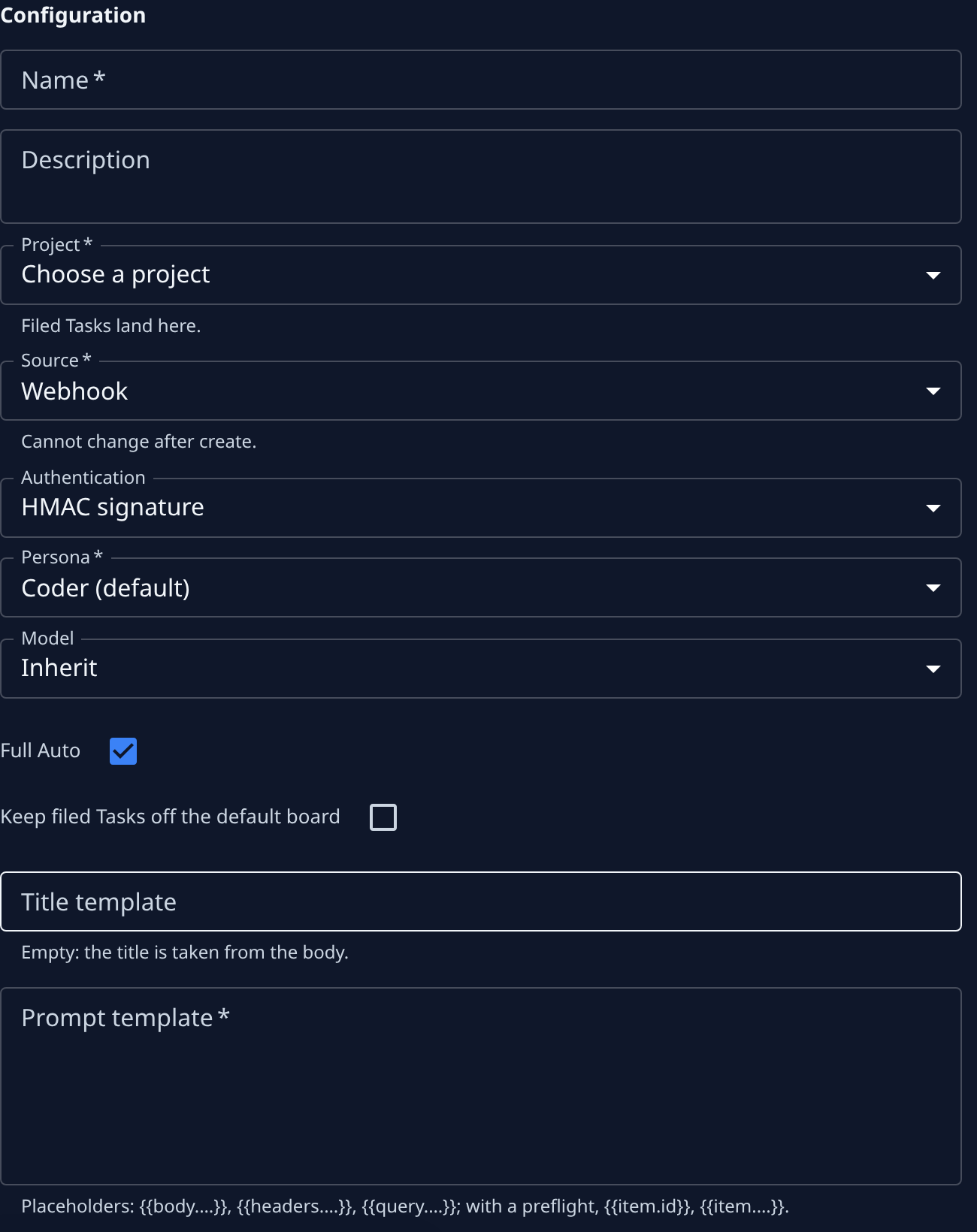
Select +. The New trigger page opens on its Configuration section.
-
Enter a Name you'll recognize in the list, and optionally a Description.
-
In Project, pick the project the filed tasks land in.
-
Leave Source on Webhook. It can't be changed after the trigger is created.
-
In Authentication, choose how the calling system proves it's allowed: HMAC signature (it signs each call with the secret) or Bearer token (it sends the secret itself). Use whichever the other system supports.
-
Check Persona, the kind of expert each task runs as, and leave Model on Inherit unless these tasks need a particular model. Leave Full Auto ticked for tasks that should run unattended. Tick Keep filed Tasks off the default board to keep them out of view.
-
Write the Prompt template: what each task should do, exactly as you would describe a task. Insert parts of the call with placeholders, such as
{{body.message}}for amessagefield in its body. Optional: a Title template in the same form; empty, the title is taken from the body. -
Optional: set a Preflight to decide whether to file a task at all, and the Limits that cap how many tasks it files. See What happens to each delivery.
-
Select Create.
Store the secret and connect the other system
- A dialog, Store this secret now, shows the trigger's secret. Select Copy secret, keep it somewhere safe, then select I’ve stored it. Jaah never shows it again: if you lose it, use Rotate secret on the trigger's page to get a new one.
- The trigger's page opens. Under Setup, select Copy URL to copy its address. The line under it says how each call must carry the secret.
- In the other system, set the webhook to call that address with the secret, the way Setup says.
Test it before the first real event
- On the trigger's page, go to the Test section.
- Paste an example of what the other system sends into Sample payload.
- Select Test. The Title and Body show the task it would file. Nothing is filed.
- Read the line under them: Every placeholder had a value., or Missing paths: naming the placeholders the sample doesn't fill. Fix the template under Configuration and select Save.
Each real call then shows under Deliveries, with whether a task was filed. If calls start failing, the trigger's Health changes, as explained in How triggers work.
To file tasks on a timer instead, see Create an automation schedule. The tasks a trigger files work like any other: see How tasks work.