Your organization
Your organization's page brings together the settings that apply to everyone in it: who holds a role across the whole organization, what role a person gets when they join through your email domain, and how members sign in.
Open it from the sidebar: select Directory, then the Orgs tab. The tab appears only to an Org Owner or Org Admin, and it opens your own organization's page directly.
The page header shows your organization's name and its slug — the short, fixed name Jaah uses for it in links. The page has three tabs: Access, Domains and Sign-in.
Access

Access lists every person and group that holds a role across the whole organization. A role granted here applies everywhere in the organization, not just to one project.
| Column | Meaning |
|---|---|
| Member | The person or group. A group shows how many members it has; select + to list them. Select Member to sort by it. |
| Role | The role held, for example Org Owner or Org Admin. Select Role to sort by it. |
| Source | Where the role comes from. Direct means it was granted here. |
| Expires | When the role ends, or Never. |
| Last active | When the member last used Jaah. Select Last active to sort by it. |
Type in Filter to narrow the table to matching names.
Add and Remove appear only if you may manage access in your organization.
Add access
Select Add.
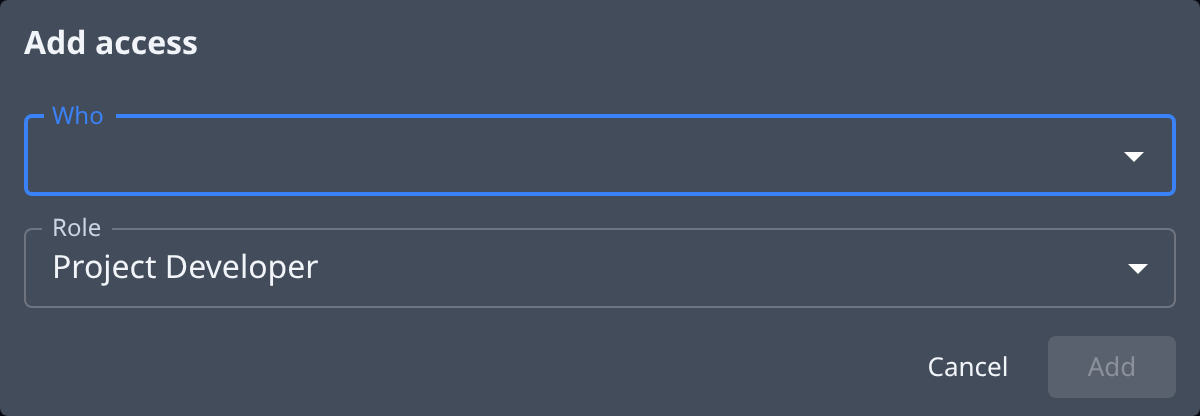
- In Who, pick one or more people or groups from your organization.
- Pick the Role. The list shows each role with a short description.
- Select Add.
A role granted here does not expire.
Remove access
Select Remove on a row. The Remove access dialog names the member and the role, and warns that they — or, for a group, its members — lose the access this grant gave them. Select Remove to confirm.
To grant a role on a single project instead, use a group's bindings: see Groups.
Domains
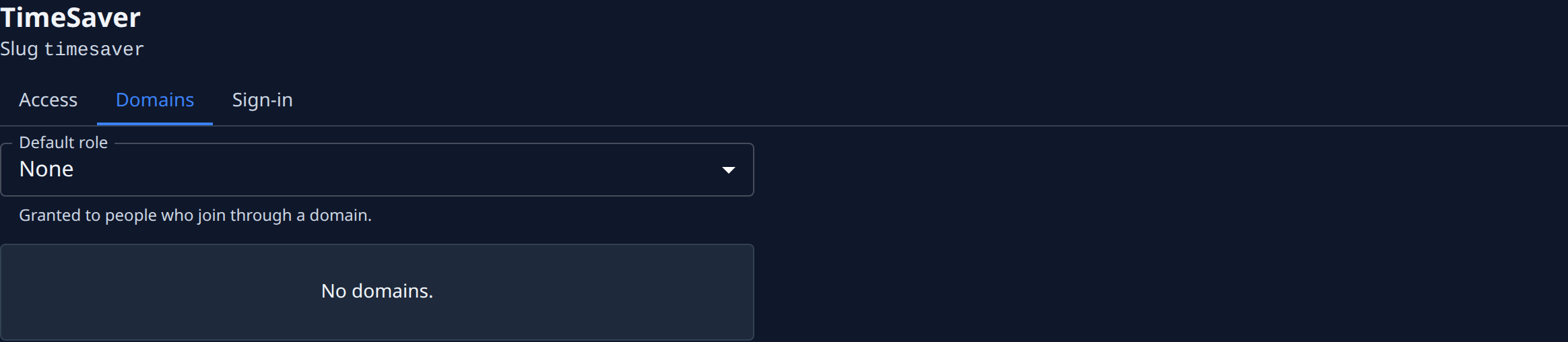
| Item | Meaning |
|---|---|
| Default role | The role given to people who join through one of your organization's email domains: None, Project Viewer or Project Developer. Pick a new role and it saves at once; the hint under it then says Saved. |
| Domain list | The email domains that let people join your organization. No domains. means none is set up. |
Adding or removing a domain is done by the operator; ask them for a change.
Sign-in
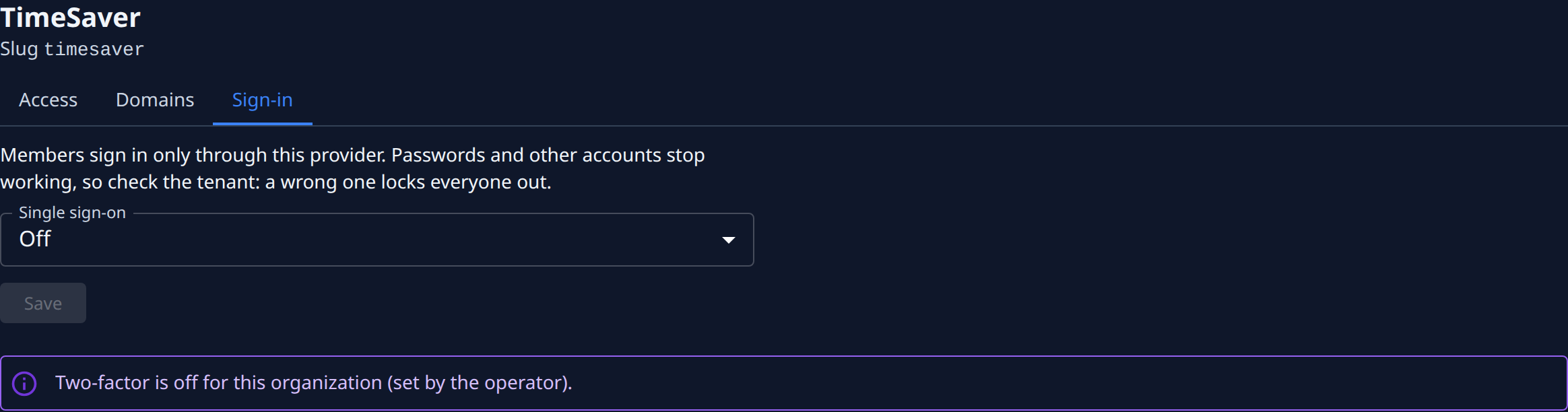
Single sign-on chooses how members sign in:
| Option | Meaning |
|---|---|
| Off | No single sign-on. |
| Google Workspace | Members sign in only through Google. Enter your Workspace domain. |
| Microsoft Entra ID | Members sign in only through Microsoft. Enter your Entra tenant ID. |
When a provider is chosen, This provider enforces MFA for every member appears. Until you tick it, members also enter an authenticator code after signing in. Tick it only if your provider already asks every member for a second factor; saving records you as the one who confirmed it, and members then skip the code. Then select Save.
Turning single sign-on on means passwords and other accounts stop working. Saving a new provider, domain or tenant, or clearing the MFA tick box, signs every member out, you included; the page warns Saving signs every member out, you included. before you save. Check the domain or tenant before you save: a wrong one locks everyone out.
If the operator has turned two-factor off for your organization, a notice says so: Two-factor is off for this organization (set by the operator).