Groups
A group is a set of people in your organization. The roles a group holds apply to every member, so you grant access once, to the group, instead of to each person.
Open it from the sidebar: select Directory, then the Groups tab.
Anyone who can view groups sees the list and each group's details. Creating, changing and deleting groups requires the org admin role; without it, Create Group, the save buttons and the ⋯ menus don't appear and every field is read-only.
The list

Each row shows, from left to right:
| Item | Meaning |
|---|---|
| Round mark | Filled: the group holds at least one role. Hollow: it grants nothing yet. Hover it to see how many roles it grants. |
| Name | The group's name. |
| Description | What the group is for, or — when none is set. Long text is cut short; hover it to read all of it. |
| Number | How many people belong to the group. |
| ⋯ | The row menu. See Delete a group. Requires the org admin role. |
Every organization has an Everyone group. Every user of the organization belongs to it.
Select a row to open that group. See A group's details.
Create a group
Select Create Group. Requires the org admin role.
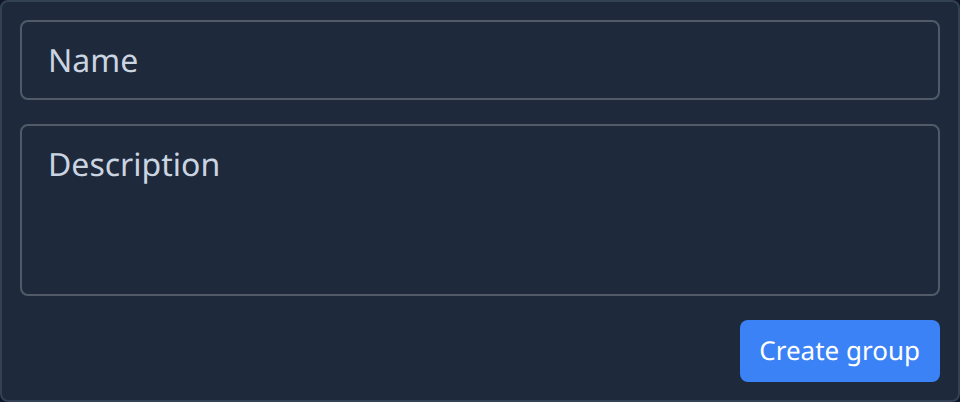
| Field | Meaning |
|---|---|
| Name | Required. Up to 64 characters. |
| Description | Optional. What the group is for. |
Select Create group. The group opens, and you can add its members and bindings. The Members and Bindings tabs stay empty until you create the group.
Delete a group
Select ⋯ on a row, then Delete. Requires the org admin role.
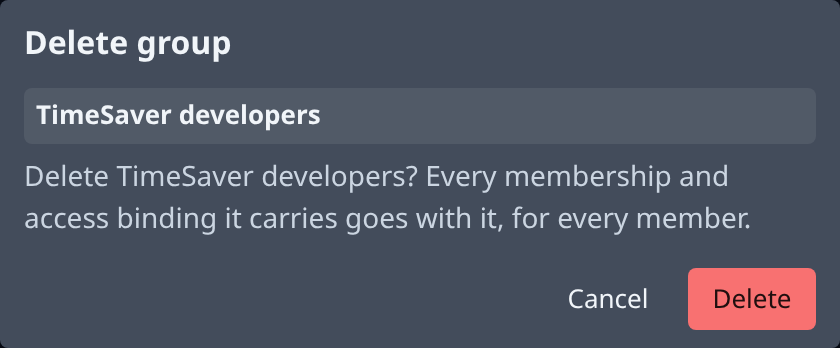
Deleting a group removes every membership and binding it carries, for every member. Select Delete to confirm, or Cancel to keep it.
A group's details
Select a row to open the group. It opens in a pane beside the list. The tabs are Details, Members and Bindings.
Details
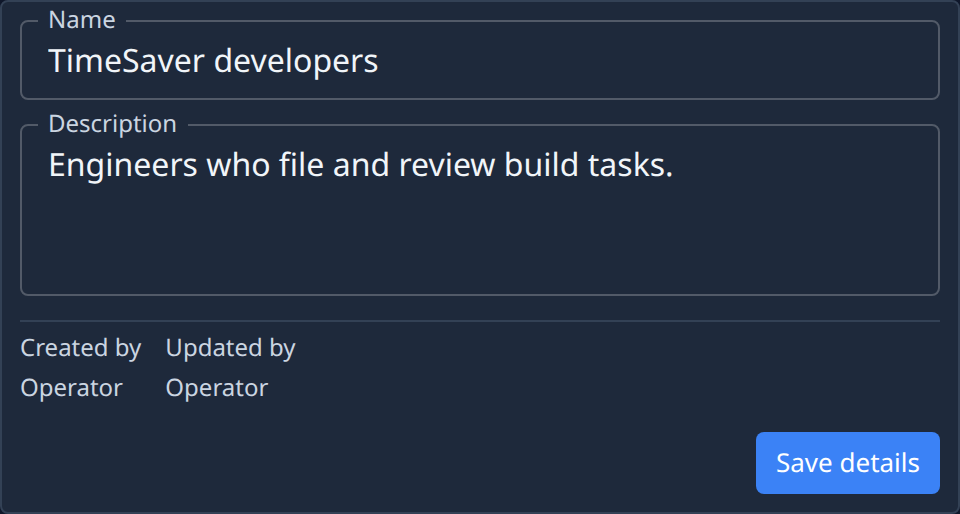
| Field | Meaning |
|---|---|
| Name | The group's name. |
| Description | What the group is for. |
| Created by, Updated by | Who created the group and who last changed it. System means Jaah made it. |
Select Save details to save. Requires the org admin role.
Members
The people in the group.
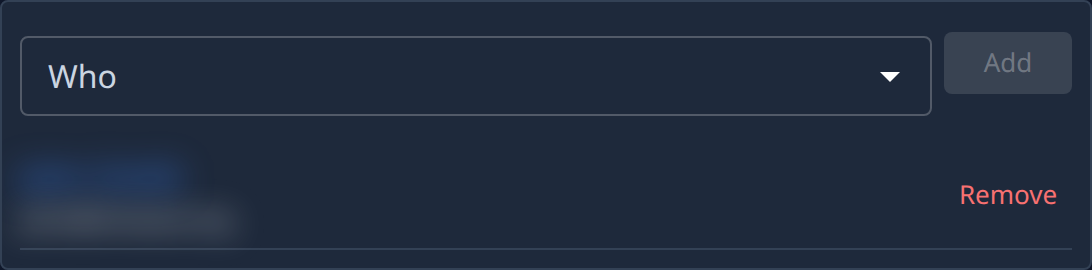
- To add people, pick them in Who, then select Add. Only people in your organization can be added; a group can't belong to another group.
- To take someone out, select Remove on their row and confirm. They lose every role the group holds.
- Select a name to open that person on the People page. See People.
You can't change the members of Everyone. It always holds every user of the organization, and Jaah adds and removes them automatically.
Adding and removing members requires the org admin role.
Bindings
The roles the group holds, and where. Each member gets them through the group.
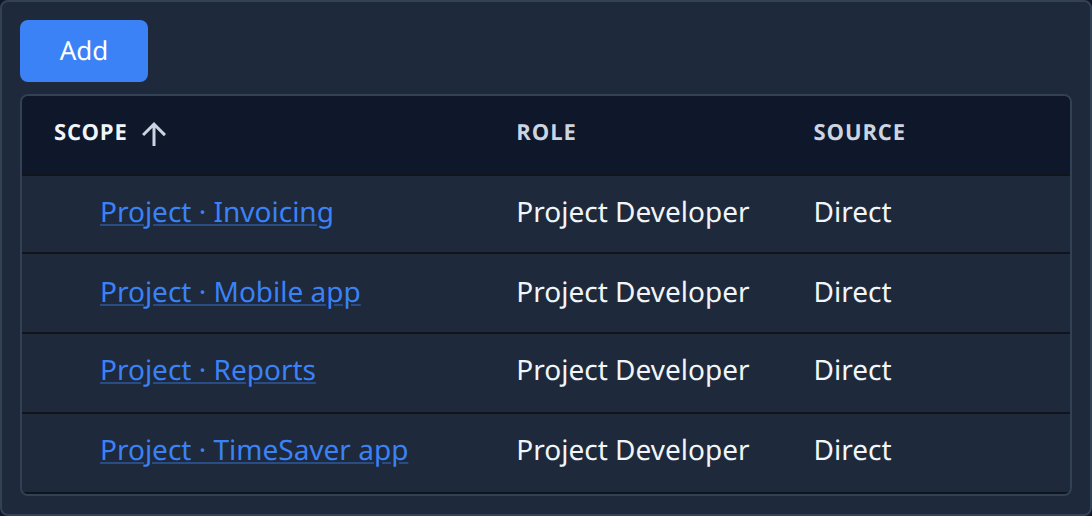
| Column | Meaning |
|---|---|
| Scope | What the role applies to, for example the organization or one project. Select it to open that item. |
| Role | The role the group holds there, for example Project Developer. |
| Source | How the group holds it. Direct means the role was given to this group. |
Select Scope or Role to sort by it.
To give the group a role, select Add:
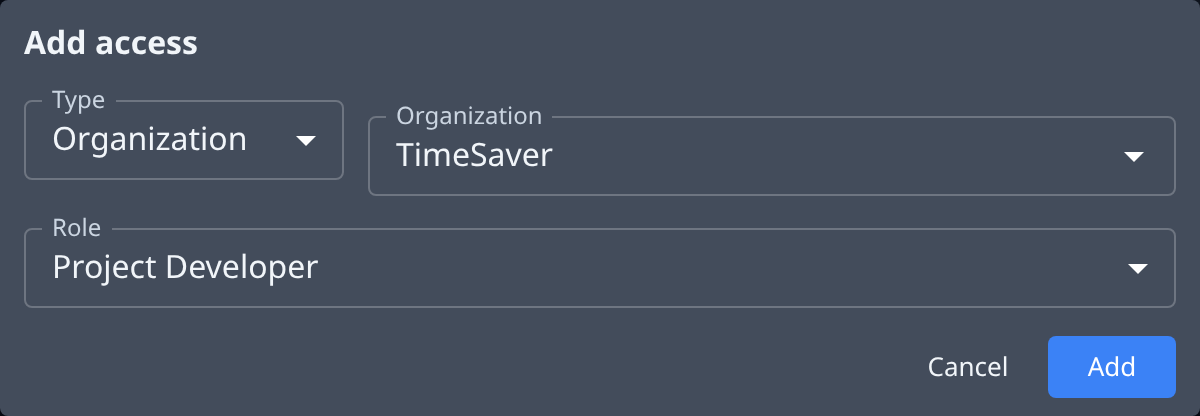
- Pick the Type of thing, for example Organization, then the thing itself.
- Pick the Role.
- Select Add.
Add appears only if you may manage access in your organization.