People
The People page lists every account in your organization. Open it from the sidebar: select Directory, then the People tab.
Anyone who can view users sees the list and each user's details. Creating, changing and deleting users requires the org admin role; without it, the buttons and the ⋯ menus don't appear and every field is read-only.
The list

Each row shows, from left to right:
| Item | Meaning |
|---|---|
| Round mark | Filled: the person has signed in and activated the account. Hollow: invited, not accepted yet. |
| The address the person signs in with. (you) marks your own account. A Disabled tag means the account can't sign in; a Declined tag means the person turned the invitation down. | |
| Name | The account's display name, or — when none is set. |
| Number | How many groups the account belongs to. Hover it to see them. |
| standard or admin | Whether the account holds admin access. |
| ⋯ | The row menu. See Row menu. Requires the org admin role. |
Select a row to open that user. See A user's details.
Add a user
Select Add user. Requires the org admin role. The New user page opens in two steps.
Step 1: Details
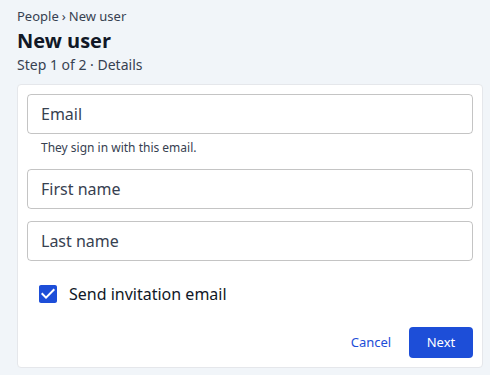
| Field | Meaning |
|---|---|
| Required. The person signs in with this address. | |
| First name, Last name | Optional. The person's name. |
| Send invitation email | On by default. Emails the person an invitation to join. |
An operator also picks the Organization the user belongs to. It can't be changed later.
Select Next.
Step 2: Access
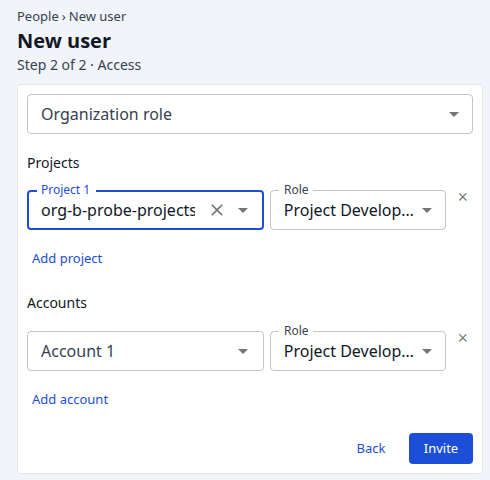
| Field | Meaning |
|---|---|
| Organization role | None, Org Admin or Org Owner. Org Owner is offered only to an Org Owner or an operator. |
| Projects | Select Add project for a row, then pick the project and its Role, Project Developer by default. × removes the row. |
| Accounts | Select Add account for a row, then pick the model account and its Role. |
Back returns to step 1 and keeps what you typed. The last button reads Invite when Send invitation email is on, else Create.
The People list opens with a line saying whether the invitation was sent, and naming any role that wasn't granted. If email isn't set up or the invitation fails, the user is still created; send it again from the row menu.
The new person shows a hollow round mark until they accept the invitation. Roles you grant apply the moment they accept.
Row menu
Select ⋯ on a row. Requires the org admin role.
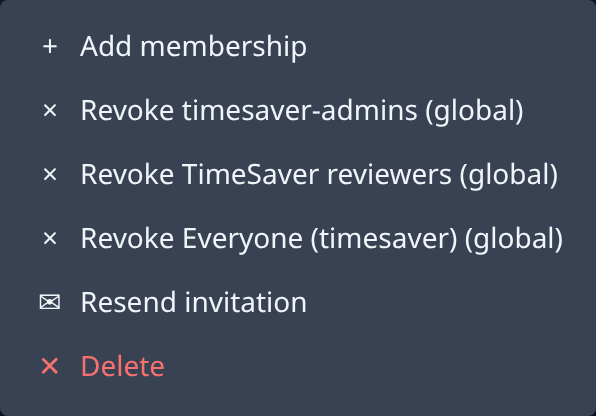
| Item | What it does |
|---|---|
| Add membership | Adds the account to a group. Pick the Group, then select Add. |
| Revoke group | One item per group the account belongs to. Removes the account from that group at once. |
| Resend invitation | Shown while the invitation is waiting. Sends the invitation email again. Greyed out for a disabled account. |
| Invite again | Shown in place of Resend invitation when the person declined. Sends a new invitation. |
| Delete | Deletes the account and all its group memberships, after you confirm. Greyed out for your own account and for the last admin; hover it to see why. |
To manage groups themselves, use the Groups tab.
A user's details
Select a row to open the user. The tabs are Profile, Access, Check access, Settings and Notifications. Access and Check access appear only on your own account, or if you have the org admin role.
Each tab that can be changed has its own save button. Saving one tab doesn't save the others.
Profile
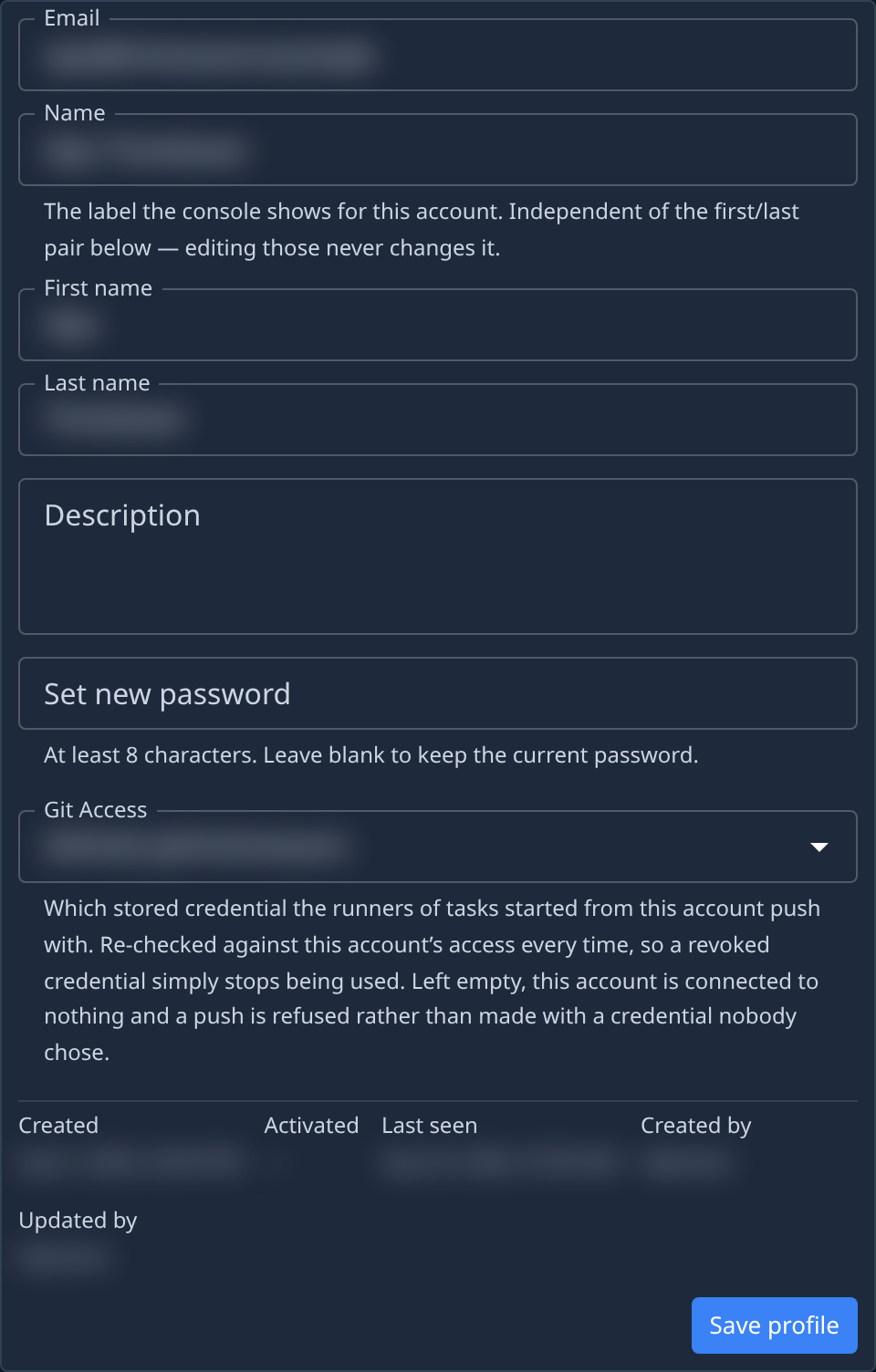
| Field | Meaning |
|---|---|
| The sign-in address. You can't change your own; contact Support to change it. | |
| Name | The label Jaah shows for this account. Editing the first and last name never changes it. |
| First name, Last name | The person's name. |
| Description | Free text about the account. |
| Set new password | At least 8 characters. Leave it blank to keep the current password. |
| Git Access | The stored credential that tasks started from this account push with. Left empty, pushes from this account are refused. |
| Created, Activated, Last seen | When the account was created, first activated, and last used. |
| Created by, Updated by | Who created the account and who last changed it. |
Select Save profile to save. Requires the org admin role.
Account and two-factor
Below the profile, a second card shows the account's state. Requires the org admin role.
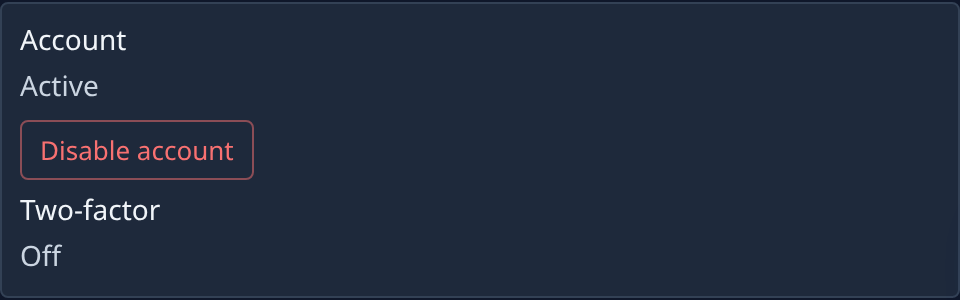
- Account: Active, Disabled with who disabled it and when, Invited — hasn't accepted
yet, or Declined the invitation.
- Disable account signs the person out and stops them signing in, after you confirm.
- Enable account lets them sign in again.
- You can't disable your own account.
- Two-factor: On or Off. When it's on, Reset two-factor makes the person set it up again at their next sign-in and ends their sessions. It isn't offered on your own account.
Access
What the user holds, and how they got it.
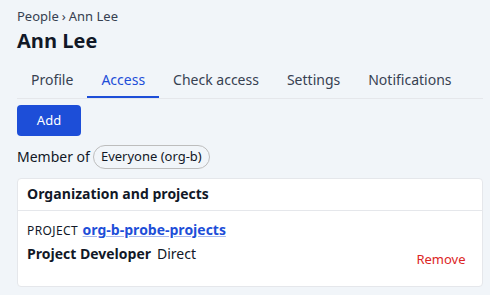
- Member of lists the user's groups.
- Organization and projects lists each role the user holds, on the organization and on each project. Each role says how they hold it: Direct, Via group name, or Inherited from the organization.
- Accounts lists the roles the user holds on model accounts.
With the org admin role, change it here:
- Add opens Add access. Pick the Type (organization, project or account), the thing itself, and the Role. A project or account role can carry an Expires date. Select Add.
- Remove on a Direct line takes that role away, after you confirm.
- A line held Via group or Inherited from the organization can't be changed here. Change it on the group or the organization.
Check access
Asks whether the user may do one thing, and why.
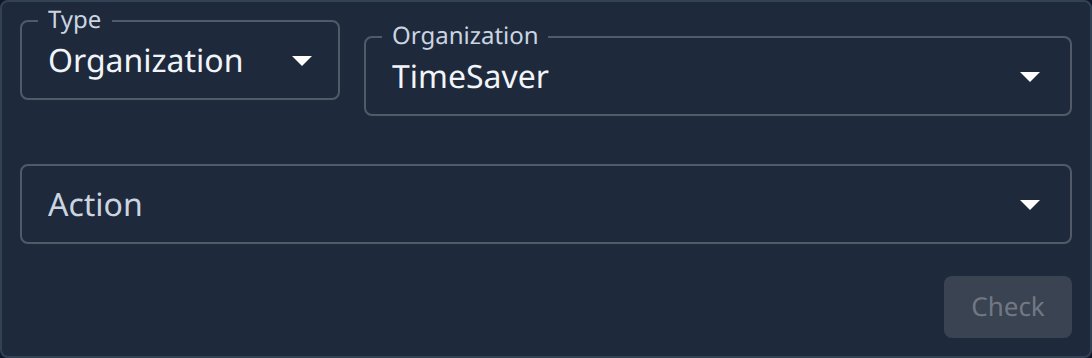
- Pick the Type of thing, for example Organization, then the thing itself.
- Pick the Action.
- Select Check. The answer says whether it's allowed, and the chain of roles and groups that allows it, or what's missing.
Settings
| Setting | Meaning |
|---|---|
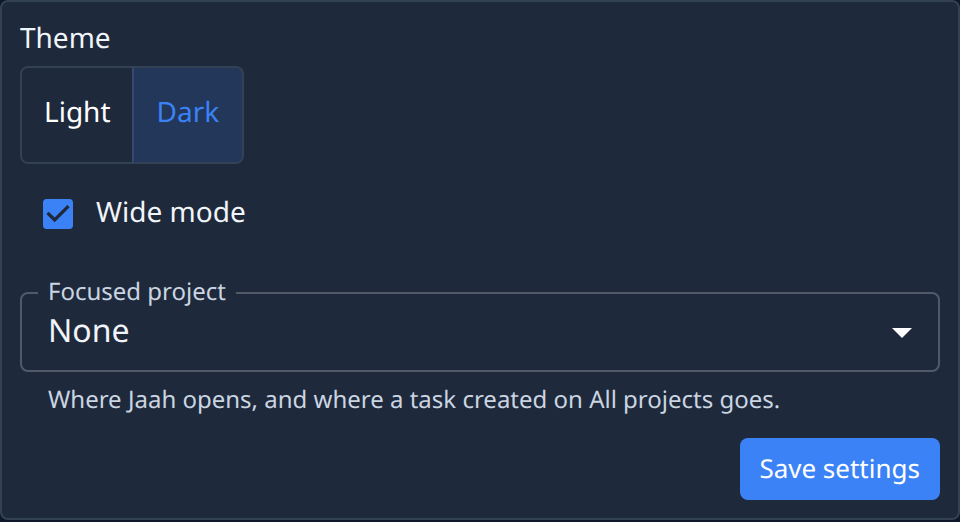
| Theme | Light or Dark. |
| Wide mode | Uses the full width of the window. |
| Focused project | Where Jaah opens, and where a task created on All projects goes. None for no project. |
Select Save settings to save. Requires the org admin role.
Notifications
Which events this user is told about, and how.
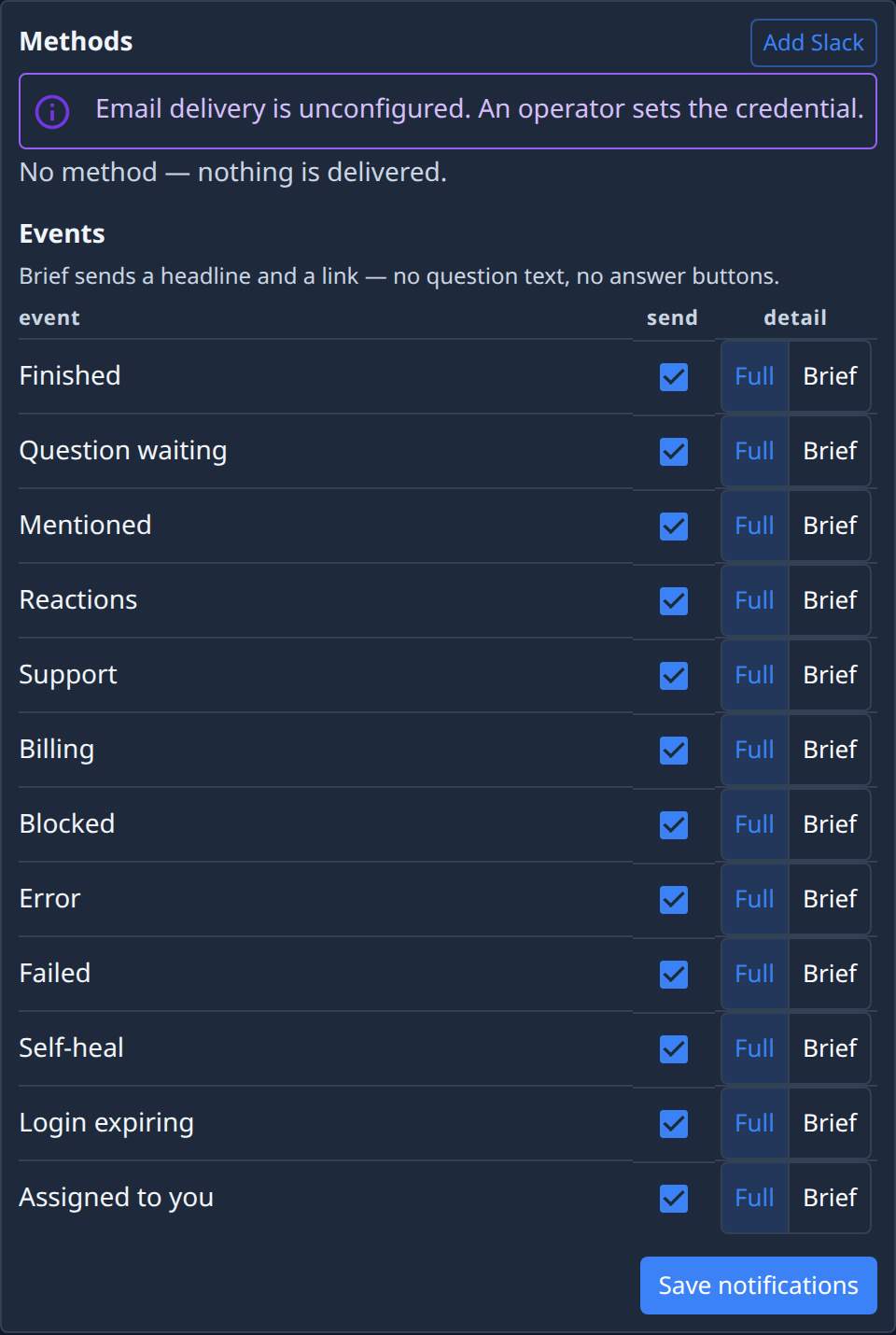
- Methods are where notifications go, for example Slack. Add Slack adds one. With no method, nothing is delivered. A note says when a channel isn't set up yet.
- Events lists each event, for example Finished, Question waiting or Mentioned.
- send turns the event on or off.
- Full or Brief sets how much it says. Brief sends a headline and a link only: no question text and no answer buttons.
Select Save notifications to save. Requires the org admin role.
To change your own settings and notifications, you can also use your profile.