Audit
Audit shows what happened in your organization: who did what, what your nodes were told to do, and what ran on a schedule. Everything here is read-only.
Open it from the sidebar: select Audit.
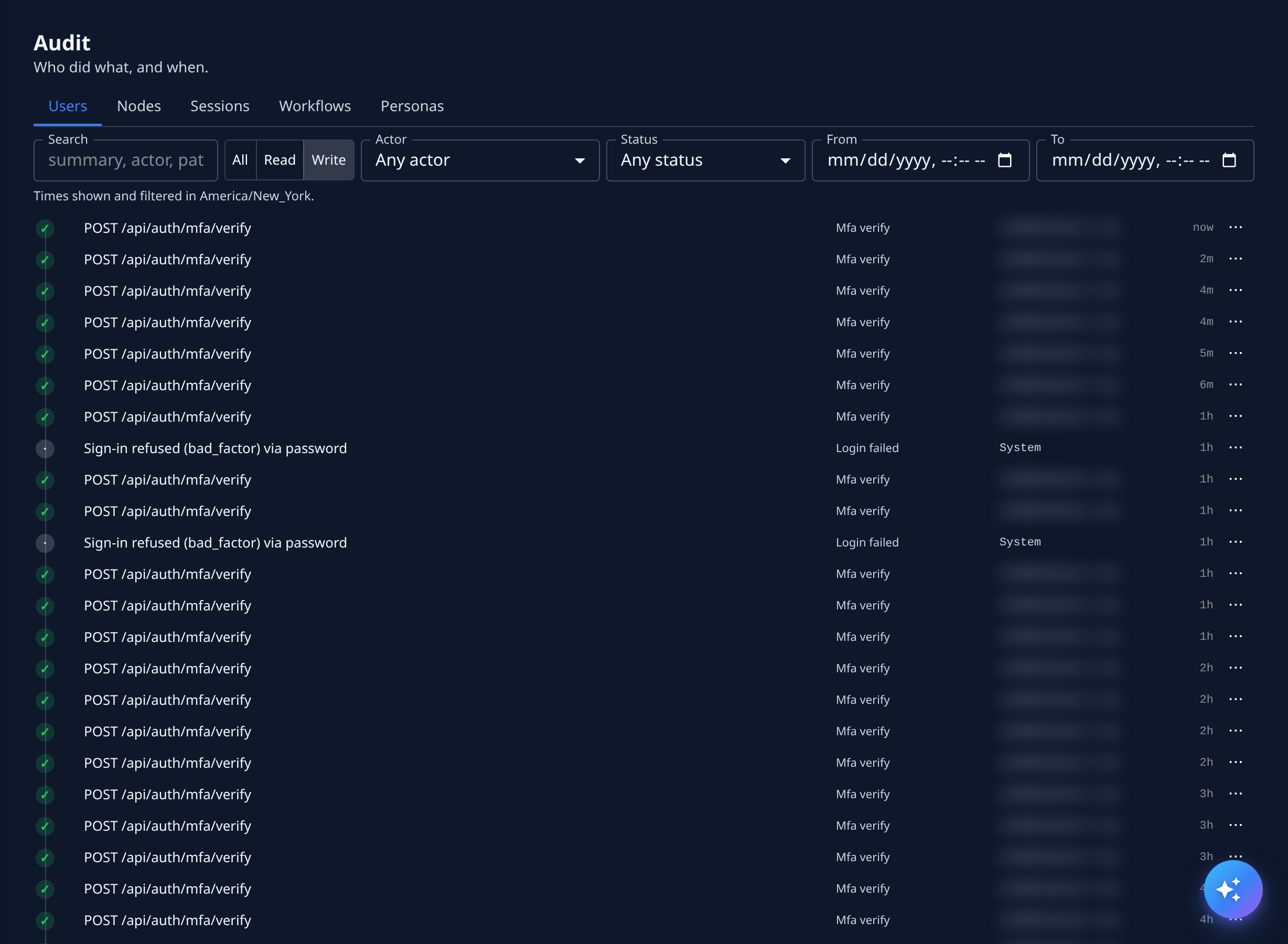
The tabs
You see only the tabs your role allows.
| Tab | What it shows |
|---|---|
| Users | Every action taken in your organization, and who took it. |
| Nodes | The commands sent to your nodes, and the queue of orders for their worktree slots. |
| Sessions | Every agent session and its transcript. See Sessions. |
| Workflows | Every firing of your scheduled activities. Shown only to Owners and Admins of your organization. |
| Personas | Every role an agent can be given on a task. Shown to anyone who can create tasks. |
Each tab has its own address, so a bookmark or a shared link opens the same tab. Times are shown, and filtered, in your time zone; the line under the filters names it.
Users
The heading reads Who did what, and when. Each row is one action.
| Filter | What it does |
|---|---|
| Search | Narrows the list to rows whose summary, actor, path or kind contains what you type. |
| All / Read / Write | Shows every action, only reads, or only changes. |
| Actor | Shows only one person's actions. |
| Status | Shows only actions that ended with one result, such as 200 OK or 403 Forbidden. |
| From / To | Limits the list to a time range. |
Each row shows a mark for how the action ended, what was done, the action's name, who did it and how long ago. Rows the task pipeline wrote one after another are folded into one row; select it to see them all.
An action's details
Select a row, or Details in its ⋯ menu, to open its details.
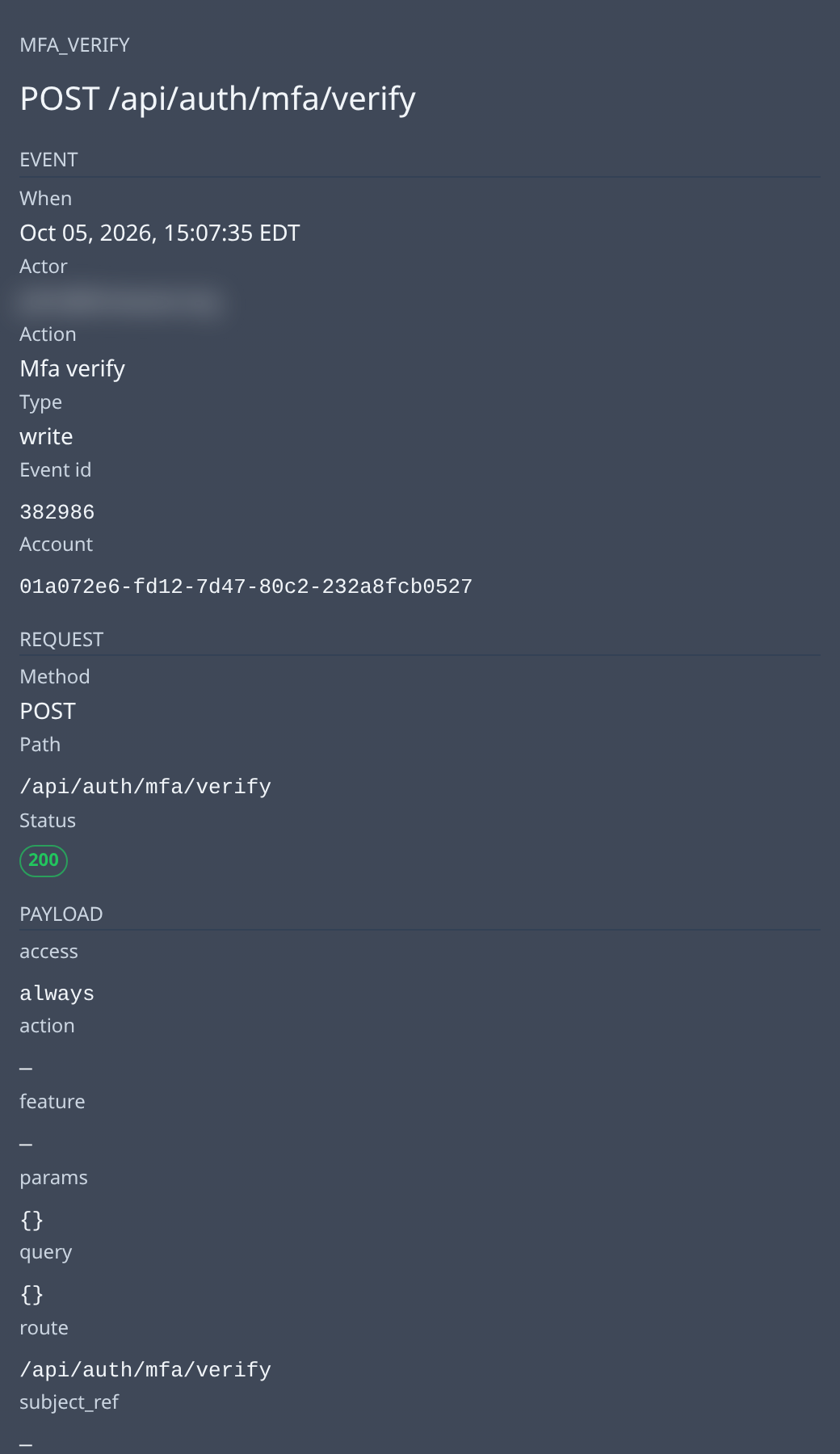
| Section | What it shows |
|---|---|
| Event | When it happened, the Actor, the Action, its Type (read or write), the Event id and the Account. |
| Request | The Method, the Path and the Status it ended with. |
| Payload | Each field the action recorded. |
| Full payload (JSON) | Select it to see everything recorded, as JSON. |
Select Close to go back to the list.
Empty states
| Message | Meaning |
|---|---|
| Nothing has been captured yet | No action has been recorded. |
| No activity matches these filters | No row matches your filters. Select Clear filters to see them all. |
| Could not load the activity log | The list couldn't be read. Nothing was changed. Select Retry. |
Nodes
The Nodes tab has two parts: Commands and Slot Intents.
Commands
The heading reads Every command a node was told to run.
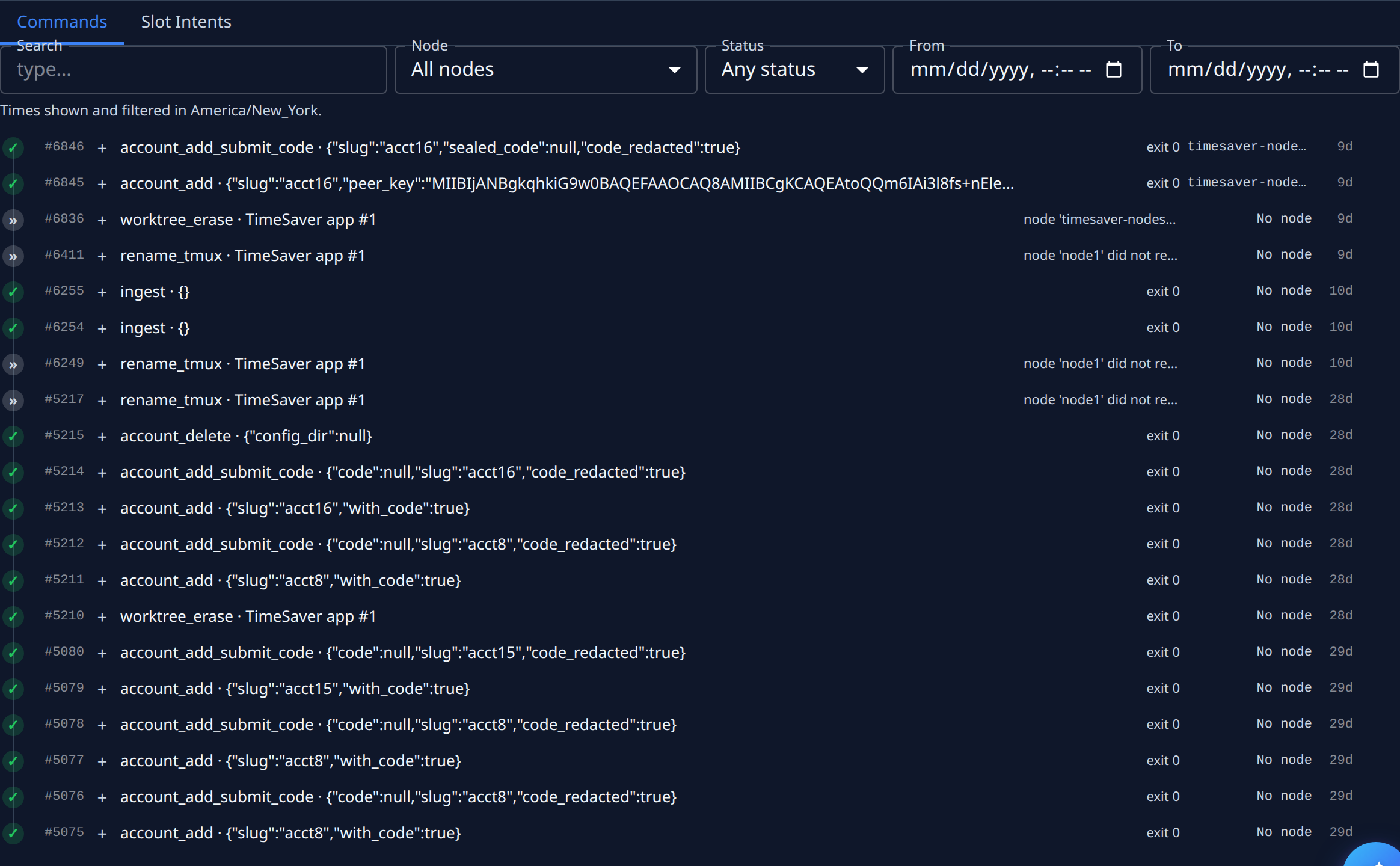
| Filter | What it does |
|---|---|
| Search | Narrows the list to commands of the type you type. |
| Node | Shows only one node's commands. |
| Status | dispatched, done, failed or rejected. |
| From / To | Limits the list to a time range. |
Each row shows a mark for its status, the command's number, its type and target, its result (such as exit 0, or why it failed), the node it ran on and how long ago it was sent. Select + on a row to see the command's arguments and result.
| Message | Meaning |
|---|---|
| No commands yet | No command has been sent to your nodes. |
| No matching commands | No command matches your filters. |
Slot Intents
The heading reads Every order standing against a pool slot — the wedge detector. An order asks a node to do something to one worktree slot. A healthy queue is nearly empty, so an order that has waited for minutes is stuck.

Use Node at the top to look at one node. The counts under it are:
| Count | Meaning |
|---|---|
| Pending | Orders still waiting to be carried out. |
| Due now | Pending orders the node should take next. |
| Withheld | Pending orders held back for now. |
| Refusing | Pending orders the node has refused at least once. |
| Oldest pending | How long the oldest pending order has waited. |
Below the counts are two lists:
- Pending — the waiting orders, with a count By verb for each kind of order.
- Recently retired — orders that finished, with a count of their Outcomes. Failed orders are removed after a set time, which the note above the list states. Completed ones are kept.
A red banner appears when an order was refused until it gave up. Nothing will clear such an order on its own; each row names its node and slot. A yellow banner appears when pending orders have been refused.
| Message | Meaning |
|---|---|
| Queue empty — nothing is stuck | No order is waiting. |
| Nothing retired in the retention window | No order finished in the time the list keeps. |
| Nothing matches these filters | No order matches your filters. |
Workflows
The heading reads Every firing of every cron, including the ones that never arrived. Each row is one time a scheduled activity was due to run. To create or change a scheduled activity, see Schedule.

| Filter | What it does |
|---|---|
| Cron | Shows only one scheduled activity's firings. |
| Outcome | Shows only firings that ended one way. |
| Outcome | Meaning |
|---|---|
acted | It ran and did its work. |
noop | It ran and had nothing to do. |
skipped | It didn't run this time. |
missed | It was due but never fired. |
error | It failed. |
A row names its activity and, when the firing started a task, links to that task.
When the list is empty it says No firings recorded. Each scheduled activity's setting decides which firings are kept, so an empty list doesn't mean nothing ever ran.
Personas
The heading reads Every role a fleet runner can be dispatched as. Each row is one persona.
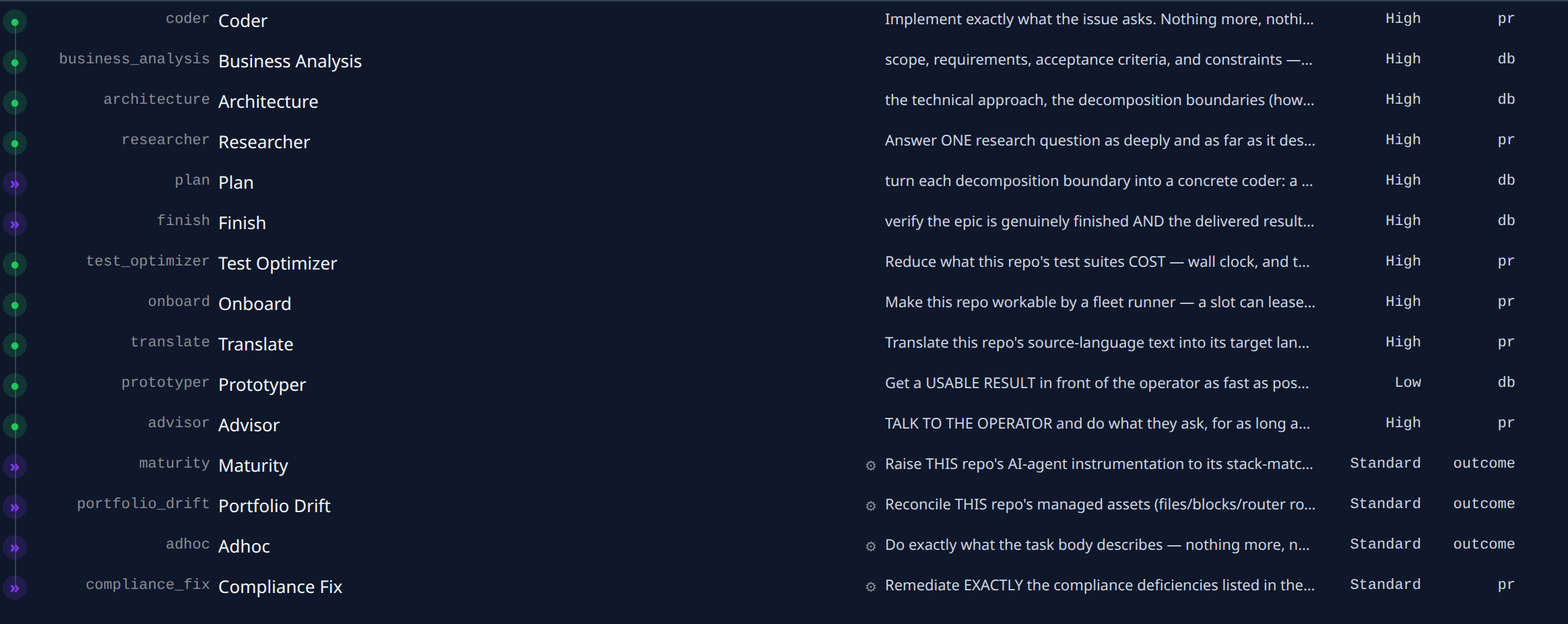
| Item | Meaning |
|---|---|
| Mark | Green ●: you can pick it when you create or edit a task. Purple »: only the task pipeline uses it. |
| Short name and name | The persona, such as coder and Coder. |
| ⚙ | A persona the system itself runs. |
| Summary | What the persona is for. |
| Model tier | The model tier it uses by default, such as High, Standard or Low. |
| Result | What it delivers: pr (a pull request), db (a document) or outcome (a reported outcome). |
Select a row to open the persona's page. See Persona details.