Chat with the advisor
A chat is for a question rather than a change: how to approach a feature, what a part of your project does, or what the smallest first step would be. The advisor reads the project you pick and talks it through with you, turn by turn, until you end the chat.
Who can do this: starting a chat needs permission to create tasks and edit access to the project's worktrees. Without them, the board doesn't offer Chat.
Start a chat
-
In the sidebar, select the project your question is about.
-
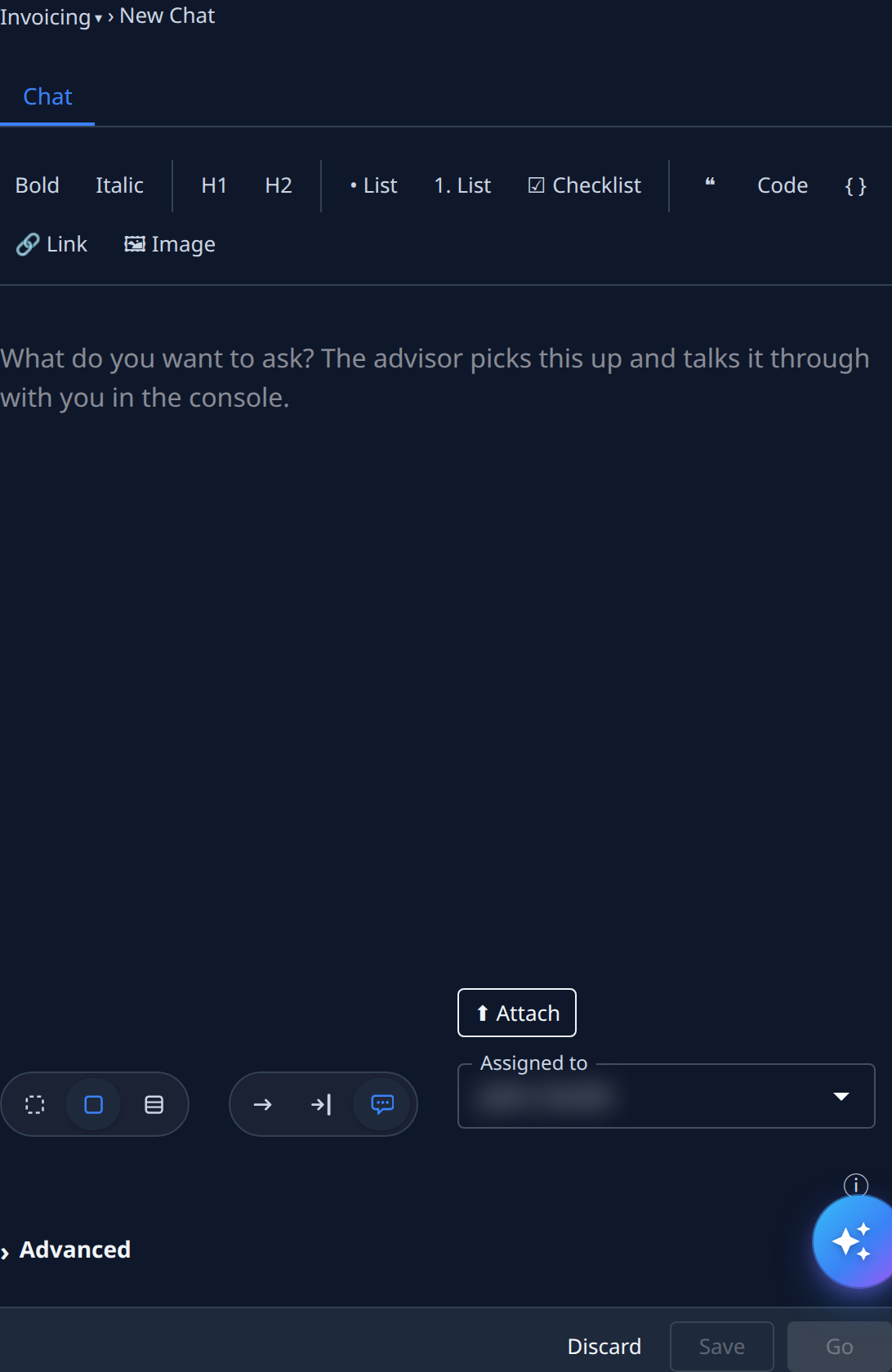
On the board, select ▼ beside +, then Chat. The new chat opens beside the board.
-
In the description box, type your question. Add the context the advisor needs: what you're trying to decide, and anything you've already ruled out.
-
Optional: select Attach to add screenshots or documents.
-
Select Go. The chat is saved and started.
From the board's one-line row
- Select the row Type a task and press Start… under the board's toolbar.
- Type
Chat:at the start. The row shows a Chat chip and asks Ask the advisor and press Enter…. - Type your question after it.
- Press Enter. The chat is saved and started.
Talk it through
- Wait for the chat to show a ? on the board, in the Stopped section, with the state Asking. That means the advisor has answered and is waiting for you.
- Select the chat to open it.
- Open its ⋯ menu and select Web Console. The conversation opens.
- Read the advisor's answer and type your reply.
- Keep going for as long as you need. The chat stays open between your replies.
When you have what you need, end the chat: see Finish a chat.
Related
- New chat — every part of the new chat form.
- How chat works — a chat's lifecycle, and from a chat to a task.
- How tasks work — how a chat differs from other tasks.