New chat
A chat is a task run by the advisor: instead of building something on its own, it talks a question through with you. The new chat form opens when you select Chat in the ▼ menu beside + on the task board.
For the steps, see Chat with the advisor. What a chat is and when to use one is in Start a task.
How it differs from a new task
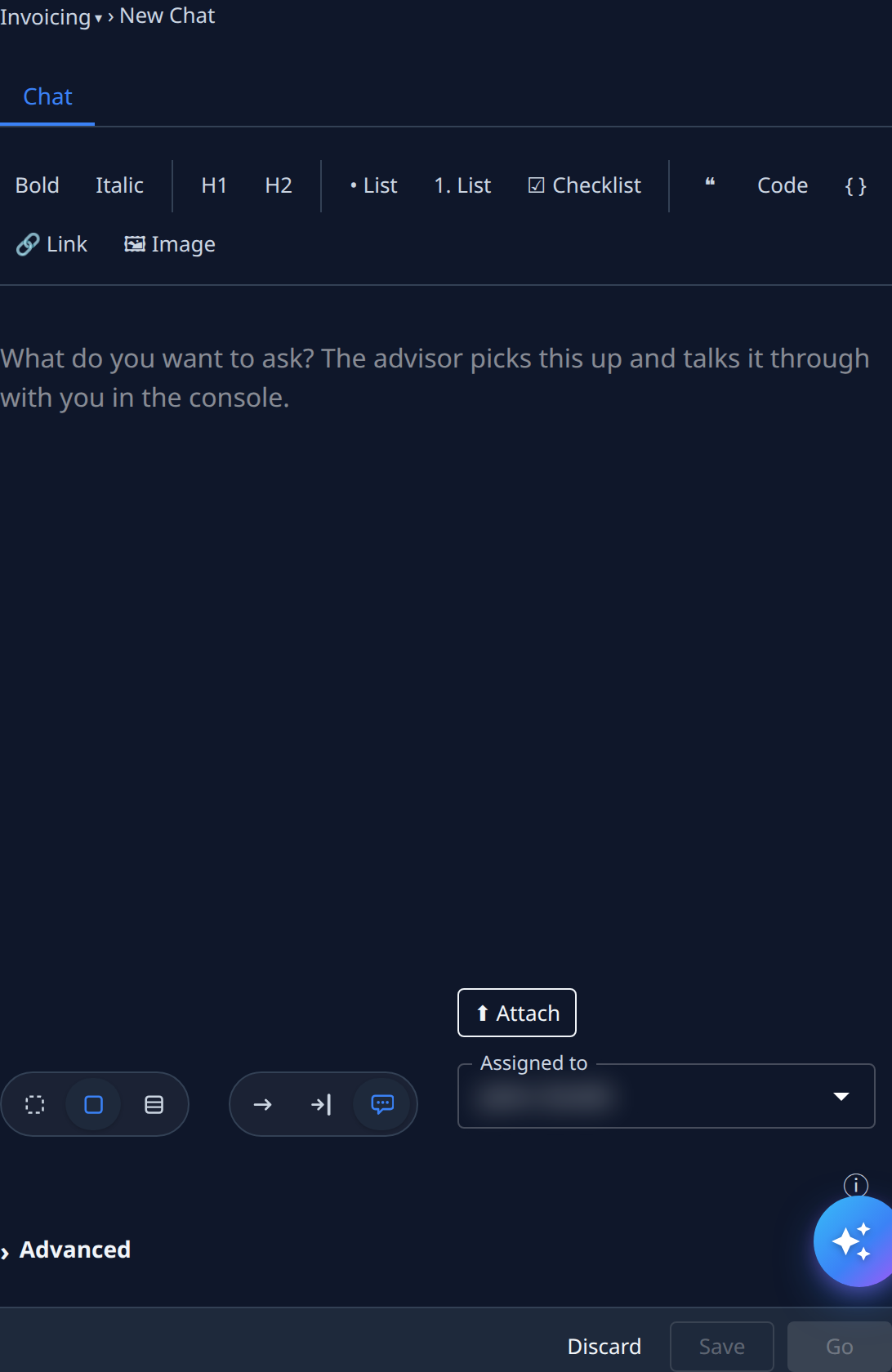
The form is the new task form with Chat selected among the involvement buttons:
| Item | In a new chat |
|---|---|
| Breadcrumb | Ends in New Chat. The project you pick is the one the advisor reads and talks about. |
| Tab | Chat instead of Task. |
| Description box | Asks What do you want to ask? The advisor picks this up and talks it through with you in the console. |
| Involvement | Chat is selected. Select Unattended or Guided to turn the form back into a new task. |
| Advanced | Has no Depends on: a chat doesn't wait on other tasks. |
Attach, Assigned to, ⓘ, Discard, Save and Go work as on a new task. Go starts the chat.
Starting a chat needs permission to create tasks and edit access to the project's worktrees. Without them, the board doesn't offer Chat.
Once the chat is running
| Where | What you see |
|---|---|
| The board | The chat shows a ? and the state Asking whenever the advisor is waiting for your next message. |
| The task's ⋯ menu | Web Console opens the conversation. You read the advisor's answers and type your replies there. |
| The task's ⋯ menu | Complete ends the chat. Until you select it, the chat stays open. |
The task page of a chat has no Answer tab: you reply in the Web Console instead.
From the board's one-line row
The row Type a task and press Start… can start a chat too. Type Chat: at the start, and the row
shows a Chat chip and asks Ask the advisor and press Enter…. Press Enter to save and start the
chat. To drop the chip and keep what you typed, press Backspace at the start of the box, or select the
chip's Remove button.