Run, pause or change a schedule
Once a schedule exists, you manage it from its own page. Open it from the sidebar: select Automation, the Schedule tab, then the schedule's row.
Who can do this: Schedule is shown only to Owners and Admins of your organization.
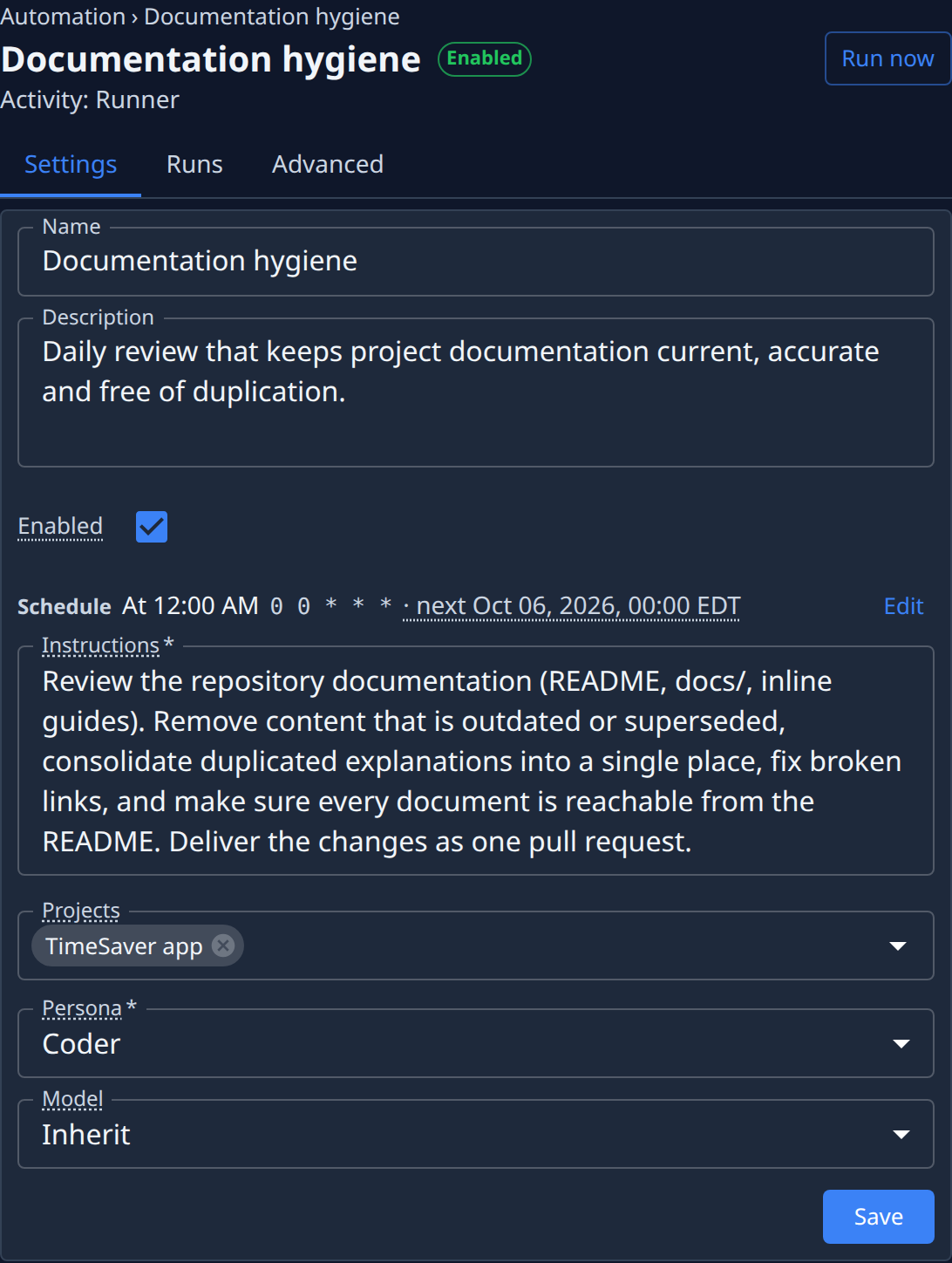
Run it now
- Open the schedule.
- Select Run now at the top right.
- Read the message that appears: Fired. The outcome lands on the Runs tab., or Not fired. and why.
- Select the Runs tab to see the firing.
- Open the task it filed from the board, as with any other task.
Run now is unavailable while the schedule is disabled: turn on Enabled first.
Pause it
- Open the schedule.
- On the Settings tab, clear the Enabled box.
- Select Save.
- Check the badge beside the name: it now says Disabled, and the list shows the row with ○.
- To resume, tick Enabled again and select Save.
A paused schedule fires nothing, but it keeps its settings and its firings.
Change what or when it runs
- Open the schedule.
- On the Settings tab, change Name, Description, Instructions, Projects, Persona or Model.
- To change when it fires, select Edit on the Schedule line, change it, and select Done.
- Select Save.
- For Hidden task, Full auto and Keep logs, select the Advanced tab, change them and select Save there.
If you leave the page with unsaved changes, it asks you first.
Read its firings
- Open the schedule and select the Runs tab.
- Find the firing: the newest are at the top. Select Load older firings for more.
- Select Open firing in its menu to see when it fired, started and finished, and how long it took.
- Select the task it filed to open that task.
- Select Close to close the firing.
No firings recorded means it hasn't fired yet, or its history was cleared. Keep logs on the Advanced tab decides which firings are kept.
Delete it
- Open the schedule and select the Advanced tab.
- Under Danger zone, select Delete cron.
- Read the confirmation: the schedule and every firing it recorded are deleted, and this can't be undone.
- Select Delete cron to confirm.
- Check the Schedule list: the schedule is gone. Tasks it already filed stay on the board.
To stop a schedule for a while, pause it instead.
Related
- Create an automation schedule — set one up.
- Schedule — every field and tab of a schedule.
- How schedules work — firings, states and how a schedule relates to tasks.