Jaah AI
The Jaah AI page is where you choose whether your organization's work runs on the Jaah AI account or on your own accounts, manage the Jaah AI balance, and read what you spend. Only Owners and Admins can open it.
Open it from Billing: on the Products tab, select the Jaah AI row. That row shows only while your organization runs on the Jaah AI account; until then, select Add product > Jaah AI. Billing at the top of the page takes you back.
The page has two tabs: Overview and Usage.
Jaah AI account
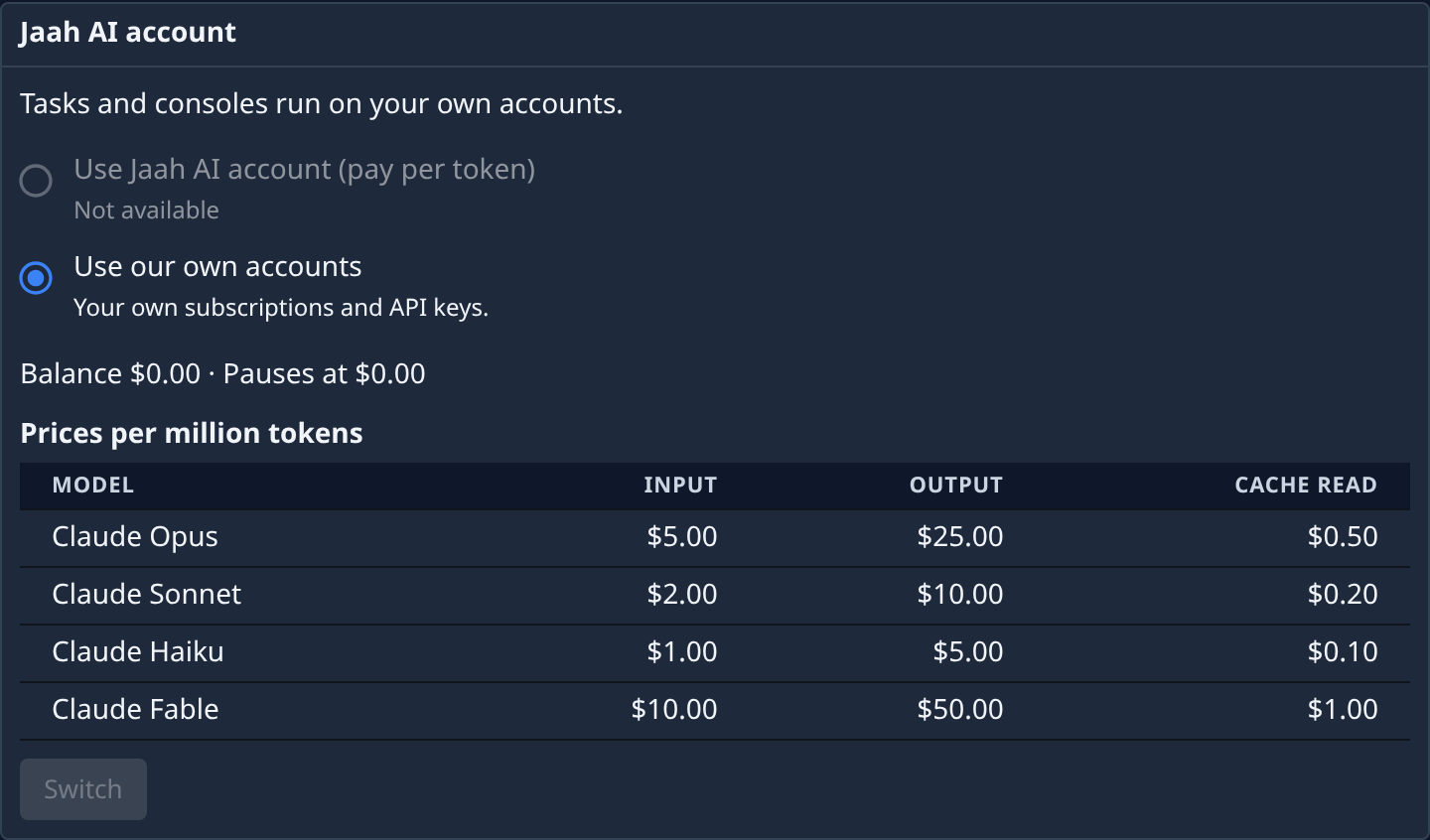
Chooses which accounts your organization's tasks and consoles run on. The first line says which one is in use now, for example Tasks and consoles run on your own accounts.
| Option | Meaning |
|---|---|
| Use Jaah AI account (pay per token) | Work runs on Jaah's AI account and is paid per token from your Jaah AI balance. |
| Use our own accounts | Work runs on your organization's own subscriptions and API keys. |
You use one or the other, never both. To change, pick an option and select Switch. Switch stays disabled until you pick the option that isn't in use.
When the Jaah AI option can't be chosen, the reason shows under it in place of the description: Not available (the Jaah AI account isn't set up for your deployment), Disabled by operator, or Jaah account unavailable. To switch to it, your balance must be above its pause point or you must have a saved card; otherwise Jaah asks you to Add a card or to ask Jaah to add credit.
Below the options:
- Balance — your Jaah AI balance, and the amount it Pauses at.
- Prices per million tokens — what the Jaah AI account charges for each model: Input, Output and Cache read tokens.
Jaah AI balance
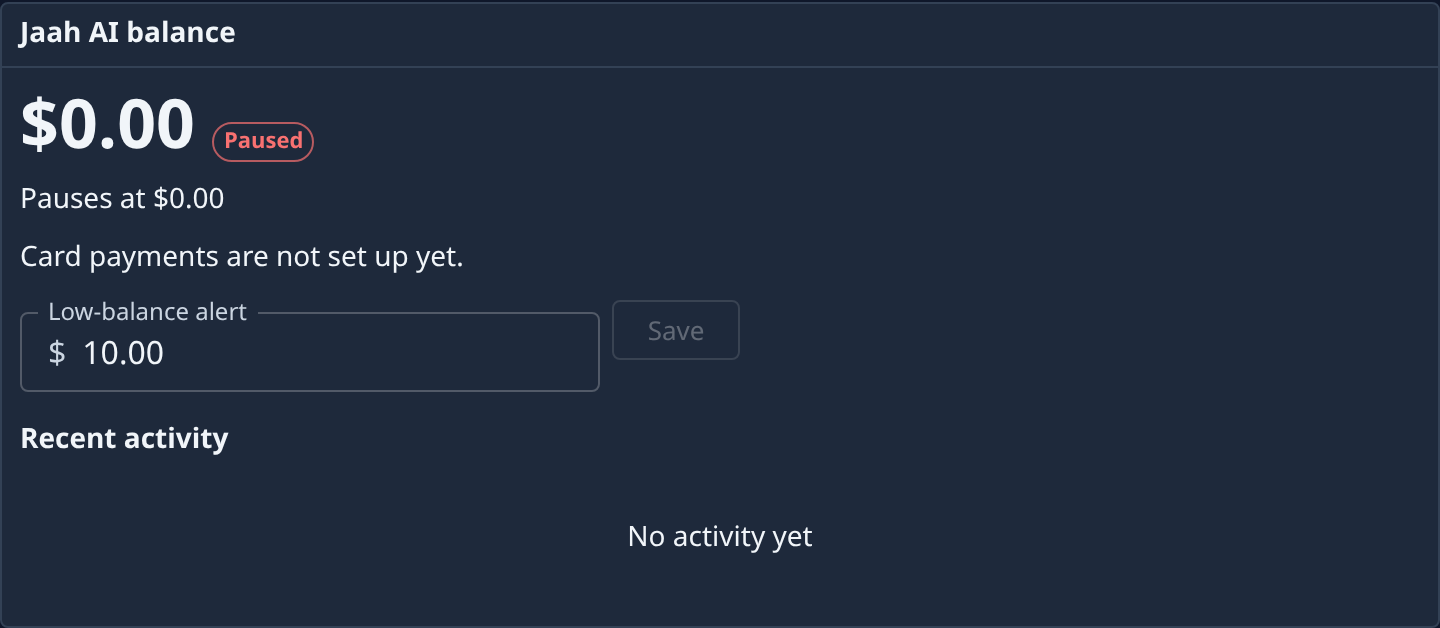
Your organization's prepaid credit for the Jaah AI account.
- The balance, in large type, with its state: Low balance when it is getting low, or Paused when it has reached the pause point. Off means the Jaah AI account isn't offered to you.
- Pauses at — the balance at which work on the Jaah AI account pauses. Jaah sets it.
- Top up — add credit, paid by card.
- Auto-recharge — turn it On, then set When balance falls to and how much to Add, and select Save. Needs a default card.
- Refund — return unspent paid credit. Turn off automatic recharge first; with none to return, it says No unspent paid credit.
- Low-balance alert — warns you when the balance falls to this amount. Enter an amount and select Save. It can't be below the pause point.
- Recent activity — credits, top-ups, refunds and usage, with their dates and amounts. No activity yet until there is some.
Usage
The Usage tab shows what your organization spent on the Jaah AI account.
-
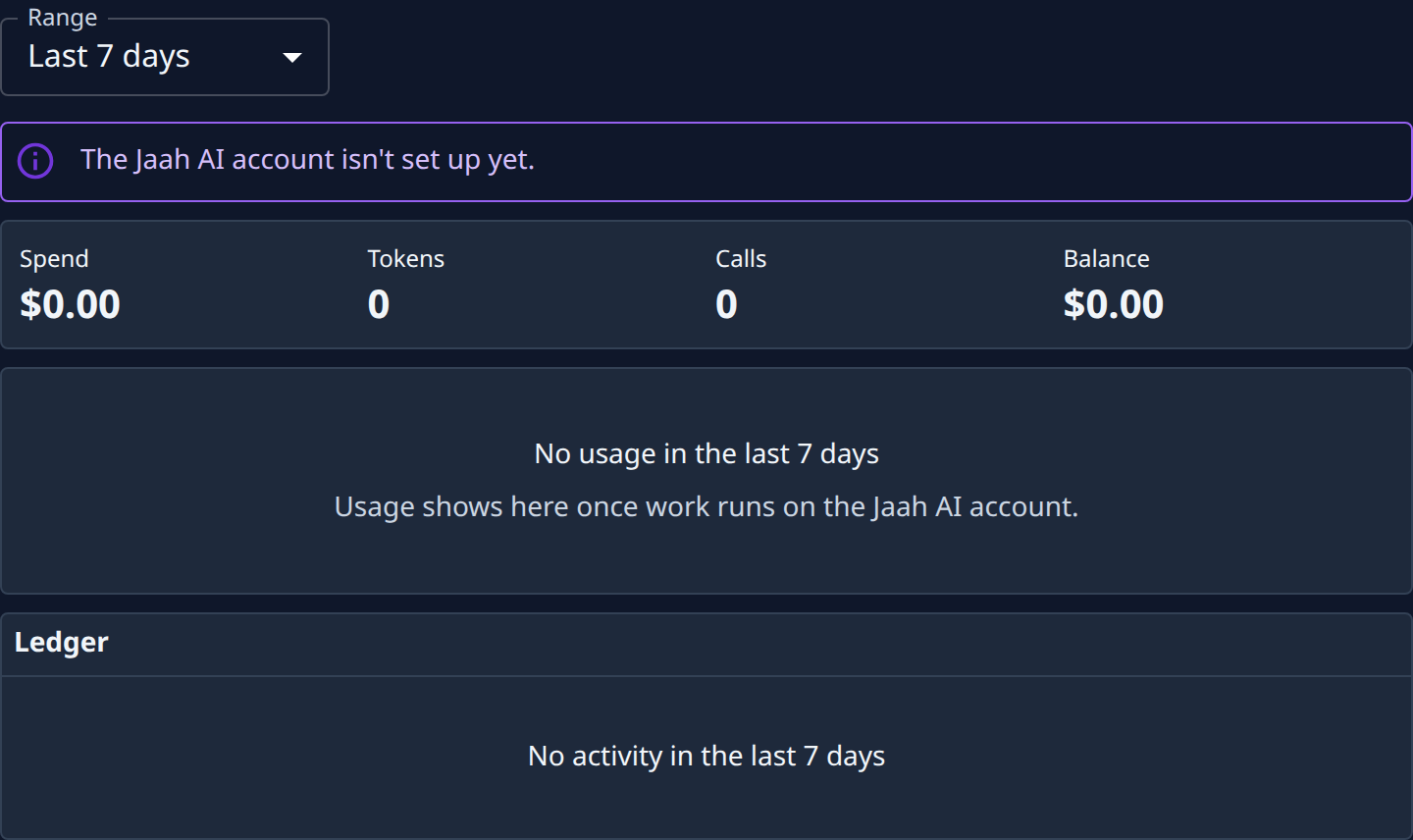
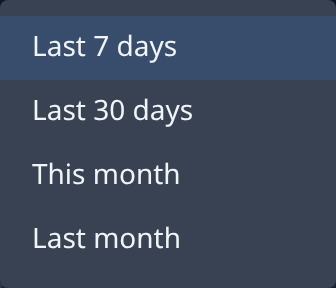
Range — the period to show: Last 7 days, Last 30 days, This month or Last month.
-
Spend, Tokens, Calls and Balance — totals for the range, and your balance now.
-
Group usage by — the spend broken down, each row with its Calls, Tokens and Spend, and a Total.
-
Ledger — every change to your balance in the range, newest first: its Date, Activity and Amount. A day's usage is one row. Show more loads older rows.
If nothing ran on the Jaah AI account in the range, the tab says so. If the Jaah AI account isn't set up for your deployment, a note says The Jaah AI account isn't set up yet.
The figures update by themselves as work runs.