Model accounts
A model account is the AI account a runner signs in as to do a task's work, for example a Claude Code subscription or an API key. The Model Accounts page lists the accounts you can see and how much of each one's quota is used.
Open it from the sidebar: select Directory, then the Model Accounts tab.
An account authenticates in one of two ways:
- Subscription (OAuth) — a person signs in to a subscription on a node. The account reports its plan's quota.
- API key — a key Jaah stores for you. No sign-in, no node and no quota: it's billed per token.
The list

Each row shows, from left to right:
| Item | Meaning |
|---|---|
| Round mark | ● available, ▲ quota nearly used up, ✕ failing, ⊘ disabled. |
| Name | The account's name. |
| + | Opens the account's details and nodes. See Nodes and details. |
| Identity | The subscription's sign-in email, or an API key chip. |
| Sessions | How many runners use the account now, and how many are busy. — when none. Hover the number to see where they run. |
| Weekly quota | How much of the 7-day quota is used, and ↻ the time until it resets. |
| Pause button | ⏸ disables the account; ▶ enables it again. Org Owners and Admins only, in a wide window. |
| Provider | The agent the account runs, for example Claude Code. |
| 5-hour quota | How much of the 5-hour quota is used. |
| ⋯ | The row menu. |
A quota cell shows — when no reading has come in yet, and n/a when the account has no quota, such as an API-key account. A ⚠ beside a figure means the reading is old.
The identity can carry these chips:
| Chip | Meaning |
|---|---|
| no key | An API-key account with no key stored. |
| no credentials | The account has never been signed in. |
| shared | The account's sign-in is kept on the shared volume, so any node that may use shared accounts can run it. |
| explicit only | Auto-assign is off: the account runs only tasks that pick its provider. |
| re-login in time | The sign-in expires soon. |
A second ● in a row means one of its nodes needs attention, such as a sign-in. Hover it to see which.
When you can see no account, the page says No runner accounts visible and what to do next.
Nodes and details
Select + beside the name to open the account. Select − to close it.

The first lines give the account's Name, Description, who created and last updated it, and, for a subscription, its Plan.
A subscription account then lists one row per node it has been seen on. Each node row shows the node's quota, the provider and its state:
| Mark | Meaning |
|---|---|
| ● | Signed in, with a quota reading: the state reads ok. |
| ○ | The account isn't on this node. |
| ! | The account has no sign-in on this node. |
| ✕ | The sign-in was refused. |
| ? | Signed in, but no quota reading yet: no reading. It is unknown, not broken. |
When the node knows why it has no reading, the state names it instead. Each is retried on the next check:
| State | Meaning |
|---|---|
| refresh locked | The sign-in is being refreshed elsewhere. |
| refresh failed | Refreshing the sign-in failed for now. |
| usage check failed | The provider didn't return the quota. |
When the account needs signing in on a node, the state shows Login if you may add accounts, and missing or needs login otherwise. Two more states can't be fixed by signing in again: Billing (the subscription needs payment) and Seat (the seat is suspended; an administrator must fix it).
An API-key account shows its details only. It runs on any node.
The row menu

- Re-login signs a subscription in again after its sign-in was refused. See Sign an account in again.
- Edit opens the account. See An account's details.
- Disable stops runners from using the account. Enable turns it back on.
- Delete record removes an API-key account, or one that was never signed in.
- Deprovision removes a subscription account that no node holds. Its sign-in and its row are removed for good.
Edit, Disable, Enable, Delete record and Deprovision need the Org Owner or Org Admin role. Re-login needs permission to add accounts. Both removals ask you to confirm first.
A node row has its own ⋯ menu:

- Login, when the account isn't on that node, signs it in there.
- Otherwise Deprovision removes the account's sign-in from that node, after you confirm with Remove. Requires the Org Owner or Org Admin role.
Add an account
Select Add account. The form opens beside the list. Add account appears only when you may add accounts. While your organization awaits approval, it's turned off and says why.
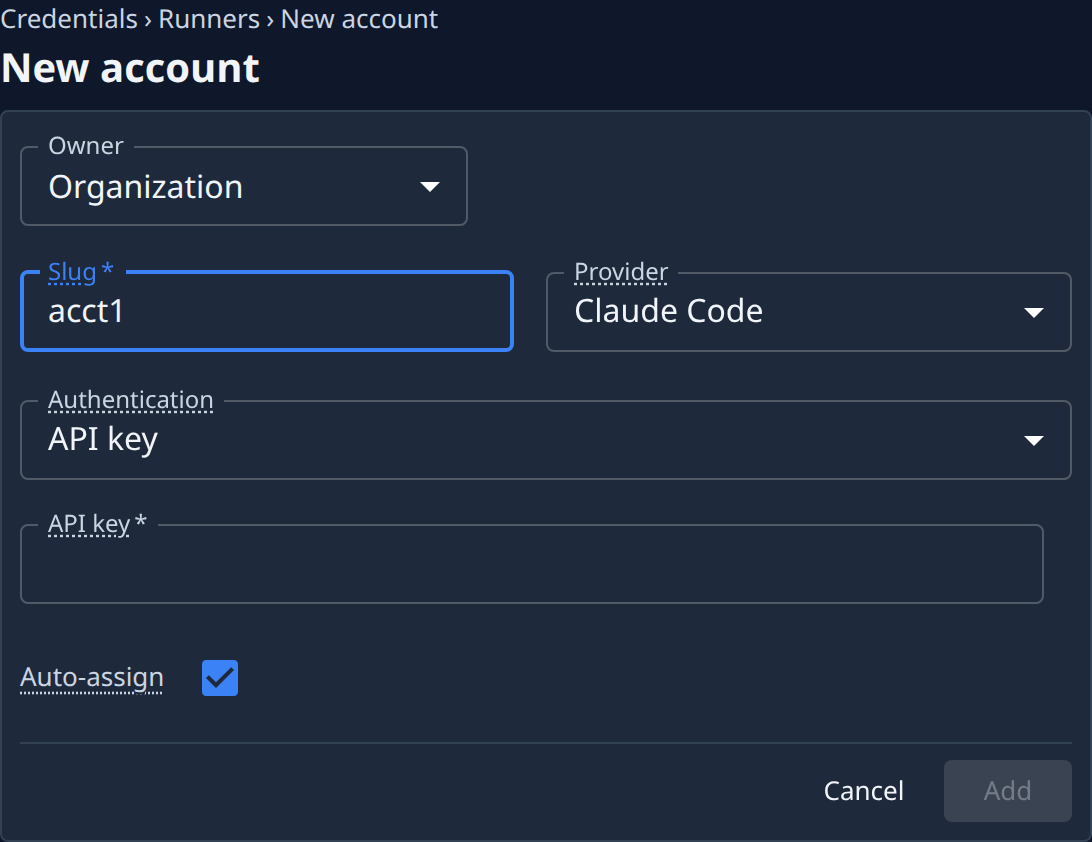
- Choose the Owner, if the form shows it: Organization or Personal.
- Type a Name, if you want one: the label the account shows everywhere. Left blank, the account shows its slug, a short code Jaah picks for it. You can change the name later.
- Pick the Provider: the agent this account runs. You can't change it later.
- Pick the Authentication: API key or Subscription (OAuth), when the provider offers both. The form offers only the providers and authentication your organization may use. An operator sets these. Ask an operator for one you don't see. An existing account whose provider and authentication are no longer allowed stays listed but runs no tasks.
- For an API key, paste it in API key. It's stored and never shown again. For a subscription, pick the Node the sign-in runs on.
- If the form shows Auto-assign, choose it: on, the account runs tasks that allow any provider; off, only tasks that pick its provider.
- If the form shows Max runners, enter the most runners the account may run at once. Leave it blank for the fleet limit.
- Select Add for an API key, or Start login for a subscription.
A subscription sign-in then shows its progress under the form:
- If it shows a link, open it, authorize in the browser, paste the code it shows into Authorization code, and select Submit code.
- If it shows a one-time code, copy it with Copy code and enter it where the link asks. The page says Waiting for you to authorize… until you do.
When it's done, the page says Account added and enabled. Select Cancel to close the form without adding anything.
An account's details
Select Edit in an account's row menu. It opens in a pane beside the list, with the tabs Details and Access.
Details
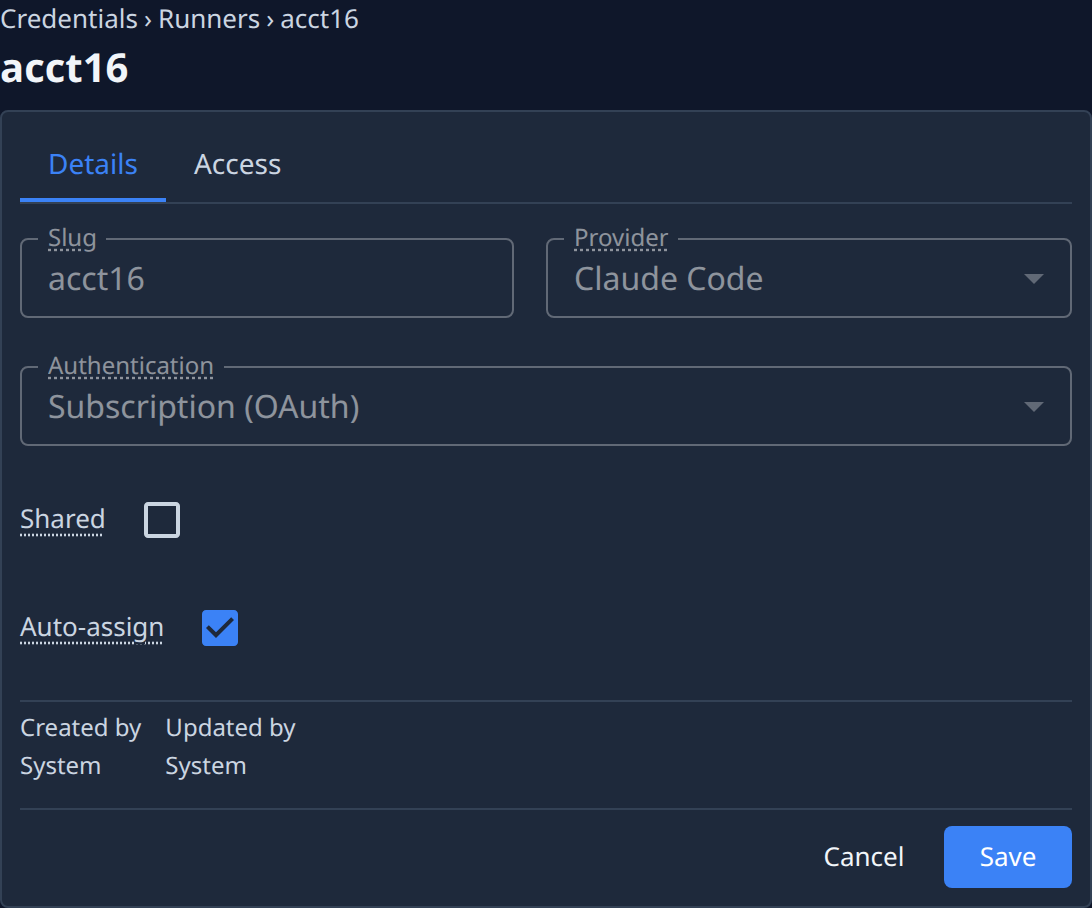
Slug, Provider and Authentication are fixed. You can change:
| Setting | Meaning |
|---|---|
| Name | The label the account shows everywhere. It can't be blank. |
| API key | API-key accounts only. Leave it blank to keep the stored key; type a new one to replace it. |
| Shared | Subscriptions only. Keeps the sign-in on the shared volume, so any node allowed to use shared accounts can run it. Turning it on moves nothing by itself: sign the account in again on such a node. |
| Auto-assign | On: the account runs tasks that allow any provider. Off: only tasks that pick its provider. |
| Max runners | Shown for some providers. The most runners at once; blank means the fleet limit. |
Select Save to keep your changes, or Cancel to discard them. If you can't change the account, the tab says Read-only — only an administrator can change an account.
Access
Who can use the account, and with which role.
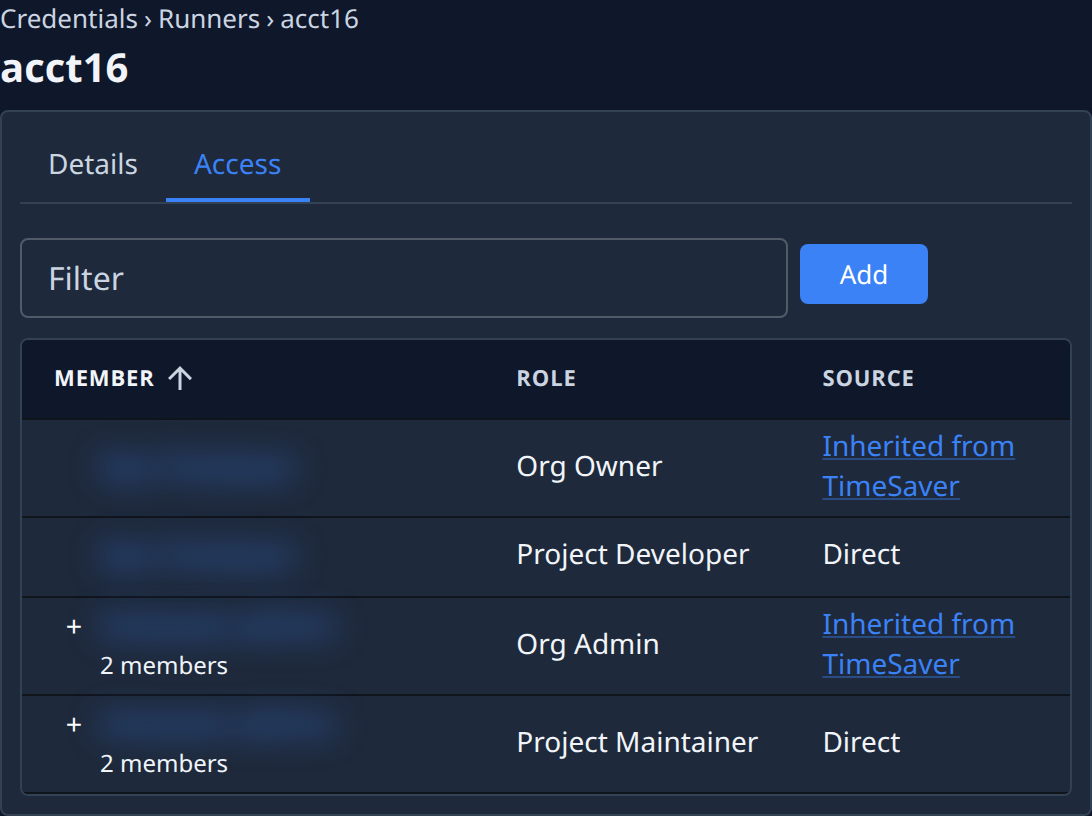
- Filter narrows the table.
- Each row is a person or a group. A group shows how many members it has; select + to list them.
- Role is the role they hold on this account.
- Source says how they hold it: Direct, Via a group, or Inherited from the organization.
To give someone access, select Add. It works as on a project; see Projects.
Sign an account in again
A subscription's sign-in can expire or be refused. To renew it, select Re-login in its row menu, or Login on a node row.
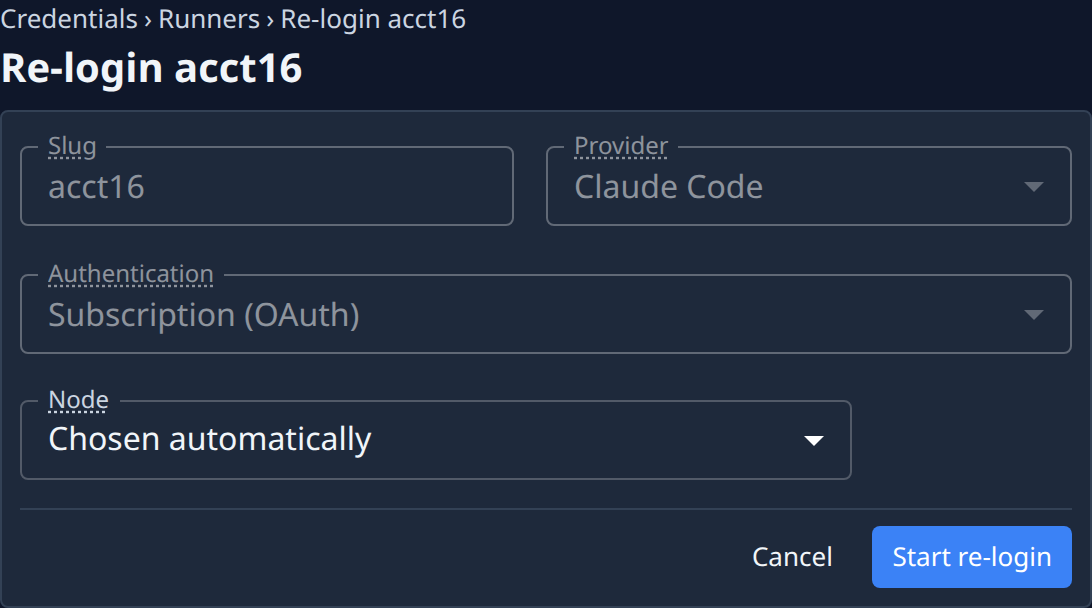
- For Re-login, pick the Node the sign-in runs on, or leave Chosen automatically. From a node row's Login, the node is already set. A sign-in belongs to its node and doesn't move to another.
- Select Start re-login, or Start login from a node row.
- Authorize as when adding an account.
When it's done, the page says Re-login complete — credentials refreshed., or Signed in on this node. from a node row. Signing in needs permission to add accounts. An API-key account has nothing to sign in.
See Credentials for connections to other services, and Nodes for the machines runners work on.