Nodes
A node is where your organization's tasks run. Each node holds worktrees: working copies of your projects. A host is the machine a node runs on; one host can hold several nodes. The Nodes page has a Nodes tab listing your nodes and a Hosts tab listing your hosts. Select a row to open its details, where its settings are changed.
Open it from the sidebar: select Directory, then the Nodes tab.
The node list
The Nodes tab lists every node, one row each, whichever host it runs on.

Each node row shows, from left to right:
| Item | Meaning |
|---|---|
| Round mark | The node's status: a green dot when it's online. |
| Name | The node's name. Select it to open its details. See Node details. |
| Hosting | Where the machine runs, for example AWS, or the name of the host it runs on. |
| OS | The operating system, for example Ubuntu. Hover it for the version. |
| Load | Three bars: C for CPU, M for memory and D for disk. A bar turns yellow, then red, as it fills. |
| Counts | Three numbers: worktrees / runners / accounts on the node, for example 9/0/1. Hover them for the words. |
| Last seen | How long ago the node last reported, for example now. Hover it for the exact time. |
| Enabled | Enabled, Draining or Disabled. Change it from the row menu or the node's details. |
| ⋯ | The row menu. See Row menu. |
When the list is narrow, for example beside an open node, columns give way so names stay readable: first OS, then the version, then Counts, then the org.
While a node is still being added, for example on a host you just rented, the list shows a row named for the host with its step (Launching, Joining or Placing). Select it to open the host. It turns into the node's own row once the node is up, usually within a few minutes.
When your organization has no node yet, the page says No nodes yet.
Row menu
Select ⋯ on a row to open its menu.
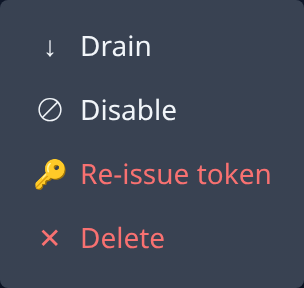
Which items appear depends on the node's state and your role.
| Item | What it does |
|---|---|
| Drain | The node takes no new tasks. It disables itself when the tasks it's still running finish. While a node drains, the menu shows Cancel drain instead. Requires the permission to edit nodes. |
| Disable / Enable | Stops or restarts new tasks on the node. Requires the permission to edit nodes. |
| Re-issue token | Issues the node a new token. The current token stops working at once, and the node stays offline until you run the new one on it. The new token is shown once. Requires the org admin role. |
| Delete | Removes the node. See Delete a node. Requires the org admin role. |
The host list
The Hosts tab lists every host, one row each:
| Item | Meaning |
|---|---|
| Round mark | The host's state. |
| Name | The host's name. Select it to open its page. See Host details. |
| Origin | Where the machine comes from: Jaah hosted with its size (for example Jaah hosted · t4g.small · 50 GB), Your AWS account or Your machine. |
| State | Ready, Provisioning, Failed, Stopped or Deleting, or the step a node being added is on. Hover it for why. |
| Nodes | How many nodes the host holds. |
| Org | Operators only: the host's organization. |
| ⋯ | Add node and Delete, plus the row menu items of a host that is itself a node. A host can be deleted only once it holds no nodes; until then the item says how many to delete first. |
Nodes on machines shared with other organizations, such as a Shared node, are listed under Shared machines. That row names no machine and has no menu.
Add node
Select Add node to add a node, or Add node on a host's row menu or page to add one to that host. Requires the org admin role. The dialog asks how you want to add it:
| Choice | What it does |
|---|---|
| Host with Jaah | Jaah runs the machine, paid by card: a Dedicated machine of the size you pick, or a Shared node. |
| Use my cloud account | Jaah launches a machine in your AWS account, using one of your AWS credentials. AWS bills you. |
| Use my own machine | You run one command on a machine you own. |
| Add to one of my hosts | A new node on a host you already have. |
Then you name the node, pick its projects and, for hosting, pay. The dialog follows the new node until it's ready; if you close it, its progress stays on its host's page. For the steps, see Add a node.
Host details
Select a host's name to open its page beside the list:
- Status: the host's state and, when it isn't ready, why; where the machine comes from; and the step a node being added is on. Select the step to follow it. A host that failed shows the full reason.
- Nodes, OS and, for an operator, Org.
- Add node adds a node to this host. A host that can't take one says why, for example Re-create this machine to add nodes: a machine added before hosts held several nodes is itself one node.
- Rename renames the host. Node settings opens the host's own node details, where it has them. Delete removes an empty host. Each requires the org admin role.
- Shared hosting, for an operator on a Jaah host: whether Shared nodes may be placed here, and how many.
- Nodes: the host's nodes, each with its state and project count, its disk and file-count use against its caps, and why it failed when it did. Select a node to open its details; its ⋯ offers Delete and, for an operator, Edit caps.
Groups
The Groups tab lists node groups: capacity Jaah holds for you automatically. The nodes a group starts appear on the Nodes tab. Requires the org admin role; without it, the page shows only the Nodes and Hosts tabs.

Each row shows the group's name, its market and instance type (for example On-demand t4g.medium), and its node count (for example 1 / 1). Select New group to add one.
Select a group's name to open its page beside the list: its status, instance count, AWS account, capacity lines and projects. Select Edit to change it, or Delete to remove it. A group with running instances can't be deleted until its capacity is set to 0.
Node details
Select a node's name to open its details beside the list. The panel's top shows the node's name, its status (for example ONLINE), and its tabs: Overview, Health & Metrics, Properties, Projects and, with the org admin role, Runners.
Overview

| Field | Meaning |
|---|---|
| Status | ONLINE when the node is reporting. |
| Last Seen, First Seen | When the node last reported, and when it first did. |
| OS | The operating system and architecture, for example Ubuntu · x64. |
| Worktrees | How many worktrees the node holds. Select the number to open them on the Worktrees page. |
| Runners | How many task runners it's running. |
| Accounts | How many enabled AI accounts have a working sign-in on this node. |
Below the fields are the node's controls:
- Enabled: switches new tasks on or off for the node. Requires the permission to edit nodes.
- Drain: the node takes no new tasks and disables itself when the running ones finish. Shown while the node is enabled. While it drains, the button reads Cancel drain. Requires the permission to edit nodes.
- Re-enrol: re-issues the node's token. The current token stops working at once; running the new command on the machine joins it again. Requires the org admin role.
- Delete: removes the node. See Delete a node. Requires the org admin role.
Under the controls, Config Snapshot shows the node's last reported setup, and Rescue Bundles lists the rescue bundles the node keeps on disk, or says Not reported. Both require the org admin role.
Health & Metrics

| Item | Meaning |
|---|---|
| Verdict | Whether anything is wrong with the node, for example No condition violated — reporting, observing and enrolled. |
| Reporting clocks | When the node last sent each kind of report: Presence, Observation pass, Pool occupancy, Runner enumeration and Config snapshot. Each is FRESH or STALE, with how long ago and the exact time. Hover ⓘ for what each report is. |
Below them, Metrics shows the node's resources over 1h, 6h, 24h or 7d: the CPU, memory and disk bars, the figures (Cores, Memory used, Memory total, Disk free, Disk total, Network in, Network out, Averaged over, Samples, Reported), and a chart for each, starting with CPU, Memory and Disk.
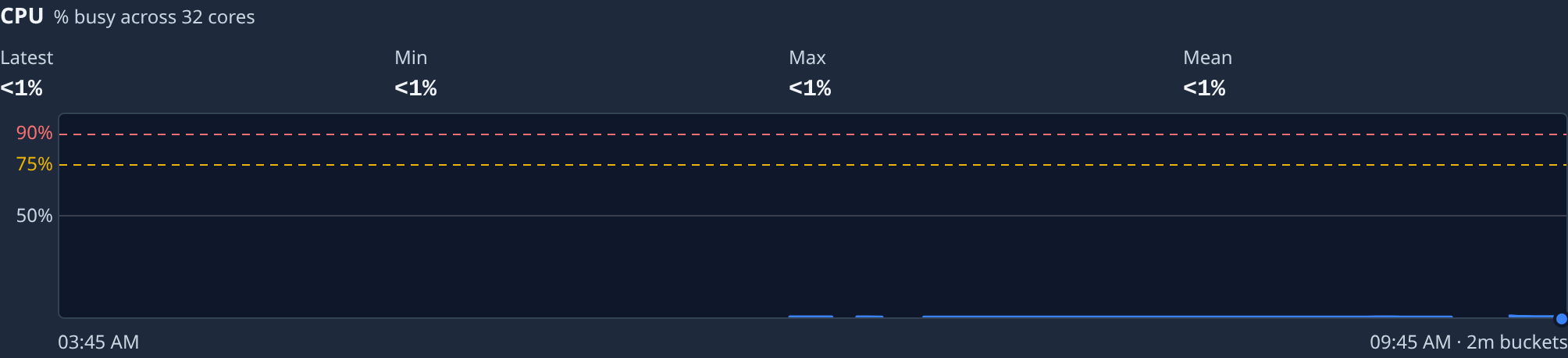
Each chart shows the latest, lowest, highest and average value over the range. On the CPU, memory and disk charts, dashed lines mark 75% (yellow) and 90% (red).
Properties
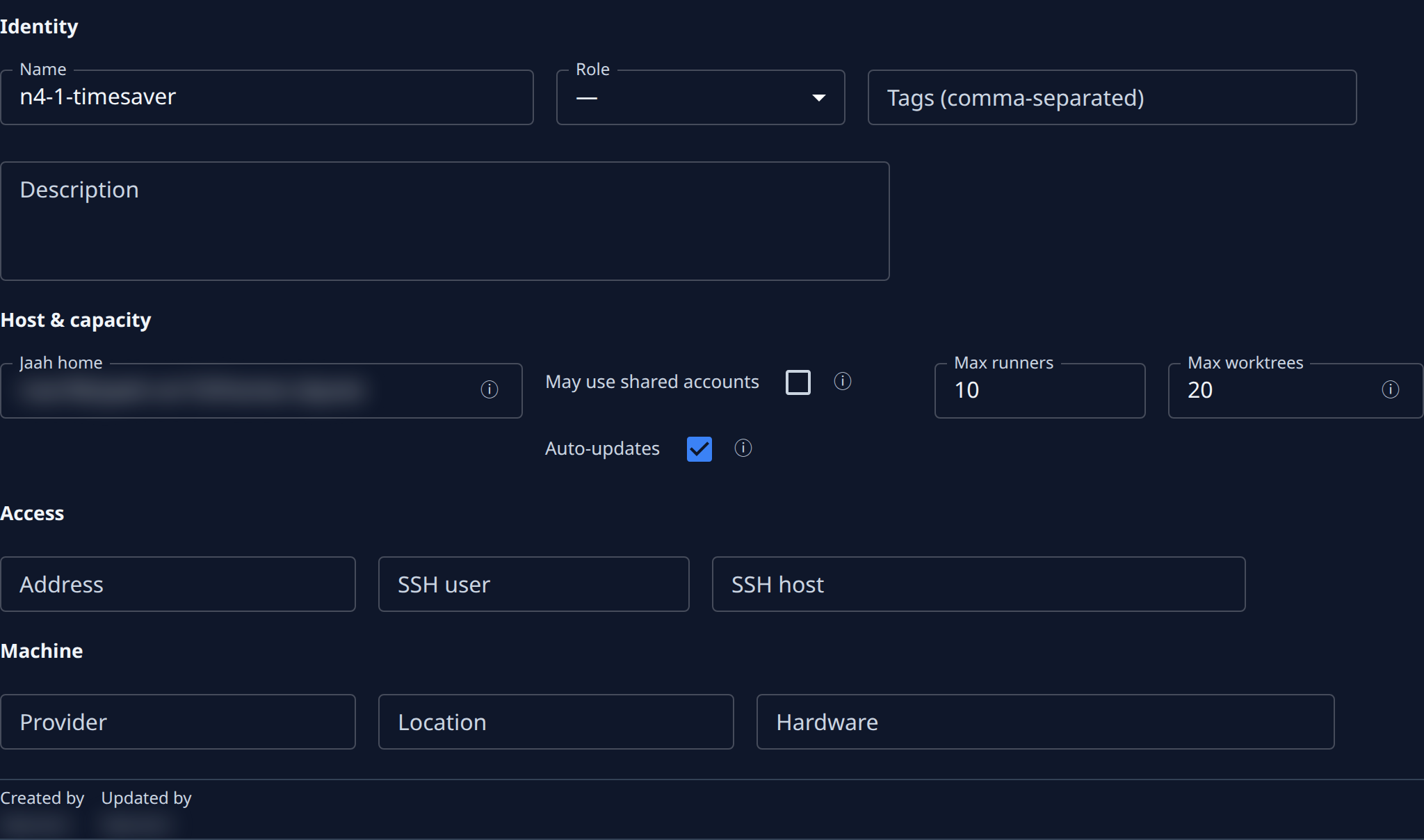
| Section | Fields |
|---|---|
| Identity | Name, Role, Tags (comma-separated) and Description. |
| Host & capacity | Jaah home: the folder on the machine your projects are kept in. May use shared accounts: the node may run AI accounts kept in shared storage. Auto-updates: the node installs new Jaah versions itself. Max runners and Max worktrees: how many it may run and hold. |
| Access | Address, SSH user and SSH host: how to reach the machine. |
| Machine | Provider, Location and Hardware: notes about the machine. |
Hover ⓘ beside a field for what it means. Change what you need, then select Save. Without the permission to edit nodes, the fields are read-only. Without the org admin role, only Name, Tags (comma-separated) and Description show: Role and the Host & capacity, Access and Machine sections need it.
Projects
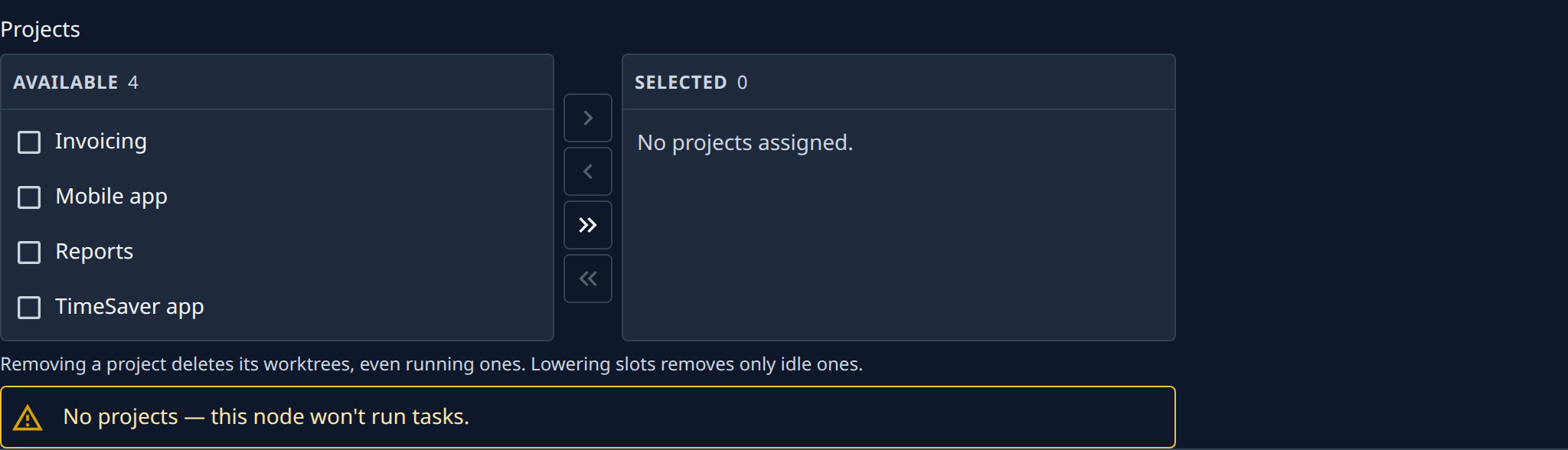
Picks which projects run on this node. AVAILABLE lists the projects you can add; SELECTED lists the ones on the node. Tick projects and use › and ‹ to move them, or » and « to move all. Then select Save.
Removing a project deletes its worktrees on the node, even running ones. A node with no project won't run tasks, and the tab warns you. Changing the projects requires the org admin role and the permissions to create and delete projects; without them the lists are read-only.
Runners

Requires the org admin role. Sets up GitHub Actions runners on the node: you declare a pool and the node installs and runs it. With no pool yet, the tab says No runner pool on this node; select Set up runners to start.
Delete a node
Delete asks you to confirm first. Deleting a node:
- removes it and every worktree on it, and stops whatever was using those worktrees — a running task or console session is ended, not asked;
- asks the machine to erase those worktrees' folders;
- shuts down the machine if Jaah launched it.
This can't be undone.