Worktrees
A worktree is a working copy of one project, kept on one of your organization's nodes. Tasks and console sessions run inside one. The Worktrees page lists every worktree your organization has, called slots, across all its nodes.
Open it from the sidebar: select Directory, then the Worktrees tab.
The worktree pool

The card's header line shows:
| Item | Meaning |
|---|---|
| Worktree pool and the counts | How many slots there are, how many are not built yet, and how many nodes they're on. |
| Add slots | Opens the form to add slots. See Add slots. |
| N shown and its checkbox | How many slots are on screen. The checkbox selects all of them. |
By default the list is grouped by project, then by node. Select a bar's ▸ to open it, or its ▾ to close it. The number after a bar's name is how many slots it holds.
Each slot's row shows, from left to right:
| Item | Meaning |
|---|---|
| Round mark | Who holds the slot. Hover it for the holder. |
| Number and title | The slot's number in its project, for example #1, and its title. A free slot is titled free. When a task holds the slot, the title opens that task. |
| Git | How the tree compares with its base branch. ? means it hasn't been checked yet. |
| Stack | Up or Down for the slot's app stack, or None when the project has no stack. ? means no recent report. |
| Session | Whether a session is running in the slot, for example None. |
| Age | How long the current session has run. |
| Checkbox | Selects the slot. See Act on several slots. |
| ⋯ | The row menu: Details and Select, plus other actions when the slot can take them. |
Select a row to open its details.
Filter & view
Select the menu button at the top right of the page to open Filter & view.
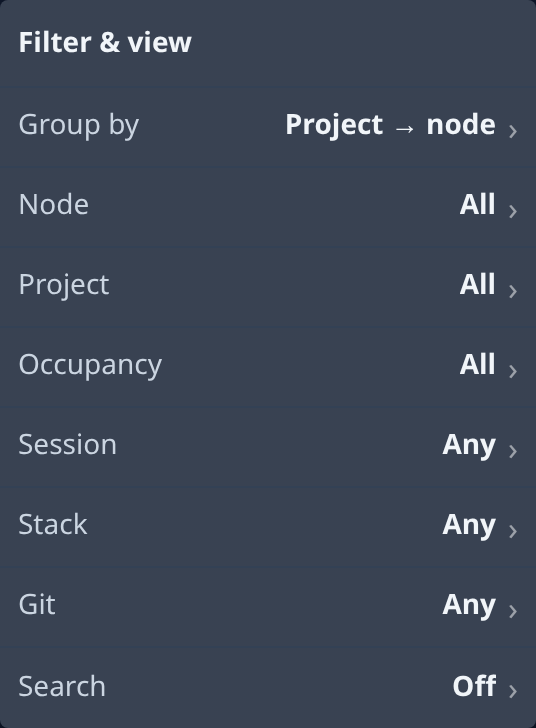
| Setting | What it does |
|---|---|
| Group by | Project → node (the default), Node → project, or Flat: one list with no bars. |
| Node | Shows only the slots on the nodes you pick. |
| Project | Shows only the slots of the projects you pick. |
| Occupancy | Free, Held by a task or Held by a person. |
| Session | Live: a session is running now. None: nobody is in the slot. |
| Stack | Up, Down or Not built. |
| Git | Dirty: uncommitted work. Diverged: ahead of or behind its base. Clean. |
| Search | Matches a title, branch, path, slot number or node name. Every word must match; case is ignored. |
To turn every filter off, select Clear in the menu (shown while a filter is on); grouping is kept. When a filter is on, the page title shows how many slots match, for example "2 of 3 slots".
With Group by set to Flat, each row also shows its project and its node:

Slot details
Select a row to open its details panel.
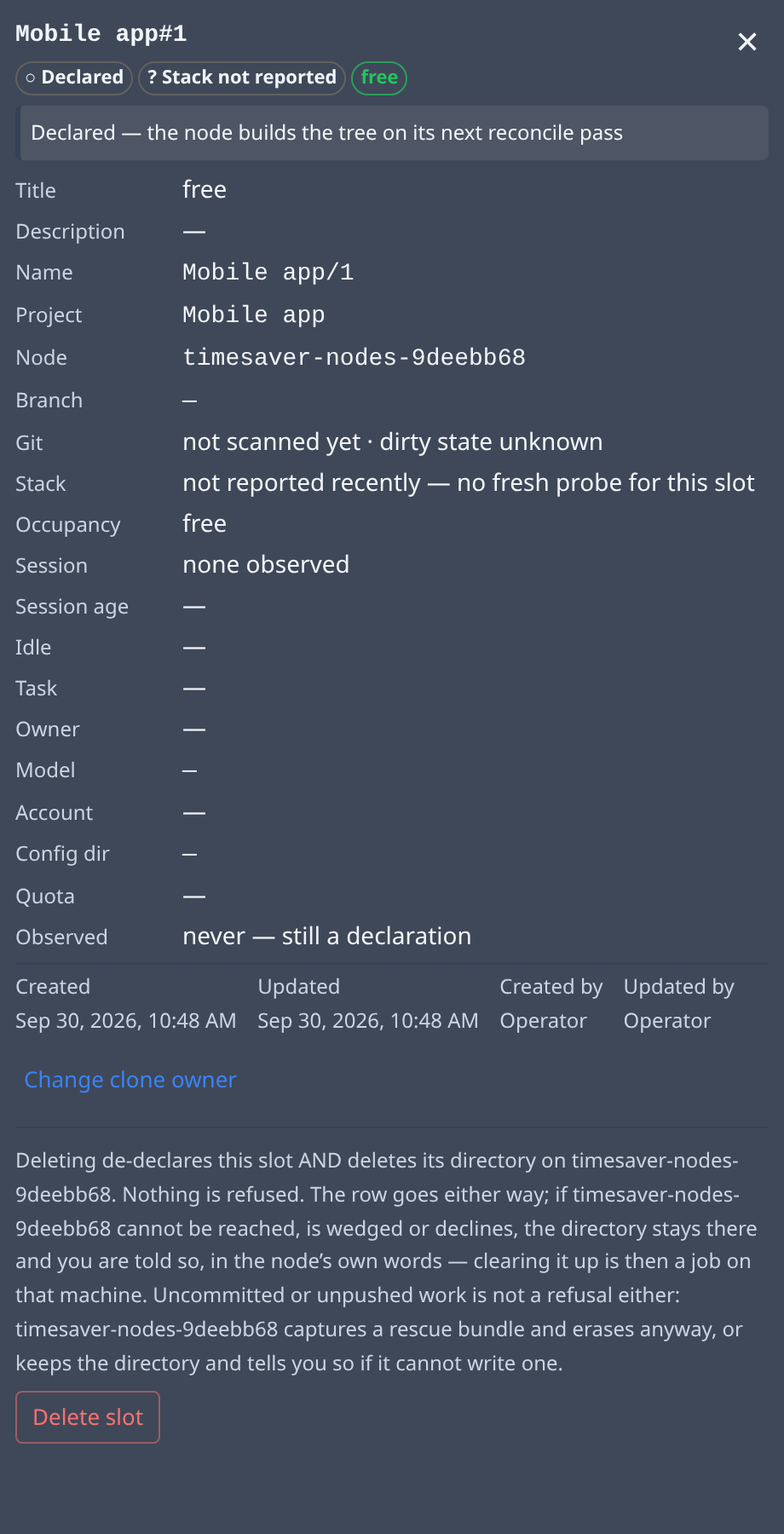
At the top are the slot's name and status chips, for example Declared (added, but the node hasn't built the tree yet), a stack status, and who holds it. Below them:
| Field | Meaning |
|---|---|
| Title, Description | What the slot is for. A free slot is titled free. |
| Name, Project, Node | Which project the slot belongs to and which node it's on. |
| Branch, Git | The checked-out branch and how it compares with its base. |
| Stack | Whether the slot's app stack is running. |
| Occupancy | free, or the task or person holding it. |
| Session, Session age, Idle | The session in the slot, how long it has run, and how long it has been idle. |
| Task, Owner | The task holding the slot, and its owner. |
| Model, Account, Config dir, Quota | The AI model and account the session uses, and its usage quota. |
| Observed | When the node last reported on the slot. never — still a declaration means it hasn't built it yet. |
| Created, Updated, Created by, Updated by | When the slot was added and last changed, and by whom. |
Under the fields are the actions this slot can take. Which ones appear depends on the slot's state and your role. For a free slot that's not built yet, you see:
- Change clone owner: picks whose GitHub account the project's copy on this node uses. It applies to every slot of that project on that node. Requires the org admin role.
- Delete slot: removes the slot and deletes its directory on the node. The panel explains what happens first. This can't be undone. Requires the org admin role.
Add slots
Select Add slots to open the form. Select Close to hide it.
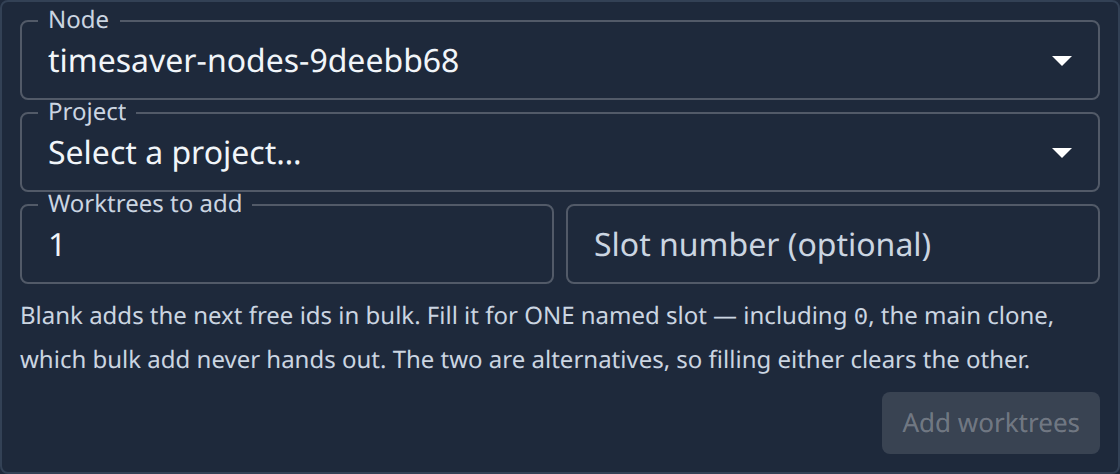
| Field | Meaning |
|---|---|
| Node | The node the new slots go on. |
| Project | The project they belong to. Add worktrees stays grey until you pick one. |
| Worktrees to add | How many slots to add. They take the next free numbers. |
| Slot number (optional) | Fill it to add one slot with that number instead. 0 is the project's main clone. |
Fill either Worktrees to add or Slot number. Filling one clears the other. Then select Add worktrees.
Act on several slots
Tick the checkbox of one or more rows, or the one beside N shown to tick them all. A bar appears above the list.

The bar shows up to three actions as buttons. The rest are in its ⋯ menu.
| Action | What it does |
|---|---|
| Sync Git | Brings each picked slot up to date with its base branch. Only for slots that are behind and have no uncommitted work. |
| Stop stack | Stops each picked slot's running app stack. Its data and the worktree are kept. |
| Release | Ends the hold on each picked slot so it can be handed out again. The worktree and its uncommitted work are kept. The task holding it isn't completed or deleted. |
| Delete | In the ⋯ menu. Removes each picked slot and deletes its directory on its node. This can't be undone. Requires the org admin role and the permission to delete worktrees. |
| ✕ | Clears the selection. |
A greyed-out action can't apply to any picked slot. Hover it to see why. Stop stack, Release and Delete ask you to confirm first and name the slots they'll act on. When an action finishes, a line under the bar says how many slots it acted on, and why any slot was refused.