Credentials
A credential is a connection to another service, such as Jira, Slack, GitHub or AWS. It holds the address, the account and the token or key Jaah uses to sign in there. Tasks can use the credentials they are given, and so can the projects you attach a credential to.
Open it from the sidebar: select Directory, then the Credentials tab.
Everyone can open it. The list shows only the credentials you can see: the ones you added, and the ones shared with you. Everyone can select Add credential, and change or delete the credentials they added. Changing or deleting other people's credentials needs permission: without it, Edit or Delete doesn't appear on that row.
The list

Each row shows, from left to right:
| Item | Meaning |
|---|---|
| Round mark | Filled: at least one secret, such as a token or key, is stored. Hollow: none is stored yet. Hover it to see how many. |
| Name | The credential's name. Hover the row to show a copy button beside it. |
| Description | What the credential is for, or — when none is set. Shown only in a wide window. |
| Owner | Who created the credential. |
| Type | The service it connects to, for example AWS or GitHub. |
| ⋯ | The row menu. |
Select a name to open that credential. See A credential's details.
When there are more than 25 credentials, use Previous and Next below the list to move between pages.
The row menu
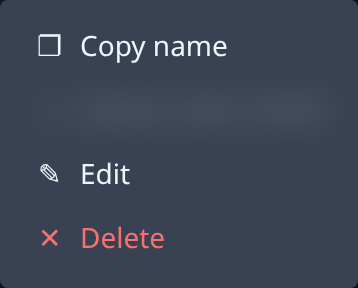
- Copy name copies the credential's name.
- The next line names the owner. In a narrow window, the description appears here too.
- Edit opens the credential.
- Delete removes it. See Delete a credential.
Filter the list
Use the controls above the list. Each one narrows the list at once, and the page remembers your choices the next time you open it in the same browser.
| Control | What it does |
|---|---|
| Search | Shows credentials whose name or description contains the text. |
| Type | Shows one type of credential. All types shows every type. |
| Owner | Shows the credentials one person created. It appears only when the list has more than one owner. |
| Secrets | Secrets stored or No secrets stored. Stored or not shows both. |
| Only mine | Shows only the credentials you created. Select it again to turn it off. |
| Tree view button | Switches between the flat list and the tree. See Tree view. |
When nothing matches, the page says Nothing matches these filters and lists what is active. Select Clear filters to show everything again.
Tree view
Select the Tree view button at the end of the filters to group credentials into folders. A name's parts
between slashes become folders: team/prod/jira sits in the folder prod, inside team. The
number beside a folder is how many credentials it holds.

- Select + beside a folder to open it.
- To move a credential to another folder, drag it onto that folder. Its name changes to match the new folder. Requires permission to edit the credential.
- To move a whole folder, drag the folder. This works only when no filter is on, you may edit every credential in it, and the tree shows all your credentials.
The tree shows up to 200 credentials. When there are more, a line at the end says how many aren't shown; narrow the list with the filters to find them.
Select Tree view again to go back to the flat list.
Add a credential
Select Add credential. The form opens beside the list.
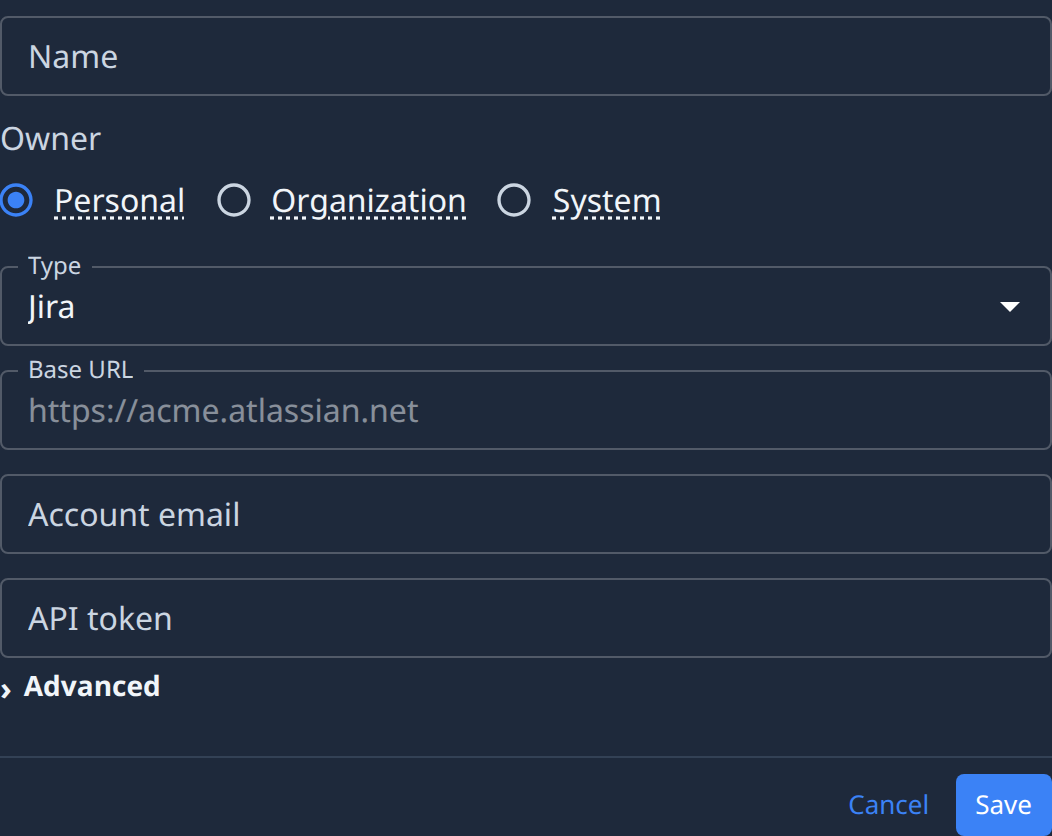
- Enter a Name. It's required. Use slashes to file it in a folder, for example
team/jira. - Choose the Owner, if the form shows it:
- Personal — yours. Tasks you start can use it, and so can the projects you attach it to.
- Organization — shared. Org Owners and Admins can use it, and so can their tasks and tasks on the projects it's attached to.
- System — for Jaah itself, for example cloud nodes and Git apps. Org Owners, Admins and operators see it; tasks never do.
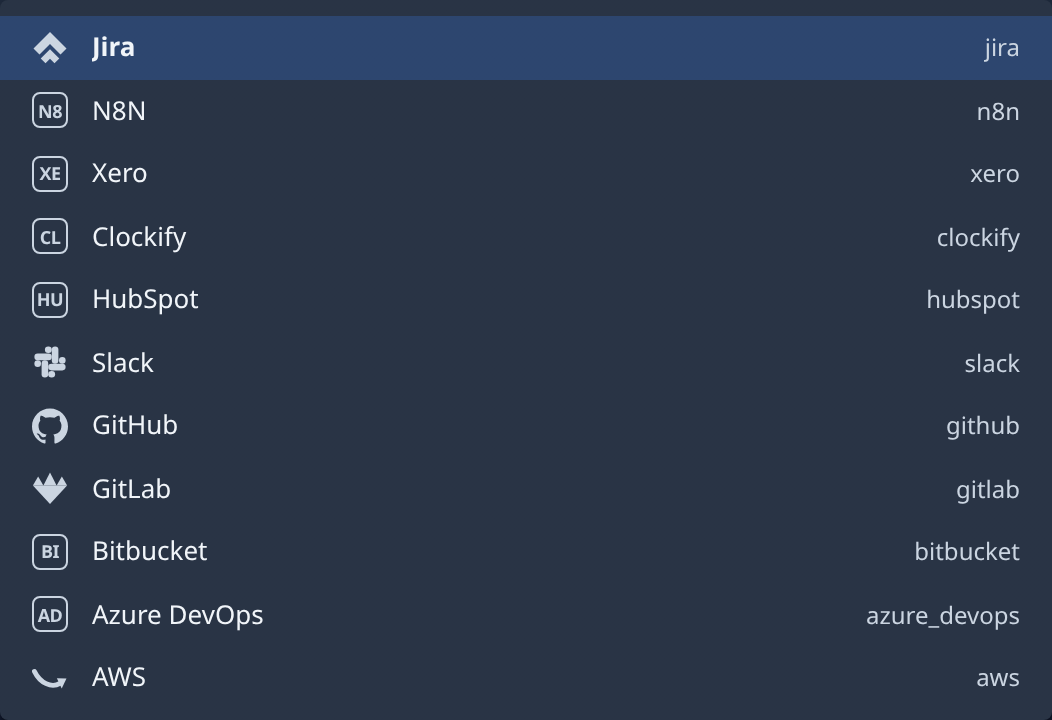
- Pick the Type. Type in the box to search the list.
- Fill in the fields for that type. They change with the type: Jira asks for a Base URL, an Account email and an API token; AWS for an Access key ID and a Secret access key.
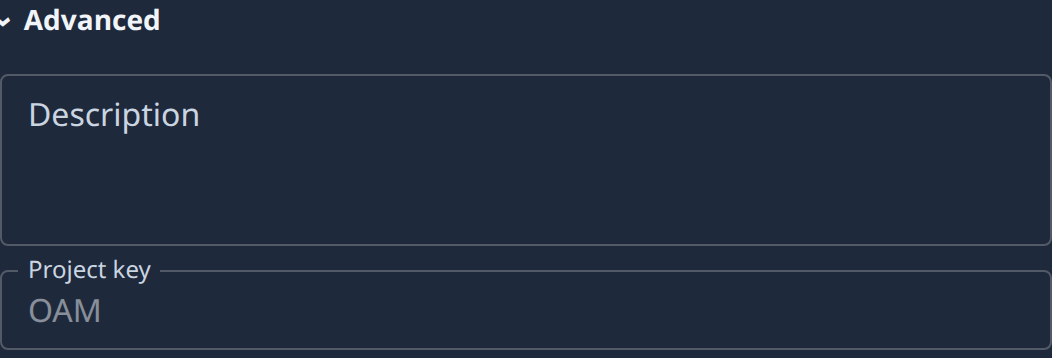
- Optional: open Advanced to add a Description and the type's optional fields.
- Select Save.
Select Cancel to close the form without saving.
A credential's details
Select a credential's name, or Edit in its row menu. It opens in a pane beside the list, with the tabs Details and Access.
Details
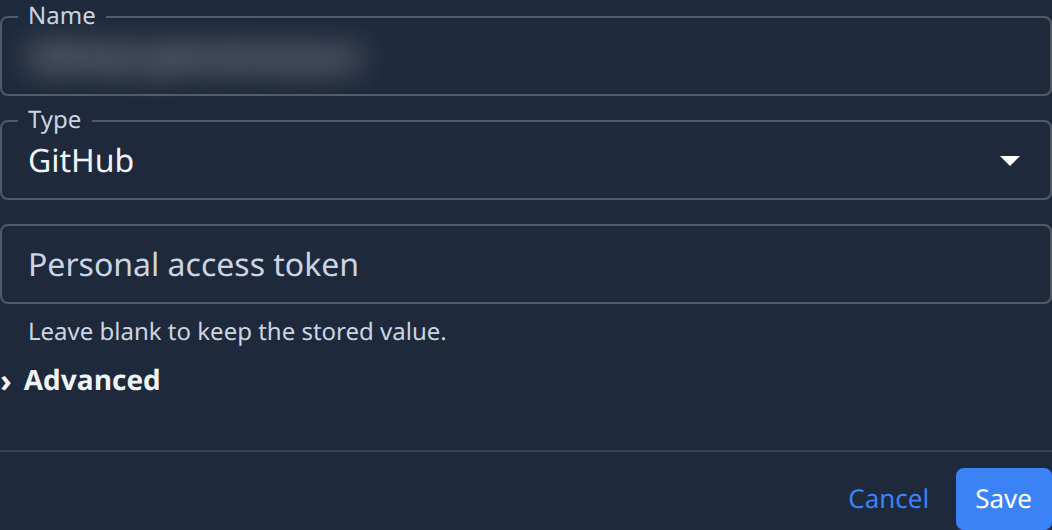
The same fields as when you added it. Secrets are never shown again. Their fields stay empty and say Leave blank to keep the stored value. Type a new value only to replace one.
Change what you need, then select Save. Select Cancel to discard your changes.
If you can't change the credential, the tab says Read-only — ask an operator for a change. Every field is locked, Save is gone and Cancel reads Back.
Access
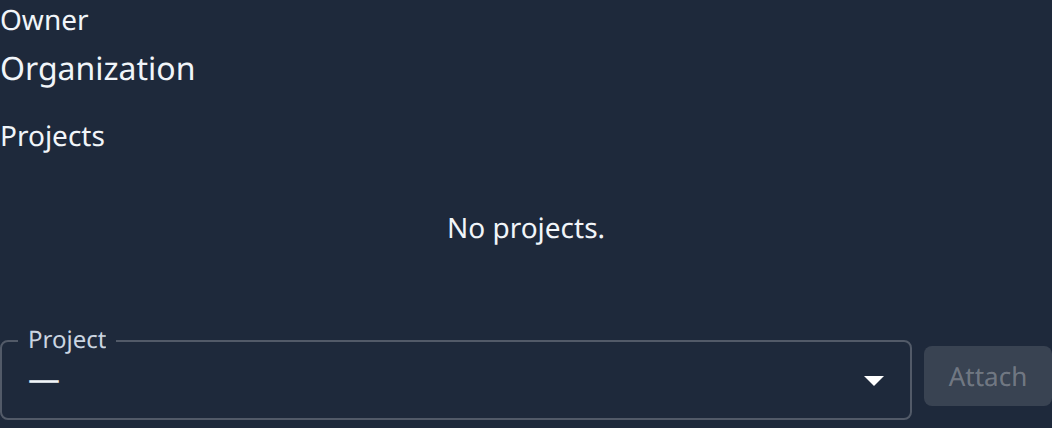
Who owns the credential and which projects can use it.
| Item | Meaning |
|---|---|
| Owner | The person who owns it, or Organization or System. Select a person's name to open them on the People page. |
| Projects | The projects it's attached to. Tasks on those projects can use it. Select a name to open that project. |
- To attach it to a project, pick the Project, then select Attach.
- To take it off a project, select Detach on that project's row and confirm. Tasks on that project stop receiving the credential.
A System credential can't be attached to a project. The tab says so instead of showing the picker.
See Projects for a project's own settings.
Delete a credential
Select ⋯ on a row, then Delete.
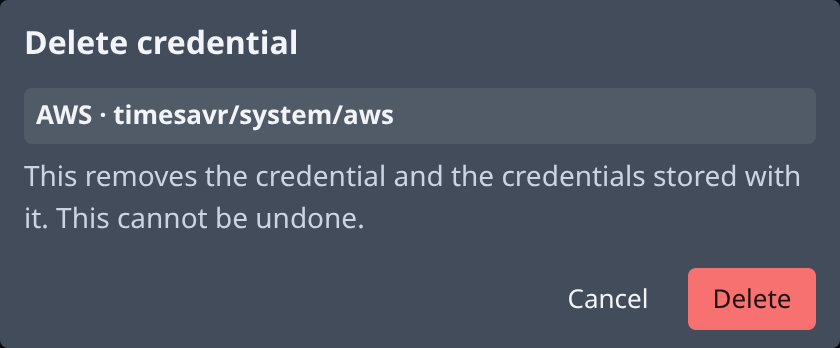
Deleting removes the credential and every secret stored with it. It can't be undone. Select Delete to confirm, or Cancel to keep it.