Projects
A project is one repository that Jaah works on. The Projects page lists every project shared with you. Open it from the sidebar: select Directory, then the Projects tab.
The list

Each row shows, from left to right:
| Item | Meaning |
|---|---|
| Round mark | Whether runners are dispatched here. Filled: dispatch is on. Half-filled: dispatch is on, but push is off, so a runner can work and can't write back. Hollow: dispatch is off. Hover it to read which. |
| Name | The project. If you can edit it, select it to open its settings. |
| Port vars | The port variables the project declares, or — for none. Shown on wide screens only. |
| active/max | Worktrees in use now, out of the pool's maximum. — means you can't see the count, or no maximum is set. |
| ⋯ | The row menu. See Row menu. |
Select the sort button beside Add project to sort by Project, Dispatch, Pool Max or Active WTs.
If the list is empty, either no project exists yet or none is shared with you.
Row menu
Select ⋯ on a row.
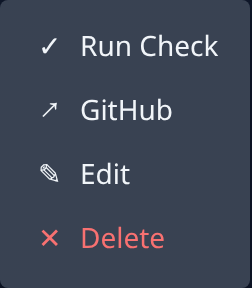
| Item | What it does |
|---|---|
| Run Check | Runs the project's check on its node. A line above the list says how it went; the output is under Audit, on the Nodes tab. |
| GitHub, your forge's name, or Repo | Opens the repository. Shown only when the project has a repository link. |
| Edit | Opens the project's settings. Shown only if you can edit the project. |
| Delete | Deletes the project after you type its name to confirm. Its worktree slots must be deleted on the Worktrees page first. Requires the org admin role. |
Add a project
Select Add project. Shown only if you can create projects.
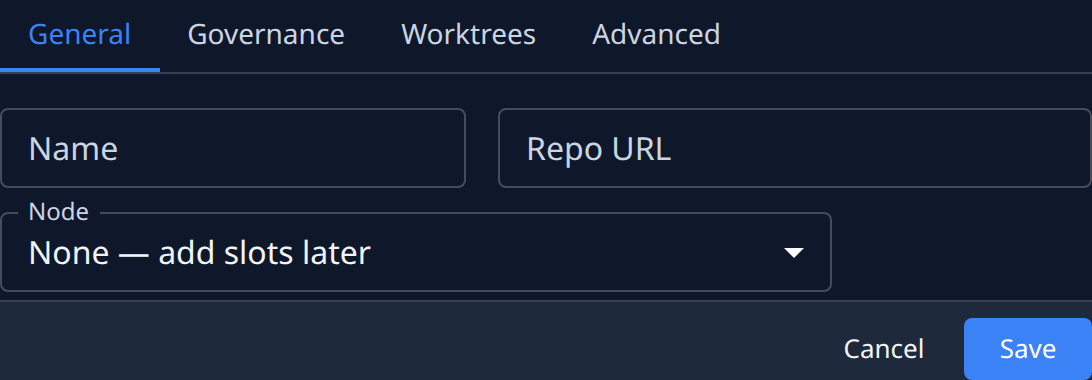
The new project has four tabs: General, Governance, Worktrees and Advanced. They hold the same settings as an existing project's tabs, below. On General:
| Field | Meaning |
|---|---|
| Name | Required. The project's name. |
| Repo URL | The repository's address. If Jaah can't tell which forge it is on, a Forge list appears so you can pick one. |
| Node | Where its worktrees run. None — add slots later creates the project without any. Shown only if you can place worktrees; otherwise the form says an admin adds slots on Worktrees. |
| Slots | Required once you pick a node: how many worktrees it holds, from 1 to 10. These slots turn on dispatch and the pool. |
Select Save to create it, or Cancel to leave without saving.
A project's settings
Select a project's name, or Edit in its row menu. Its settings open beside the list, in tabs: General, Access, Governance, Worktrees, Environment and Advanced. Use the arrows at either end of the tab strip to reach the tabs that don't fit.
Every tab except Access ends with Cancel and Save. Save saves all the tabs at once. Environment variables are the exception: each one saves from its own dialog.
Select the ⓘ beside the project's name to show a short explanation under each field. It appears on the tabs that have one.
If you open a link to a project that belongs to another of your organizations, the page says This belongs to that organization and offers Switch to it. Nothing switches until you select it, and the organization may ask you to sign in again. A project you can't reach in any of your organizations shows Project not found.
General
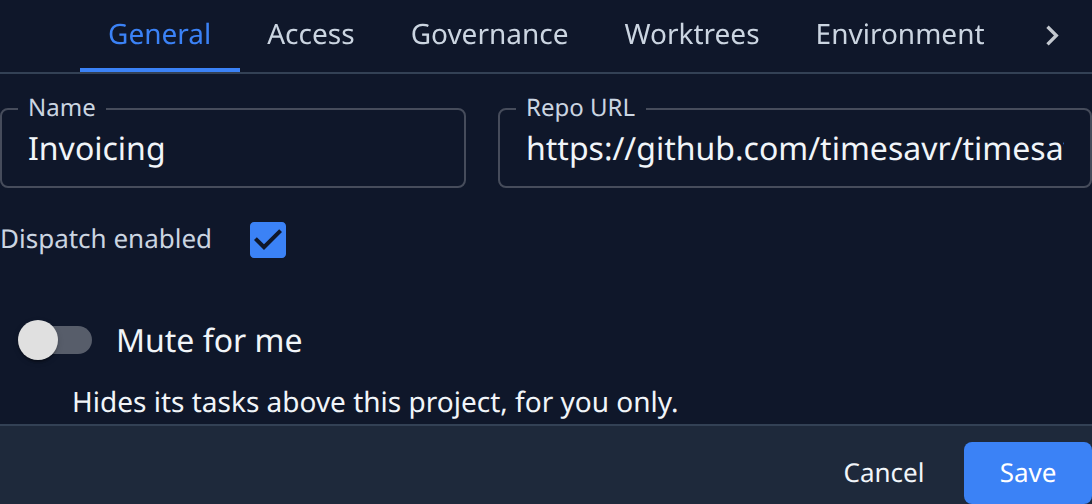
| Field | Meaning |
|---|---|
| Name | The project's name. |
| Repo URL | The repository's address. |
| Dispatch enabled | On: runners are sent to work on this project's tasks. Off: none are. |
| Mute for me | Hides the project's tasks on All projects, for you only. Saved as soon as you switch it, without Save, and needs no edit right. See Mute. |
Access
Who can reach this project, and with which role.
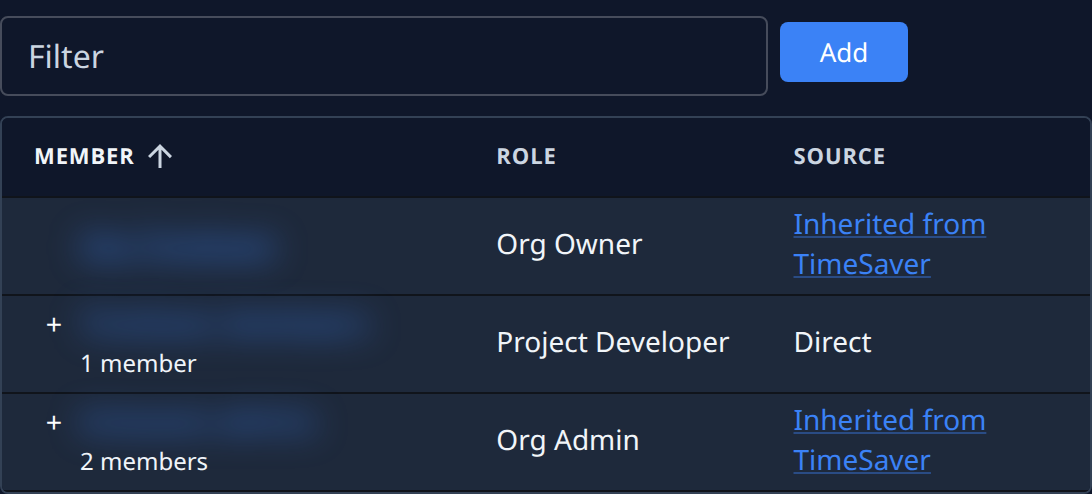
- Filter narrows the table.
- Each row is a person or a group. A group shows how many members it has; select + to list them.
- Role is the role they hold on this project.
- Source says how they hold it: Direct, Via a group, or Inherited from the organization or a parent.
- Remove takes away a direct grant, after you confirm.
To give someone access, select Add.
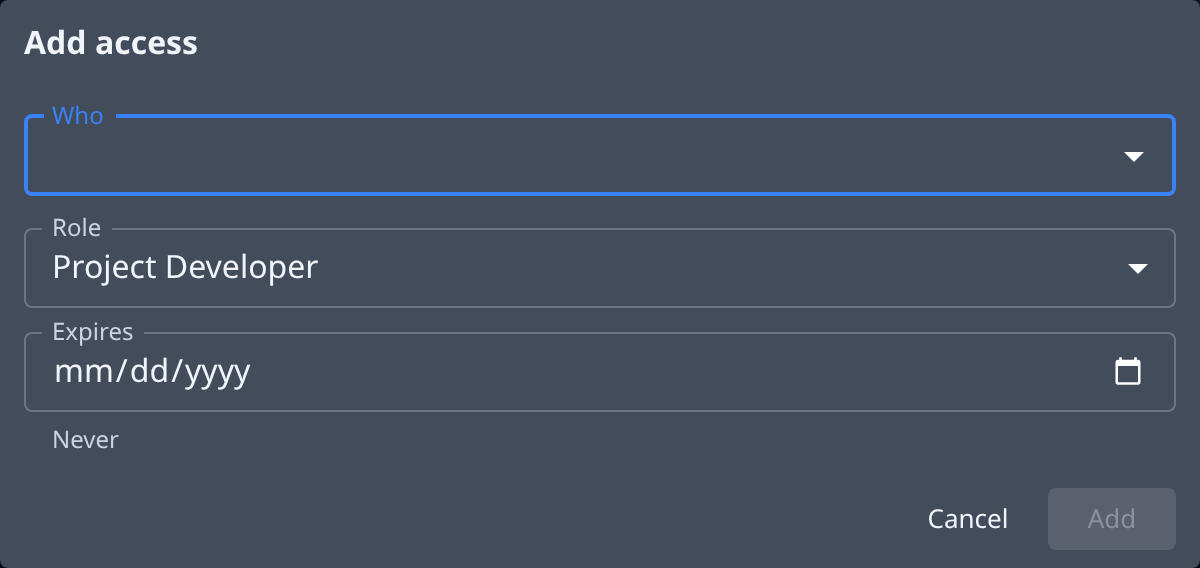
- In Who, pick one or more people or groups.
- Pick the Role.
- Optionally, pick a date in Expires. Left empty, the access never expires.
- Select Add.
Governance
How runners work in the repository.
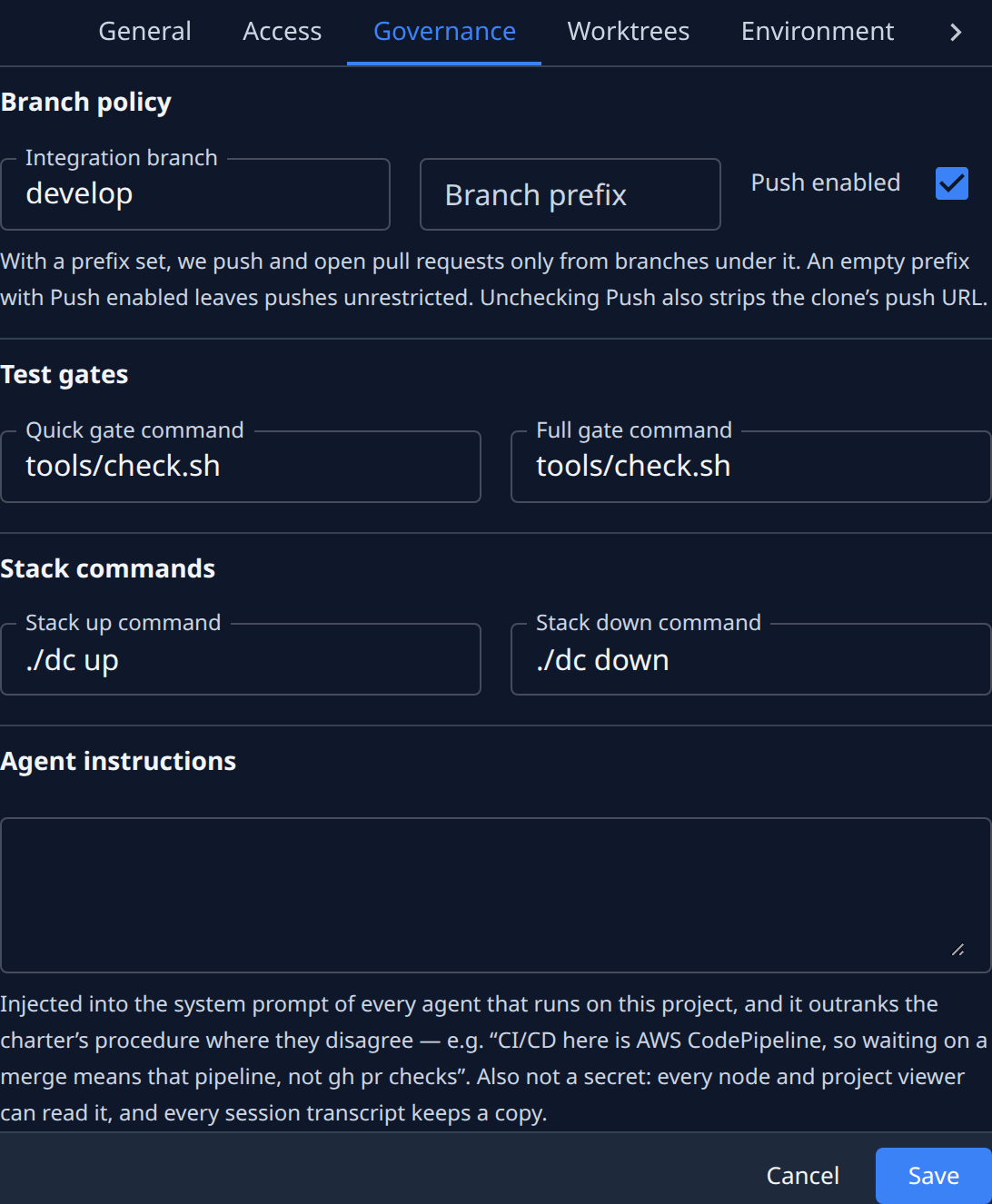
| Field | Meaning |
|---|---|
| Integration branch | The branch runners rebase onto and open pull requests into. |
| Branch prefix | Put in front of every branch Jaah creates. Leave it empty for none. With a prefix, Jaah pushes and opens pull requests only from branches under it. |
| Push enabled | Off: runners can work in the repository but never push to it. |
| Quick gate command | The fast check runners run as they work. Keep it fast. Empty: no quick gate. A new project starts with your organization's default (Settings > Projects). |
| Full gate command | The full check, run once before a pull request is opened. Empty: no full gate. |
| Stack up command | Starts the project's local stack in a worktree. |
| Stack down command | Stops it. It must stop containers only, never delete data. |
| Agent instructions | Text given to every agent that works on this project. Where it disagrees with Jaah's own procedure, it wins. |
Commands and instructions are not secret: anyone who can view the project can read them. Never put a password or token in them.
Worktrees
Where the project's worktrees run, and how many.
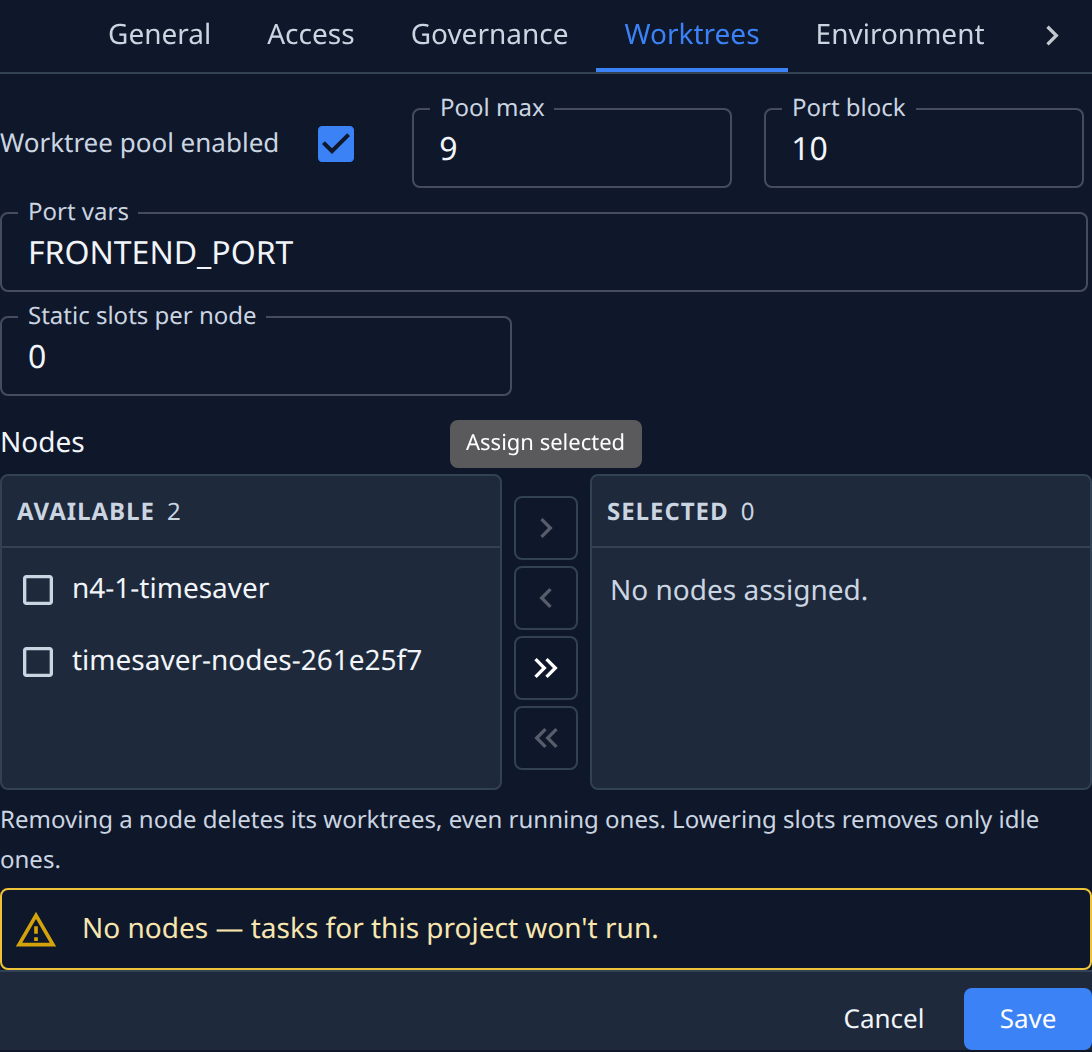
| Field | Meaning |
|---|---|
| Worktree pool enabled | Whether the project keeps a pool of worktrees. |
| Pool max | The most worktrees the project may have. |
| Port block | How many ports each worktree is given. |
| Port vars | The names of the port variables, separated by commas. |
| Static slots per node | How many worktrees each assigned node holds. |
| Nodes | Which nodes run the project. Tick nodes under Available and move them to Selected with the arrows. Select the settings icon on a selected node to change its own number of worktrees. |
Removing a node, or lowering the number of slots, deletes worktrees, including running ones.
Environment
Variables written into a worktree's settings file when a task claims it.
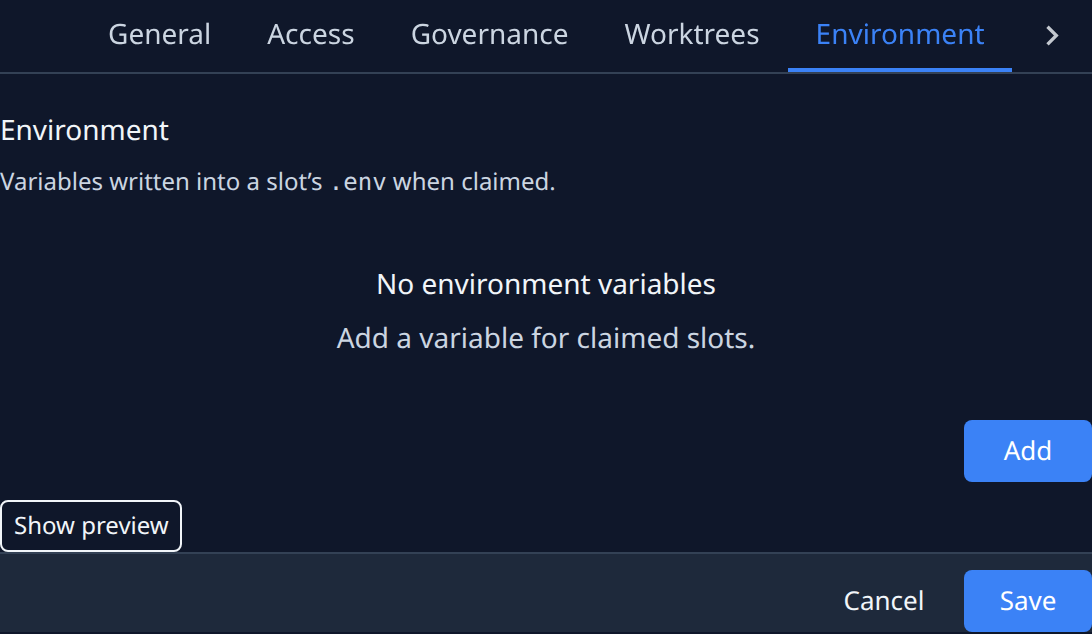
Select Add to add a variable:
| Field | Meaning |
|---|---|
| Variable name | The variable's name. |
| Applies to | Everyone, or Only me. Shown only if you can edit the project; otherwise the variable applies to you only. |
| Value from | A literal you type in Value, or A credential, with the Credential and the field to read from it. |
| Description | What the variable is for. |
Select Show preview to see the values your own worktree would get.
Advanced
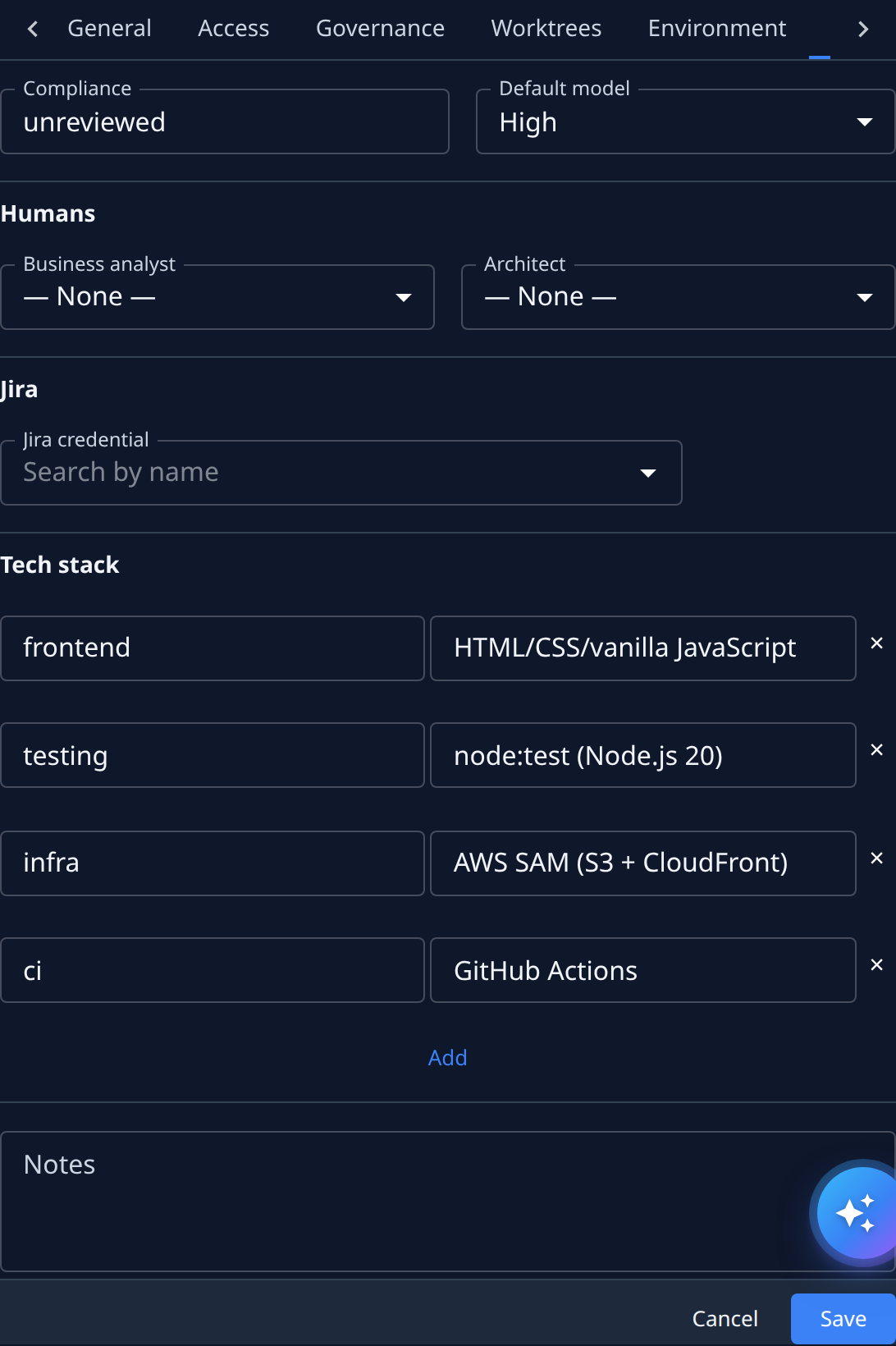
| Field | Meaning |
|---|---|
| Compliance | The project's compliance status. |
| Default model | The model tier used when neither the task nor its persona sets one. |
| Business analyst, Architect | Who answers questions raised inside an epic: the analyst during business analysis, the architect otherwise. On a standalone task, or set to — None —, questions go to whoever created the task. |
| Jira credential | The Jira connection for this project. Cleared, tasks offer no Jira issues to link and post no comment back. |
| Tech stack | One row per part of the stack: a name and what it uses. Add adds a row; × removes one. |
| Notes | Free text about the project. |
Project docs
A project can show its own documentation, read live from its repository. Open it by adding /docs
to the address of the project's settings.
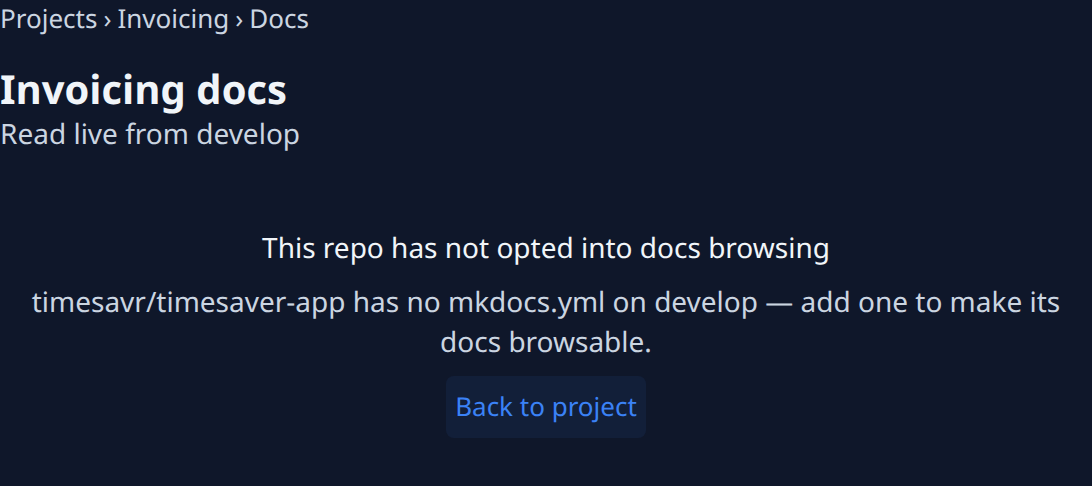
- The subtitle says which branch the pages are read from.
- If the repository has no
mkdocs.ymlfile, the page says it has not opted in. Commit one at the root of the repository to turn it on. - Once it is on, select a page in the list to read it.
To return to the project's settings, select its name in the breadcrumb at the top, or Back to project when the docs aren't turned on.