Add worktree slots
Each task runs in its own slot, so a project runs as many tasks at once as it has free slots. Add slots when tasks queue up waiting for one.
Who can do this: adding slots requires the org admin role. Without it, Add slots doesn't appear; ask an admin.
Add slots
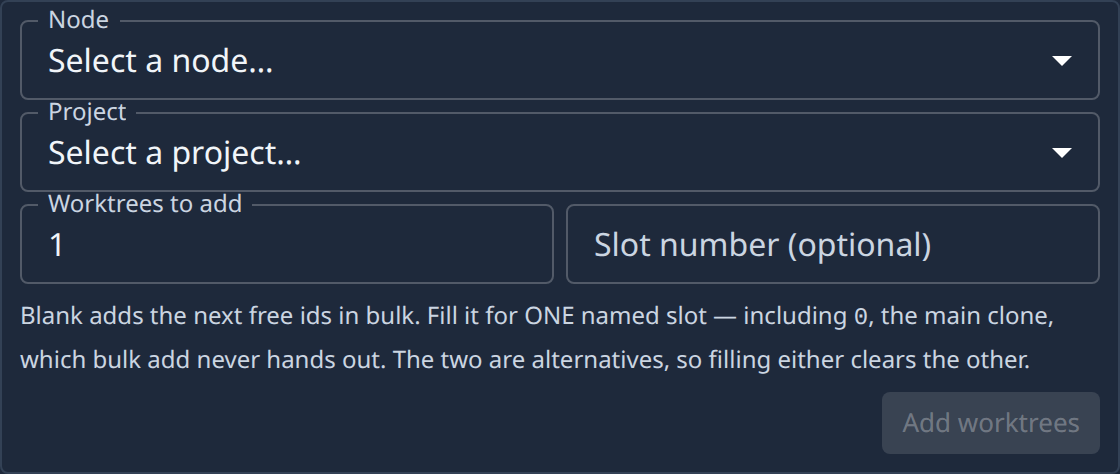
- In the sidebar, select Directory, then the Worktrees tab.
- Select Add slots in the card's header. The form opens.
- Pick the Node the new slots go on.
- Pick the Project they belong to. Add worktrees stays grey until you pick one.
- In Worktrees to add, enter how many slots to add. They take the next free numbers.
- Select Add worktrees.
- Select Close to hide the form.
The new slots appear in the list with the chip Declared until the node builds them. To add one slot with a number you choose, fill Slot number (optional) instead of Worktrees to add.
Check the project's limit
A project's own settings cap how many slots it may have.
- In the sidebar, select Directory, then the Projects tab.
- Select the project's name, then the Worktrees tab.
- Check Pool max: the most worktrees the project may have.
- Check Nodes: the nodes that run the project, and how many slots each holds.
- Change them if needed, then select Save.
Removing a node there deletes its worktrees, even running ones. Lowering the number of slots removes only idle ones.
Related
- Read a worktree's status to watch the new slots get built.
- No node yet? Add a node.
- Every field on the form: Worktrees.
- How slots bound how many tasks run at once: How worktrees work.