Read a worktree's status
Check a slot when a task waits for a free worktree, or when a task seems stuck. The slot's row and its details tell you who holds it and what state it is in.
Who can do this: anyone who can view worktrees.
Find the slot
- In the sidebar, select Directory, then the Worktrees tab.
- Select the menu button at the top right of the page to open Filter & view.
- Narrow the list: pick the Project and the Node, or set Occupancy to Held by a task. Or type a slot number, branch or node name in Search.
- Close the menu. The page title shows how many slots match, for example "2 of 3 slots".
- If the list is grouped, select a bar's ▸ to open it.
Read its row
| Column | What to look for |
|---|---|
| Round mark | Who holds the slot. Hover it for the holder. |
| Title | free for a slot nobody holds. When a task holds it, select the title to open that task. |
| Git | How the tree compares with its base branch. ? means it hasn't been checked yet. |
| Stack | Up or Down for the slot's app stack, or None when the project has no stack. ? means no recent report. |
| Session | Whether a session is running in the slot. |
| Age | How long the current session has run. |
Open its details
-
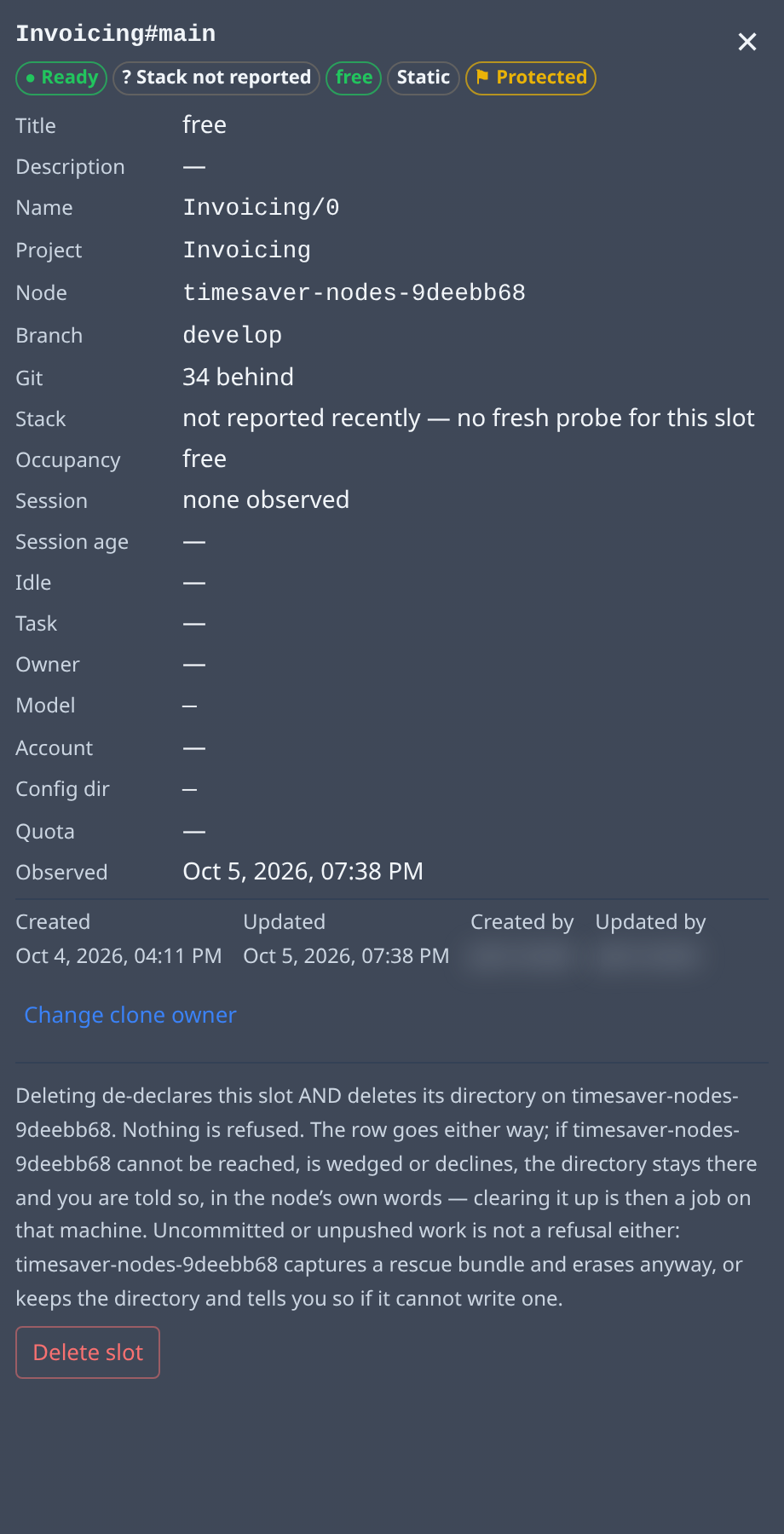
Select the slot's row. Its details panel opens.
-
Read the status chips at the top. Declared means the slot was added but its node hasn't built it yet.
-
Check Occupancy and Task: free, or the task or person holding the slot.
-
Check Session age and Idle: how long the session has run, and how long it has done nothing.
-
Check Observed: when the node last reported on the slot. never — still a declaration means the node hasn't built it.
What to do next
- Not enough free slots: add worktree slots.
- A slot held by a task that is over: release it.
- A slot that is never observed: read its node's status.
- Every field in the panel: Worktrees.
- Who holds a slot and for how long: How worktrees work.