Your profile
Your profile holds the settings of your own account. Everyone can open it, whatever their role. It changes only your account, never another person's.
Open it from your account menu: select your initials at the bottom of the sidebar, then My Profile. See Find your way around.
The tabs are Profile, Settings, Notifications, Git accounts and Security.
Save your changes
One Save button at the bottom of the page saves the Profile, Settings and Notifications tabs together. You can change fields on several tabs, then select Save once.
Save is greyed out until you change something. After a save, Saved appears at the top of the page. If the save fails, the reason appears there instead.
The Git accounts and Security tabs don't use Save: each of their buttons acts at once.
Profile
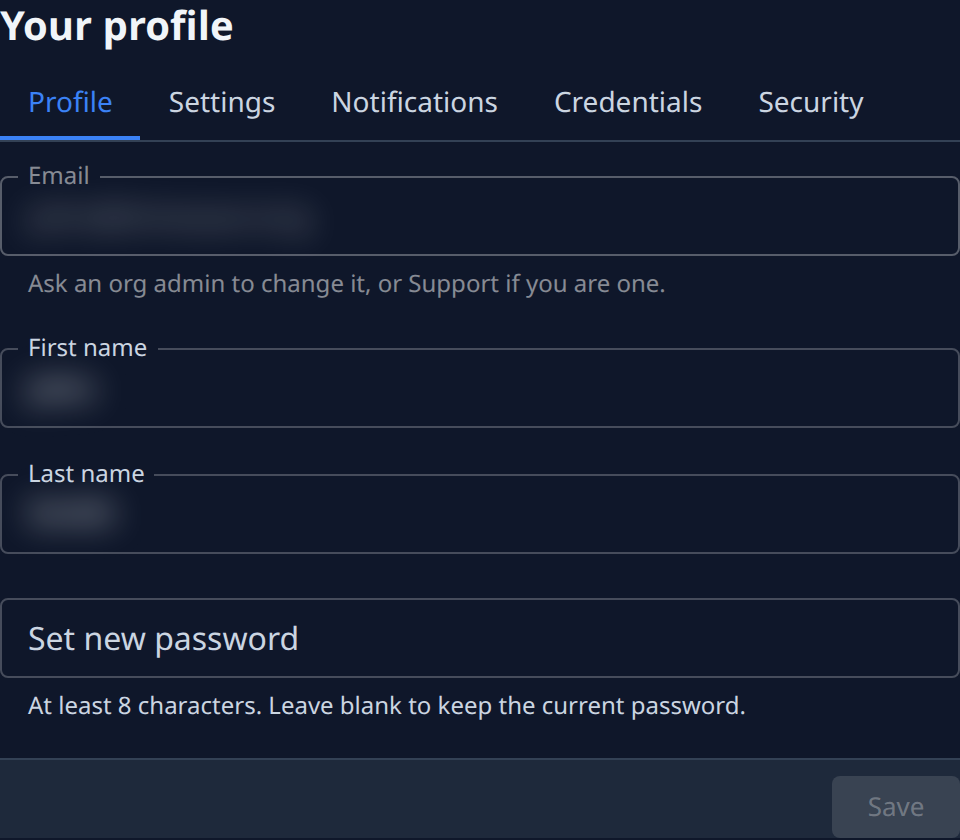
| Field | Meaning |
|---|---|
| The address you sign in with. You can't change it here. Ask an org admin to change it, or Support if you are an org admin. | |
| First name, Last name | Your name, as other people see it in Jaah. |
| Set new password | A new password, at least 8 characters. Leave it blank to keep your current password. |
Changing your password also removes all your trusted devices. See Security.
Settings
How the console looks and where it opens for you.
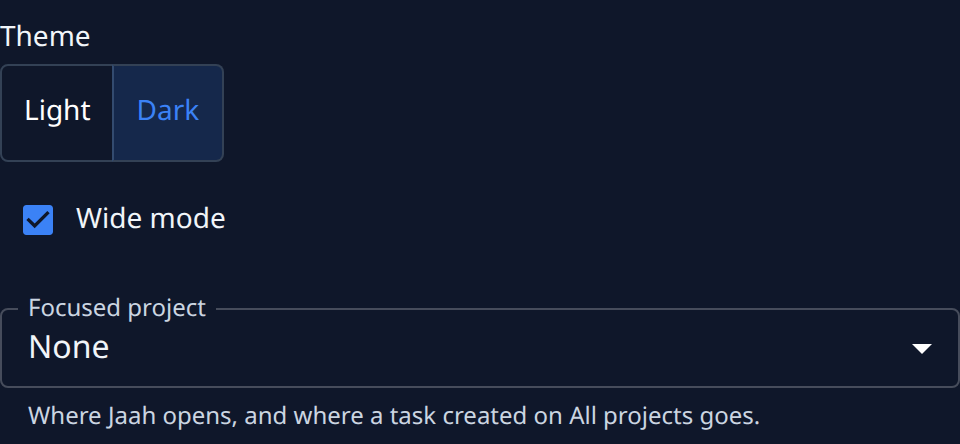
| Setting | Meaning |
|---|---|
| Theme | Light or Dark. The theme changes when you select Save. |
| Wide mode | Uses the full width of the window. |
| Focused project | Where Jaah opens, and where a task created on All projects goes. None for no project. |
Notifications
Which events you are told about, and how.
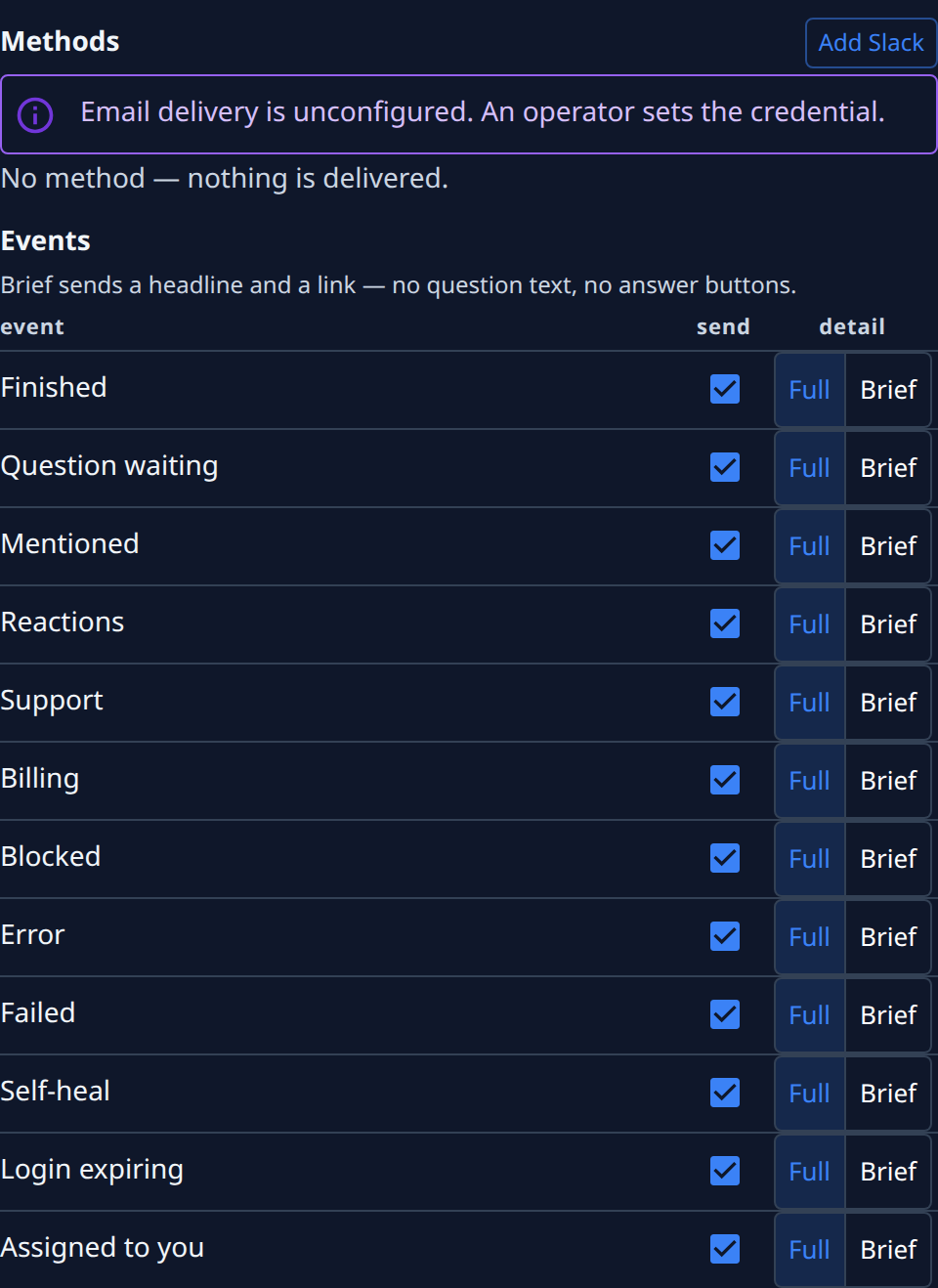
- Methods are where notifications go, for example Slack. Add Slack adds one. With no method, nothing is delivered. A note says when a channel isn't set up yet.
- Events lists each event, for example Finished, Question waiting, Mentioned or
Assigned to you.
- send turns the event on or off.
- Full or Brief sets how much it says. Brief sends a headline and a link only: no question text and no answer buttons.
Git accounts
The Git hosts your runners push with. Your other credentials are in Directory, then Credentials. See Credentials.
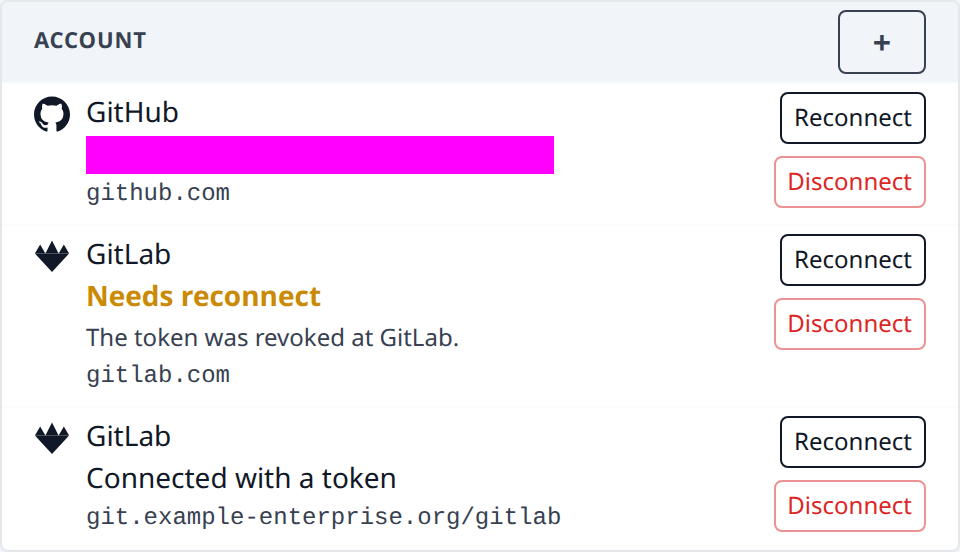
The table lists each account you connected: the host, the account, and its address. A row says Needs reconnect when the account stopped working.
| Button | What it does |
|---|---|
| + | Adds an account. Pick its Type, then a Method, then fill in the fields. |
| Reconnect | Connects the account again, for example after it stopped working. Where the host has no sign-in, it asks for a new token. |
| Disconnect | Removes the account. |
Type is GitHub, GitLab, Bitbucket, Azure DevOps or Self-managed GitLab. A host you already added is greyed out: use its Reconnect instead.
| Method | What it does |
|---|---|
| Sign in with the host | Signs you in to the host. Missing when the host isn't set up yet; a line under Method says so. |
| Paste a token | Connects with a token you create on the host. Enter it, then select Test and connect. |
| Use a credential I already added | Connects with a credential you added. Pick it in Credential. |
For Self-managed GitLab, enter its Base URL and a Token, then select Test and connect.
Security
The browsers that skip the sign-in code.
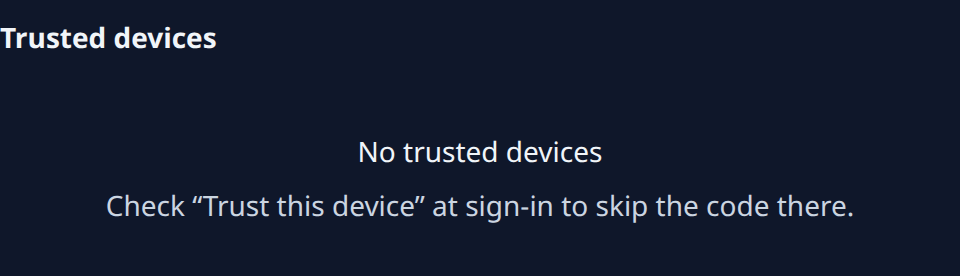
Trusted devices lists each browser where you checked Trust this device at sign-in. The one you are using is marked This device.
- Select Revoke next to a device to remove it.
- Select Revoke all, then Revoke all again to confirm, to remove every device.
Either one also signs you out everywhere else. See Sign in.