Set up single sign-on (SSO)
With single sign-on, your members sign in to Jaah through your own identity provider (IdP): Okta, Microsoft Entra ID, Google Workspace or any other SAML 2.0 or OpenID Connect (OIDC) provider. This guide sets it up end to end: prove your email domain, register Jaah in your IdP, connect the IdP in Jaah, test it, then require it.
You need:
- A plan that includes SSO. Without it, Features has no SSO card. To get one, see Subscription.
- The Org Owner or Org Admin role in Jaah.
- An administrator of your IdP, and someone who can add a DNS record for your email domain.
The Sign-in card's Single sign-on setting signs every member in through Google Workspace or Microsoft Entra ID with no app to register and no plan requirement: pick the provider, enter your Workspace domain or Entra tenant ID, and select Save. What each option does is on Your organization. Use this guide when you want your own IdP app, Okta, SAML, Require SSO or SCIM.
Pick a protocol
| IdP | Use | Why |
|---|---|---|
| Okta | SAML 2.0 or OIDC | Both work. |
| Microsoft Entra ID | SAML 2.0 | Entra ID's OIDC tokens never say whether an email is verified, and Jaah refuses a sign-in without that. |
| Google Workspace | SAML 2.0 or OIDC | Both work. SAML needs a super administrator in the Google Admin console; OIDC needs a Google Cloud project. |
| Any other | SAML 2.0, or OIDC if its ID token carries email and email_verified |
1. Open the SSO card
- In the sidebar, select Settings, then Features.
- Find the SSO card. Search settings finds it by name.
The card has these parts, top to bottom: Service provider, Identity provider, Test, Require SSO, Linked members and SSO domains.
2. Add and verify your SSO domain
Only people whose email is on a verified SSO domain can sign in through SSO. Start here, because DNS can take a while to update.
- Under SSO domains, enter your email domain in Domain, for example
example.com, and select Add. The domain shows Not verified, with a TXT name and a TXT value. - At your DNS host, add a TXT record with that name and value. Use Copy name and Copy value.
- Back in Jaah, open the domain's ⋯ menu and select Verify. It shows Verified once Jaah reads the record. If it doesn't yet, wait for DNS to update and select Verify again.
To stop a domain sending members to SSO, select Remove in its ⋯ menu.
Add each email domain your members use. A domain can be verified by one Jaah organization only. SSO domains are separate from the join domains your operator sets.
3. Copy Jaah's values for your IdP
Under Identity provider, set the protocol dropdown to the protocol you picked: SAML 2.0 or OIDC. Service provider then shows the values your IdP needs, each with a copy button:
| Value | Protocol | Give it to your IdP as |
|---|---|---|
| Entity ID | Both | The audience or SP entity ID. |
| ACS URL | SAML 2.0 | Where the IdP posts its SAML response. |
| Metadata URL | SAML 2.0 | Jaah's SAML metadata, for an IdP that can read it. |
| Redirect URI | OIDC | The sign-in redirect URI. |
All of them end in your organization's slug: they are your organization's own, not shared with others.
4. Register Jaah in your IdP
Follow the section for your IdP and protocol. Each vendor's console changes from time to time; the vendor page linked in each section has the current screens. What Jaah needs from every IdP:
- SAML 2.0: a signed response or signed assertion, and the member's email as the NameID in the Email address format (a persistent NameID also works; a transient one does not). Jaah reads the metadata of your IdP, which must list a sign-in URL with the HTTP-Redirect binding and a signing certificate.
- OIDC: a confidential web client with a client secret, the authorization code flow, and the
openid,emailandprofilescopes. Its ID token must carryemailandemail_verified.
Okta — SAML 2.0
-
In the Okta Admin Console, go to Applications › Applications and select Create App Integration. Choose SAML 2.0 (in the classic experience, if Okta asks) and select Next.
-
Name the app, for example
Jaah, and select Next. -
Under SAML Settings, set:
Okta field Value Single sign-on URL Jaah's ACS URL Audience URI (SP Entity ID) Jaah's Entity ID Name ID format EmailAddress Application username format Email -
Select Next, then Finish.
-
On the app's Sign On tab, copy the Metadata URL.
-
On the Assignments tab, assign the people or groups who use Jaah.
Okta's guide: Create SAML app integrations.
Okta — OIDC
- In the Okta Admin Console, go to Applications › Applications and select Create App Integration. Choose OIDC - OpenID Connect, then Web Application, and select Next.
- Name the app, for example
Jaah. Under Grant type, keep Authorization Code. - In Sign-in redirect URIs, enter Jaah's Redirect URI. Remove any other redirect URI.
- Under Assignments, choose who may use Jaah, then select Save.
- On the app's General tab, under Client Credentials, copy the Client ID and the Client secret. Keep Client authentication set to Client secret.
- Note your issuer: your Okta address, for example
https://example.okta.com.
Okta's guide: Create OIDC app integrations.
Microsoft Entra ID — SAML 2.0
-
In the Microsoft Entra admin center, go to Entra ID › Enterprise apps and select New application, then Create your own application.
-
Name it, for example
Jaah, choose the option for an application not in the gallery, and select Create. -
Open Single sign-on and choose SAML.
-
Under Basic SAML Configuration, select Edit and set:
Entra field Value Identifier (Entity ID) Jaah's Entity ID Reply URL (Assertion Consumer Service URL) Jaah's ACS URL Select Save.
-
Under Attributes & Claims, select Edit, then the Unique User Identifier (Name ID) claim. Set Choose name identifier format to Email address and the source attribute to the address members sign in to Jaah with:
user.userprincipalname, oruser.mailif that differs. Select Save. -
Under SAML Certificates, copy the App Federation Metadata URL.
-
Open Users and groups and assign the people or groups who use Jaah.
Microsoft's guides: Enable SAML single sign-on and Customize SAML token claims.
Google Workspace — SAML 2.0
You need to be a super administrator in the Google Admin console.
- In the Google Admin console, go to Apps › Web and mobile apps and select Add app › Add custom SAML app.
- Name the app, for example
Jaah, and select Continue. - On Google Identity Provider details, select Download metadata to save Google's metadata file, then select Continue.
- On Service provider details, set ACS URL to Jaah's ACS URL and Entity ID to Jaah's Entity ID. Leave Signed response as it is: Jaah accepts a signed assertion. Under Name ID, set Name ID format to EMAIL and Name ID to Basic Information › Primary email. Select Continue, then Finish.
- Open the app's User access, choose ON for everyone (or the organizational units or groups who use Jaah), and select Save. A change can take up to 24 hours to reach every user.
Google publishes no metadata URL: in Jaah you paste the file's contents.
Google's guide: Set up your own custom SAML app.
Google Workspace — OIDC
- In the Google Cloud console, open or create a project for Jaah.
- Open Google Auth Platform. If it asks, set it up with Audience set to Internal, so only people in your Workspace can sign in.
- Open Clients and select Create client. Set Application type to Web application and name
it, for example
Jaah. - Under Authorized redirect URIs, select Add URI and enter Jaah's Redirect URI. Select Create.
- Copy the Client ID and the Client secret.
- Your issuer is
https://accounts.google.com.
Google's guide: OpenID Connect.
5. Connect your IdP in Jaah
SAML 2.0
- Under Identity provider, set the protocol dropdown to SAML 2.0.
- Paste the metadata URL of your IdP into Metadata URL: Okta's Metadata URL, or Entra's App Federation Metadata URL. For Google Workspace, or any IdP without a URL, select Paste XML instead and paste the whole metadata file into Metadata XML. Use a URL instead switches back. Once saved, the box reads Saved. Paste to replace.
- Leave Create members on first sign-in ticked to let a person on your SSO domain who is not yet a member join at their first SSO sign-in, with your organization's default role. Untick it to let in only existing members.
- Select Save. Saved. appears beside it, and IdP entity ID shows the IdP the metadata names.
If Jaah can't use the metadata, a message says what is missing, for example a sign-in URL or a signing certificate. Copy the metadata again from your IdP.
OIDC
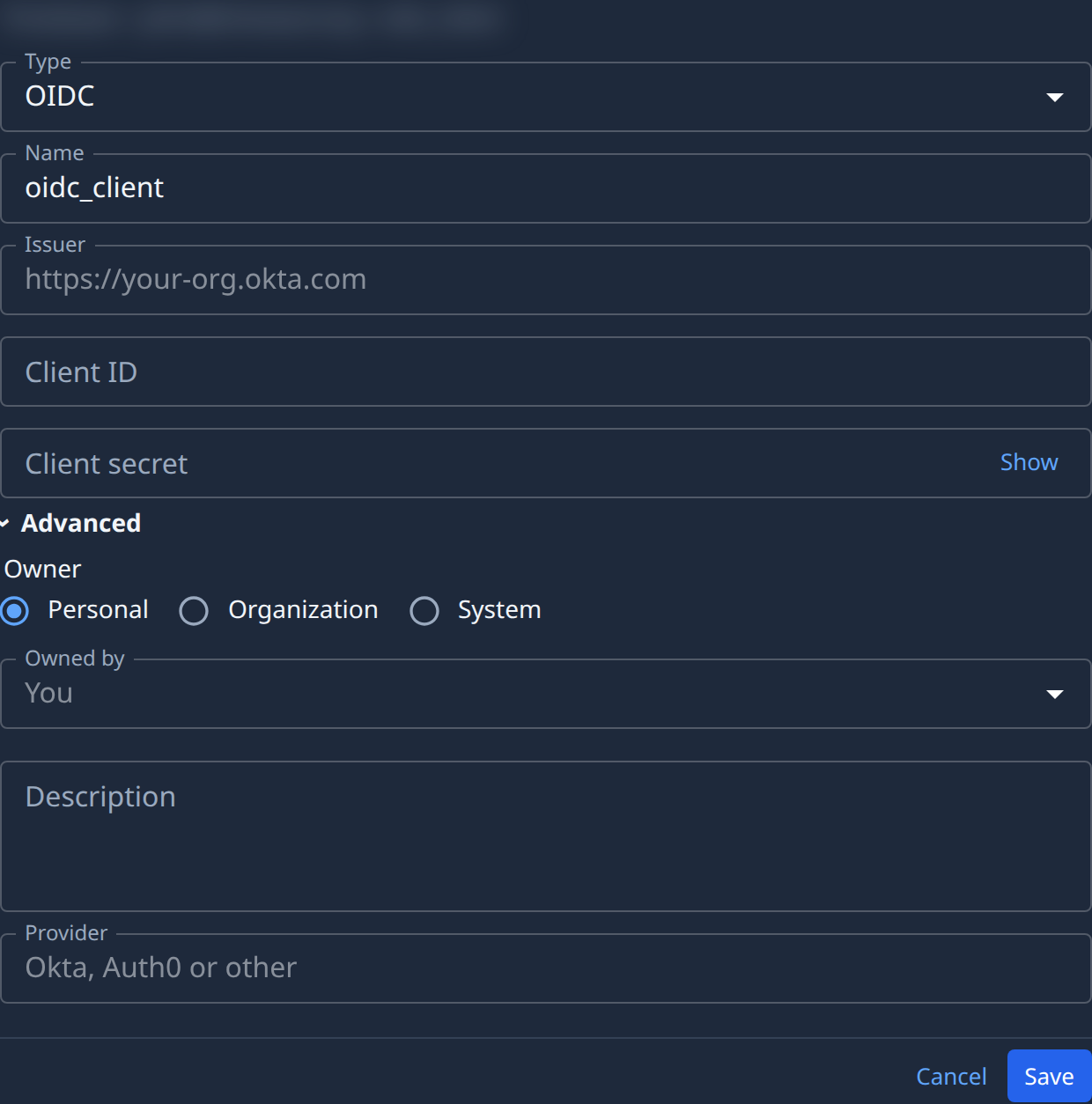
An OIDC client is stored as an organization secret first, then picked on the SSO card.
-
Under OIDC client, select Add one in Credentials. Directory's Secrets tab opens.
-
Select Add secret, then Other secret. In Type, pick OIDC (Okta / Auth0). It is the type for every OIDC provider, Google included, and the box then reads OIDC.
-
Give it a Name, for example
sso/okta. -
If the form shows a NodeVault box, untick it. Jaah's servers open this secret at every sign-in, so SSO can't use a NodeVault secret.
-
Fill in Issuer (exactly as your IdP shows it), Client ID and Client secret.
-
Open Advanced and set Owner to Organization (it starts on Personal), so the secret doesn't depend on your own account. Select Save.
-
Back on the SSO card, set the protocol dropdown to OIDC again and pick the secret in OIDC client. Its search lists only OIDC secrets; with none, it reads No OIDC client credential.
-
Set Create members on first sign-in as for SAML, above, and select Save. Issuer then shows the client's issuer.
6. Test
- Under Test, select Test. A pop-up opens the sign-in page of your IdP. If the browser blocks it, the card says Allow pop-ups for this site, then Test again.
- Sign in at your IdP as yourself.
- The pop-up closes and a banner says Test passed as the email your IdP sent, or why it failed. The status line under Test then reads Passed, with when and by whom. Before an IdP is saved it reads Save an identity provider first. and Test is greyed out; before any test it reads Not tested; after the OIDC secret is edited it reads Credential changed. Test again. until a test passes.
A test signs nobody in and changes nothing for your members. Run it from a console address that starts
with https://.
A test proves the IdP setup only. It passes even when your SSO domain is not verified yet, and even when the IdP sends the email as a profile attribute rather than the NameID. Members then see Your email domain isn't verified for SSO. (verify the domain, step 2) or Your identity provider can't link this account yet. (send the email as the NameID, or provision members with SCIM).
| The test says | Fix it at your IdP |
|---|---|
| The identity provider sent no email. Send it as the NameID or an email attribute. | Send the email as the NameID, in the Email address format. |
| The identity provider sent a transient NameID. | Use the Email address (or persistent) NameID format. |
| The identity provider has not verified this email. | The ID token doesn't mark the email verified (email_verified). For Microsoft Entra ID, use SAML 2.0. |
| The identity provider refused the sign-in. Check the client ID and secret. | Copy the client ID and secret again into the secret, and check the Redirect URI. |
| The OIDC issuer's configuration could not be read. Check the issuer. | Correct Issuer in the secret: it must match the issuer your IdP shows, character for character. |
7. Require SSO
Until a test passes, Require SSO stays greyed out with Run Test first. Once one passes, it can be ticked. Tick it and confirm with Require:
- Members must sign in through your IdP. A password, Google, GitHub or Microsoft sign-in is refused with SSO is required. Use Sign in with SSO.
- Every other member is signed out at once and signs in again through SSO.
- Jaah operators (not your Org Owners) can still sign in, so a broken IdP never locks your organization out for good.
Until you require it, members may use SSO or their usual sign-in.
Saving a different IdP turns Require SSO off, with Saving turns off Require SSO until Test passes again.; test again, then tick it again. After any edit to the OIDC secret, the client secret included, select Test again: until a test passes, Require SSO reads Test again to keep it on. You can still untick it without testing, and saving the card turns it off, with the same warning.
How members sign in
- On the sign-in page, a member selects Sign in with SSO.
- They enter their work Email and select Continue.
- Jaah finds your organization from the email's domain and sends them to your IdP; they come back signed in.
The first SSO sign-in links the member to their IdP account. Later sign-ins must come from that same IdP account. If someone's IdP account is replaced, they see This identity provider account isn't the one linked to you. Under Linked members, find them in Linked to another identity provider and select Reset; their next SSO sign-in links again. Linked members also counts everyone linked.
Provision members with SCIM
SSO decides how members sign in; SCIM lets your IdP create, update and remove them and their groups. Set up SSO first, then SCIM in the same IdP app:
- Okta and Microsoft Entra ID: follow SCIM provisioning.
- Google Workspace: provisioning to a custom app is a limited beta at Google, so add and remove members in Jaah, or let Create members on first sign-in add them.
While SCIM manages your members, Create members on first sign-in is off and the card says SCIM manages members.: your IdP creates every member.
Change or remove the IdP
- To change it, connect the new IdP as in step 5 and test again. Members linked to the old IdP are listed under Linked to another identity provider until they next sign in.
- Remove identity provider, at the foot of the card, turns SSO sign-in off after you confirm. Your SSO domains are kept.
Related
- Your organization — the Sign-in and SSO cards among your organization's settings.
- SCIM provisioning — members and groups from your IdP.
- Add a secret — the form the OIDC client is stored with.
- Audit — who changed sign-in settings, and when.