Settings
Settings shows the values that shape how Jaah runs for your organization: how new tasks start, how many runners work at once, how ports are handed out on your nodes and when a model account rests. Most of them are set by the operator and shown here read-only, so you can see why Jaah behaves as it does. A few sections near the end are yours to change.
Open it from the sidebar: select Settings. You need permission to view system settings; without it the item does not appear.
Type in Search settings to find a value by name. The categories on the left — Tasks, Projects, Billing, Runners, Nodes, Accounts and Organizations — each open their own list. The categories you see depend on your role.
Reading a value
Each row shows a setting's name, its value, and where the value comes from:
| Source | Meaning |
|---|---|
| Default | Jaah's built-in value. |
| Set by the operator | The operator chose this value for you. |
| Set for your organization · otherwise … | The operator set this value for your organization only; after otherwise is the value it would have without it. |
Hover a setting's name (it is underlined with dots) to read what it does. Each category that holds operator values says Set by an operator. Ask them for a change. — you cannot edit those rows.
Tasks
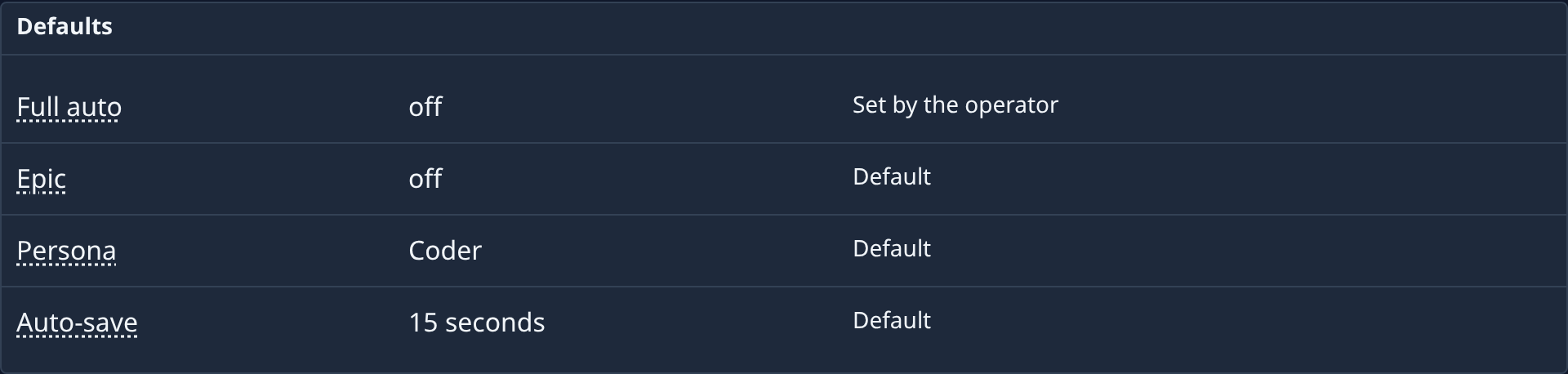
| Setting | What it does |
|---|---|
| Full auto | New tasks start with the runner deciding everything itself and running to delivery. |
| Epic | New tasks start as an epic: analysed, designed and split into subtasks. |
| Persona | The persona a new task starts with. |
| Auto-save | How often the editor saves a task in progress. |
| Re-tag on done | A finished task is re-classified into every active tag group. |
| Re-tag attempts, Comment attempts, Done-action attempts | How many times a failed step after a task finishes is retried. |
| Comment on linked issue | A finished task posts one comment, linking back, on the issue it was created from. |
| Playbooks | New tasks can run one of your playbooks. |
| Per project (Chats) | How many open chats one project may hold at once. Each holds a worktree. |
| Per person (Chats) | How many open chats one person may hold at once, across every project. |
The Tasks category also holds your organization's Tags.
Projects
The Defaults section holds the gate commands a new project starts with. Both are empty unless set: an empty gate means the project has none. An Org Owner or Org Admin can change them here; the operator can also set them for your organization. Existing projects keep their own commands.
| Setting | What it does |
|---|---|
| Quick gate | Command new projects run on every commit. |
| Full gate | Command new projects run before a pull request. |
Billing
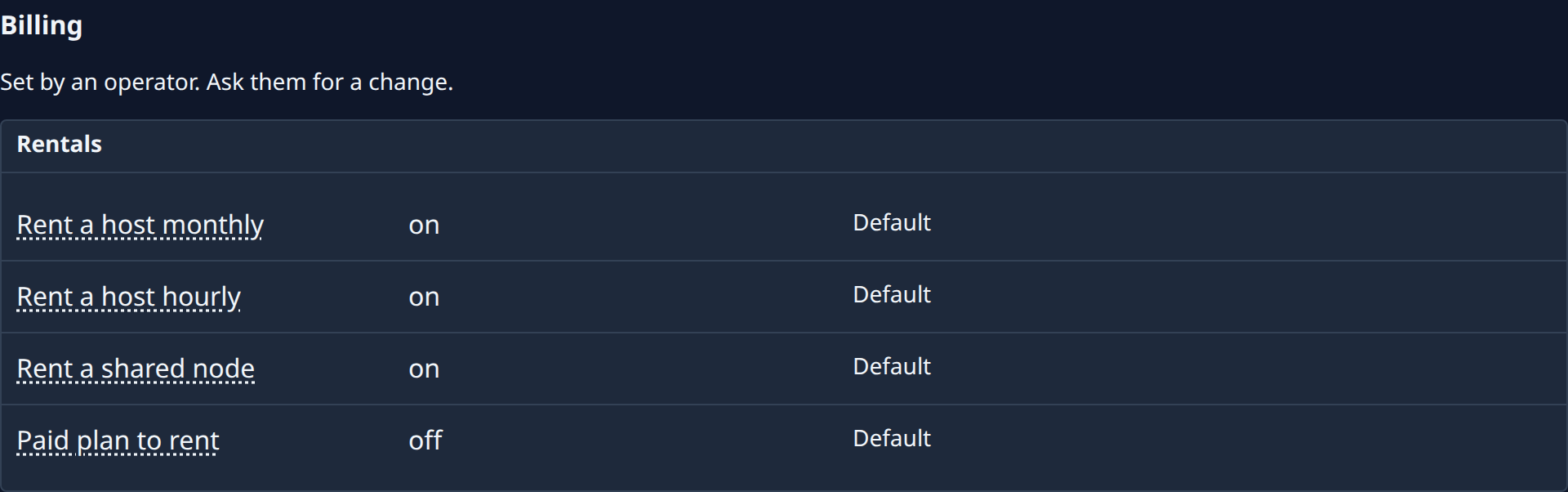
The Hosting section says which kinds of node Jaah may host for your organization.
| Setting | What it does |
|---|---|
| Monthly hosting | A dedicated host, paid a month in advance. |
| Hourly hosting | A dedicated host, billed by the hour it runs. |
| Shared node hosting | A node on a host shared with other organizations. |
| Paid plan for hosting | Only organizations on a paid plan get hosting. |
Runners
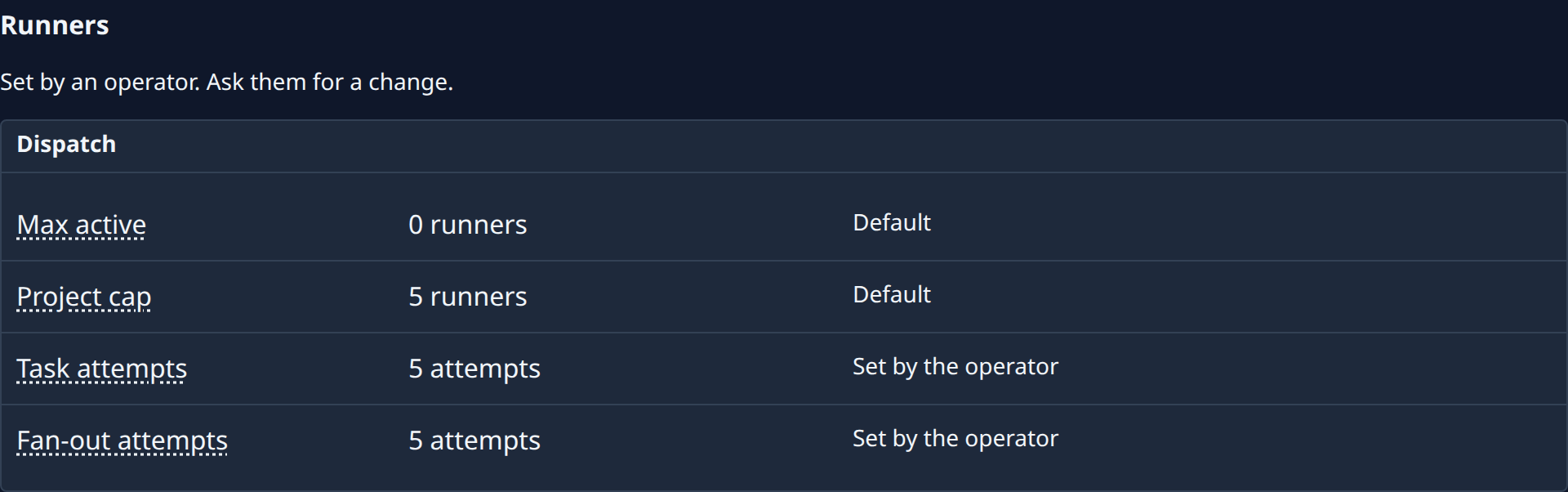
| Setting | What it does |
|---|---|
| Max active | Runners allowed at once across every project; 0 lets each project's own cap decide. |
| Project cap | Runners a project may hold at once when it has no pool maximum of its own. |
| Task attempts | How many times a task is dispatched before an unfinished attempt marks it failed. Attempts lost to a node failure don't count. |
| Fan-out attempts | How many times an epic may fail to start a subtask before it is held for review. |
Nodes
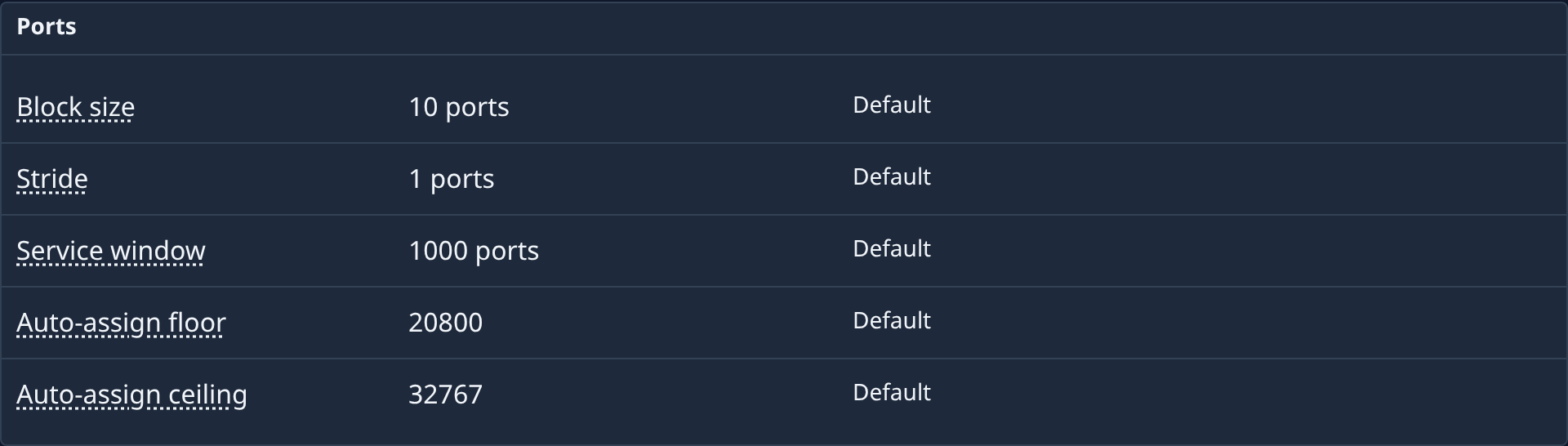
The Ports section sets how ports are handed out to the projects running on your nodes: Block size, Stride, Service window, Auto-assign floor and Auto-assign ceiling. Hover each name for what it means.
An Org Owner or Org Admin also sees Range starts (a fixed port per environment variable, with Add var) and Per-credential launch defaults (what a cloud node launched with each AWS credential uses, with Add defaults).
Accounts
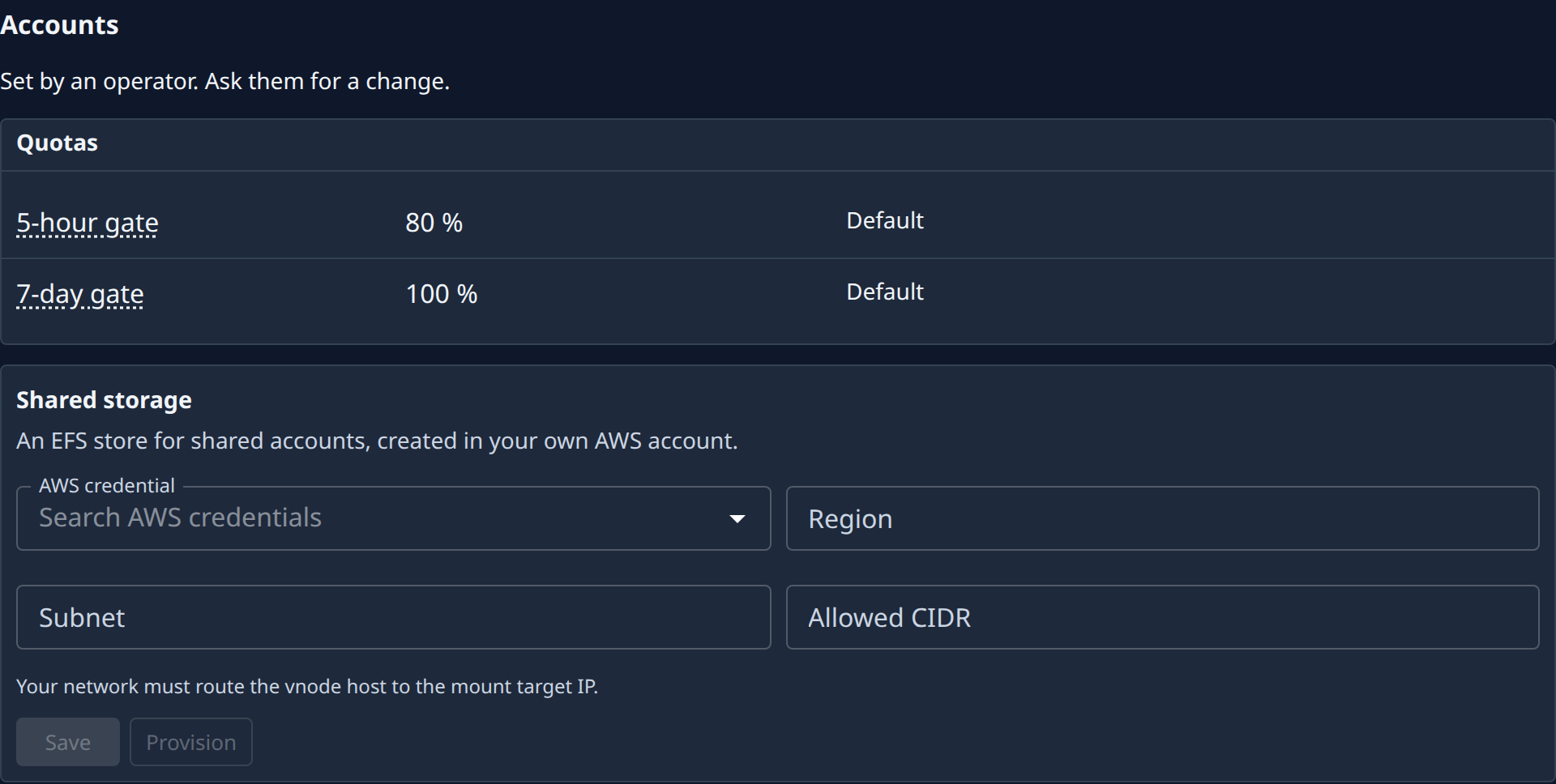
| Setting | What it does |
|---|---|
| 5-hour gate | Usage over the last 5 hours at or above which a model account sits out of new work. |
| 7-day gate | Usage over the last 7 days at or above which a model account sits out of new work. |
Shared storage appears if you may view credentials. It is a store for shared accounts, created in your own AWS account. With permission to edit credentials:
- Pick the AWS credential, then fill in Region, Subnet and Allowed CIDR.
- Select Save.
- Select Provision to create the store. If it says Still creating. Press Provision again., do so after a moment.
Your network must route your nodes' host to the store's address.
Organizations
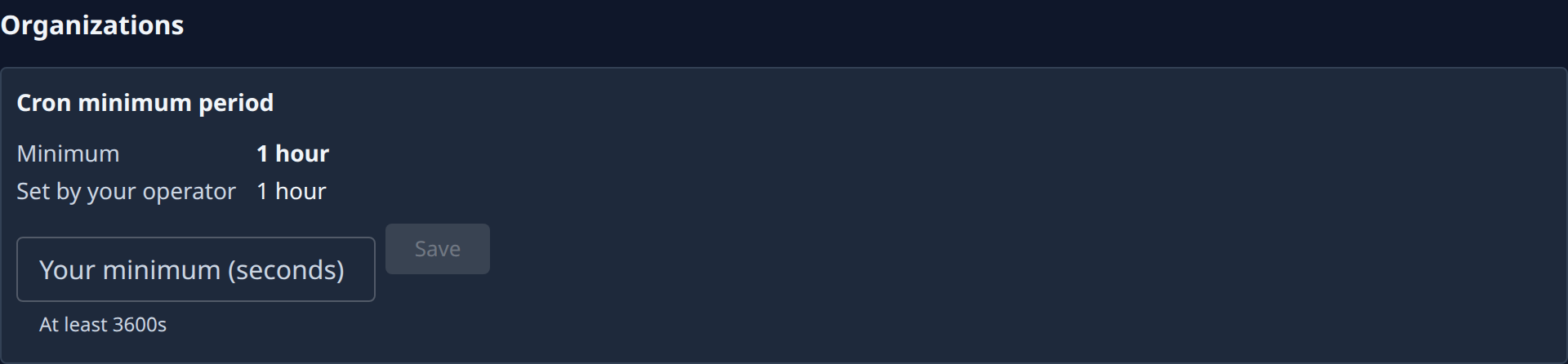
Shown to an Org Owner or Org Admin. Cron minimum period is the shortest gap allowed between two firings of one of your schedules.
| Item | Meaning |
|---|---|
| Minimum | The minimum in force. |
| Set by your operator or Operator minimum | The operator's minimum. Yours can't be lower. |
| Your minimum (seconds) | Raise the minimum for your organization. The hint says the lowest value allowed. Select Save. Once you have set one, Clear removes it. |
Related
- Schedule — the schedules the cron minimum applies to.
- Model accounts — the accounts the 5-hour and 7-day gates rest.
- Nodes — the nodes the port settings apply to.