Sessions
Every time an agent works on a task, it runs a session. The Sessions tab of Audit lists those sessions, says how each one ended, and lets you download what the agent did and said: its transcript.
Open it from the sidebar: select Audit, then the Sessions tab. It has two parts: Sessions, the list, and Efficiency.
The list
The heading reads Every agentic session, and what became of its transcript. Each row is one session.

Filters
| Filter | What it does |
|---|---|
| Window | Last 24 hours (the default), Last 7 days, Last 30 days or All time. |
| Status | Running, Ended or Unknown. Any status shows all. |
| Transcript | Shows only sessions whose transcript is in one state. See Transcript states. Any transcript shows all. |
| Node | Shows only sessions that ran on one node. All nodes shows all. |
| Search | Narrows the list to sessions whose name, session id, branch or worktree contains what you type. |
When you arrive from a task, the list shows only that task's sessions and a Task #… ✕ button. Select it to clear that filter.
Each session
| Item | Meaning |
|---|---|
| Mark | The transcript's state, as a symbol. Hover it for the reason. |
| Name | The session, such as task 4810 · 21addf89: its task and the start of its session id. |
| Status | ▶ running, ■ ended, ? unknown. |
| Tokens | How many tokens the session used. Hover it for the split between input and output. |
| Duration | How long the session ran. |
| Ended | How long ago it ended. Hover it for the exact time. |
| Node | The node it ran on. |
| Task | The task it worked on. Select it to open the task. |
| Transcript | The transcript's state, in words. |
| Started | How long ago it started. Hover it for the exact time. |
On a narrow screen, some of these columns are hidden. A session's task can still be opened from its ⋯ menu.
When a transcript isn't ready or failed, the reason is shown on a line under the row.
When there are more sessions than fit on one page, use Previous and Next below the list.
Sort
Select the sort button (↑↓) above the filters to choose the order.
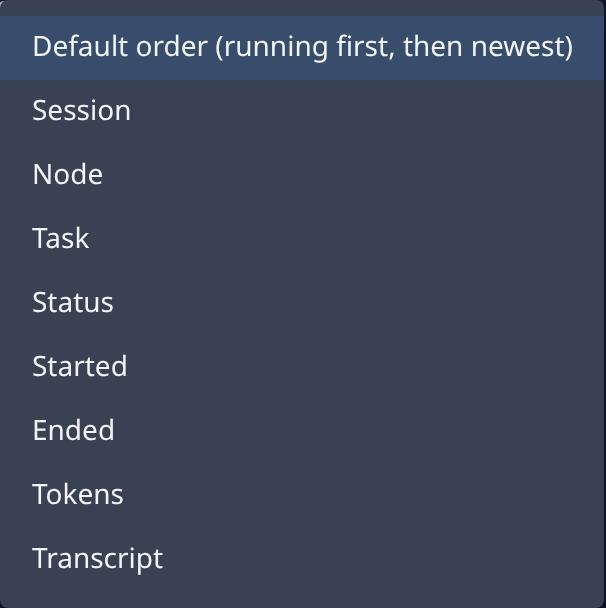
Default order (running first, then newest) is used until you pick another. Once you do, a Default order button appears beside the filters to go back.
Transcript states
| State | Meaning |
|---|---|
| pending | Waiting for the node to upload it. |
| uploading | The upload is in progress. |
| uploaded | Uploaded and ready to download. |
| failed | The upload failed. The reason is shown under the row. |
| gave up | The upload was tried and abandoned. |
| unavailable | The transcript couldn't be read from the node. |
| n/a | The session has no transcript. |
The Transcript filter names these states with a capital letter, and calls n/a Not applicable. It also offers Stale (never started, over …): sessions that were dispatched long ago and never started. See Stale sessions.
A session's menu
Select ⋯ on a row.
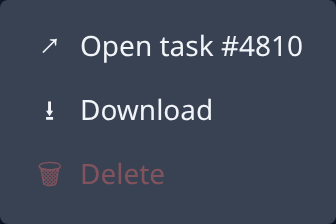
| Item | What it does |
|---|---|
| Open task #… | Opens the task the session worked on. |
| Download | Downloads the transcript. Shown only if your role can download transcripts. Unavailable until the transcript is uploaded. |
| Delete | Deletes the session's row. Shown only if your role can download transcripts. Available only for a stale session; otherwise the item gives the reason it can't be deleted. To confirm, select Delete session. There is no undo. |
Download a transcript
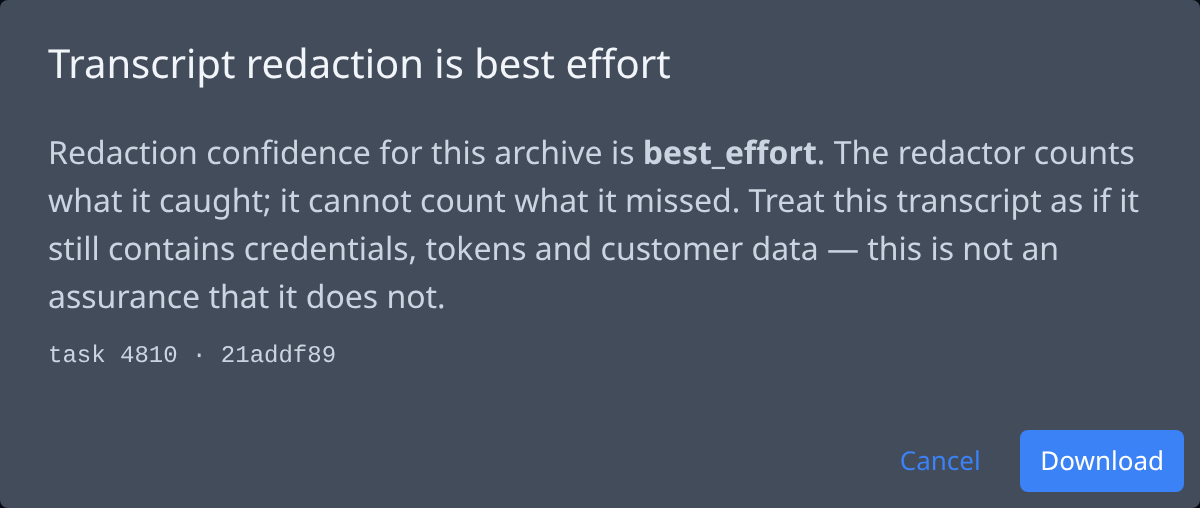
- Select ⋯ on the session's row, then Download.
- Read the warning. Redaction removes the secrets it recognizes, but it can miss some. Treat the transcript as if it still holds credentials, tokens and customer data.
- Select Download. Select Cancel to go back without downloading.
Stale sessions
A session that was dispatched but never started never ends, so nothing will ever finish it. When there are such sessions, a yellow banner above the filters says how many.
- Select Show them to list them.
- Select Delete … sessions to delete them all. Shown only if your role can download transcripts. A dialog states the count; select Delete … sessions again to confirm. There is no undo.
A blue banner can also appear: it counts sessions that had no record until their node reported them.
Empty states
| Message | Meaning |
|---|---|
| No sessions recorded yet | No session has run. One appears as soon as a node reports it. |
| No sessions match these filters | No session matches your filters. Select Clear filters, or set Window to All time. |
| Could not load sessions | The list couldn't be read. It doesn't mean no sessions ran. Try again. |
Efficiency
The Efficiency part, under the heading Where the time goes, shows where agents' time went over a period. Pick the period with 7d, 14d or 30d; the dates are shown in UTC.
When it isn't available for your organization, it says Session efficiency is not available and gives the reason.
