Issue trackers
A tracker connection links a Linear, Jira or Backlog workspace to Jaah. An issue in a mapped tracker project starts a task in the Jaah project it is mapped to, and Jaah reports the task's progress back on the issue.
Open it from Settings: select Integrations, then Issue trackers. Issue trackers is shown only to Owners and Admins of your organization. How tracker connections fit with projects and automations: Link a project to an issue tracker.
Each tracker's own setup steps, such as making its secret: Linear, Jira, Backlog.
Add a tracker
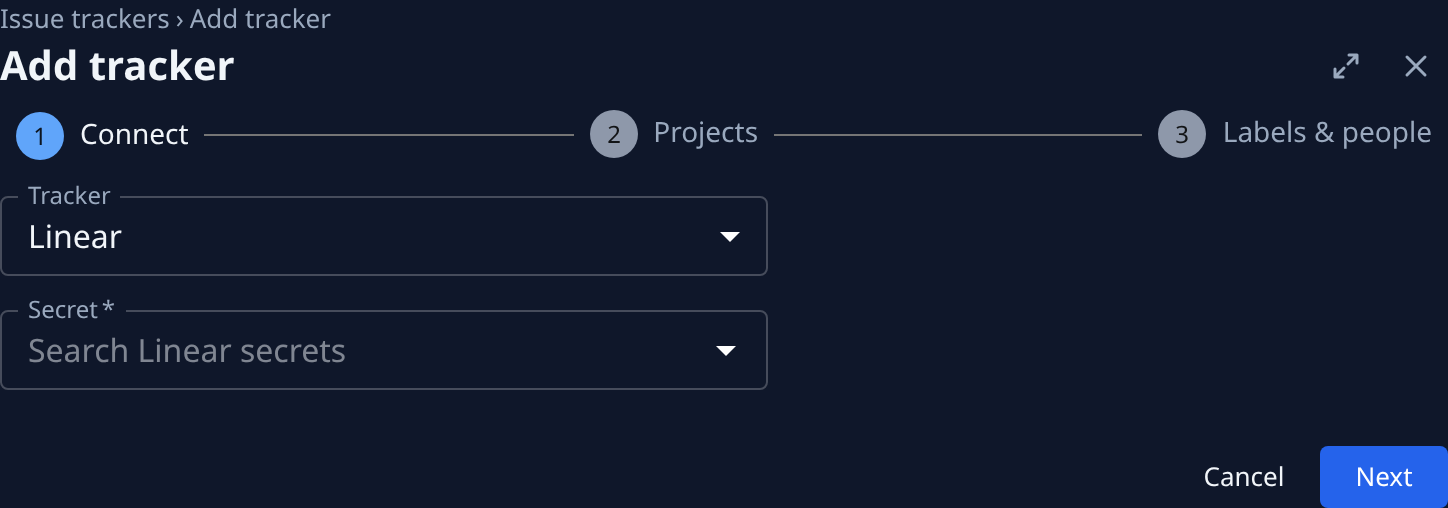
Add tracker opens a setup in steps, in a pane beside the list, titled Add tracker. A step indicator shows where you are; Back returns to an earlier step, Cancel closes it. Setup ends with a working connection: one that starts tasks.
-
Connect. Next connects the tracker; it stays refused until a secret is picked (a Jira Forge app needs none), saying Pick a secret.
Field What it does Tracker Linear, Jira or Backlog. Sign-in Jira only. Forge app uses Jaah's Jira app, claimed with a code; it is the default where this console has the app. API token signs in with a Jira secret instead, and the tracker sends events to a webhook. Secret The secret of that tracker's type that Jaah acts with. A secret kept in NodeVault is not offered. A Jira Forge app needs none. Add new… opens that tracker's new secret page and comes back with the new secret picked, after its Connect sign-in too. Site Jira and Backlog only. The tracker's host, such as acme.atlassian.net or acme.backlog.com. Filled from the secret. For a Jira Forge app, optional: it gives the Jira app step a direct link to Jaah's page in your Jira settings. 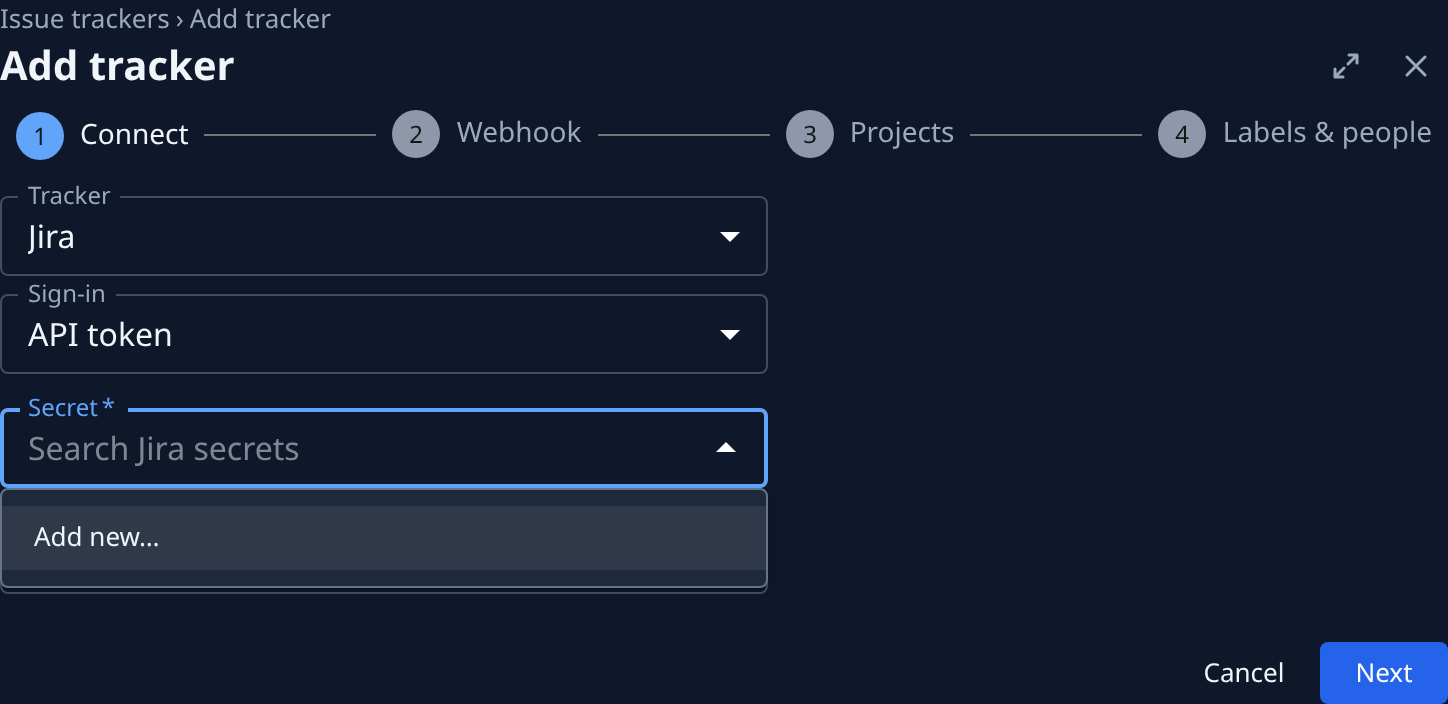
Step by step: Add a secret while adding a tracker.
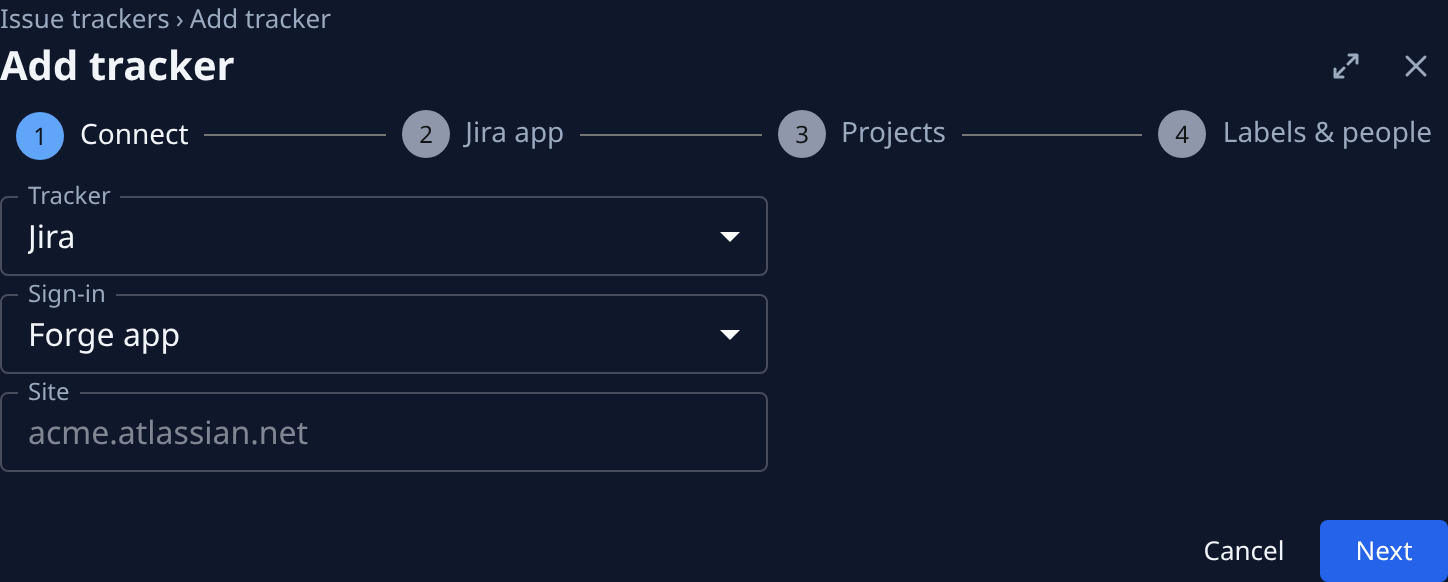
Once connected, the step shows what was connected instead: Name, Tracker, Sign-in, Site and State Connected.
-
Webhook (Jira with API token) or Jira app (Jira with Forge app). Linear and Backlog skip this step: Jaah registers their webhooks itself. On Connect, they list what to do in the tracker first: for Linear, connect the secret with Connect Linear as a workspace admin; for Backlog, add a Jaah user as administrator of each project, then use its secret.
- Webhook lists numbered steps: open WebHooks in Jira (a direct link to your site's Settings › System › WebHooks, named instead when the site is not known), select Create a WebHook, paste the URL and Secret (each with a copy button), tick issue created, issue updated and comment created, and select Create.
- Jira app lists numbered steps: Install Jaah’s Jira app, copy the Code, open Connect to Jaah in Jira (a direct link to the app's page in your site's Jira settings, when Site was filled on Connect), paste the code and select Connect. Without a site, the step names the page: Jira Settings › Apps, then Jaah in the left menu, not Atlassian Administration. The code works once, within 24 hours. The step waits: State turns from Waiting for the code to Claimed by itself, and only then does Next go on; until then it says Enter the code in Jira first.
Copy them now: Jaah does not show them again.
-
Projects. Map at least one tracker project (a Linear team) to the Jaah project its issues start tasks in, as on the Mapping tab. Next says what is missing, such as Map a Linear team to a project.
-
Labels & people. Start a task, Start label, Done state and Non-members can start tasks, as on Mapping and People. Finish saves them and opens the connection's page.
Leaving before Connect asks This tracker is not connected yet. Connect it before leaving? Leaving after it asks Setup is not finished, so this tracker starts no tasks yet. Finish it before leaving? The connection stays, but it starts no tasks yet: the list marks it Setup not finished, and opening it resumes the setup at its next step. A resumed Webhook step no longer shows the secret; New webhook URL makes a new pair. A resumed Jira app step no longer shows the code: delete the tracker and add it again for a new one. Its ⋯ offers Delete.
If a tracker can't be connected yet, the Tracker field says so.
A project that had a Jira secret before trackers arrived was moved to a Jira (API token) connection named after its site: see Link a project to an issue tracker. An organization that had turned off comments on linked issues keeps those moved tasks silent in Jira.
The list
Each row is one connection. Select its name to open its page. With none, the list says No tracker connected. and offers Add tracker. Each row's ⋯ holds Open and Delete.

| Column | What it shows |
|---|---|
| Name | The connection's name, marked Setup not finished until a project is mapped (and a Jira app claimed). |
| Tracker | Linear, Jira or Backlog. |
| Site | The tracker's site, such as acme.atlassian.net. |
| Projects | How many Jaah projects it is mapped to. |
| Added by | Who connected it. |
| Added | How long ago it was connected. Hover it for the date. |
A connection's page
The header shows the connection's name and Org, the organization it belongs to. Four tabs follow: Connection, Mapping, People and Events.
Connection
| Field | What it shows |
|---|---|
| Name | The connection's name. |
| Tracker | The tracker. |
| Sign-in | How Jaah signs in to the tracker: OAuth, API token or Forge app. |
| Site | The tracker's site. |
| Workspace | The tracker's own id for your workspace. |
| Jira app | Jira with Forge app only: Claimed, or Waiting for the code with Install, a link to Jaah's Jira app. |
| Automation | Open opens the automation that files this connection's tasks. |
| Added | When the connection was made. |
| Added by | Who connected it. |
New webhook URL, above the fields on a connection with its own webhook (Jira with API token), asks New webhook URL?, then shows a new URL and secret once, with Done. The old pair stops working at once.
Webhook, below the fields, reads the tracker live:
| Field | What it shows |
|---|---|
| Last event | How long ago the tracker last sent an event (the newest row on Events), or None yet. Hover it for the time. |
| State | Linear and Jira (Forge app) only, whose app keeps the webhook: Working when an event arrived in the last 7 days, otherwise Managed by the app. |
| A site or project | Jira (API token) and Backlog only, one row per Jira site or mapped Backlog project: Working when its webhook sends to this connection; Old address when Jaah's webhook there sends to another connection's address; Off when it is switched off; Missing when there is none; Unknown when Jaah can't read the tracker's webhooks (its tracker account isn't an admin there). Each says what to do. A Backlog row that isn't working shows the address to paste, with a copy button. While Jaah reads the tracker it shows Checking…; if the read fails, Could not check the webhook. |
If the connection's automation belongs to someone outside your organization, every start is refused and the page says so. Select Take ownership to make it yours; tracker starts work again at once.
An operator from another organization can't connect a tracker for yours: a member of your organization connects it, so its automation runs as one of you.
⋯ > Delete removes the connection, its automation and its event log, after Delete tracker? asks you to confirm. Tasks it already started stay.
Mapping
Three sections: Projects, Start a task and Start and finish.
| Item | What it does |
|---|---|
| Projects | One row per tracker container (a Linear team, a Jira project, a Backlog project): the container, in a column named as the tracker names it (Linear team, Jira project, Backlog project), picked from a list that reads, say, Pick a Linear team until you choose, and the Jaah Project its issues start tasks in, marked Starts tasks once saved. Add adds a row, its Project reading Pick a project until you choose; ✕ removes one. If Jaah cannot list the tracker's containers yet, type the container's id. With no rows, it says No projects mapped. |
| Start a task | How people send an issue to Jaah in this tracker, any of them on an issue in a mapped container. It follows the Start label as you type it. See the table below. |
| Start label | Adding this label to an issue starts a task. Default jaah. |
| Done state | The state the issue moves to when the task is done. Empty means Done. |
| Done in Jira completes the task | Named for the tracker, such as Done in Linear completes the task. When on (the default), moving an issue to the done state completes its linked tasks, running ones too. |
Start a task lists, per tracker, where the account is the tracker user Jaah acts as, by the name it had when the connection was made:
| Tracker | Ways listed |
|---|---|
| Linear | Delegate it to the account (Jaah), Mention it in a comment, Add the label start label. |
| Jira with API token | Assign it to the account, Mention it in a comment, Add the label start label. A connection that does not know the account's name says Jaah’s Jira user and Write @Jaah in a comment instead. |
| Jira with Forge app | Write @Jaah in a comment, Add the label start label. The app can't be assigned or mentioned. |
| Backlog | Assign it to the account, Mention it in a comment, Add the category start label. Without the account's name it says Jaah’s Backlog user. |
Project editors can also link containers in the project's Settings tab, section Issue trackers, and choose which project starts tasks when several share one: see Link a project to an issue tracker.
Save keeps your changes on Mapping and People; Discard drops them. Hover a disabled Save for what is missing, such as a row without a container or a project, a container mapped twice, or an empty start label. Leaving with unsaved changes asks This tracker has unsaved changes. Save them before leaving?
People
| Item | What it does |
|---|---|
| Non-members can start tasks | When on, tracker users who are not members of your organization can start tasks. On a Jira API-token or Backlog connection, the account the connection signs in with counts as the member who connected it. |
Events
The newest events the tracker sent, newest first; No events yet until the first one. If the events can't be loaded, it shows Events unavailable, the reason, and Retry.
| Column | What it shows |
|---|---|
| When | How long ago it arrived. Hover it for the time. |
| Issue | The issue's key. Select it to open the issue in the tracker. |
| What | What happened and who did it, such as assigned · Ann. Hover it for the comment's text. |
| Outcome | What Jaah did with it, such as Dispatched, Filtered, Stopped when removing Jaah or the label stopped its task, or Completed when moving the issue to the done state completed its tasks. |
| Reason | Why, when Jaah did not start a task. |
| Task | The task it started or reached. |
How an issue starts a task
In a mapped container, assigning or delegating an issue to Jaah, mentioning Jaah in a comment, or adding the start label starts a task; a mention's comment becomes the task's instruction. Start a task on the Mapping tab lists the ways that work in this tracker. While the project's link has Auto-start imported tasks off (the default for a new link), the task waits as a draft until someone starts it: see Choose whether imported tasks start on their own. Removing Jaah or the label stops it. While Done in tracker completes the task is on, moving the issue to the done state completes every task linked to it. When the connection signs in as you, assigning an issue to yourself starts nothing.
Editing the issue's title or description updates every task linked to it, finished ones and tasks linked by hand too. The issue's text replaces the task's, even one edited in Jaah; the old text stays in the task's Versions. A running task gets the new description as its new instruction, as when you save an edit.
A reply on the issue answers the task's open question, or becomes a comment on the task when none is open. Jaah ignores a reply from anyone not allowed to act on the task, and answers once with "Not allowed to act on this task". What Jaah posts back on the issue: What Jaah posts on the issue. Step by step, per tracker: Linear, Jira, Backlog.