Add a secret while adding a tracker
A tracker connection acts with a secret of the tracker's own type. If you don't have one yet, make it from the Secret field of Add tracker. You don't have to leave the setup and start again.
Who can do this: your organization's Owners and Admins. A Jira connection that signs in with the Forge app needs no secret, so this guide is for Linear, Backlog and Jira with API token.
Have the tracker account Jaah will act as ready first: its API key or token, or its sign-in for Linear. What each tracker needs is in Start tasks from Linear, Start tasks from Jira and Start tasks from Backlog.
-
Open Settings > Integrations > Issue trackers and select Add tracker.
-
Choose the Tracker. For Jira, choose API token as the Sign-in.
-
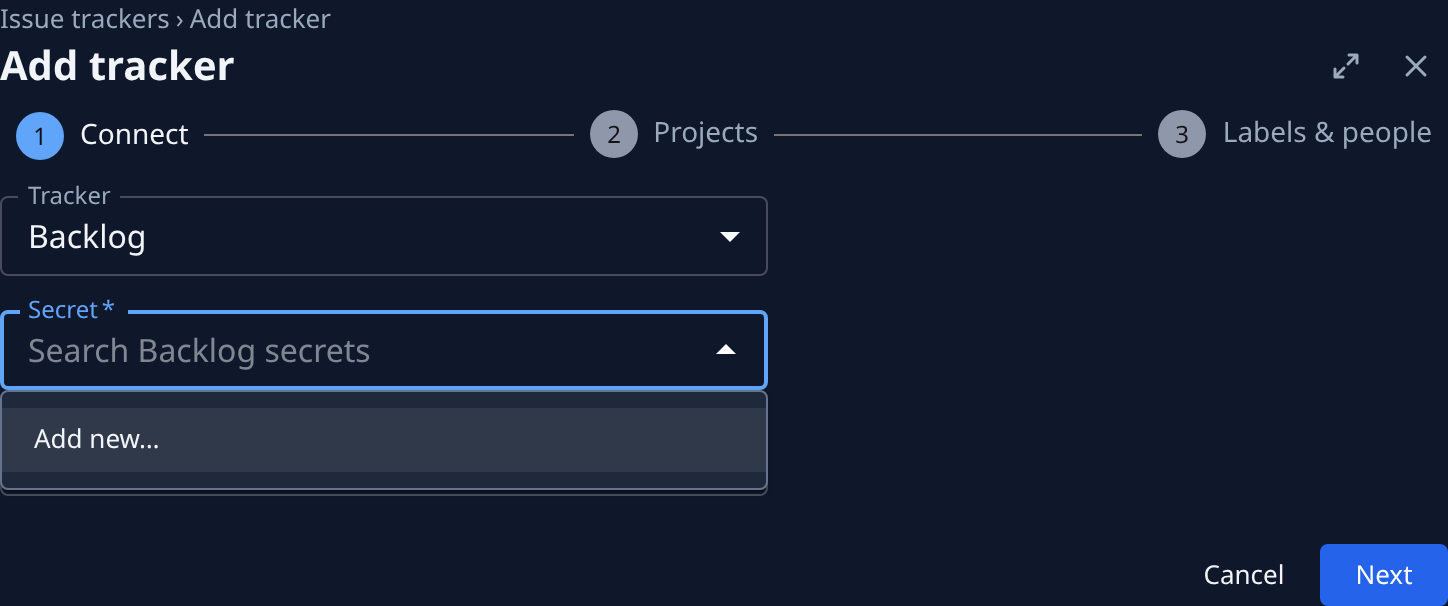
Open Secret. It lists the secrets of that tracker's type you can use, then Add new… last.
-
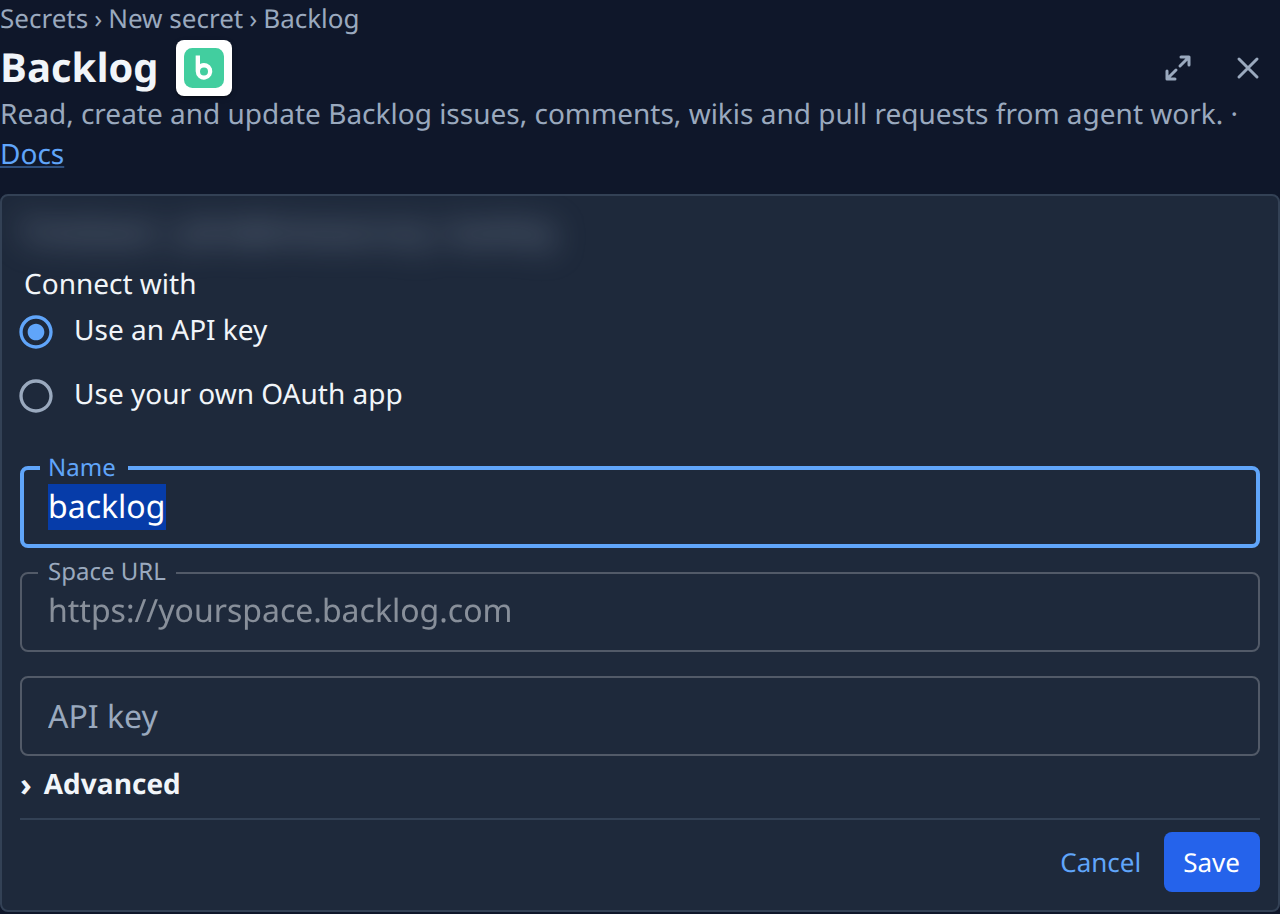
Choose Add new…. The new secret page for that tracker opens, such as Backlog under Secrets › New secret. Nothing you filled in on Add tracker is lost.
-
Fill in the secret. For Backlog, keep Use an API key and enter the Space URL and API key. For Jira, enter the site's address, the Jaah account's email and the token. For Linear, select Connect Linear and approve Jaah in Linear.
-
Select Save. You are back on Add tracker with the new secret picked in Secret. For Jira and Backlog, Site fills from it.
-
Select Next to connect the tracker, then finish the setup as in Issue trackers.
Cancel on the new secret page takes you back to Add tracker with nothing picked.
Keep the secret out of NodeVault. A tracker can't use a secret kept in NodeVault, so Secret never lists one. More on secrets: How credentials work.