Playbooks
A playbook is an ordered list of stages. Each stage pairs an expert with a deliverable. Playbooks are marked Preview. When the Playbooks setting is on in Settings, a new task can run one of your organization's own playbooks. The built-ins can't be run this way.
To create or change a playbook, see Create a playbook.
Who can do what
| You are | You can |
|---|---|
| Anyone in your organization | Open the list, open any playbook and preview its stages' prompts |
| An Owner or Admin of your organization | Also create, duplicate, edit and delete your organization's playbooks |
If you can't edit playbooks, the page has no + (New playbook) button and no ⋯ row menus, and a playbook opens with the note "You can view this playbook but not edit it."
The Playbooks list
Open it from the sidebar: select Automation, then the Playbooks tab.
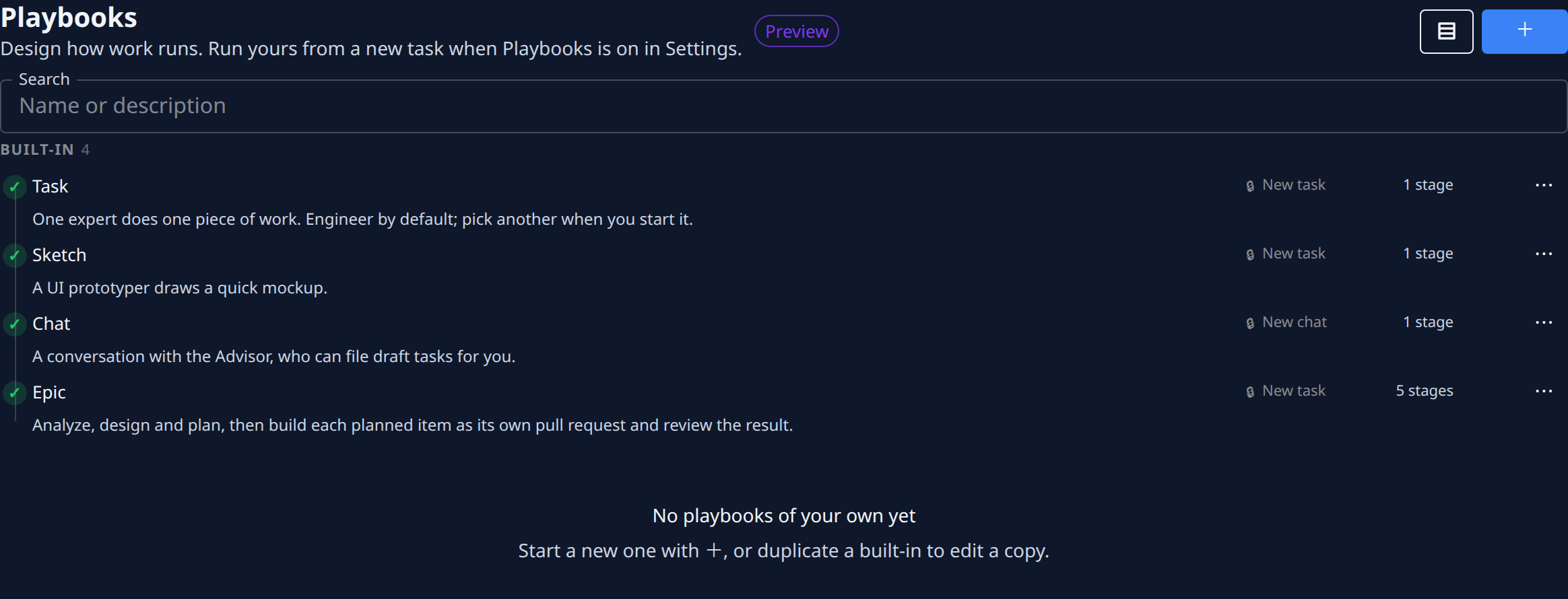
At the top:
| Item | What it does |
|---|---|
| Tree view button | Switches between a flat list and a tree. In the tree, names that use / are grouped as folders. |
| + (New playbook) | Starts a new playbook. Owners and Admins only. |
| Search | Narrows the list to playbooks whose name or description contains what you type. |
Your search and your view stay as you left them the next time you open the tab.
The list has these groups:
- Built-in: the four playbooks every organization has. They're read-only and carry a lock mark.
- Your playbooks: the playbooks your organization made. This group appears once you have one.
Each row shows:
| Item | Meaning |
|---|---|
| Mark at the start | ✓ valid; ! valid with warnings (the count is in its label); ✕ has errors. Open the playbook to see what to fix. |
| Name and description | The description is shown in full under the name. |
| Lock | A built-in playbook: read-only. Duplicate it to edit a copy. |
| New task or New chat | Where the playbook starts from. |
| Stage count | How many stages it has, for example "5 stages". |
| Age | For your own playbooks, how long ago it was last changed. Hover for the exact time. |
| ⋯ | The row menu: Open or Edit, Duplicate, and Delete for your own playbooks. Owners and Admins only. |
The built-ins:
| Built-in | What it does |
|---|---|
| Task | One expert does one piece of work. Engineer by default; pick another when you start it. |
| Sketch | A UI prototyper draws a quick mockup. |
| Chat | A conversation with the Advisor, who can file draft tasks for you. |
| Epic | Analyze, design and plan, then build each planned item as its own pull request and review the result. |
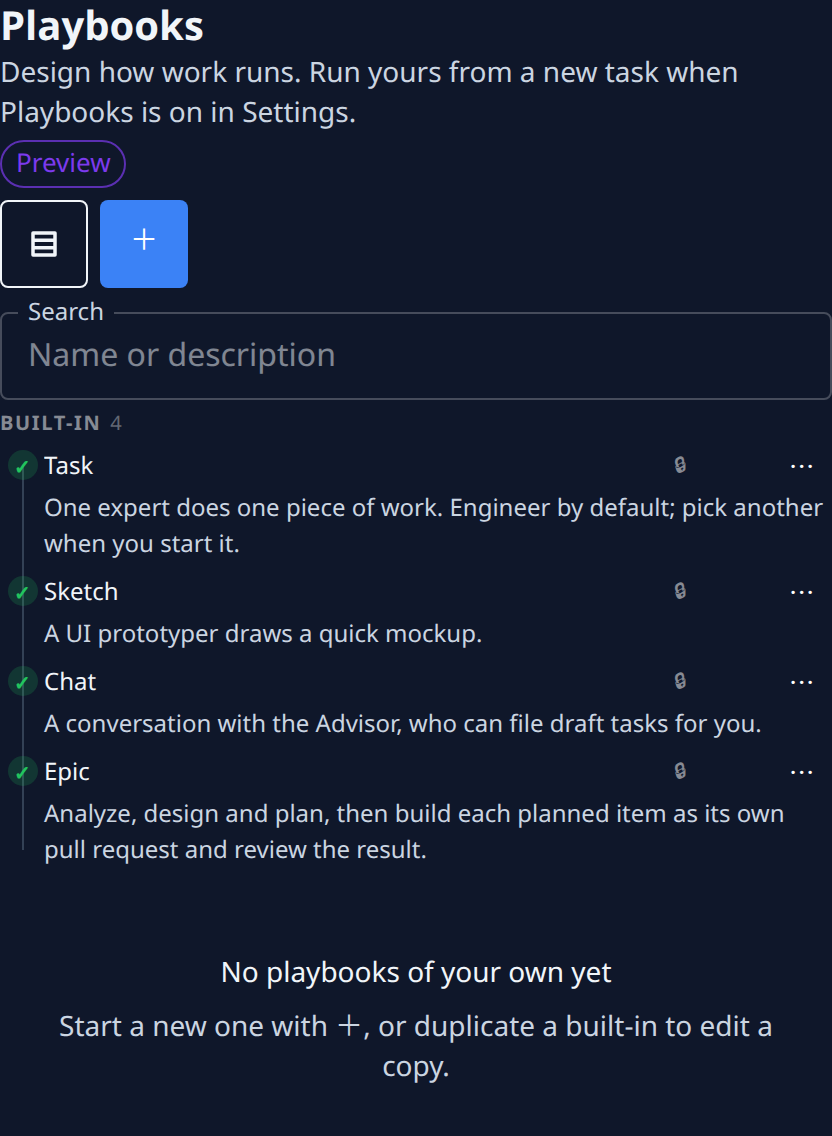
On a phone the list stacks: the description wraps under each name and the start point and stage count are hidden.
The playbook editor
Select a playbook's name to open it. On a wide screen it opens in a pane beside the list:
- ⤢ (Maximize pane) gives the playbook the full width; ⤡ (Restore pane) brings the list back.
- ✕ (Close pane) closes it.
- Drag the line between the list and the pane to resize them.
On a narrow screen, such as a phone, the playbook opens as a full page instead.
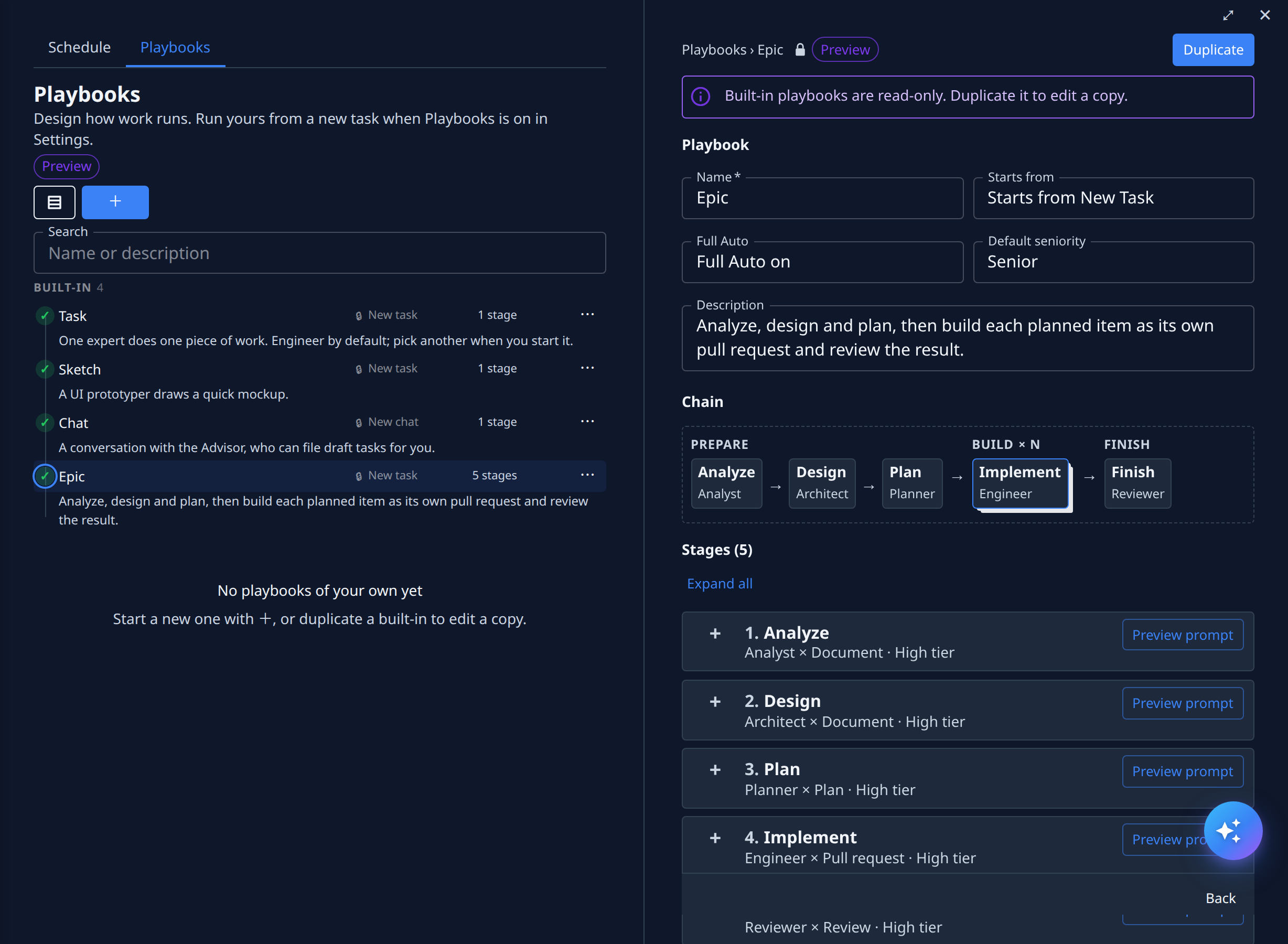
A built-in opens read-only, with a note and, for Owners and Admins, a Duplicate button. For Owners and Admins, your organization's own playbooks open for editing, with Duplicate and Delete at the top and Cancel and Save at the bottom. Everyone else sees them read-only, with Back at the bottom.
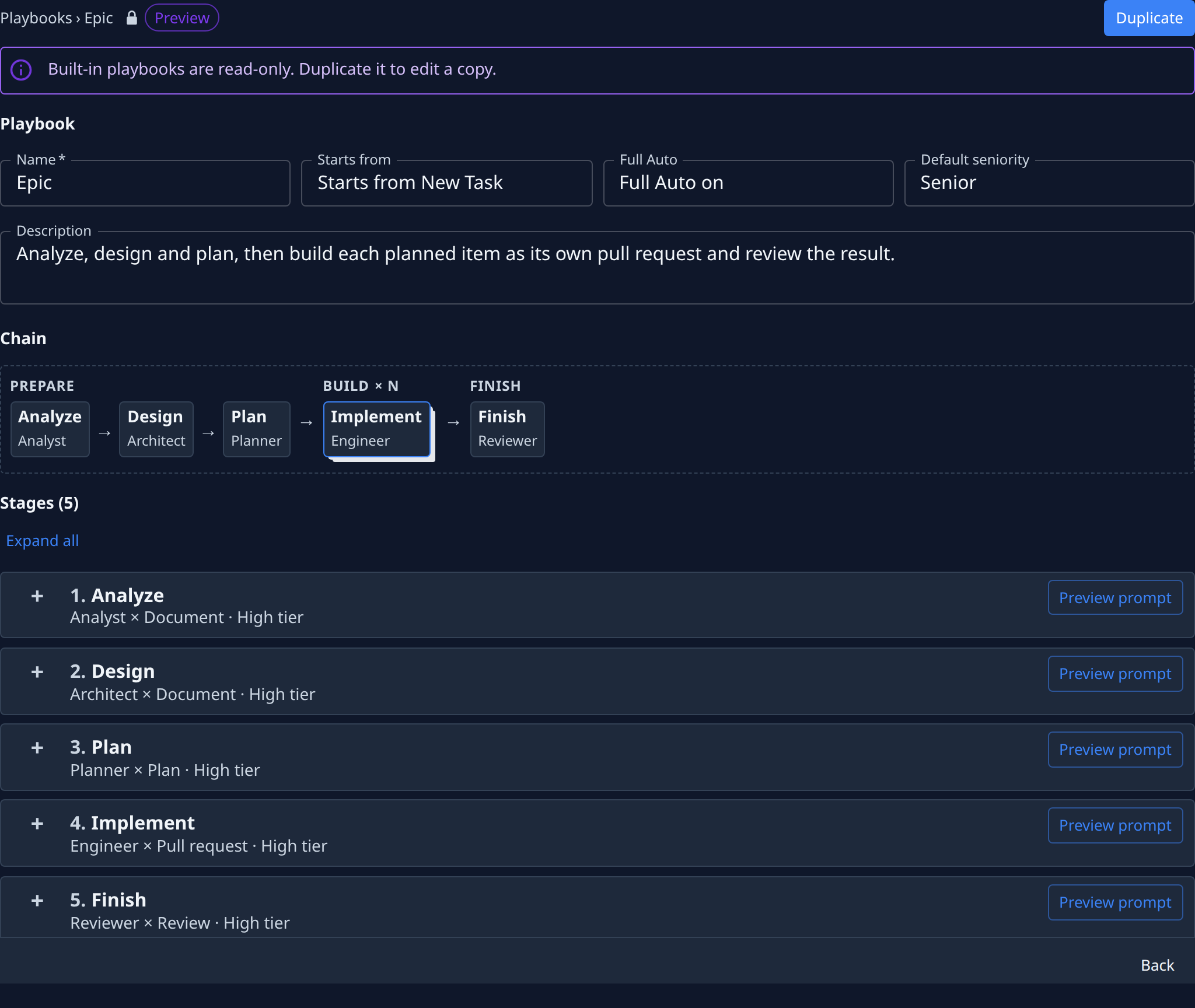
The playbook fields
| Field | Meaning |
|---|---|
| Name | Required. Unique within your organization. |
| Starts from | Starts from New Task or Starts from New Chat: where a person would start this playbook. |
| Full Auto | Full Auto on or Full Auto off: the default for whether the stages may stop to ask questions. |
| Default seniority | Junior, Mid or Senior: the seniority every stage uses unless it sets its own. It decides the model tier (Low, Standard or High). |
| Description | Optional. Shown under the name in the list. |
The chain
Chain draws the stages in order. When some stages run once for each planned item, the chain groups them into Prepare, Build × N (the stages that repeat for each item) and Finish. Otherwise it's a single row.
Stage fields
Each stage is a card. Its header shows the stage number and label, then its expert, deliverable and tier, for example "Planner × Plan · High tier". Select + to open a card and − to close it.
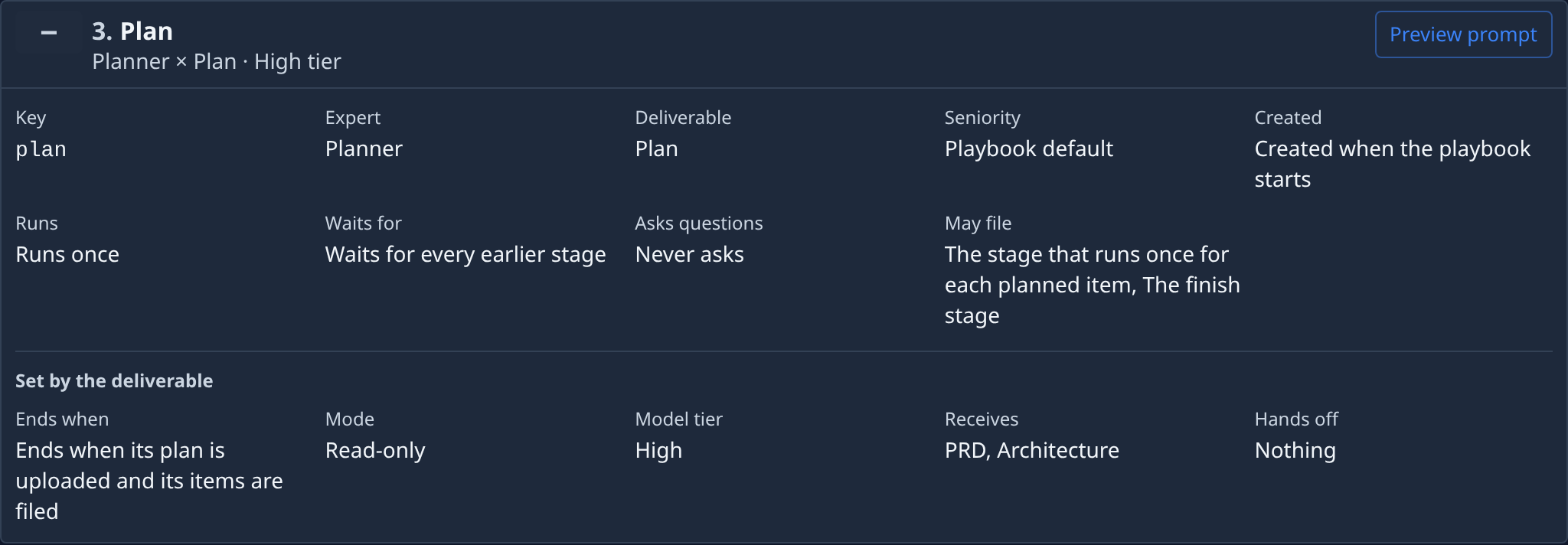
| Field | Meaning |
|---|---|
| Label | Required. The stage's name, shown in the chain and on the card. |
| Key | Required. A short ID other stages use to refer to this one: lowercase letters, digits and _, unique in the playbook. |
| Expert | Always this expert, set in Which expert; or User selects: the person who starts the playbook picks from the Allowed experts, with a Default expert. |
| Deliverable | What the stage hands back: Pull request, Document, Mockup, Plan, Review or Conversation. When Expert is User selects, it reads Follows the expert. |
| Seniority | Playbook default, Junior, Mid or Senior. |
| Created | Created when the playbook starts, or Created by an earlier Plan stage, named in Created by. |
| Runs | Runs once, or Runs once for each planned item. |
| Waits for | Waits for nothing, Waits for every earlier stage, or Waits for the stages chosen, ticked in Stages it waits for. |
| Asks questions | Asks when Full Auto is off, or Never asks. |
| May file | Shown only for deliverables that can create other work, such as a Plan. Tick what the stage may create. |
| Extra instructions | Optional text added to the stage's instructions. |
The experts are Engineer, Analyst, Architect, Planner, Reviewer, UI prototyper, Advisor, Researcher, Test optimizer, Onboarding engineer and Translator.
Set by the deliverable
These facts follow from the stage's expert, deliverable and seniority. You can't edit them directly.
| Fact | Meaning |
|---|---|
| Ends when | What finishes the stage, for example "Ends when its pull request merges". |
| Mode | Can change code, or Read-only. |
| Model tier | Low, Standard or High, from the stage's seniority. |
| Receives | The documents it gets from the stages it waits for: PRD, Architecture, or Nothing. |
| Hands off | The document it passes on: an Analyst's Document hands off a PRD, an Architect's an Architecture. |
When Expert is User selects, the card shows Model tier and Receives once, then lists each allowed expert with its deliverable, mode, when it ends and what it hands off.
Errors and warnings
Jaah checks a playbook every time you change it. An error appears on the field it belongs to and in red on the stage card. A problem that belongs to the whole playbook appears at the top of the page. Errors stop you from saving; warnings don't.
Preview prompt
Preview prompt on each stage card opens the instructions that stage's expert would get, rendered against a sample project:
- the model tier, at the top;
- Expert, when the stage's Expert is User selects, to switch between the allowed experts;
- Full Auto, when the stage asks questions, to compare the prompt with Full Auto on and off;
- System and Task tabs: the expert's standing instructions, and the work it would be given.
How to use it: Preview a stage's prompt.