Feature
A feature is a folder for related tasks inside a project, such as everything that makes up one part of your product. Features appear under their project in the sidebar; select one to see only its tasks on the task board. A task that isn't filed under a feature shows under (other).
For the steps, see Organize tasks into features. For how features relate to projects, epics and tasks, see How tasks work.
Creating a feature, and filing tasks under one, needs permission to create tasks in its project.
New feature
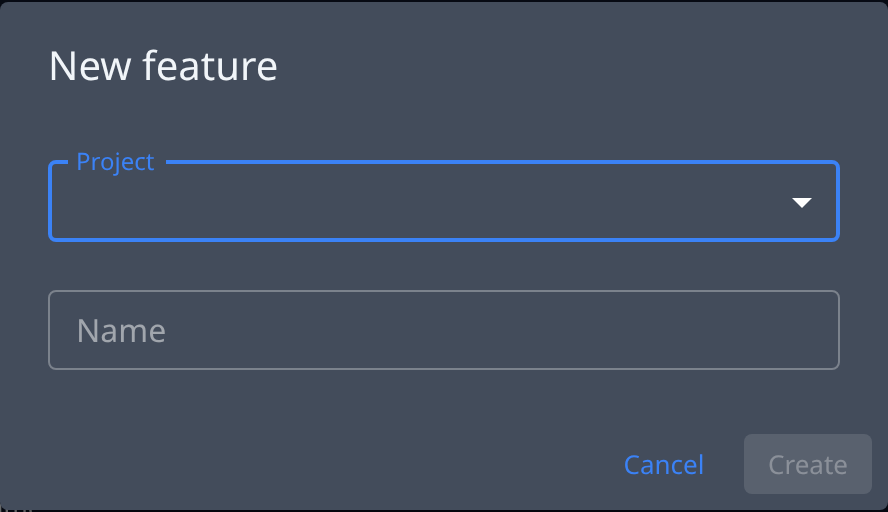
On the board, select ▼ beside +, then Feature.
| Field | What it means |
|---|---|
| Project | The project the feature belongs to. Asked only when All projects is selected in the sidebar; otherwise the selected project is used. |
| Name | The feature's name, up to 200 characters. |
Select Create to add the feature and open it on the board, or Cancel to close the dialog.
Move to feature
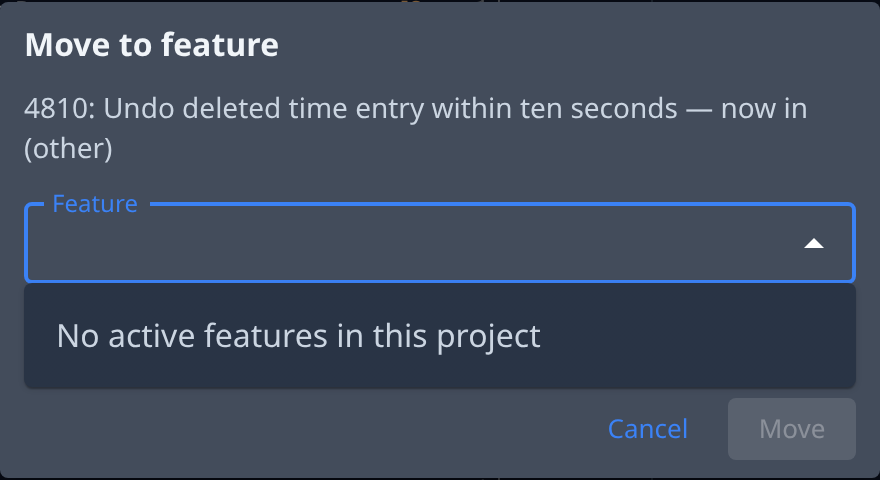
Move to feature… in a task's ⋯ menu files the task under a feature of its project.
| Item | What it does |
|---|---|
| Feature | The feature to file the task under. Only features of the task's project that aren't shipped are listed. |
| New feature… | Asks for a New feature name instead; Create and move creates the feature and files the task under it in one step. Pick existing goes back to the list. |
| Move | Files the task. |
The feature header
When you select a feature in the sidebar, the board shows a header above its tasks:
| Item | Meaning |
|---|---|
| Icon and name | The feature's icon, if it has one, and its name. |
| Description | What the feature is about, if it has one. |
| Progress | How many of its tasks are stopped, in progress, draft and done. With Show progress on, also how many are done of the total, and a bar. |
| Mark shipped | Marks the feature shipped. When every task is done, the header says All done — ship it? |
| Shipped | Shown once the feature is shipped, with the date. Reopen makes it active again. |
| Edit feature | Opens the feature's own page, below. |
| Feature actions | Opens Delete feature. |
Mark shipped asks you to confirm and says which tasks stay as they are: shipping changes no task. Delete feature asks you to confirm too: its tasks move to (other), and no task is deleted or changed.
The feature's page
Edit feature opens the feature's page: the project, the feature and Edit in the breadcrumb, and the form below.
| Field | What it means |
|---|---|
| Icon | The feature's icon. Select it to Choose icon. |
| Name | Required, up to 200 characters. Without one, the page says A feature needs a name. |
| Description | Optional, up to 2,000 characters. |
| Owner | The person responsible for the feature. |
| Show progress | Off by default. On, the sidebar draws a completion ring beside the feature's name and the header shows its done share. Applies for everyone. |
| Mute for me | Mutes the feature for you only. See Mute. |
| Created | When the feature was created, and by whom. |
Select Save to keep your changes, or Cancel to leave without them. If you can open the feature but not change it, the page says You can view this feature but not edit it. and offers Back instead.
Mute
Muting a project or feature hides its tasks everywhere above it, for you only: other people's boards don't change.
- Select Mute in the project's or feature's ⋯ menu in the sidebar, or turn on Mute for me on its page. Unmute reverses it.
- On All projects, a muted project's or feature's tasks are hidden. On a project, its muted features' tasks are hidden.
- Select the muted project or feature itself to see its tasks.
- In the sidebar it stays listed, greyed, without its stopped count or completion ring. Its counts are left out of the counts above it. Everything under a muted project is greyed too.