Templates
Settings in the sidebar, then Templates under Customize, opens the template gallery: ready-made tasks you start in one step or customize first. Every member can browse it. Organizations whose plan includes Templates (org) can also write their own templates, on the Manage templates list and the template editor.
What a template is, and how it relates to tasks and automations, is in How templates work. For the steps, see Start a task from a template.
Gallery
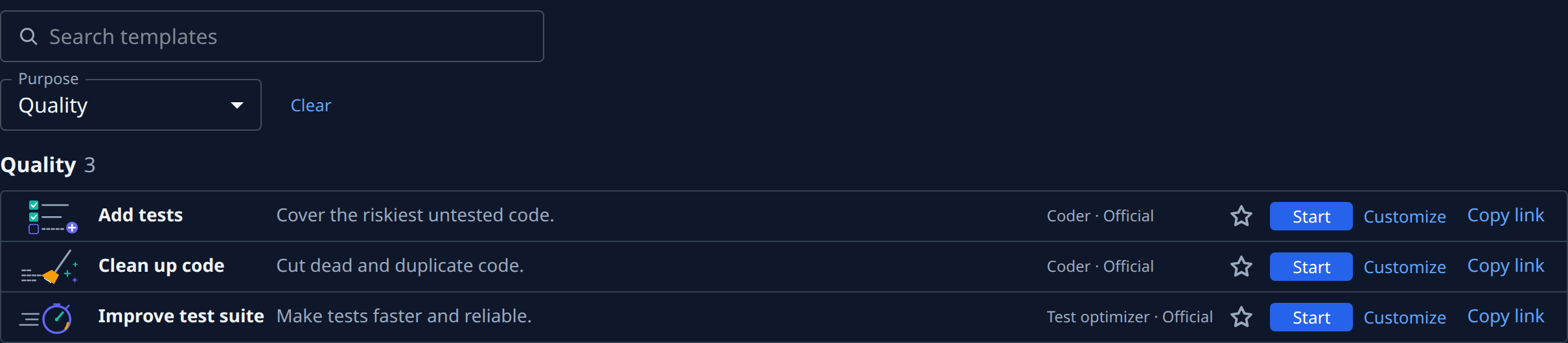
From the top of the page down:
| Control | What it means |
|---|---|
| Manage, New template | Shown only to people who edit templates (see Your organization's templates). On a phone, Manage shows as ✎. |
| Search templates | Searches each template's name, summary, description and group. A search shows one list, best match first, instead of the groups. |
| Purpose | All, or one of Build & fix, Quality, Security, Maintenance, Docs & release and Research & planning to show only that group. |
| Clear | Appears while a purpose is picked or a search is active, and resets both. |
Without a search, the templates come in groups, each with its count beside the heading: Favorites (the templates you starred), Most popular (up to six, the most started in the last 90 days), then one group per purpose. A template in Most popular is not shown again in its purpose group. A group with no templates is not shown. When nothing matches, the page says No templates match. While it loads it says Loading templates…; if the list can't load, Templates unavailable with a retry.
A template row

| Part | What it means |
|---|---|
| Picture | The template's image, or its purpose group's placeholder when it has none. |
| Name and summary | The template's name and its one-line summary. |
| Persona · origin | The persona that runs the task, then Official (Jaah's own library) or Your org (your organization's). |
| Star | Adds the template to your Favorites, or removes it. Favorites are yours alone. |
| Start | Opens the Start dialog below. |
| Customize | Opens the new-task form filled in from the template, so you can change any field before you start it. |
| Copy link | Copies the address Customize opens, to send to someone who can start tasks. It reads Copied for a moment. |
| Duplicate | On Official rows, for people who edit your organization's templates: copies the template into your organization and opens the copy. If the copy fails, the row says Could not duplicate. Try again. |
Start, Customize and Copy link appear only if you may create tasks in at least one project. On a phone, Copy link and Duplicate move into the row's ⋯ menu and the origin is left off, so every row is one line of verbs. After Copy link from that menu, the ⋯ reads Copied ✓ for a moment.
Start dialog
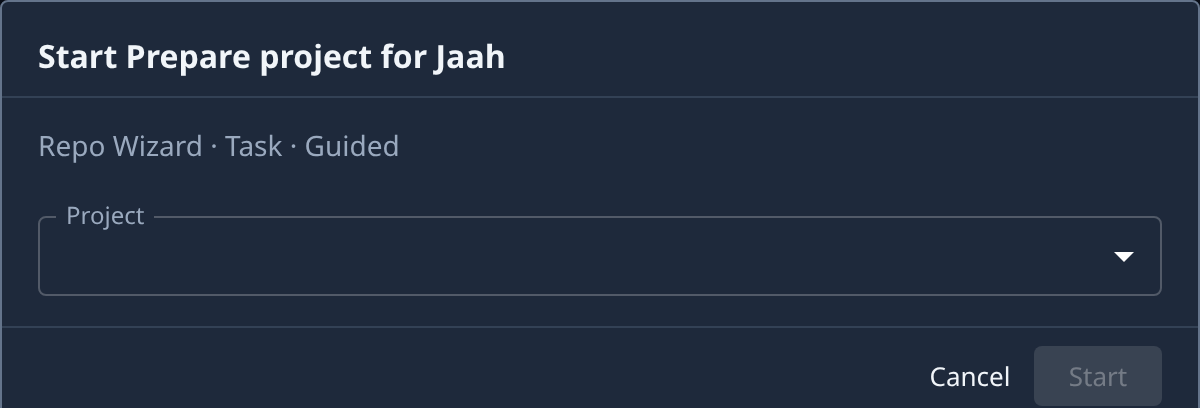
| Field | What it means |
|---|---|
| Title | Start and the template's name. |
| Line under the title | The persona, size and involvement the task will run with, such as Repo Wizard · Task · Guided. |
| Project | The project the task is filed in; it runs on that project's repository. Lists only projects where you may create tasks, and is picked for you when there is only one; with none, it says No project you can start tasks in. Start stays greyed out until a project is picked. |
| Inputs | One field per value the template asks for, when it has any, each labelled by the template. A required one carries an asterisk and must be filled before Start is enabled; an optional one says Optional under the box. |
Start creates the task, starts it and opens it; it reads Starting… meanwhile. If the task is created but starting it is refused, the task opens as a draft and says why. Cancel closes the dialog without a task.
When your git account cannot see the project's repository, Start first asks You can’t see this repository. It names the access problem, with Fix access when there is a fix to open. Run without repository runs the task in an empty folder, without the code (for an epic, each of its tasks); cancelling files no task.
Your organization's templates
Writing your organization's own templates needs the Templates (org) feature on your plan and permission to edit templates, which Org Owners and Admins hold (or a custom role that grants it). Without both, Manage and New template do not appear. Official templates are edited by Jaah alone.

Opening Manage templates, a new template or a template's editor by its address when the plan leaves the feature out shows Not on your plan with Back to Templates. Org Owners and Admins also get See plans; anyone else is asked to have an admin change the plan. Without the permission, the page says No access to that page, or No access when you hold no permission at all.
A new template starts as a Draft, seen only on Manage templates. Once Published, it shows in the gallery under its purpose, with Your org as its origin, and members can start it.
Manage templates
Manage on the gallery opens Manage templates: every template you edit, drafts included. New template opens a blank editor. The search box searches name, summary and purpose. With no templates yet, the list says No templates.
| Column | What it means |
|---|---|
| Dot | Published (filled) or Draft (hollow). |
| Name | The template's name, with ★ when it is featured, and its summary on a line under it. |
| Purpose | The gallery group it is filed under. Hidden when the list is narrow. |
| Origin | Global for Official templates, Org for your organization's. Hidden when the list is narrow. |
| Status | Published or Draft. |
| Starts | How many tasks were started from it in the last 90 days. |
Select a row to open its editor beside the list. A row you may edit has Edit and Delete in its menu.
Template editor
The editor has two tabs, Task and Library, and one Cancel / Save bar below them (Create on a new template). Its breadcrumb's Templates goes back to Manage templates. Save stays greyed out until something changes. A template you may see but not edit shows "You can view this template but not edit it.", Back instead of Cancel, and no Save.
Task: the task the template starts:
| Field | What it means |
|---|---|
| Title | Becomes the title of every task this template starts. |
| Description | The brief the runner works from. Pasted images are kept with the template. Write {{input: Label}} for a value Start asks for, or {{input?: Label}} for an optional one. |
| Depth and Involvement | The size of the work (Sketch, Task or Epic) and how much it asks of people, as on the New task form. |
| Persona, Model | Under Advanced: who runs the task, and the model it runs on (Inherit uses the usual one). Neither shows at the Epic depth. Model shows only to Org Owners and Admins. |
Library: how the row shows in the gallery:
| Field | What it means |
|---|---|
| Name | The row's heading; weighs most in search. Up to 80 characters. Required: saving without one opens this tab with Name is required. |
| Purpose | The gallery group the row is filed under. |
| Status | Draft hides it from the gallery and nobody can start it; Published shows it and members can start it. |
| Summary | One line on the row, also searched. Up to 120 characters. |
| Featured | Marks it ★ in Manage templates. It does not reorder the gallery. |
| Image | Its own section under the fields. The row's picture, previewed as the row will show it. Upload image or Replace image, and Remove. PNG, JPG, WebP or SVG, up to 2 MiB. Without one, the editor says No image: the gallery shows its purpose placeholder. |
Delete, at the top of the editor, opens Delete template?, which names the template and says how many automations use it: they stop filing tasks. It cannot be undone.
Related
- How templates work: templates, starting one, and templates in automations.
- New task: the form Customize fills in.
- Automations: an automation's Action can file its task from a template.