Organize tasks into features
A feature groups the tasks that make up one part of your product, so you can see them together and tell when that part is done. Features sit inside a project; a task that isn't filed under one shows under (other).
Who can do this: creating features and filing tasks under them needs permission to create tasks in the project.
Create a feature
-
In the sidebar, select the project the feature belongs to.
-
On the board, select ▼ beside +, then Feature.
-
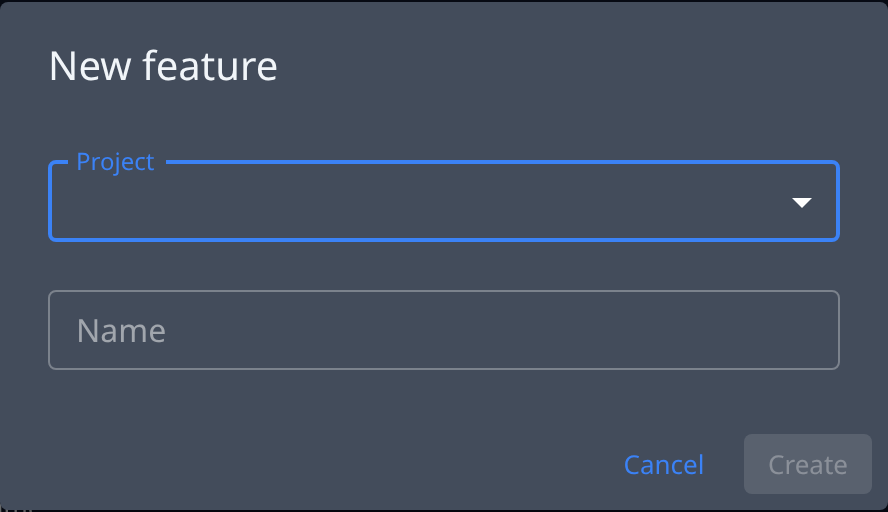
If the dialog asks for a Project, pick it.
-
In Name, enter the feature's name.
-
Select Create. The feature opens on the board, ready for its tasks.
New tasks you start while the feature is selected are filed under it.
File an existing task under it
- Open the task's ⋯ menu, on its row or on its page.
- Select Move to feature….
- In Feature, pick the feature. Only features of the task's own project are listed.
- Or select New feature…, type a New feature name, and the feature is created as you move.
- Select Move, or Create and move.
Follow its progress and ship it
- In the sidebar, select the feature. The header above its tasks shows how many are done.
- When every task is done, the header says All done — ship it?
- Select Mark shipped.
- Read the confirmation: no task is changed by shipping.
- Select Mark shipped to confirm. The header shows Shipped and the date; Reopen makes it active again.
To rename the feature, add a description, an icon or an owner, select Edit feature in its header. To remove it, select Feature actions, then Delete feature: its tasks move to (other).
Related
- Feature — every field of the feature's dialog boxes, header and page.
- How tasks work — projects, features and epics.
- How epics and features work — what a feature is, and how it differs from an epic.