Task page
Every task has a page of its own. It shows what the task was asked to do, what it produced, what happened along the way, and the actions its state allows.
Select a task's title on the task board to open its page beside the board. Select ⤢ at its top right for more room, or ✕ to close it. A link to a task opens the same page.
To act on a task from here, see Stop, restart or reset a task and Read a task's result. For the states and what moves a task between them, see How tasks work.
The header
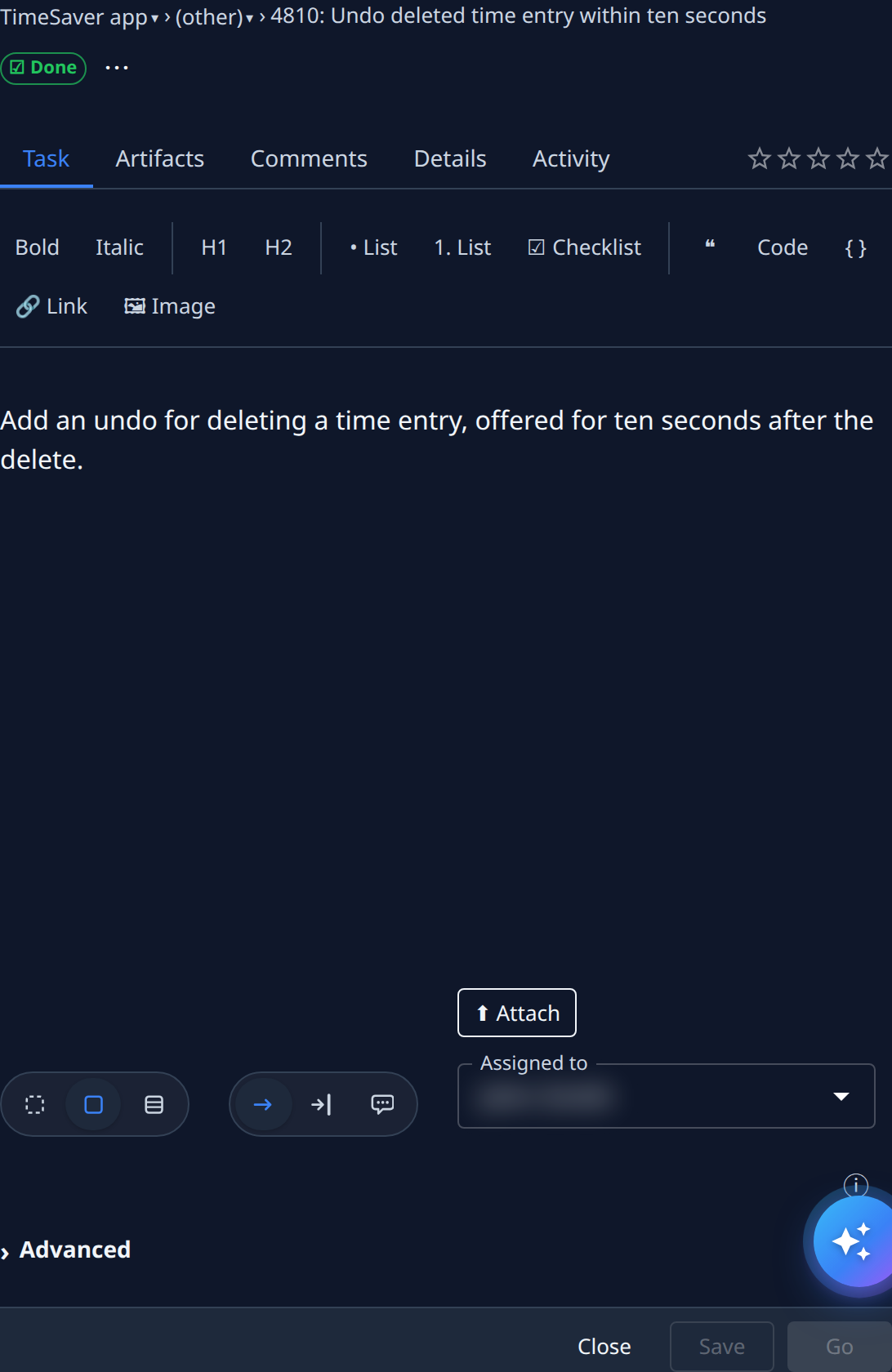
At the top are the project, the feature and the task's number and title. Select the project or the feature to file the task somewhere else. Under them are the state badge and the ⋯ menu.
Tabs
| Tab | What it shows |
|---|---|
| Answer | The task's open questions. Shown only while it's asking. Attach adds files to your answer; they're sent to the runner with it. See Answer a task's question. |
| Task | The description and the task's settings, the same form you start a task with. Change them and select Save, or Go to save and start. Close leaves without saving. |
| Subtasks | An epic's subtasks. Shown only for an epic. See Subtasks. |
| Artifacts | Files the task produced, such as its report. See Artifacts. |
| Comments | The task's discussion. See Comments. |
| Details | The task's facts and results. See Details. |
| Activity | What happened to the task. See Activity. |
The stars beside the tabs rate a finished task, from one to five. Hover them for the current rating; select a star to give yours, or another star to change it.
Subtasks
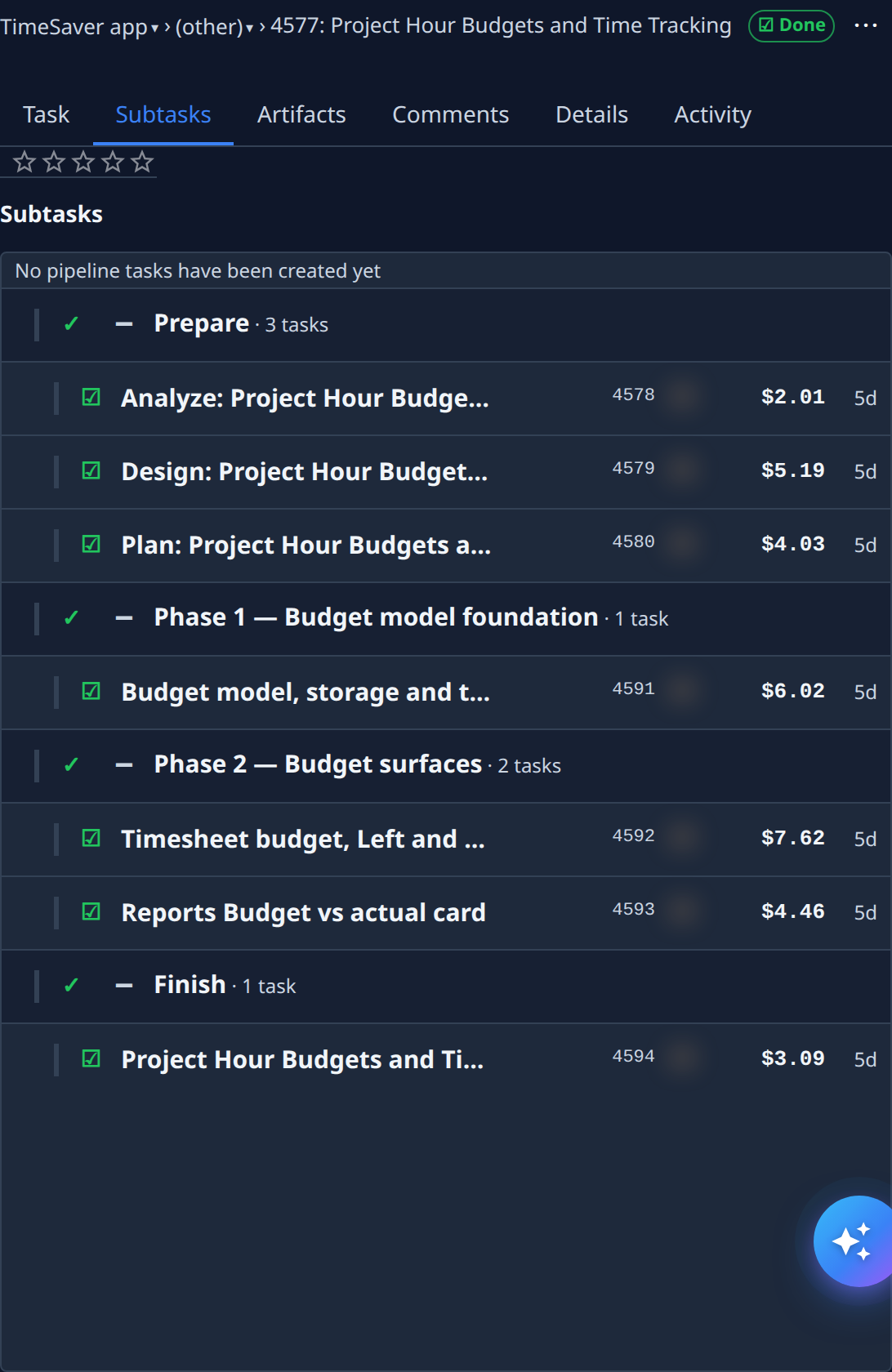
An epic's subtasks are grouped by stage:
| Group | Holds |
|---|---|
| Prepare | The analysis stages: Analyze pins down the requirements, Design chooses the approach and Plan splits the work. |
| A phase | The subtasks that build one part of the work. The plan names each phase. |
| Finish | The stage that checks the result as a whole. |
Each group shows a check mark once all its subtasks are done, and how many subtasks it holds. Select − or + to fold a group. Each row shows the subtask's state, title, number, creator, cost and age; select its title to open it. A subtask that hasn't started has a Start button, which starts it at once without waiting for the subtasks before it.
Artifacts
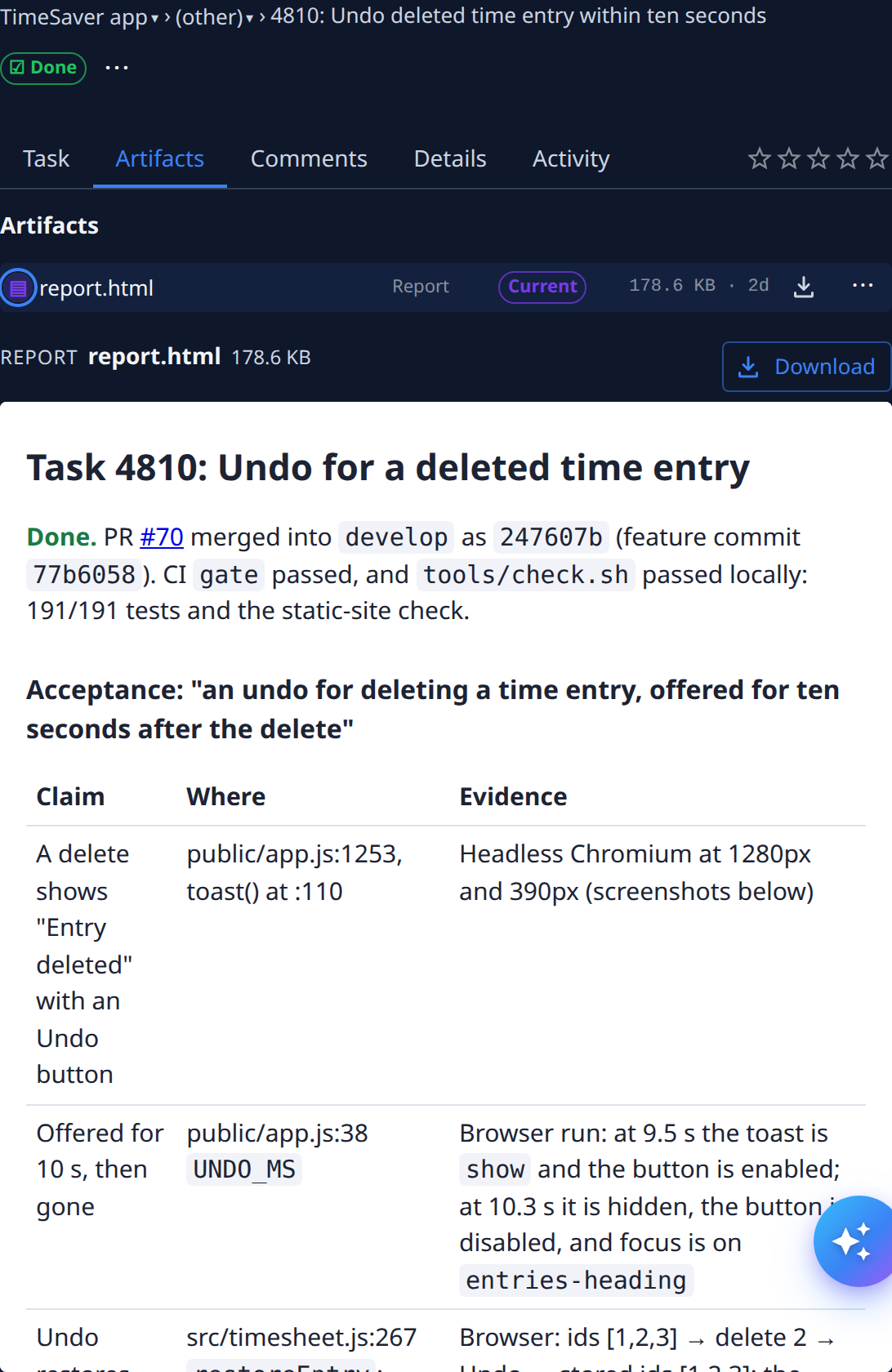
Each row is one file: its name, its kind (such as Report), its size and age. Current marks the newest file of each kind. Select a row to preview it below the list. Select Download, or the download button on its row, to save it. A file that can't be previewed in the browser shows only Download.
When no file is attached, the tab says so. If a file can't be loaded, select Retry.
Comments
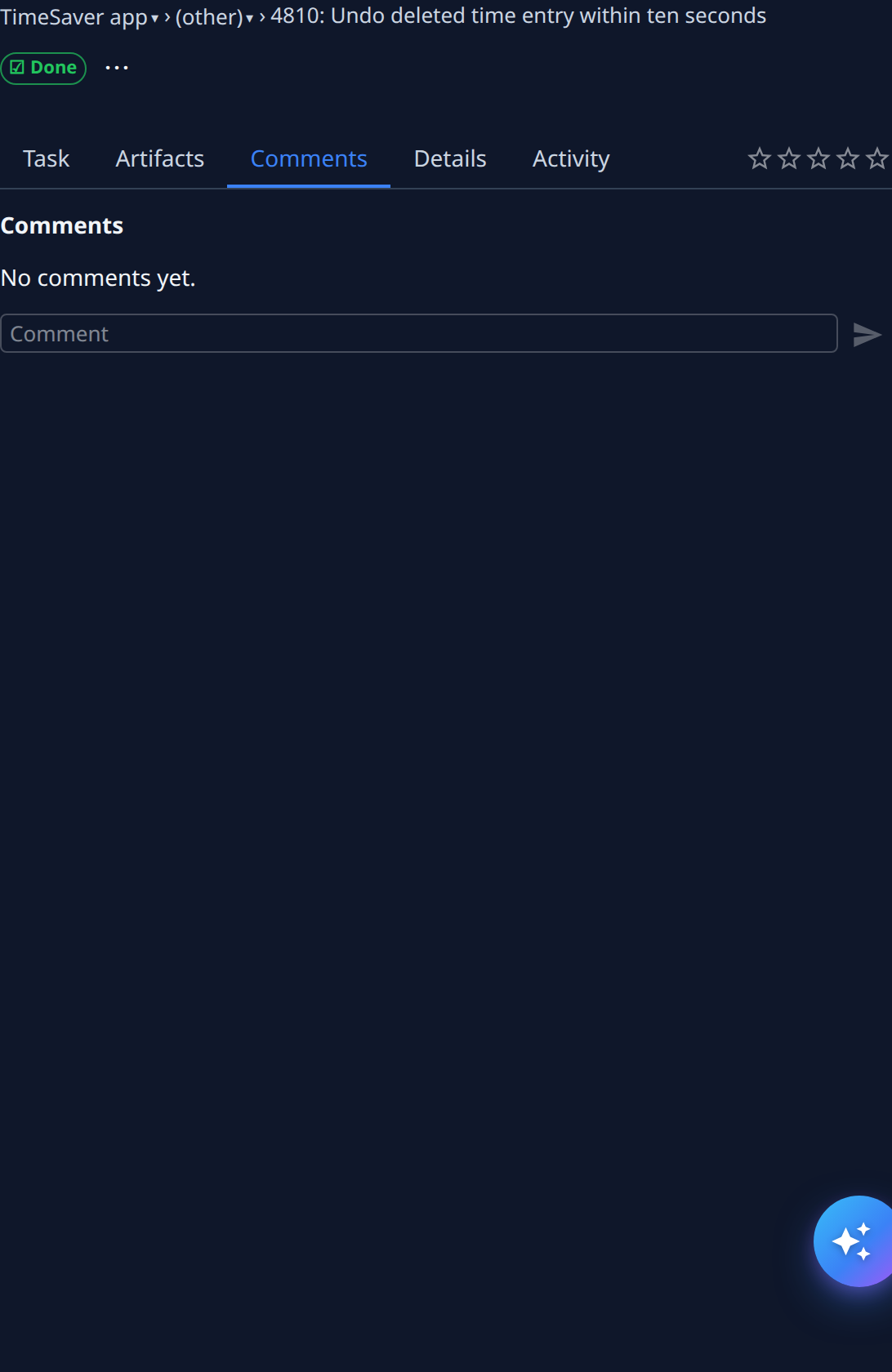
| Item | What it does |
|---|---|
| Comment box | Type a comment. Type @ to mention someone: pick a name from the list, and that person is notified. |
| Send arrow | Posts the comment. |
| Add reaction | Adds an emoji reaction to a comment. Select a reaction again to remove yours. |
| Edit, Delete | Change or remove a comment you posted. Delete comment? asks you to confirm. |
How to use them is in Comment on a task.
Details
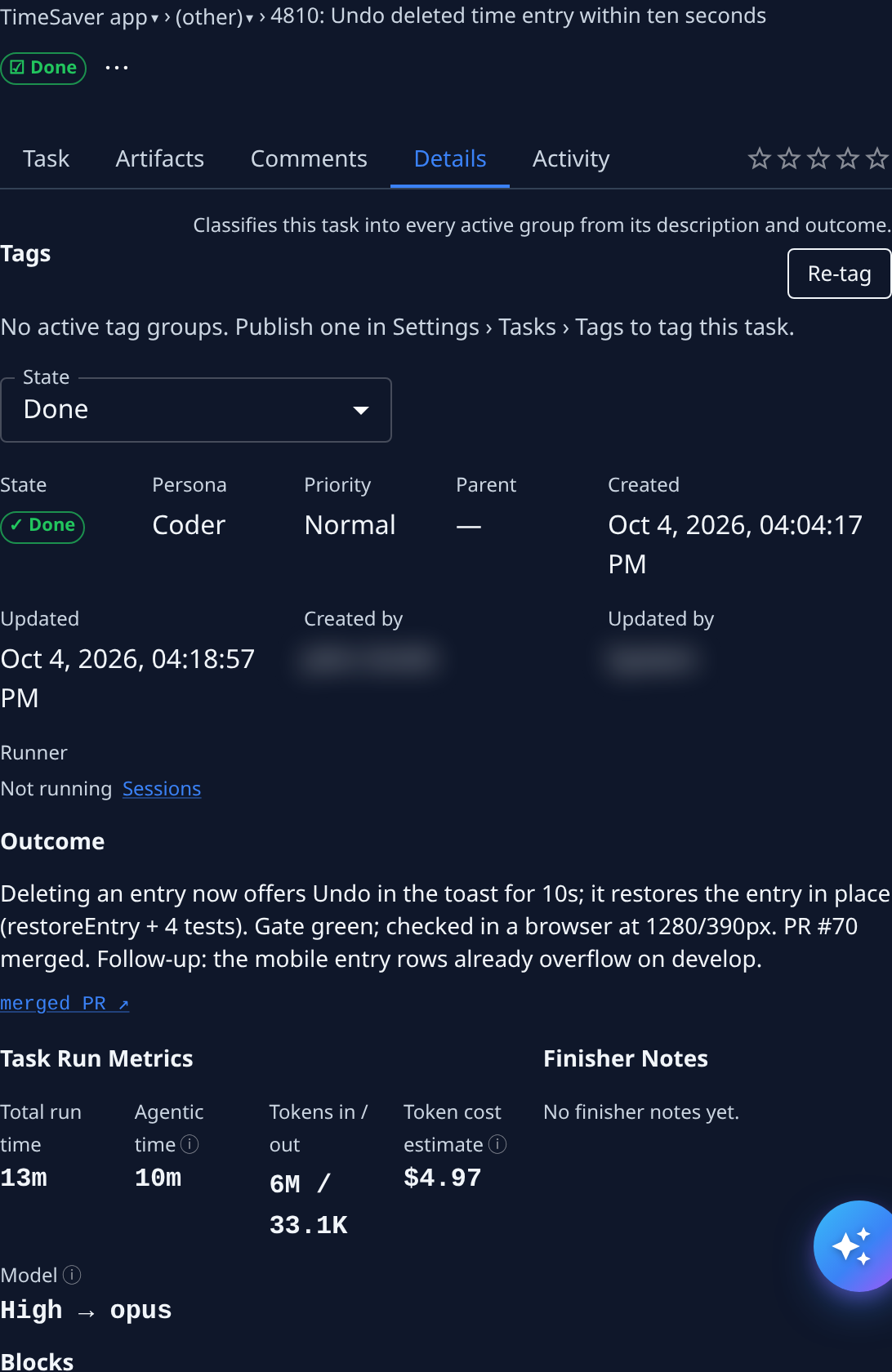
| Item | Meaning |
|---|---|
| Tags | The task's tags. Re-tag classifies it again from its description and outcome. Tags come from the tag groups published in Settings. |
| State menu | Changes the task's state by hand. |
| State, Persona, Priority | The task's state, its expert and its priority. |
| Parent | The epic this task belongs to, or —. |
| Created, Updated | When it was created and last changed. |
| Created by, Updated by | Who did it. System means Jaah itself. |
| Runner | Whether a runner is working on it now. Sessions opens its runs. |
| Outcome | The runner's own summary of what it did, with a link to the merged change when there is one. |
| Task Run Metrics | Total run time, the time the agent worked, tokens in and out, and the cost estimate. |
| Finisher Notes | Notes from the stage that wrapped up an epic, if any. |
| Model | The model level the task ran at, and the model it used. |
| Blocks | Tasks waiting on this one. |
Activity
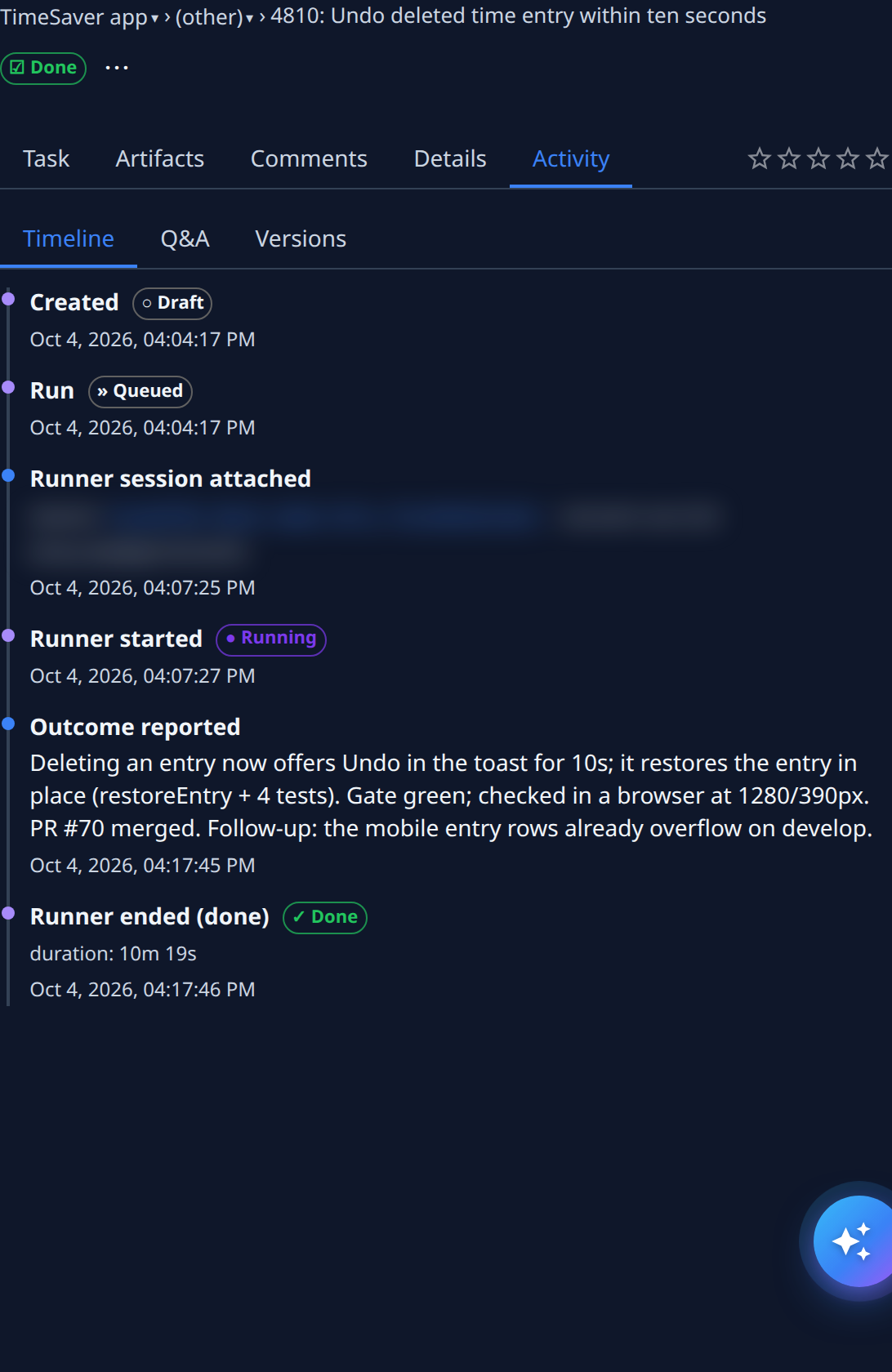
- Timeline — every step, oldest first, with its time and the state it moved to. A step a person caused names them after the time; a step Jaah took names no one. When a changed text can't be shown in full on one line, Compare opens its before and after side by side.
- Q&A — every question the task asked and its answer.
- Versions — earlier versions of the description. Compare on a version shows what the next edit changed in it. A description never edited says so.
The ⋯ menu
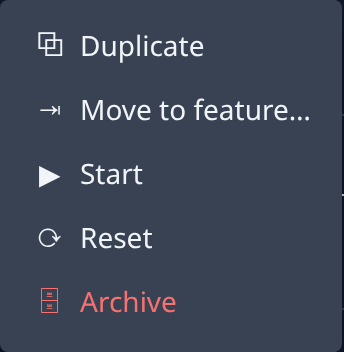
The menu offers only what the task's state allows, so it varies:
| Item | What it does |
|---|---|
| Edit | Opens the task to change it. |
| Duplicate | Opens a new task filled in from this one. |
| Move to feature… | Files the task under a feature. See Organize tasks into features. |
| Start | Queues the task for a runner. On a finished task, it runs it again. |
| Stop | Stops the runner. The task is paused. |
| Waiting on customer… | Stops the task with that reason. On a subtask it's unavailable: set it on the epic. |
| Web Console | Opens the live session of a running task. A chat's conversation happens here. |
| Open Local Stack | Opens the running app the task is working on. |
| Reset | Ends any run and puts the task back to Draft, so you can change it and start again. |
| Complete | Marks the task done. |
| Archive or Delete | Removes the task from the board. |
Changing a task's run needs edit access to its project. Without it, those items aren't shown. What each state means is in Task board.