Add a credential
Add a credential when a task needs to reach another service: file a Jira issue, post to Slack, push to GitHub, or launch a node in AWS. You type the secret once; Jaah never shows it again.
Who can do this: adding credentials needs the permission to create them. Without it, Add credential doesn't appear.
Add it
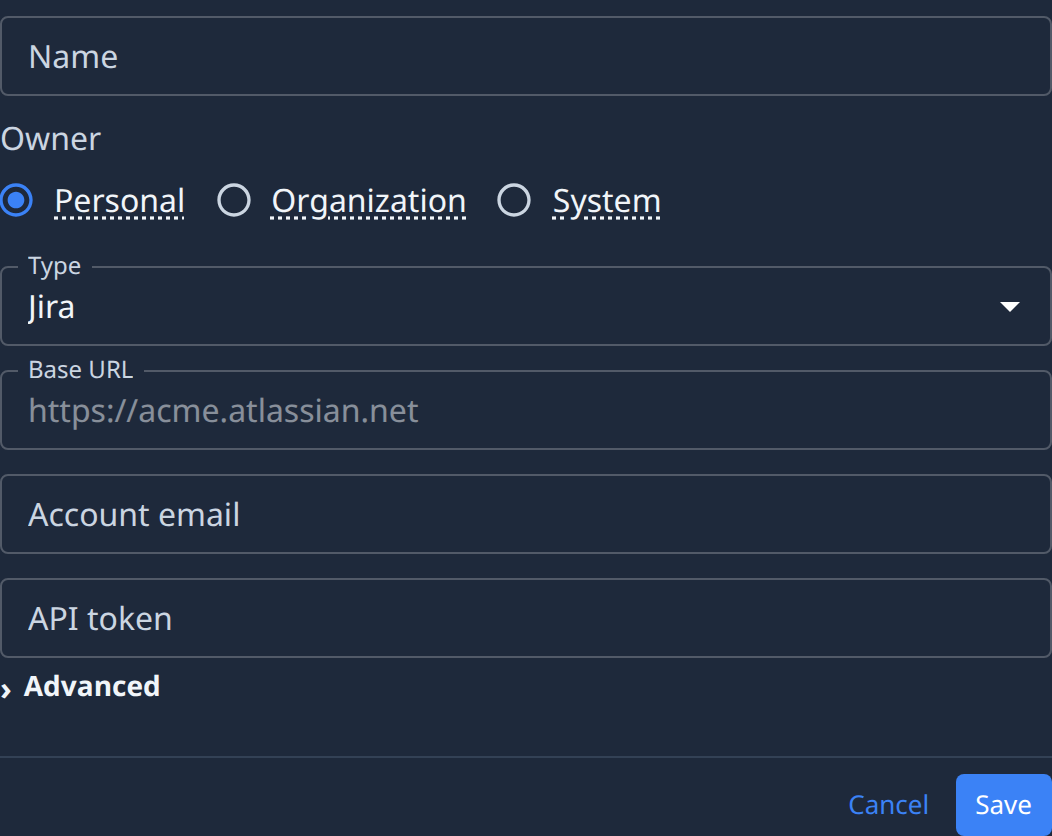
- In the sidebar, select Directory, then the Credentials tab.
- Select Add credential. The form opens beside the list.
- Enter a Name. Tasks find the credential by this name, so make it say what it is for. Use
slashes to file it in a folder, for example
team/jira. - Choose the Owner, if the form shows it:
- Personal: yours. Tasks you start can use it, and so can the projects you attach it to.
- Organization: shared. Org Owners and Admins can use it, and so can their tasks and tasks on the projects it's attached to.
- System: for Jaah itself, for example cloud nodes. Tasks never see it.
- Pick the Type: the service it connects to. Type in the box to search the list.
- Fill in the fields for that type. They change with the type: Jira asks for a Base URL, an Account email and an API token; AWS for an Access key ID and a Secret access key.
- Optional: open Advanced to add a Description and the type's optional fields. A description helps the people and tasks choosing between credentials.
- Select Save.
The credential appears in the list. A filled round mark before its name means a secret is stored.
Select Cancel to close the form without saving.
Keep secrets safe
- Paste a secret only into the credential's own fields. Never put one in a task's description, a project's commands or its agent instructions: those are readable by anyone who can view them.
- Use Personal for a token tied to your own account, and Organization for one the whole team shares.
Next steps
- Attach a credential to a project so tasks on that project can use it.
- What every field and filter means: Credentials.
- Owners, and how tasks receive a credential: How credentials work.