Start a task
A task is a piece of work for Jaah: describe the goal, and a runner does it and reports back. You don't write a title — Jaah generates one from your description.
Who can do this: creating tasks needs the create-tasks permission. Starting a chat also needs edit access to the project's worktrees. Without them, the board doesn't offer the controls below.
From the board
The quickest way, for a task that fits in a sentence.

- In the sidebar, select the project or feature the task belongs to.
- Select the row Type a task and press Start… under the board's toolbar.
- Type what needs to happen.
- Press Enter, or select ▶. The task is saved and started at once.
The task lands in the project or feature you selected. Under All projects, it goes to your organization's default project.
Need more room? Select ⤢ to open the full editor with what you typed. Double-clicking the row does the same.
In the full editor
-
On the board, select +. The new task opens beside the board.
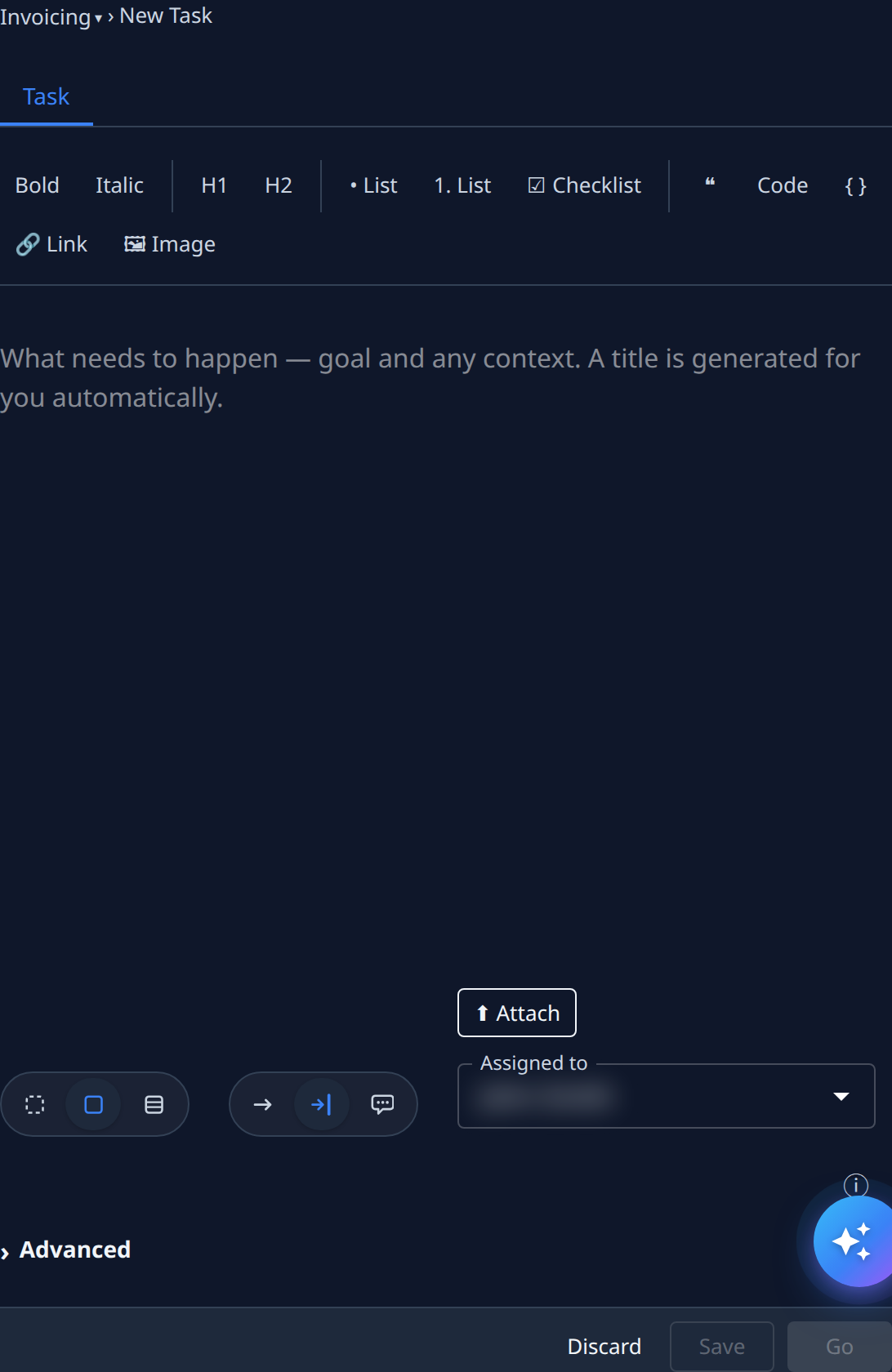
-
In the description box, write the goal and any context. Use the formatting bar for bold, headings, lists, checklists, quotes, code, links and images. Paste or drop screenshots straight in. What makes a description work is in Write a good task description.
-
Optional: select Attach to add files.
-
Choose how big the task is with the first set of buttons (hover each for its name):
Button Means Sketch A quick mockup to look at. Task One runner ships it as a merged change. Epic Analysed and split into subtasks first. Playbook Runs one of your organization's playbooks. Shown only when playbooks are on in Settings. -
Choose how involved you want to be with the second set:
Button Means Unattended The runner decides everything itself. Guided The runner asks you before key decisions. Chat Talk it through with an advisor. Your organization's settings choose which buttons start selected.
-
Check Assigned to: the person the task is for. It starts as you.
-
Select Go to save the task and start it. Or select Save to keep it as a draft and start it later.
Save and Go stay unavailable until the description has text. Select Discard to leave without creating the task.
While you type, Jaah keeps your work as a draft, so a closed tab doesn't lose it.
Advanced settings
Select Advanced for the settings most tasks never need.
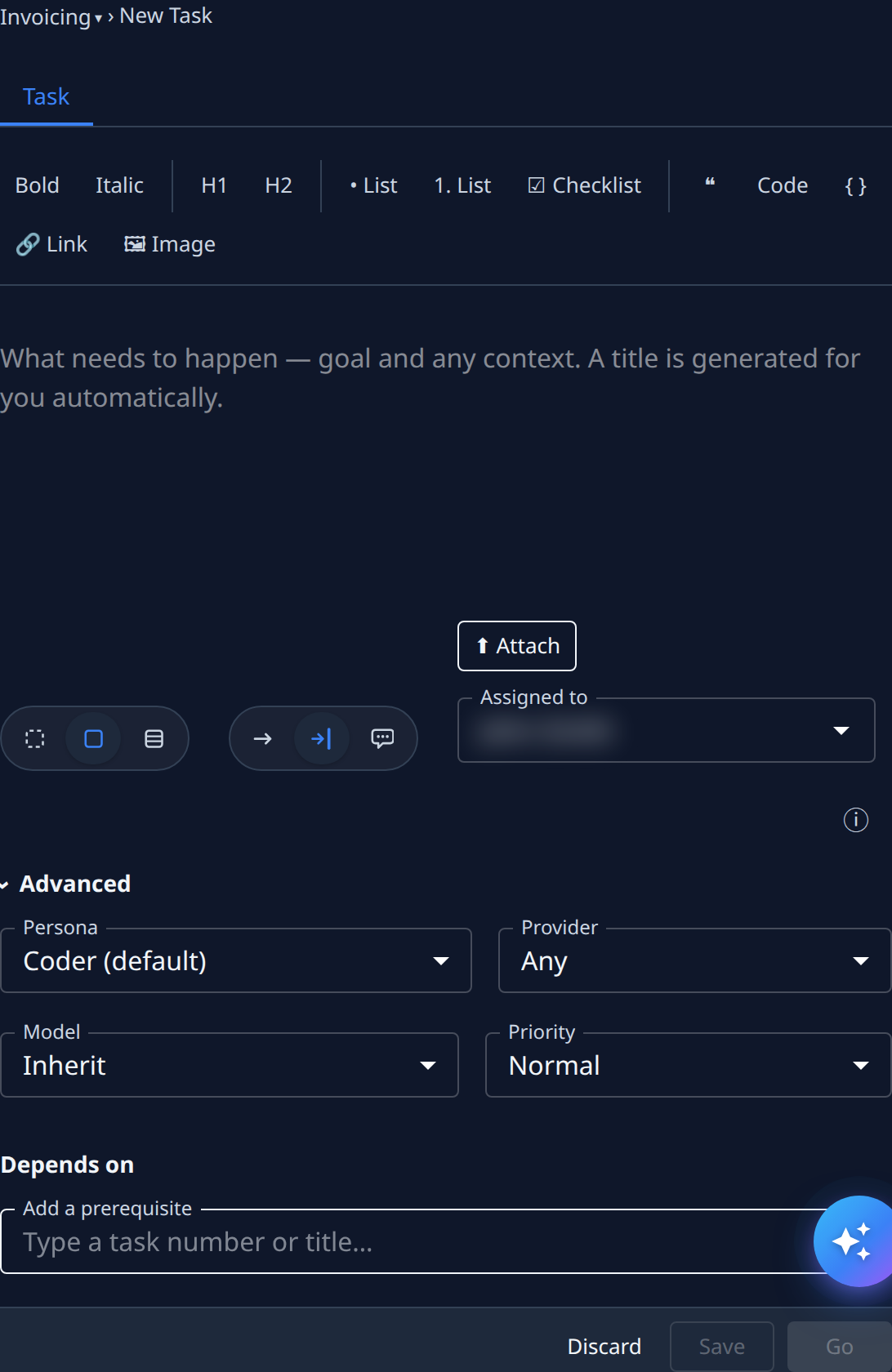
| Setting | What it does |
|---|---|
| Persona | The kind of expert that runs the task. Coder is the default. Not shown for an epic. |
| Provider | Which AI provider may run it. Any lets any provider run it. Org Owners and Admins only. |
| Model | The model level. Inherit uses the task's default, then the project's. Org Owners and Admins only. |
| Priority | How soon it runs compared with other tasks. Normal is the default. |
| Depends on | Tasks that must finish first. Type a task number or title in Add a prerequisite. |
Select ⓘ to show help under every field.
Start a chat
A chat is a conversation with an advisor about your project. The advisor talks it through with you in the console.
-
On the board, select ▼ beside +, then Chat.
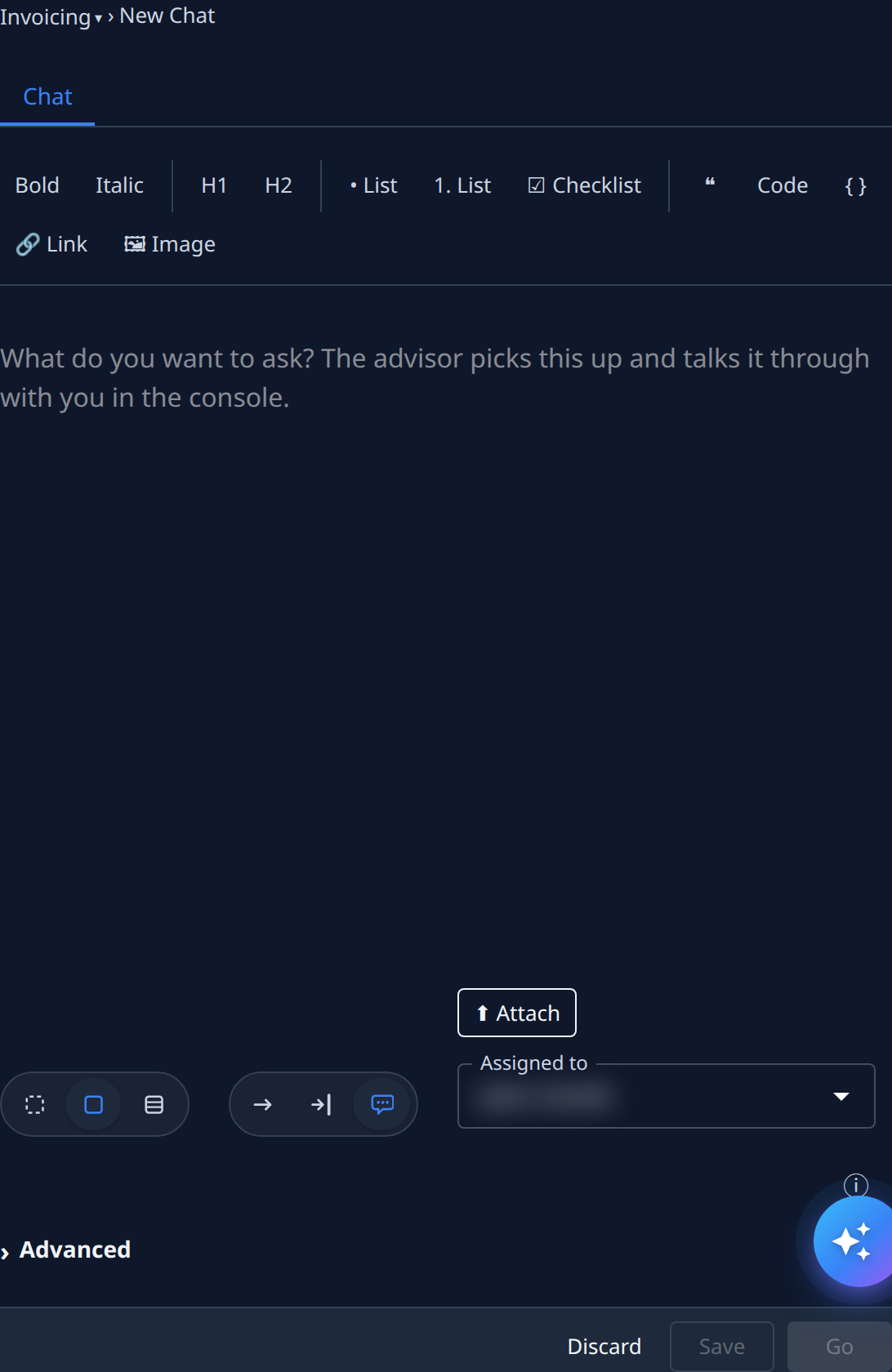
-
Type your question.
-
Select Go.
From the one-line row, type Chat: before your question to turn the row into a chat, then press
Enter. Or type the question and select the chat button that appears beside ▶.
After you start
The task appears on the board under In progress. When it needs you, it moves to Stopped with a question mark: see Answer a task's question. What each state and tab means is in Task board and Task page. Every field of the form is described in New task.
For the ideas behind tasks and their states, see How tasks work.