How templates work
A template is a task written once and reused. It carries everything a task needs before it runs: a name and a short summary, the brief the runner works from, the persona that runs it, how big the work is (a single task or an epic), and whether it runs unattended or Guided. Starting a template files an ordinary task in the project you pick; from then on it is like any other task on the board.
The gallery
Settings in the sidebar, then Templates under Customize, opens the gallery. Every member can browse it. Templates are grouped: Favorites first, then Most popular (the templates started most in recent months), then one group per purpose — Build & fix, Quality, Security, Maintenance, Docs & release and Research & planning — each with its count. Select a purpose to see only that group, or search by name, summary, description or group; a search shows one list, best match first. Clear resets both.
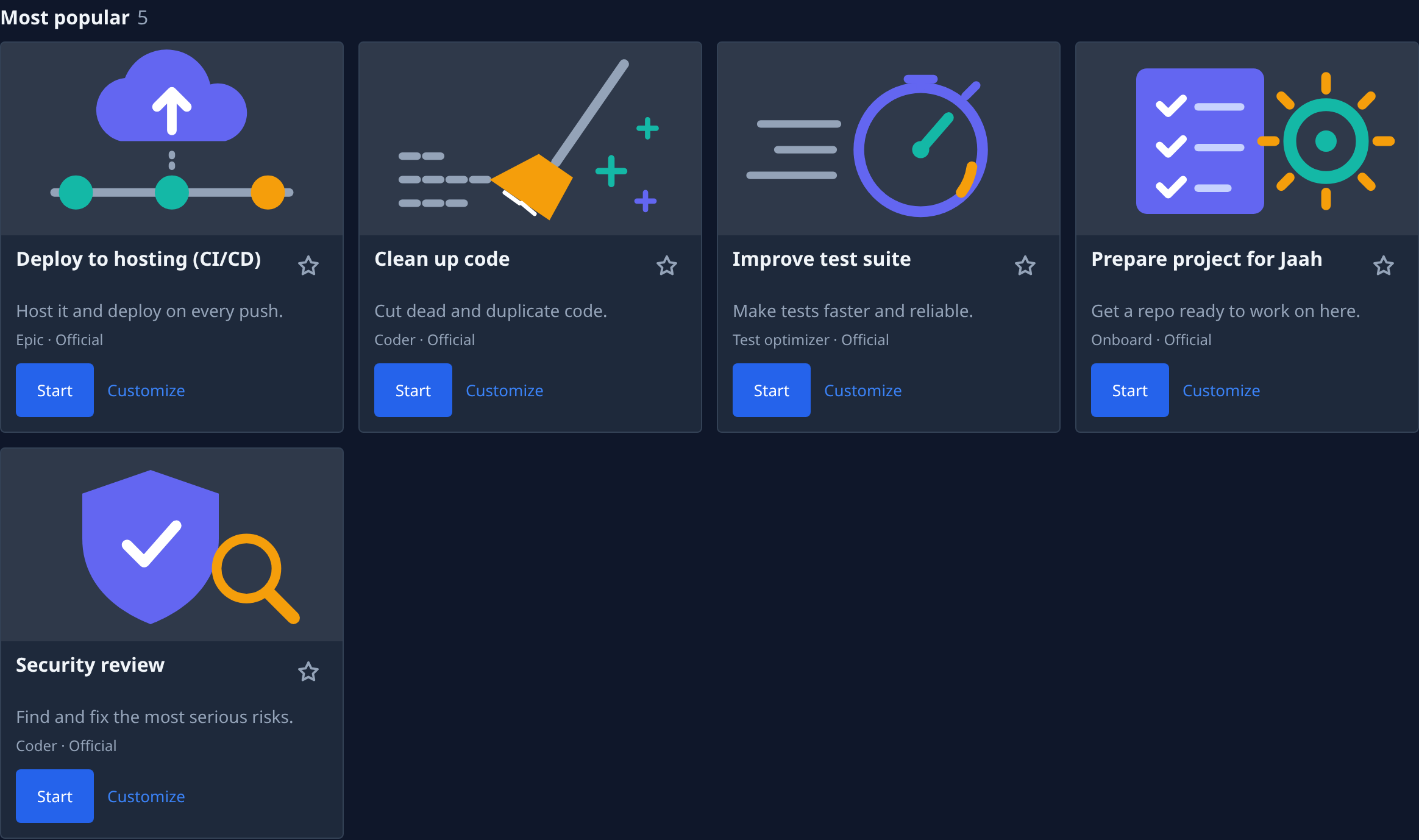
Each row shows the persona that runs it and where it comes from: Official templates are Jaah's own library; Your org templates are your organization's. The star adds a template to your Favorites, for you only.
Start or customize
Start and Customize appear only if you may create tasks in at least one project.
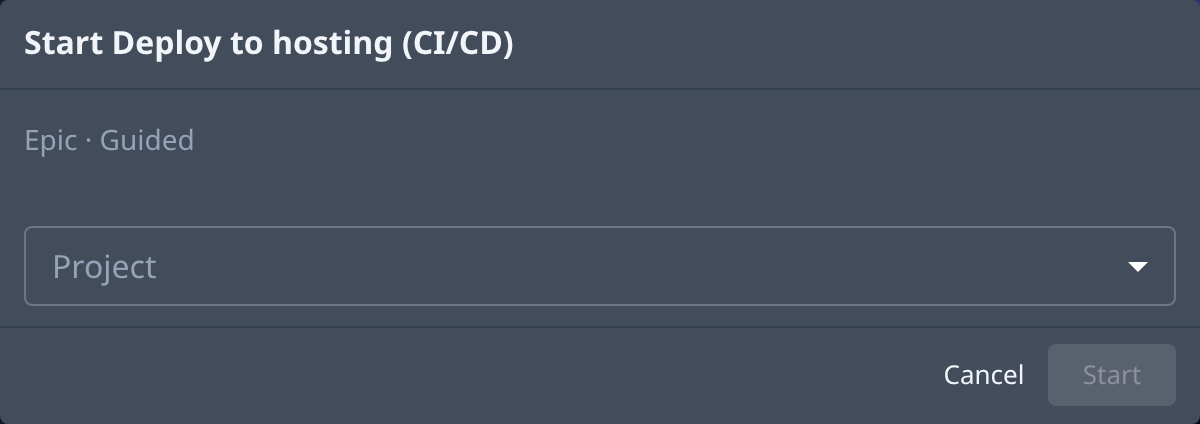
- Start asks for the Project and starts the task at once, then opens it. The line under the title shows the persona, the size and the involvement the task will run with. If the task is created but starting it is refused, Jaah opens it as a draft and says why.
- Customize opens the new-task form already filled in from the template, so you can change the brief, persona or any other field before you start it.
A template's brief can mark what it needs from you as an input, written {{input: Label}} (required) or
{{input?: Label}} (optional). Start asks for each one and puts your answer in its place. Customize
shows the marks in the brief for you to replace yourself.
A task started from a template shows From template on its page, linking back to the template in the gallery. Until your organization is set up, the task board shows the setup steps instead. After that, while it has 10 tasks or fewer, the board shows Most popular templates under the list. From template in the ▾ menu beside New Task on the board opens the gallery.
Templates in automations
An automation can file its task from a template instead of a written body. Each run uses the template as it is at that moment, so editing the template changes what the next run files. If the template is deleted or no longer available, the automation shows Template deleted or Template unavailable and files no task. A template with inputs asks for their values when you pick it, and each run uses them; if the template later gains a required input, runs show Template input missing until you save the automation with a value. For the steps, see Run a template on a schedule; the fields are in the automation's Action.
Your organization's own templates
Official templates are the same for everyone. Writing your organization's own needs the Templates (org) feature on your plan, and permission to edit templates; people who have both see Manage and New template on the gallery, and Duplicate on Official rows to copy one into the organization and change it there. Deleting a template says how many automations use it, since they stop filing tasks.
Related
- Start a task — the new-task form that Customize fills in.
- How personas and playbooks work — the personas a template names.
- Create an automation — file tasks on a schedule or event, from a body or a template.