Start a task from a template
A template files a ready-made task in a project you pick, so you skip writing the brief yourself. What a template carries and where the gallery's groups come from is in How templates work. Starting one needs permission to create tasks in at least one project; without it the rows show no Start or Customize.
-
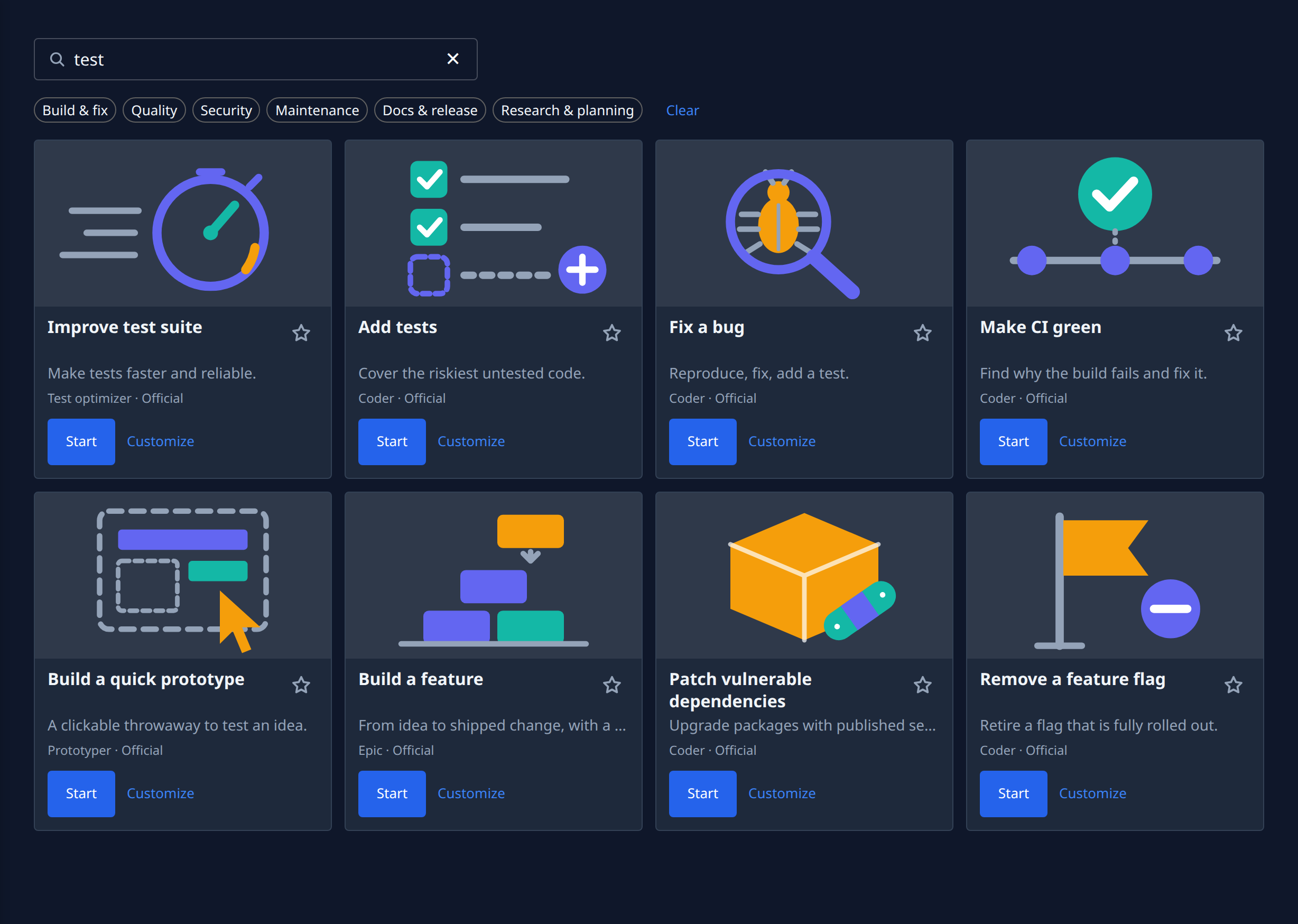
Open Settings in the sidebar, then Templates under Customize. The gallery opens with Favorites (when you have any), then Most popular, then one group per purpose.
-
Find the template. Type in Search templates to match a name, summary, description or group, or select a purpose — Build & fix, Quality, Security, Maintenance, Docs & release or Research & planning — to see only that group. Clear resets both.
-
On the template's row, select Start. To change the brief, persona or any other field first, select Customize instead: it opens the new-task form already filled in from the template, and you finish there as in Start a task.
-
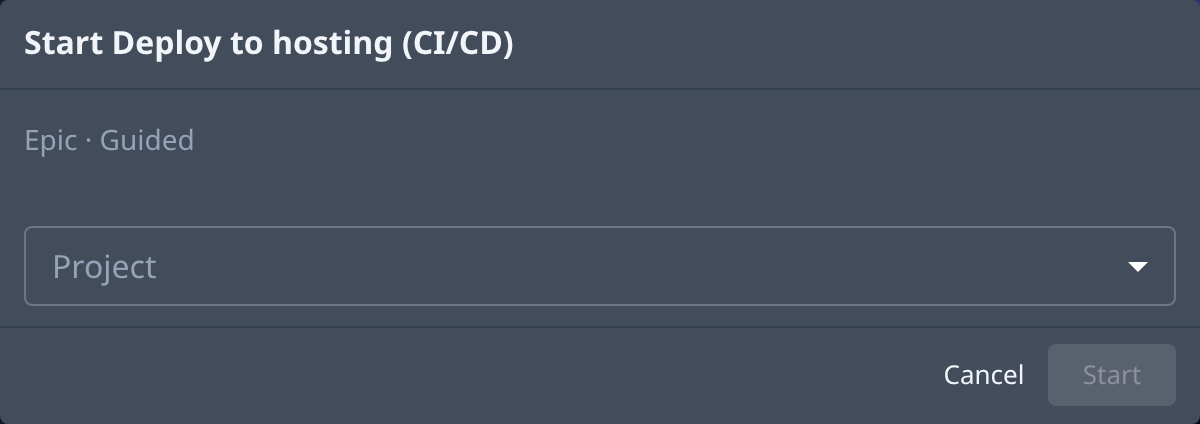
In the Start dialog, check the line under the title: the persona, the size (a single task or an epic) and how involved you will be, for example Guided.
-
Choose the Project the task runs in. Only projects you can start tasks in are listed.
-
Fill in the template's inputs, if it has any — for example The bug on Fix a bug. Each one becomes part of the brief; Start stays off until every required one has a value, and an optional one left blank reads as "(not given)".
-
Select Start. Jaah files the task, starts it and opens its page, which shows From template linking back to the gallery. If the task is filed but starting it is refused, Jaah opens it as a draft and says why.
To find a template again quickly, select its star: it moves to your Favorites, for you only.
Related
- How templates work — the gallery, Start and Customize, and templates in automations.
- How tasks work — what happens to the task once it starts.
- Create an automation — file a task from a template on a schedule or event.