Move a task off an offline node
Once a task has a slot, it stays on that node: stopped or restarted, it comes back to the same slot with its work. So when that node goes offline, the task waits for it. If the node won't be back soon, reset the task: that lets its slot go at once, and its next start takes a slot on another of the project's nodes.
A reset discards what the task had not pushed yet. It starts again from what it last pushed, with its description and attachments kept.
Who can do this: resetting and starting a task needs edit access to its project.
Find where it is held
-
Open the task and select the Details tab.
-
Read Runner. It names the node and slot, such as last ran on a node · slot 1.

-
In the sidebar, select Directory, then Machines; the Nodes tab opens. Find that node and check that it is OFFLINE. If it is back online, the task carries on by itself and you are done.
Let the slot go
-
Back on the task, open its ⋯ menu at the top of its page and select Reset.
-
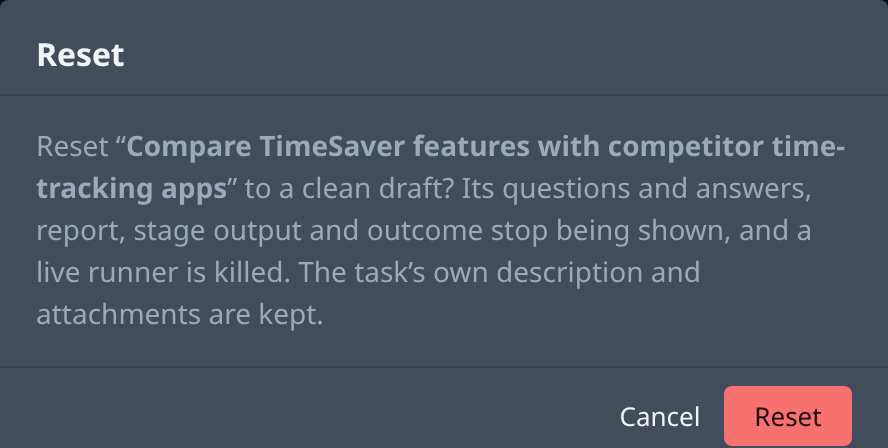
Read the confirmation and select Reset. The task goes back to Draft and its slot is let go.
-
Open the ⋯ menu again and select Start. The task takes a slot on another node of the project.
-
On the Details tab, Runner now names the new node.
If the task is pinned to the offline node, it waits again: change Node to Any on its Task tab, under Advanced, before you start it. See Choose the agent and account a task runs on. With only one node on the project there is nowhere to move it; give the project another node.
Related
- How worktrees work — when a task keeps its node, and when it can move.
- Read a node's status — what OFFLINE and Last Seen mean.
- Stop, restart or reset a task — everything a reset keeps and discards.