Stop, restart or reset a task
Once a task is started, you can still steer it: stop it, start it again, start it over from a clean draft, or close it yourself. Every action here is in the task's ⋯ menu, on its row on the board or at the top of the task page.
Who can do this: stopping, starting, resetting and completing a task need edit access to its project. Archiving and deleting need permission to delete tasks, though you can always delete your own drafts. Without these, the items aren't in the menu.
The menu offers only what the task's current state allows. What each state means is in How tasks work.
Stop a running task
Use this to interrupt a task that's going the wrong way, or that you want to hold for now.
- Open the task's ⋯ menu.
- Select Stop.
- In Stop task, select Stop again to confirm.
The task moves to Stopped on the board with the state Paused. Its work so far is kept, ready for you to continue it.
Stop is offered while a task is Queued, Running or Asking.
Start a stopped or failed task again
- Open the task's ⋯ menu.
- Select Start.
The task is queued again. A Paused task carries on from where it stopped, with the work it had already done. A Failed task gets a fresh set of attempts.
To change the description first, select the Task tab, edit it, and select Go to save and start.
Run a finished task again
On a Done task, Start runs it again: it's queued for a new run with its current description.
To run the same work as a separate task instead, select Duplicate. It opens a new task filled in from this one, for you to change and start.
Park a task while you wait on a customer
Use this when the task can't go on until someone outside your team replies.
- Open the task's ⋯ menu.
- Select Waiting on customer….
- Optional: type a Note saying what you're waiting for.
- Select Stop and wait.
The task moves to Stopped. If it was running, it's stopped. The reason is cleared the next time the task's state changes, for example when you start it again.
On a subtask of an epic, Waiting on customer… is unavailable: set it on the epic instead.
Reset a task to a clean draft
Use this to start over: for example when the task went down the wrong path, or you want to rewrite it before anything more is built.
-
Open the task's ⋯ menu.
-
Select Reset.
-
Read the confirmation and select Reset.
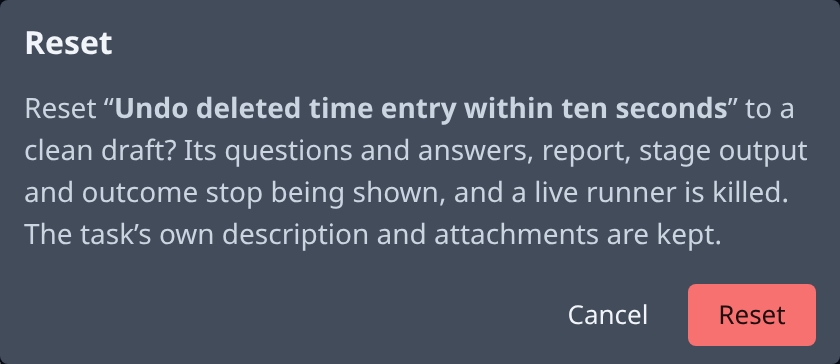
The task goes back to Draft. A runner working on it is stopped, and work it had not yet delivered is discarded. The description and attachments stay, so you can change them and select Start when ready.
Reset on an epic resets the epic and every one of its subtasks to Draft. Runners are stopped, their worktrees released and undelivered work discarded. Select Start to run the epic again from the first step.
Go is unavailable while a task is running. To apply new instructions to a running task, stop it, edit it on the Task tab, then select Go.
Mark a task done by hand
Use this when the work is already done some other way, or no longer needed but worth keeping as done.
- Open the task's ⋯ menu.
- Select Complete.
The task moves to Done at once, without a confirmation. A runner working on it is stopped.
Archive or delete a task
- Open the task's ⋯ menu.
- Select Archive or Delete. The menu shows whichever one fits the task: Archive on a finished task, Delete on a draft or a stopped one.
- Confirm. The dialog warns that this can't be undone.
The task leaves the board. A task that is queued, running or asking can't be archived or deleted: stop it first.
Related
- Task page — every tab and every item of the ⋯ menu.
- How tasks work — the states and what moves a task between them.
- Answer a task's question — when a task stops to ask you something.