Compliance
Compliance scores your repositories against a pack of engineering rules and shows, for each one, its level and what to fix next. It opens from Compliance in the sidebar. What packs, rules, levels and modes are, and how a scan and a fix run, is in How compliance works; this page says what each screen shows.
Compliance is part of some plans only: while your organization's plan leaves it out, it is not in the sidebar. Seeing it needs the permission to view compliance; starting scans, waiving gaps and changing rules needs the permission to edit it, and fixing gaps also needs permission to create and edit tasks on the project (see How team and access work). The page has the tabs Repos, Guard activity and Settings; the tab you are on is in the address, so a link or a reload opens it. The packs are under Settings, Customize, Compliance Packs. Guard activity, the Architectural Guard settings and the Change rule check appear only when your organization has the Architectural Guard; without it the Gate and Lock modes read "Coming later".
Repos tab
The first visit opens setup; every later one opens the list of repos for the pack you last picked.
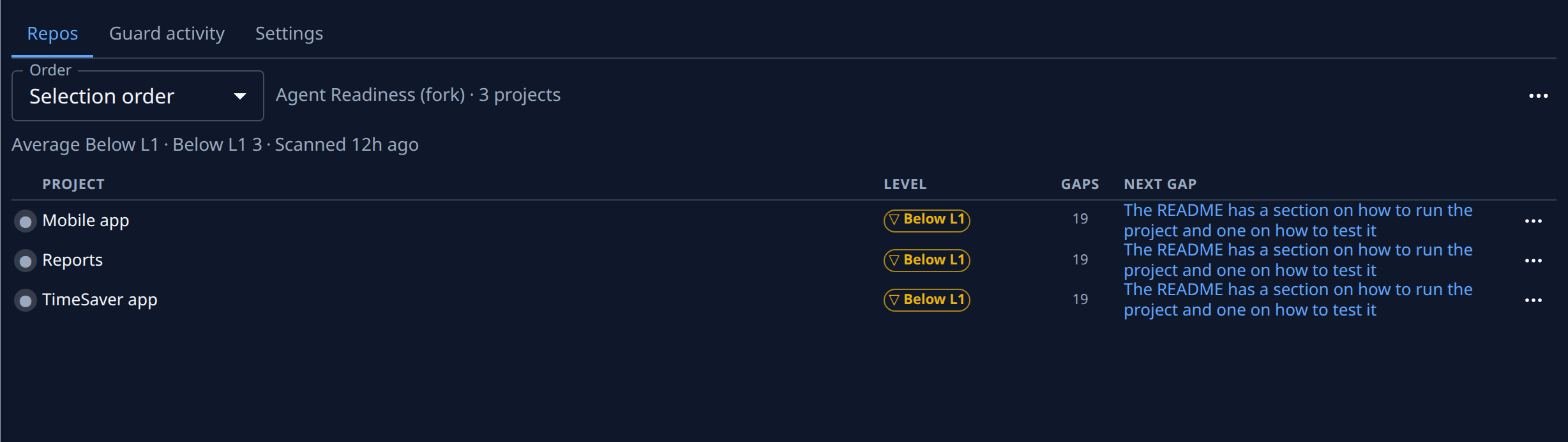
The toolbar holds Order, a count line and the ⋯ menu:
| Control | What it does |
|---|---|
| Order | Sorts the rows by Selection order, Lowest level first or Name. While a scan runs, rows without a result stay last. |
| Count line | The pack, then how many projects, and how many are not scannable, failed or not scanned yet. |
| ⋯ → Rescan all | Scans the same selection again. Unavailable while a scan runs. |
| ⋯ → Choose projects… | Reopens setup over the current projects and pack. |
| ⋯ → Start campaign | Opens Start campaign. |
The ⋯ items need the permission to edit compliance. While a scan runs, Scanning n of m shows under the toolbar with Stop, which ends it.
Below, one summary line, each part only when it applies: Average Ln (Average Below L1 under level 1), how many projects sit at each level (L1 3; Below L1 n counts the projects that meet no level), how many gaps are waived, Scanned and when, Campaign: with how many of its repos are queued, in progress, have a PR open, merged, failed or were scanned again, and how many results are from an earlier scan.
Observe-mode rules are listed on a pack's Rules tab (Mode: Observe).
The rows
Each row is one project with a result. A disc opens it: ✕ when its last scan failed, … while one runs, ● otherwise (hover it for the word). Then its name (open it for the repo page), Level (Ln, or Below L1 while it meets no level) with ⚑ n when it has waivers, Gaps, and Next gap, the rule to fix first, wrapping to a second line when it is long (open it for the rule's page; hover it for its full name and why it matters). ◷ earlier result marks a level kept from an earlier scan while a new one runs or after it failed. The row's ⋯ holds Rescan and Auditor run, the task that scanned it.
Projects without a result are grouped below the list, each group's reason said once:
- Not scannable: No repository connected. with Connect a repo, or no node hosts them, with Add to a node or Open nodes.
- Scan failed: grouped by why: Stopped, Timed out after a time, Could not start the run, Run could not start, Run finished without reporting or Run ended without a result. Each project shows the run's own reason under it when the run gave one, and Rescan.
- Not scanned yet: No result under this pack yet., each project with Rescan.
Setup
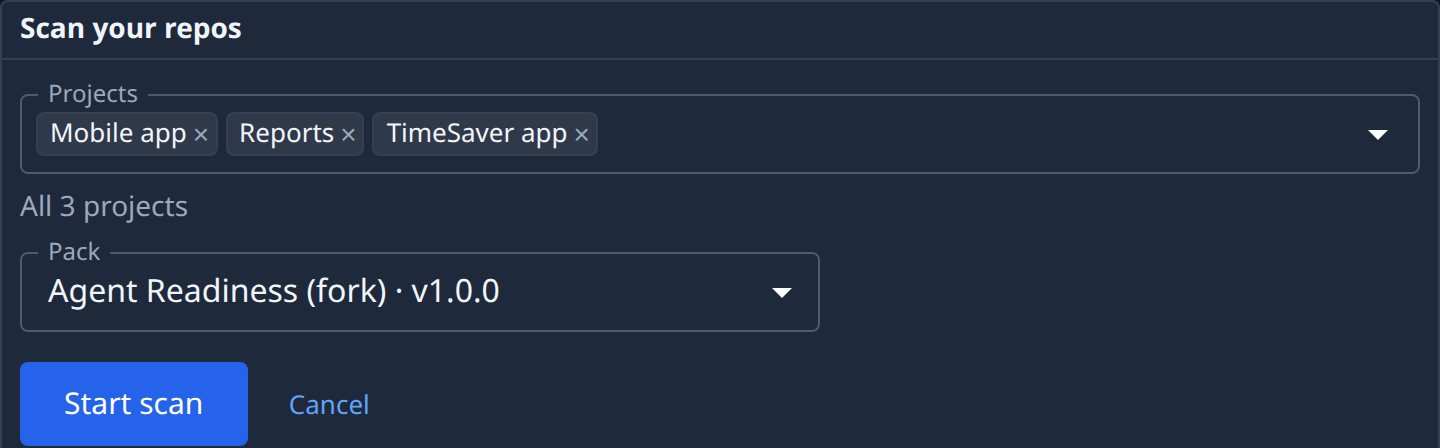
| Field | What it means |
|---|---|
| Projects | The projects to score; the line under it counts them (All n projects, or n of m projects). Every project you can see starts chosen; Select all brings back any you removed. A project marked "can't be scanned yet" has no repository or no node. A line under the count says how many of the chosen projects can't be scanned yet and how many are view only (you may see them but not scan them). |
| Pack | The pack to score against. A ready-made pack is marked ready-made. |
Start scan starts the scan. Without the permission to edit compliance the button is replaced by "Starting a scan needs compliance edit." Opened from Choose projects…, Cancel returns to the list.
Start campaign
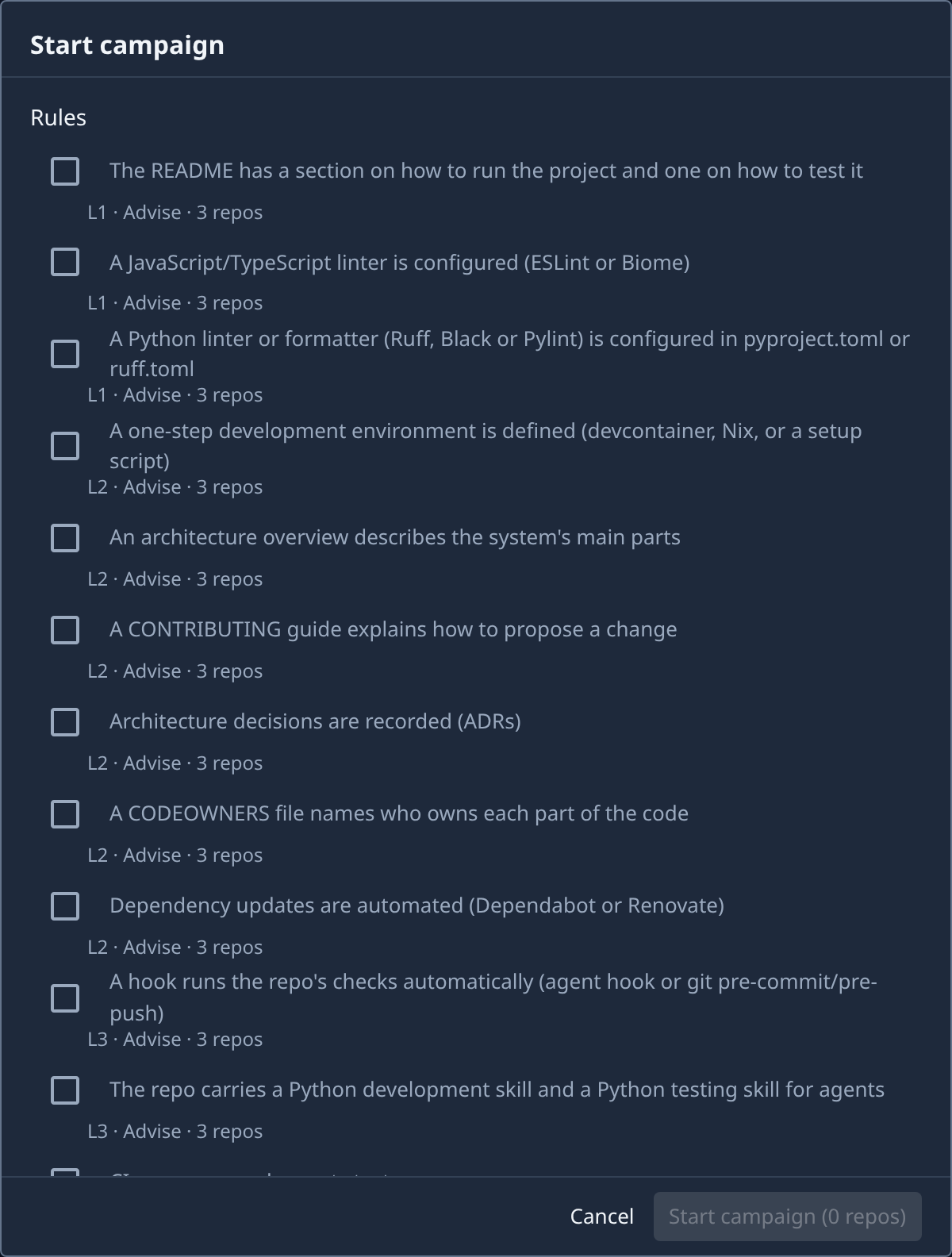
Lists every rule that fails somewhere, with its level, mode and how many repos fail it. Tick the rules to fix; the button counts the repos the campaign will file a fix for: Start campaign (N repos). With no failing rule it reads Nothing to fix.
A repo's page
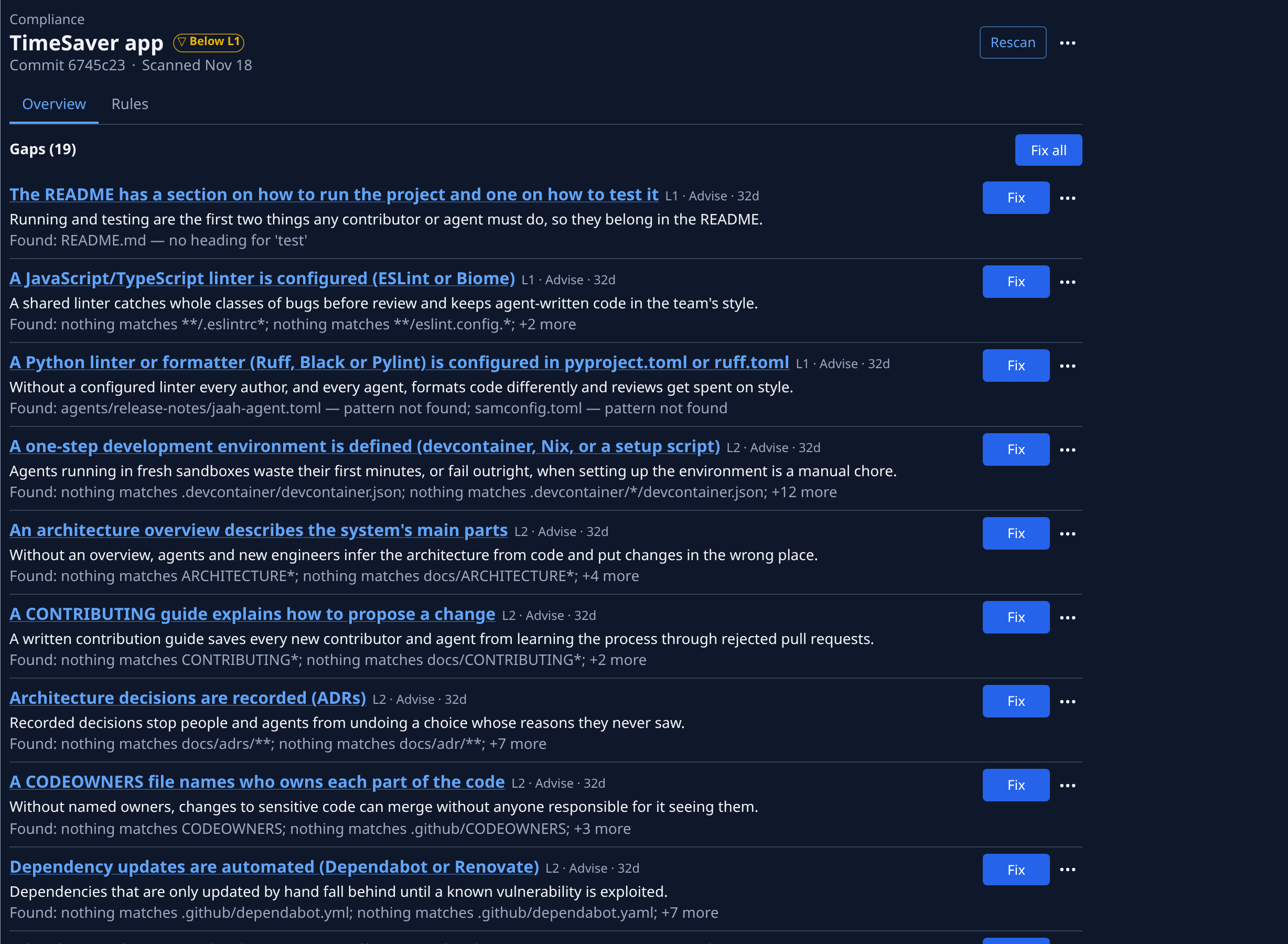
The header shows the project's name, its level and Rescan; its ⋯ holds **Auditor run #**n, the task that scanned it. Below: the Commit scanned, when it was Scanned, the pack (only when it is not your organization's active one), the scan state (Scan error when it failed) and, with the Architectural Guard, Guard blocks in the last 7 and 30 days (only when it blocked any). When the last scan failed, the line says why: Stopped, Timed out after a time, Could not start the run, Run could not start, Run finished without reporting or Run ended without a result, followed by the run's own reason when it gave one, such as Run could not start: and why; hovering it gives the full reason. Without the permission to edit compliance, a banner under it says Ask an editor to rescan.
Two tabs: Overview and Rules.
Overview
Gaps lead, after Repositories when the project has several:
- Repositories (N): only for a project with more than one repository: one section per repository, the primary first and marked Primary, each with its own level, scan state, Commit, when it was Scanned and its gaps; a failed scan's banner says why, such as Timed out after a time, with the run's own reason when it gave one. A section lists its first five gaps; Show all n opens the rest. Not scanned (N) counts the rules its last scan did not finish. Repository above the sections chooses which one shows: All repositories (N) or one repository.
- Gaps (N): every failing rule: its name (open it for the rule's page), level, mode, how long it has failed, ↓ or ↑ when it got worse or better than the last scan, why it matters and what was found. Fix files a task that fixes that gap; Fix all files one for every gap no fix is already working on; with none it reads No gaps. Each gap's ⋯ holds Evidence (the rule's evidence) and Waive, which opens the evidence page at its Waive section; a rule in Lock mode cannot be waived, and a rule that allows no waiver says so instead. Fixing needs the permission to edit compliance and to create and edit tasks on the project.
- Not scanned (N): the rules whose check did not finish in the last scan. One line above the list says so once: "These checks did not finish on the last scan. Each shows what the scan before it found." They are not gaps: each shows Last result with its earlier verdict and Found: what that scan found (or "No earlier result."), and offers Rescan instead of Fix; its ⋯ holds Evidence.
- Levels by pillar: for each pillar and level, how many of the rules that apply pass: ✓ when all pass, ✗ when some fail, n/a when none apply.
- Facts (N) (Facts · and the primary repository's name when the project has several): what Jaah inferred about the repository, such as its languages, folded to one line with how many are unconfirmed. Each fact's ⋯ holds Confirm (it then shows ✓) and Correct, to give the right value. Rules use facts to decide where they apply.
| Waiver field | What it means |
|---|---|
| Owner | The person accountable for the gap while it is waived: you, until you search for someone else. Only enabled accounts are offered. |
| Expires | When the waiver lapses, from tomorrow up to the limit shown. |
| Compensating control | What covers the risk meanwhile. |
| Reason | Why the gap is accepted for now. |
Rules
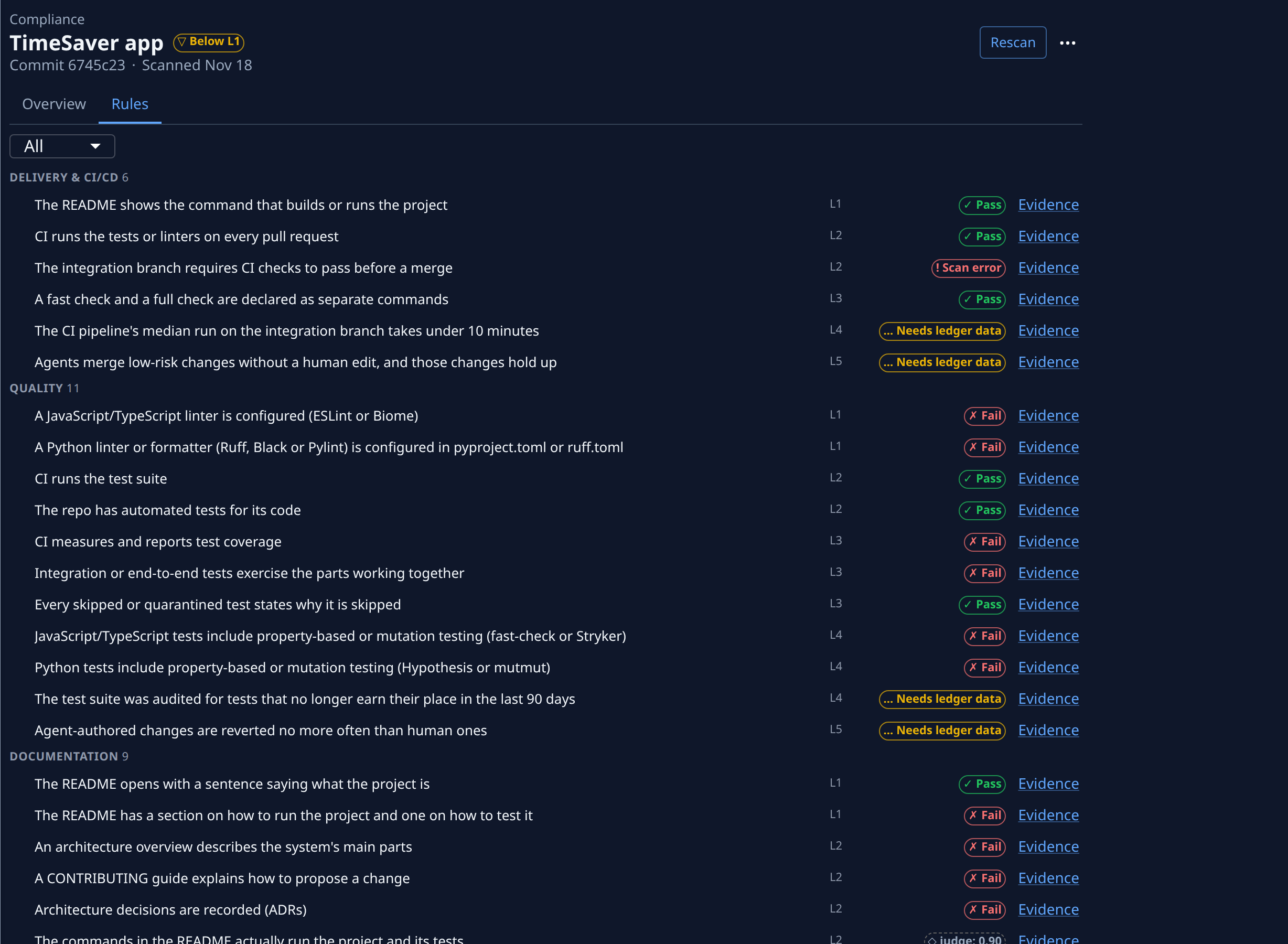
Every rule of the pack by pillar, each with its level and state: Pass, Fail, n/a, Waived until …, Not yet scanned and the others in How compliance works. The rule's name opens its page; Evidence opens its evidence. When the last scan did not finish for any rule, one line above the list says so (Every rule: and why, with the run's own reason when it gave one) instead of a state on each row.
A dropdown above the list (All, Failing, …) narrows it:
| Filter | Shows |
|---|---|
| All | Every rule, observe-mode rules last. |
| Failing | The failing rules. |
| Waived | The open waivers, with their count: each with its rule, owner, expiry, where it was granted, reason and control. Its ⋯ → Revoke ends one. |
| n/a | The rules that do not apply here, grouped by why. |
A rule's evidence
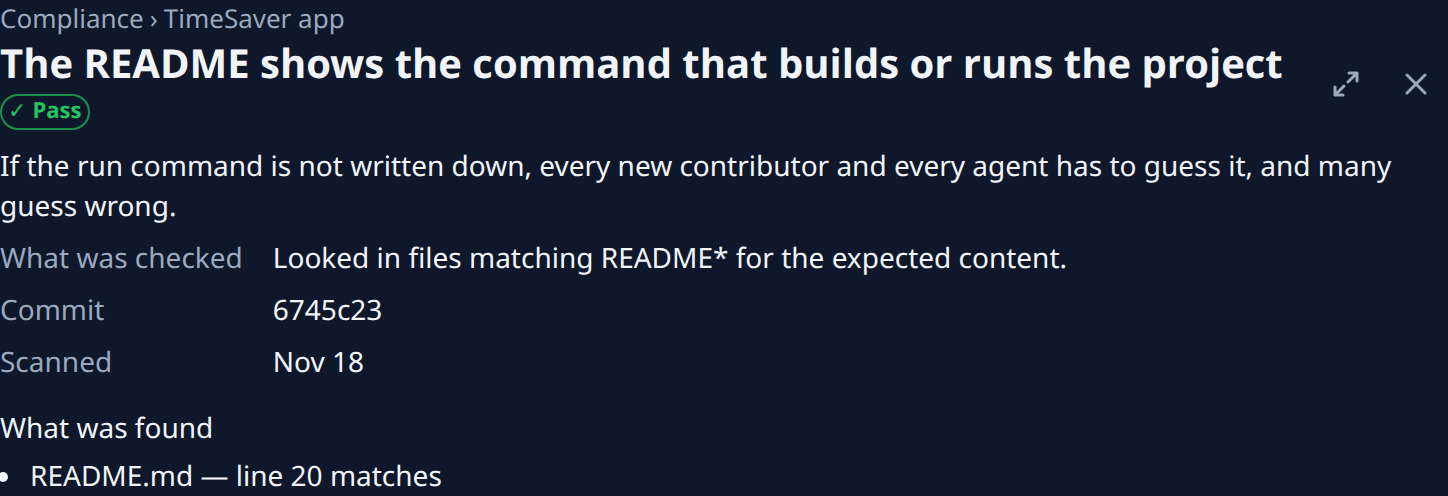
The trail leads back to the repo. The title is the rule's name (open it for the rule's page) and its result for this repo; below it, why the rule matters.
| Field | What it shows |
|---|---|
| What was checked | The check in plain words. |
| Confidence | A judge's verdict only; below the threshold it reads unverified and counts as not passing. |
| Commit / Scanned | The commit checked, and when. |
| What was found | The evidence the check recorded, or "No evidence recorded for this check." |
A gap you may waive also shows a Waive section with the waiver fields and Waive, which stays off until every field is filled; Discard clears them. Once filed, the section shows only Waived until and the date.
Guard activity tab
With the Architectural Guard, every Guard decision on the projects you can see (a block, an error or a waiver), newest first.

Filter by Project (All projects), Rule (All rules) and Decision (All decisions); Clear filters resets them. With no decision yet the tab says "No guard blocks yet. Rules at Gate or Lock will log here when they stop a change." Each row opens with the decision's mark (Denied, Error, Waived or Escalated), then the Rule (open it for the rule's page while the rule still exists) and the guard's message, the Runtime, Where (the file and line), the Moment (on write, at commit or at push), the Task, the Project and the Time. On a narrower window the Runtime, then Where and Moment, then the Task drop out of the row; hover over it for the message and the file.
Settings tab

Without the permission to edit compliance, each value is shown as text and the tab says "Changing settings needs compliance edit."
- Daily scan: the checkbox applies at once. It scans the last selection again every day, with its next run beside the checkbox, or Starts after the first analysis until a scan has been started, or Not scheduled: the daily scan job is off while Jaah has paused daily scans, or Next run not scheduled when no run is due yet.
- Architectural Guard: Blocks before asking: how many times in a row one rule may block an agent before it stops and asks the operator, from 1 to 50. Save applies it.
- Pack updates: shown only while there are some, with a dot on the Settings tab: new versions of the ready-made pack yours was customized from: what was Added, Removed and Changed, the Effect by repo, and Apply or Dismiss.
Compliance Packs
The packs list is not a Compliance tab: open it from the sidebar, select Settings, then Compliance Packs under Customize. A pack's page, a rule's page and Add rule open beside it, and their trail leads back to Compliance Packs.

Every pack your organization can use: the ready-made ones, then your own. Each row shows the pack's name, Active on the one scans, the matrix and the Architectural Guard use, Ready-made, Own or Fork of its ready-made pack, its rule count and version. The row opens the pack's page; its ⋯ holds Activate. The active pack keeps its ⋯ too, with Activate greyed out and Already active under it. Rows show no ⋯ at all when you can activate none of the packs.
A pack's page
It opens in a pane beside Compliance Packs. The header names the pack, with Active when it is. Activate makes it the active pack; the ⋯ holds Customize on a ready-made pack (copies it into your own pack, which becomes active) and Delete on your own pack. Deleting the active pack makes the ready-made pack it was copied from (else the default pack) active; a pack is not deleted while a scan of it runs. Activate and Delete need an Org Owner or Admin.
Two tabs: General and Rules.
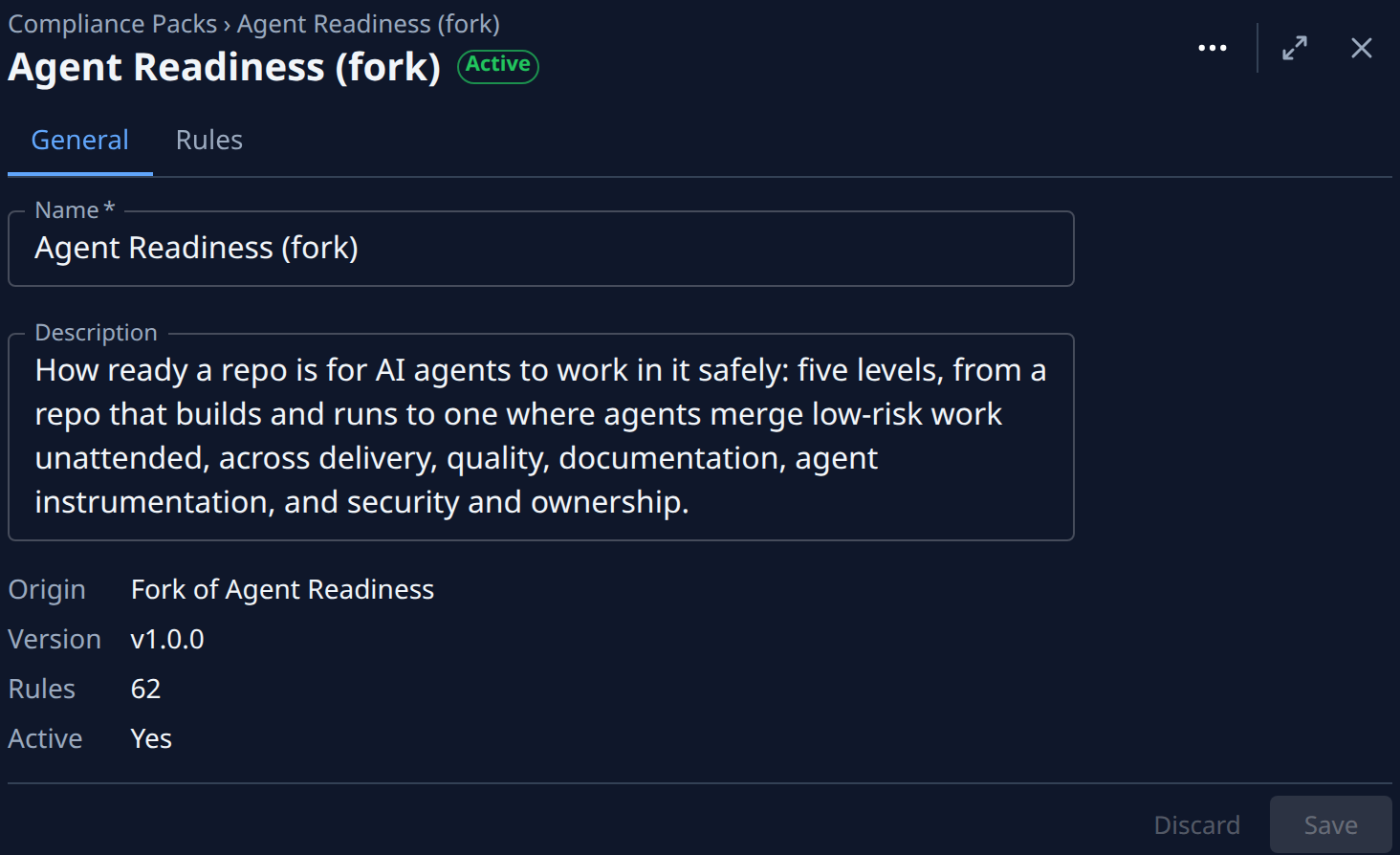
- General: Name and Description, edited in place with Save and Discard in the bar at the foot; then Origin, Version, Rules and Active. Your own pack is renamed by an Org Owner or Admin; a ready-made one only by the Jaah operator. Otherwise each value is shown as text.
- Rules: every rule of the pack, structural rules under their pillar and then Change rules. Each row shows the rule's name (open it for the rule's page), its level or change kind, its mode, and Off when it is off. A count line above the list says how many rules the pack has.
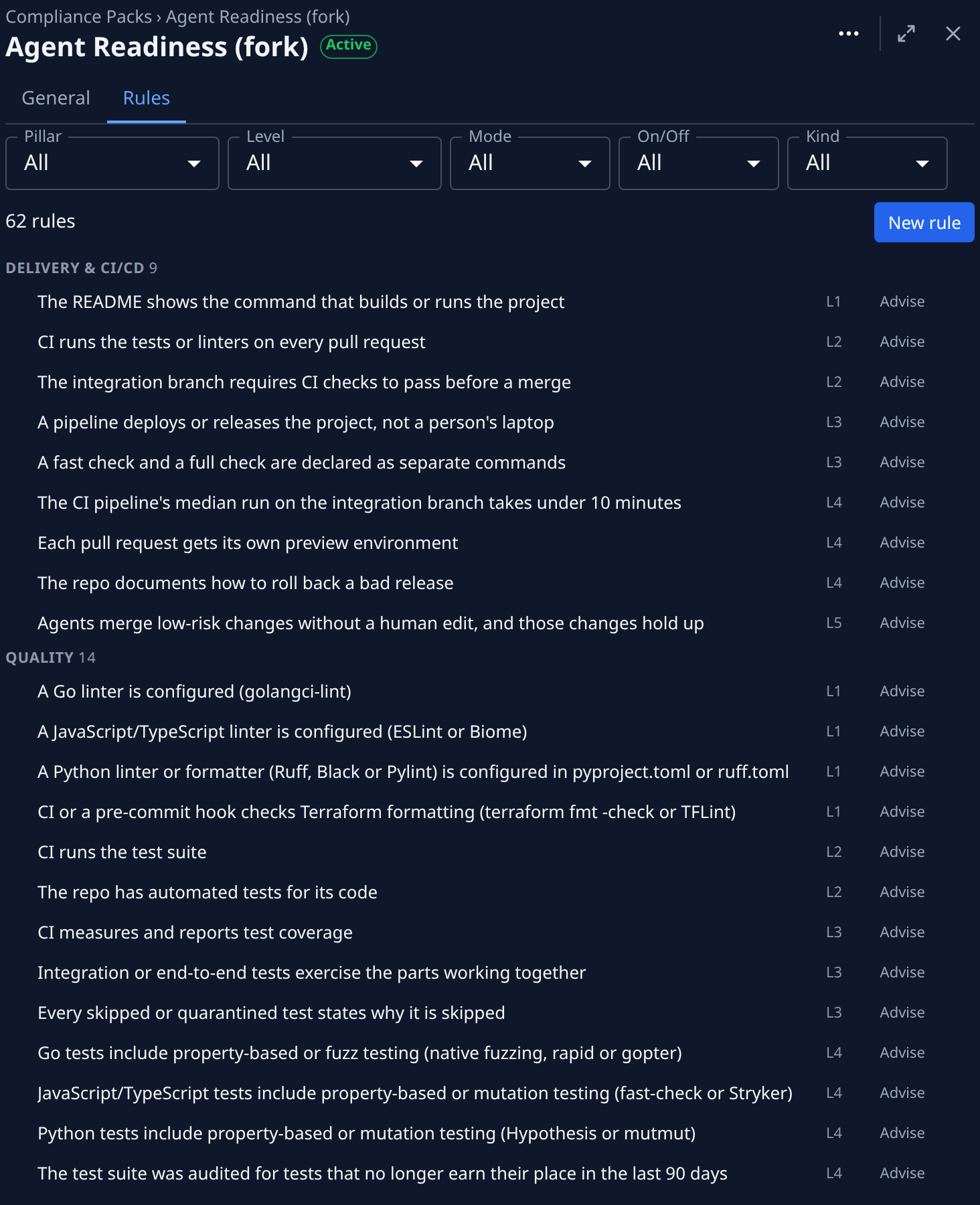
| Control | What it does |
|---|---|
| Pillar, Level, Mode, On/Off, Kind | Filter the rules. Kind is Scan (structural rules) or Change (change rules). |
| New rule | On your own pack, with the permission to edit compliance: opens Add rule. |
A rule's page
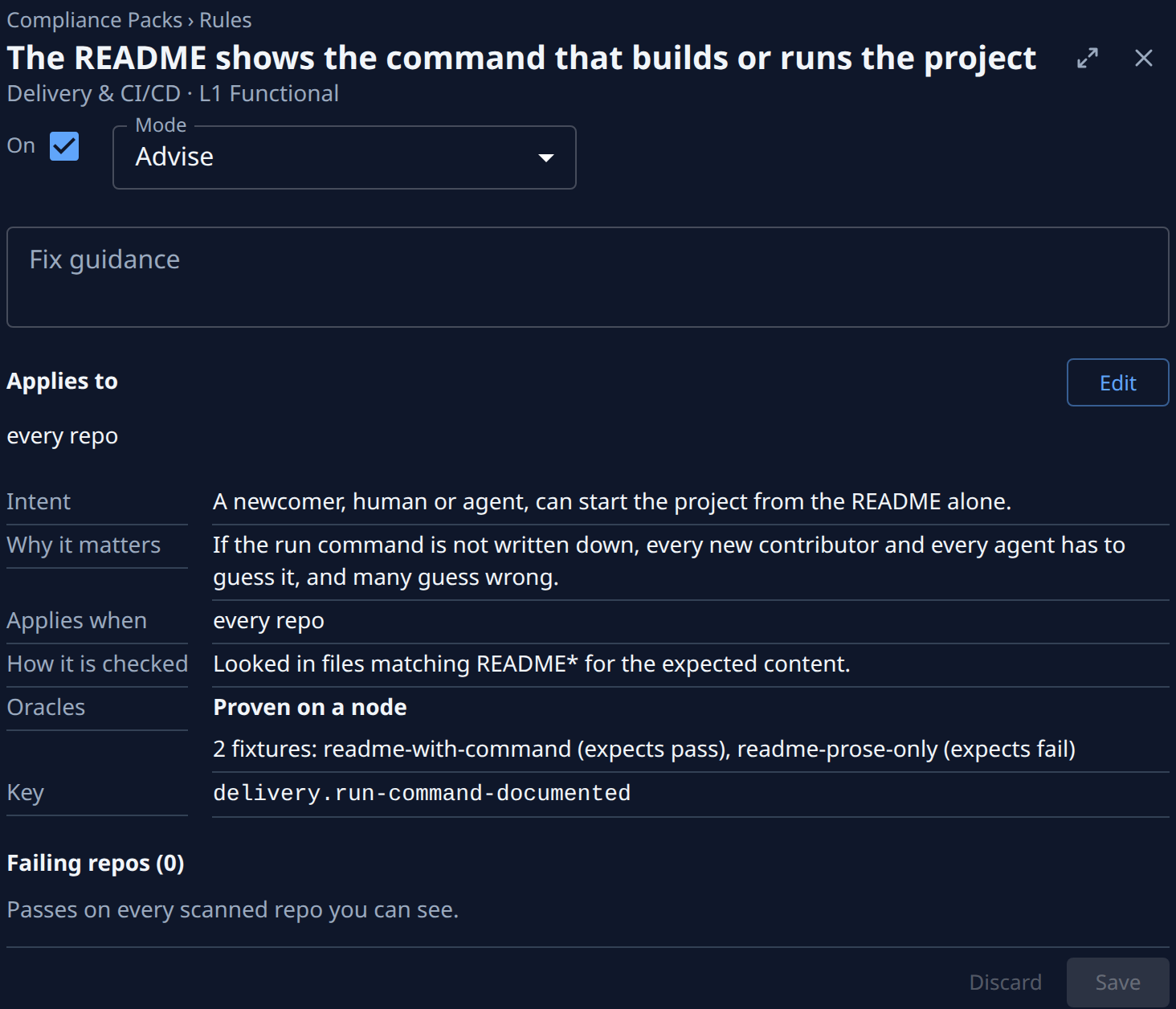
It opens in a pane beside Compliance Packs. The header names the rule and, under it, where it counts: its pillar and level, or Change rule and its kind. The trail above leads back to the pack's Rules. A rule of a ready-made pack is read-only; with the permission to edit compliance it shows Customize, which opens the pack's page with Customize highlighted. Only the Jaah operator edits a ready-made pack's rules in place: each save publishes the pack's next version, offered to every organization on it as a pack update.
On your own pack, with the permission to edit compliance, the rule's settings are one form. Save, in the bar at the foot of the page, sends every change at once and Discard drops them; leaving with unsaved changes asks first. A refused save keeps what you typed and shows the problem beside its control. Otherwise Mode, Fix guidance and Applies to are shown as plain fields, with one line saying why there is nothing to edit.
| Control | What it does |
|---|---|
| On | Turns the rule off or on. An off rule reads Off and is left out of levels. |
| Mode | Observe (recorded, not counted), Advise (counted and shown), Nudge (needs passing oracles), and with the Architectural Guard Gate (blocks the change) and Lock (blocks; no waivers). Without the guard, Gate and Lock read "Coming later". |
| Fix guidance | With the Architectural Guard: what an agent should do instead when the rule blocks it. Gate and Lock need it. |
| Applies to | Which repos the rule covers. Edit builds it from conditions on facts and previews the repos it matches; Save waits for that preview. |
Below them:
| Field | What it shows |
|---|---|
| Intent / Why it matters | What the rule asks for, and why (when set). |
| Applies to | Read-only, when the rule covers less than every repo. |
| Applies when | The facts a repository needs for the rule to apply; otherwise it reads n/a. |
| How it is checked | The check in plain words. |
| Oracles | The sample cases that prove the check works (a passing and a failing fixture, or an allowed and a blocked change) and whether they passed: Proven on a node for a structural rule, Proven at save for a change rule, Proven on first use for a Lint command. |
| Guard blocks | With the Architectural Guard, how many changes the rule stopped in the last 7 and 30 days (only when it stopped any). |
| Key | The rule's key. |
A structural rule then lists its Failing repos: the repo's name opens its page, and Evidence opens what the check found there; with none it reads "Passes on every scanned repo you can see." Not scanned lists the repos whose last scan of it did not finish, and Active waivers the rule's waivers, each only when it has any.
Add rule
Adds a rule to your own pack. A ready-made pack shows "Customize this ready-made pack to add rules." instead, except to the Jaah operator, whose rule is published as the pack's next version.
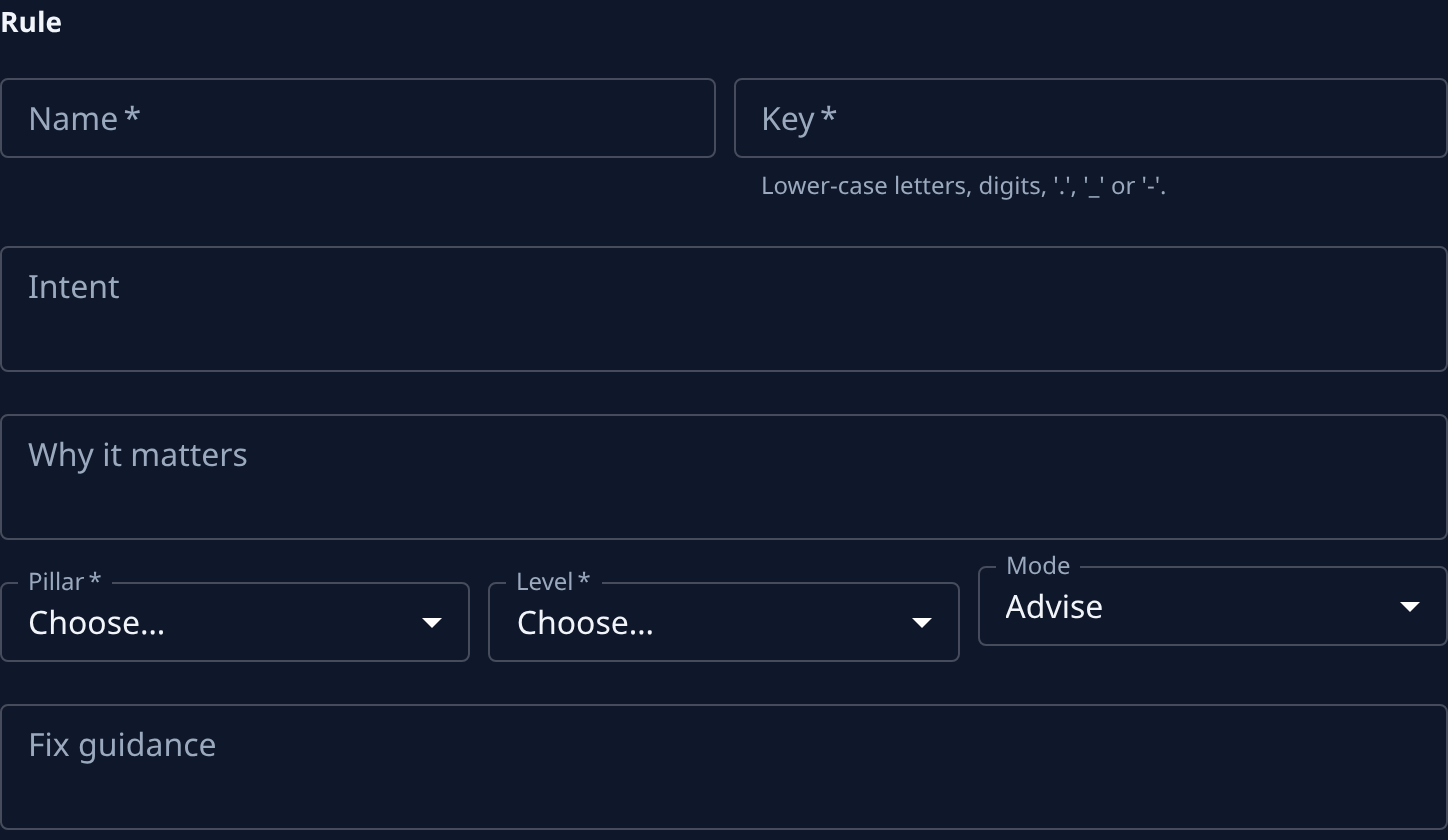
| Section | Fields |
|---|---|
| Rule | Name; Key (filled from the name: lower-case letters, digits, ., _ or -); Intent; Why it matters; Pillar and Level (not for a change rule); Mode; Fix guidance (with the Architectural Guard, required for Gate and Lock). A new structural rule starts at Observe or Advise. |
| Applies to | Match All conditions or Any condition, then Add condition for each fact to test; Advanced edits the scope directly. A preview lists the repos it matches. |
| Check | Check kind: Primitive (a built-in check and its settings), Judge (a Rubric and the Reason a judge is needed) or, with the Architectural Guard, Change rule with its Kind: Forbidden pattern, Required pattern, Import boundary, Approved APIs or Lint command. |
| Oracles | The sample cases the check must get right: one passing and one failing fixture, each with a Name, what it should Expect (Pass or Fail) and its files (Path and Content, more with Add file, fewer with Remove file), or for a change rule one Allowed and one Blocked change (Before and After files). Add oracle adds one; Remove oracle drops one. |

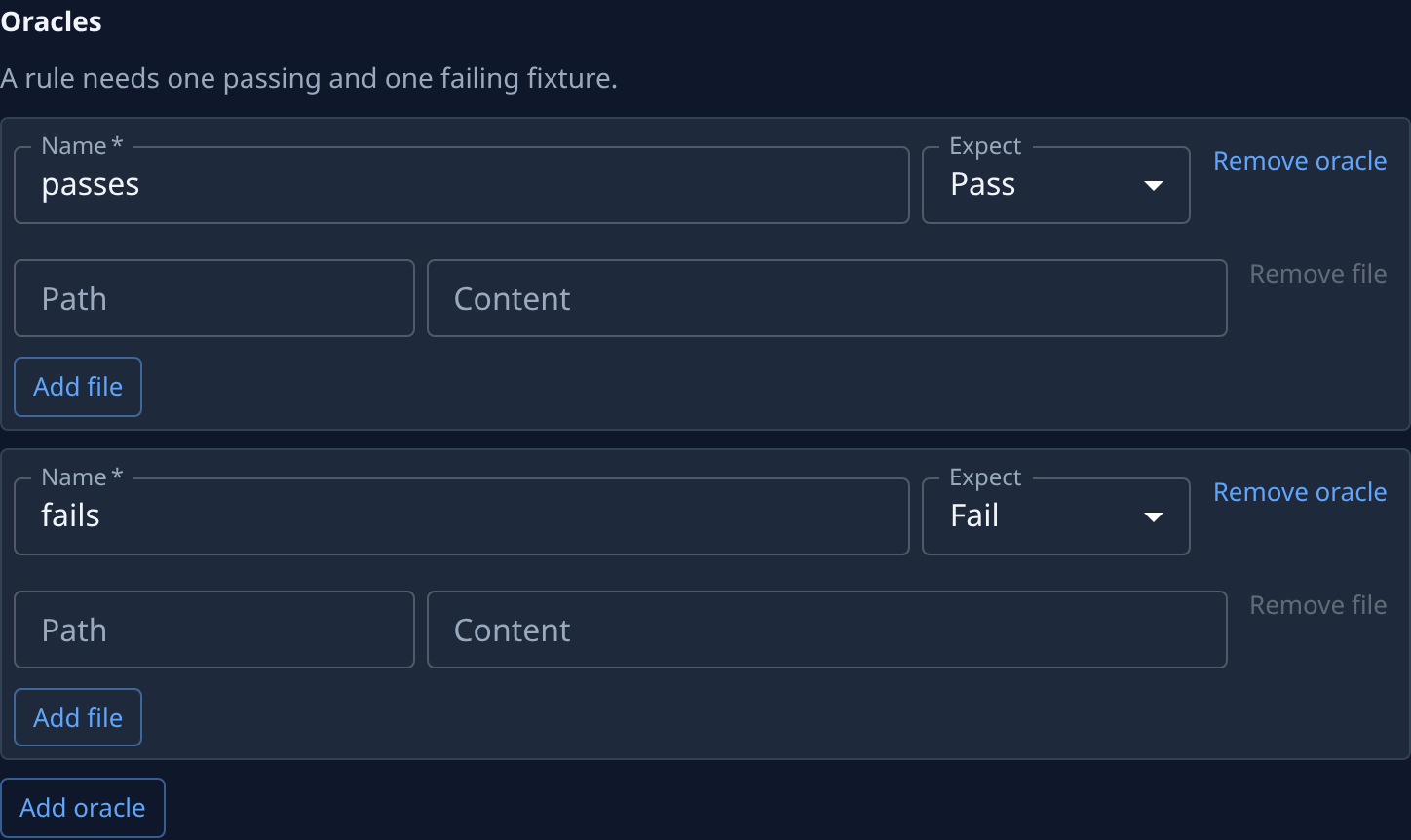
Save, in the bar at the foot of the page, adds it and opens its page. A structural rule is checked on the next scan; a change rule is enforced on write, at commit and at push when it is at Gate or Lock.