Pipeline templates
A pipeline template is one pipeline your organization shares across projects: its stages, the step into each one, and which fields a linked project may change. You edit a draft, and projects get it only when you publish. How to create, lock and publish one: Share a pipeline with a template.
Open it from the sidebar: select Settings, then Pipelines under Customize, and find the Pipeline templates card. Only an Org Owner or Org Admin sees the card and the template pages.
The list

With no template yet, the card says No templates yet with a New template button. Otherwise each template is a row. Select a row to open its page.
| Column | Meaning |
|---|---|
| Mark | ● published, ◐ draft changes, ○ never published. |
| Name | The template's name, with its stages under it in order, as the draft has them. |
| Linked | How many projects use it, for example 2 projects. |
| State | Never published, Published or Draft changes. |
| State | Meaning |
|---|---|
| Never published | Only a draft exists. No project can link to it yet. |
| Published | The draft is what projects get. |
| Draft changes | The draft changed since the last publish. Linked projects keep the published version. |
New template
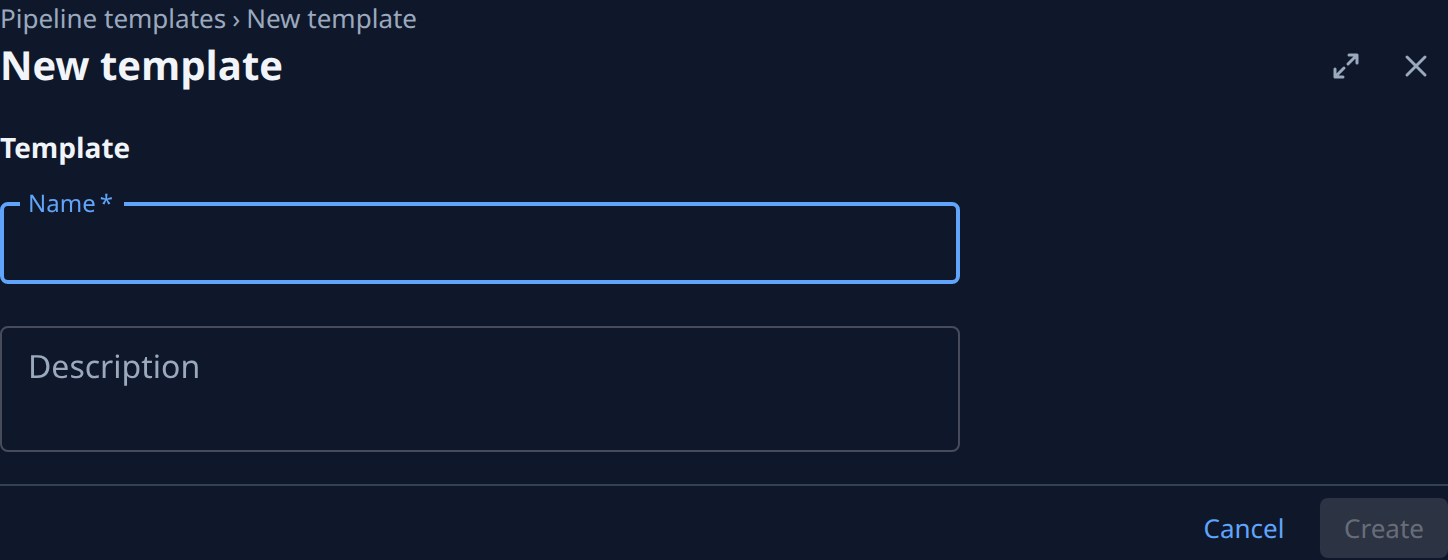
New template opens a short form under the breadcrumb Pipeline templates › New template.
| Field | Meaning |
|---|---|
| Name | Required. Each name is used once in your organization. |
| Description | Optional. What the template is for. |
Point at Template for its hint: Starts as the Standard pipeline; change it on the next page. Create stays off until Name has text, then opens the new template's page. Cancel goes back to the list. Leaving with a name typed asks first: This template is not created yet. Create it before leaving?
A template's page
The page title is the template's name, with its state beside it. The buttons at the top right:
| Button | What it does |
|---|---|
| Publish… | Opens the publish review. Off with Save the draft first. while you have unsaved edits, or Nothing changed since the last publish. |
| Update again | Shown only while a linked project is behind the latest version. Tries those projects again and shows Updated to version …. |
| ⋯ | Delete, confirmed in Delete template?. Its published versions go too. Refused while projects are linked, with how many. |
Save draft and Discard at the bottom keep or drop your edits on both tabs. A saved draft changes no project. Leaving with unsaved edits asks first: This template has unsaved changes. Save them before leaving?
Pipeline tab
A note above the stages says where the template stands: Never published. Projects can link to it once it is., or, with draft changes, how many linked projects keep the published version until you publish.
The stage cards and steps table match a project's custom pipeline (Set up a project's pipeline), with three differences:
-
Each field a project could change has a lock beside it. Hover it to read Locked: projects can't change it or Open: projects can change it; select it to switch. Lockable fields: a stage's Branch and Address, a step's Who, Approvals and How it runs. New stages start with Branch and Address open and the step's fields locked. A stage on each project's work branches or integration branch has no branch lock, since that branch is always the project's own. The stages themselves (how many, their order and names) always come from the template.
-
Branch names a kind of branch, since each project has its own:
Branch Each project uses No branch A stage work waits in, like Ideas. Each project's work branches Its own branch prefix, such as fleet/*.Each project's integration branch Its own integration branch, such as develop. Only the first stage with a branch can use it.A named branch The branch typed in Branch name, such as main. -
Address left empty lets each project set its own. A step's Who names roles only, not people.
Details tab
| Section | Field | Meaning |
|---|---|---|
| Template | Name, Description | Editable; Save draft keeps them. |
| Published | Version | The latest version number, when and by whom, or Never. |
| Linked projects | How many projects are linked. | |
| Created | When and by whom. | |
| Linked projects | Each linked project, or None. One behind the latest version reads On version …, or Not updated when it never got one. |
Publish review
Publish… opens Publish "name":
| Part | Meaning |
|---|---|
| Org rules block this template | Shown when the template breaks an org pipeline rule set to Block, naming the rule and the fix. The publish button stays off, with Fix what the org rules block first. |
| Changes | Each difference from the published version in plain words, such as Production · Approvals: 1 → 2, + Staging or Production · Address locked, or None. |
| Linked projects | The projects the new version will update, or None yet. |
The button reads Publish, or Publish to 2 projects when projects are linked. After it runs, Published version … lists Updated (N) projects, with any rule warning under each, and Not updated (N) projects with the reason, or No projects are linked yet. A project not updated keeps the version it had. Done closes it.
Related
- Create, lock and publish a template: Share a pipeline with a template.
- Use a template from a project: Link a project to a template.
- Retry projects a publish skipped: Update projects a publish left behind.
- The rest of Settings: Settings.