Networks
The Networks tab of Directory has two tabs: Connections and NodeLink. Open it from the sidebar: select Directory, then Networks. A tab appears only to those it is open to; with only one open to you, the page shows it without a tab strip; with none, it says No networks to show. Nodes are on Machines.
Connections
The Connections tab lists your cloud connections: where a cloud node launches, as an AWS, GCP or Azure credential, a region and the network. Requires the org admin role and permission to view system settings. Without a connection, no cloud node launches, and the tab says No cloud connections yet.
Each row shows its Name, then the Image it launches (on a wide window), its root Volume size, its Credential, its Provider (AWS, GCP or Azure) and its Region, under a heading row with those names. The image is Newest and the image name when none is pinned, or the pinned image id and its age in days; a pin that is due for renewal shows in amber with ⚠. Hover the image for the whole sentence, and the credential for the network. Select a row to open its page, or Add connection to add one.

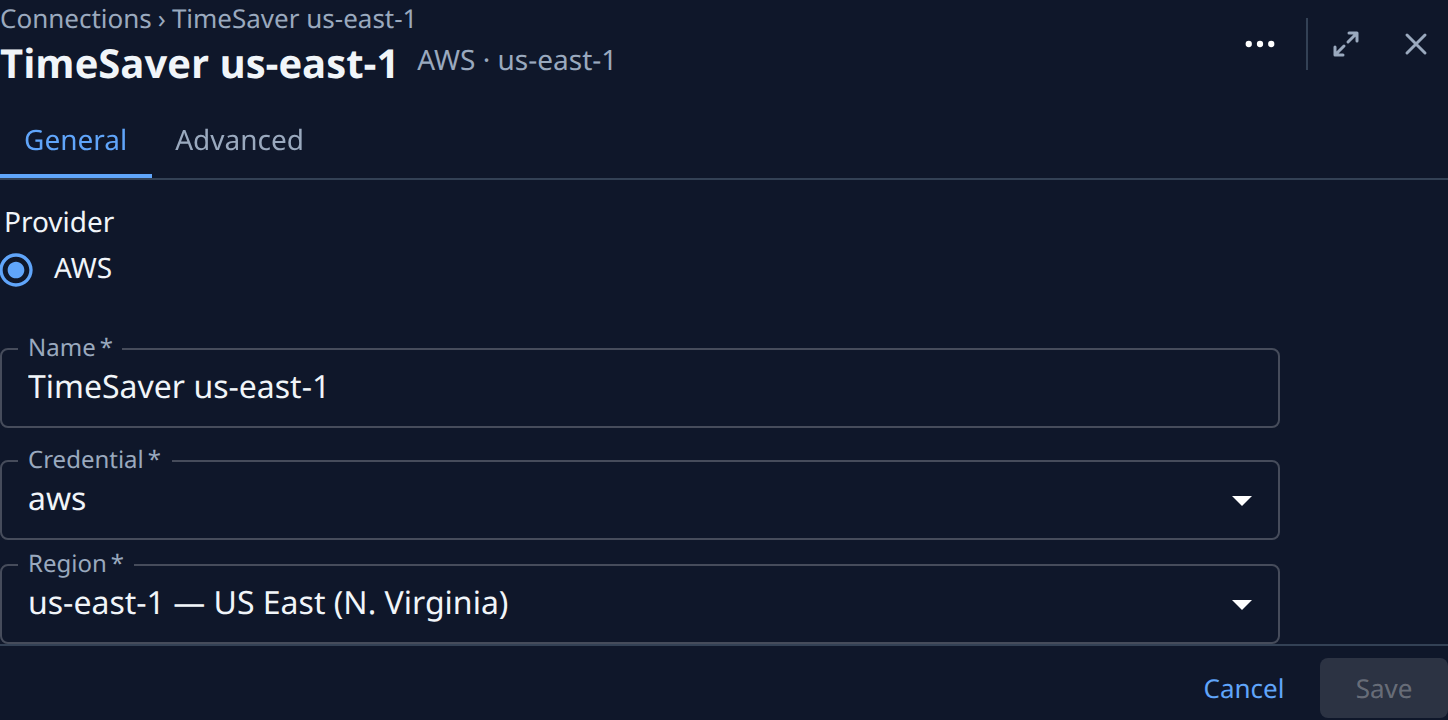
A connection's page has two tabs, General and Advanced, with Cancel and one Save (Create on a new one) under both; its header names the provider and region, and a refused save opens the tab holding the error. General holds the Provider (pick it first; the page then lists only that provider's credentials), the Name, the Credential and the Region. On AWS, the Credential's Add new… opens a new credential's page and comes back with it picked; another cloud's credential is added under Credentials. When AWS refuses the picked credential, Edit credential opens it.
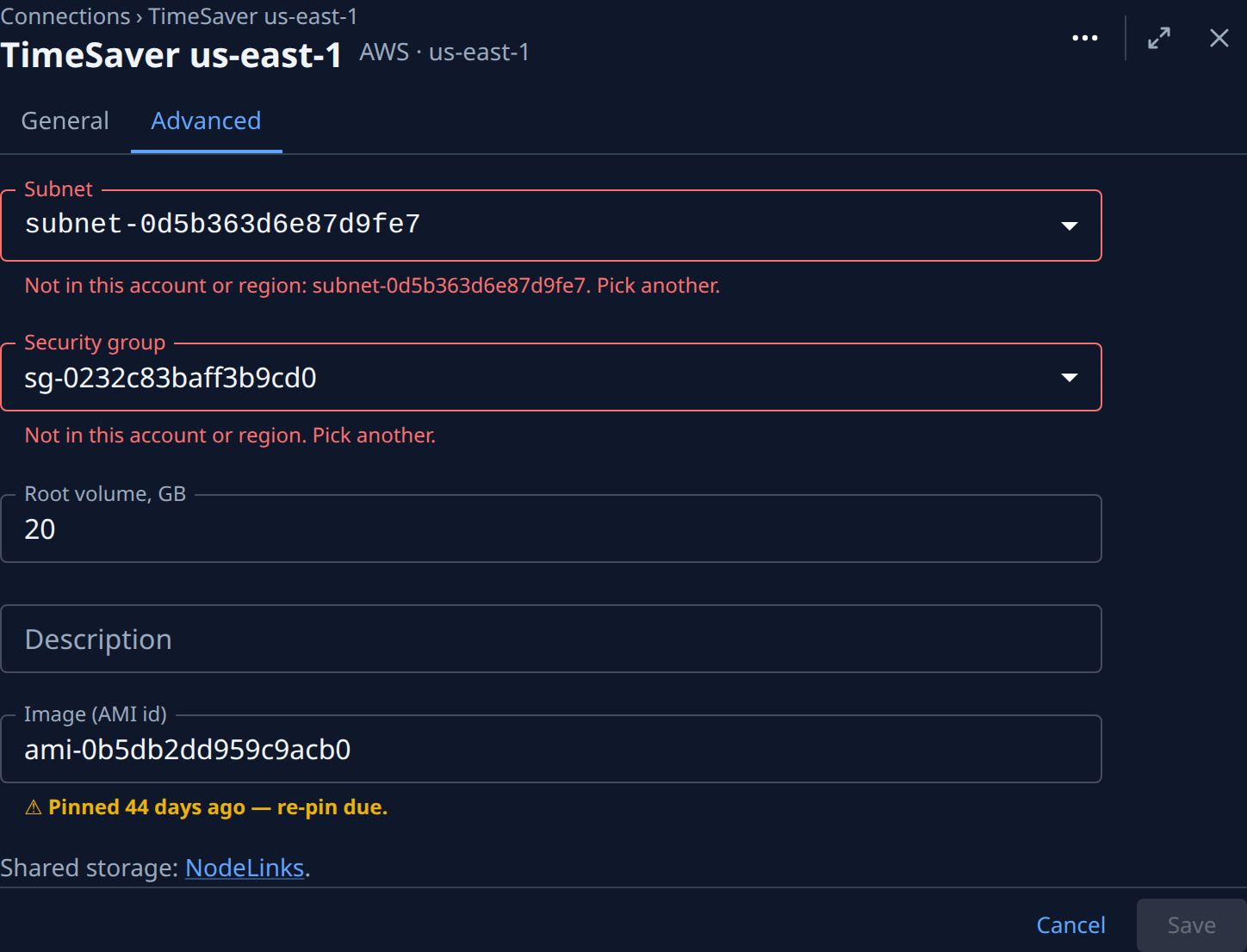
Advanced holds the provider's fields, Root volume, GB (blank on a new connection takes 50 GB; a virtual-node host or Windows node gets at least 60 GB), Description and Image (Image (AMI id) on AWS; blank launches the newest Ubuntu LTS image each time, or the newest Windows Server image for a Windows node; a saved pin shows how many days ago it was pinned, and when a re-pin is due). Under them, Shared storage: NodeLinks links to the NodeLink tab:
| Provider | Fields |
|---|---|
| AWS | Subnet (Auto — default VPC takes the region's default VPC) and Security group (Auto — jaah-node finds or creates a group that allows outbound traffic only). Pick several subnets of one VPC, one per zone, to spread machines across zones; a machine a zone has no room for launches in the next subnet. |
| GCP | Project, Zones, Network, Subnetwork and Shell access rule (the firewall rule). |
| Azure | Resource group, Virtual network, Subnet, Network security group and Zones. |
A blank field is resolved when you save, for example a network Jaah creates, and the row shows the result. A saved subnet or security group the account or region no longer has is flagged in the editor Not in this account or region; pick another. Delete, in the row's or the page's ⋯, removes it; nodes already launched from it keep running, and a connection a node group still uses can't be deleted.
NodeLink
The NodeLink tab, shown only while your plan includes NodeLink, lists your organization's NodeLinks:
shared folders on a file system in your own cloud account, or one Jaah runs, mounted by the nodes you pick, so agents on several
nodes work on the same files. Each row shows a round mark for its status (hover it for the state), then its
Name, Path, Storage (with the file system id beside it on a wide window) and Nodes. A line under a
row says what a pending NodeLink is waiting for, or, in red, why its last attempt failed. The search box matches a name, path, storage or file system
id; when nothing matches, the tab says No NodeLink matches, with Clear search. With no NodeLinks, it says
No NodeLinks yet. The tab appears if you may view credentials; changing a NodeLink requires permission to edit credentials. A
NodeLink at {jaah-home}/auth/.shared shares model-account sign-ins between the nodes that mount it.

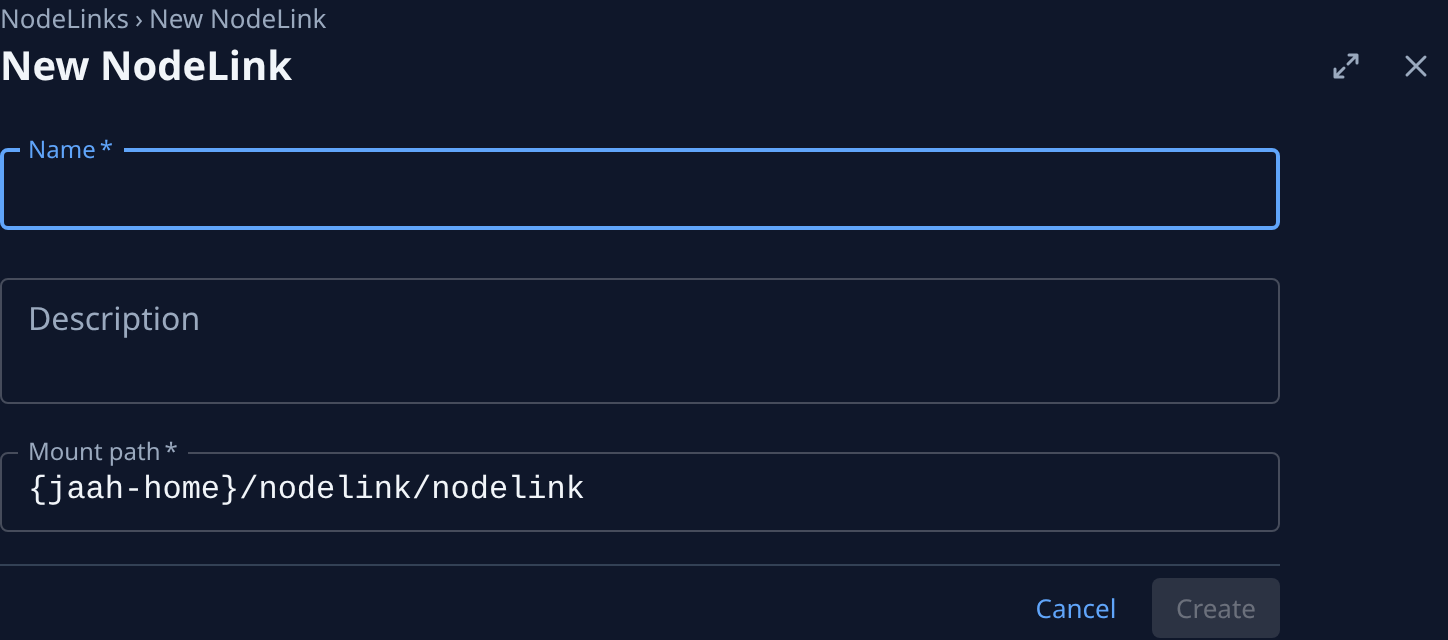
New NodeLink opens a new NodeLink's page, showing only General until it is created; select a row to open one, whatever its state. Share, for those who may edit credentials, opens a page that sets up in one step the NodeLink that shares model-account sign-ins between nodes: a Name (Subscriptions by default), its Path (fixed), where its storage lives, and the nodes it can go on, all ticked. Tick I confirm my model provider allows one subscription on several devices before Create. Once that NodeLink exists, Share opens it. A NodeLink's page shows its status and mount path (with a copy button) in the header, beside Delete, and has three tabs:
-
General: its Name, Description and Mount path under the node's Jaah home; each node mounts it at that path in its own home. A path outside
{jaah-home}/nodelink/shows a warning: what is there is hidden while mounted. Create saves a new one and opens Storage.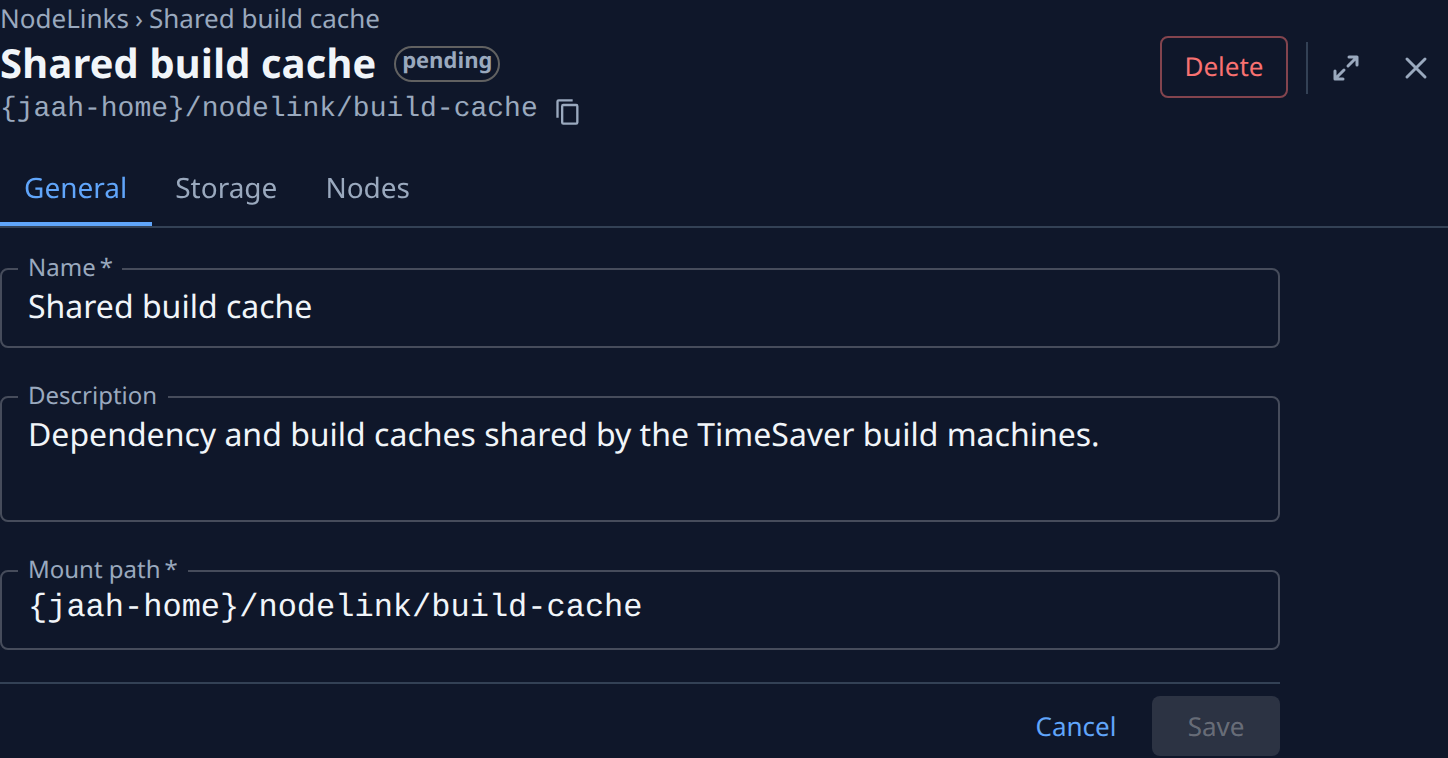
-
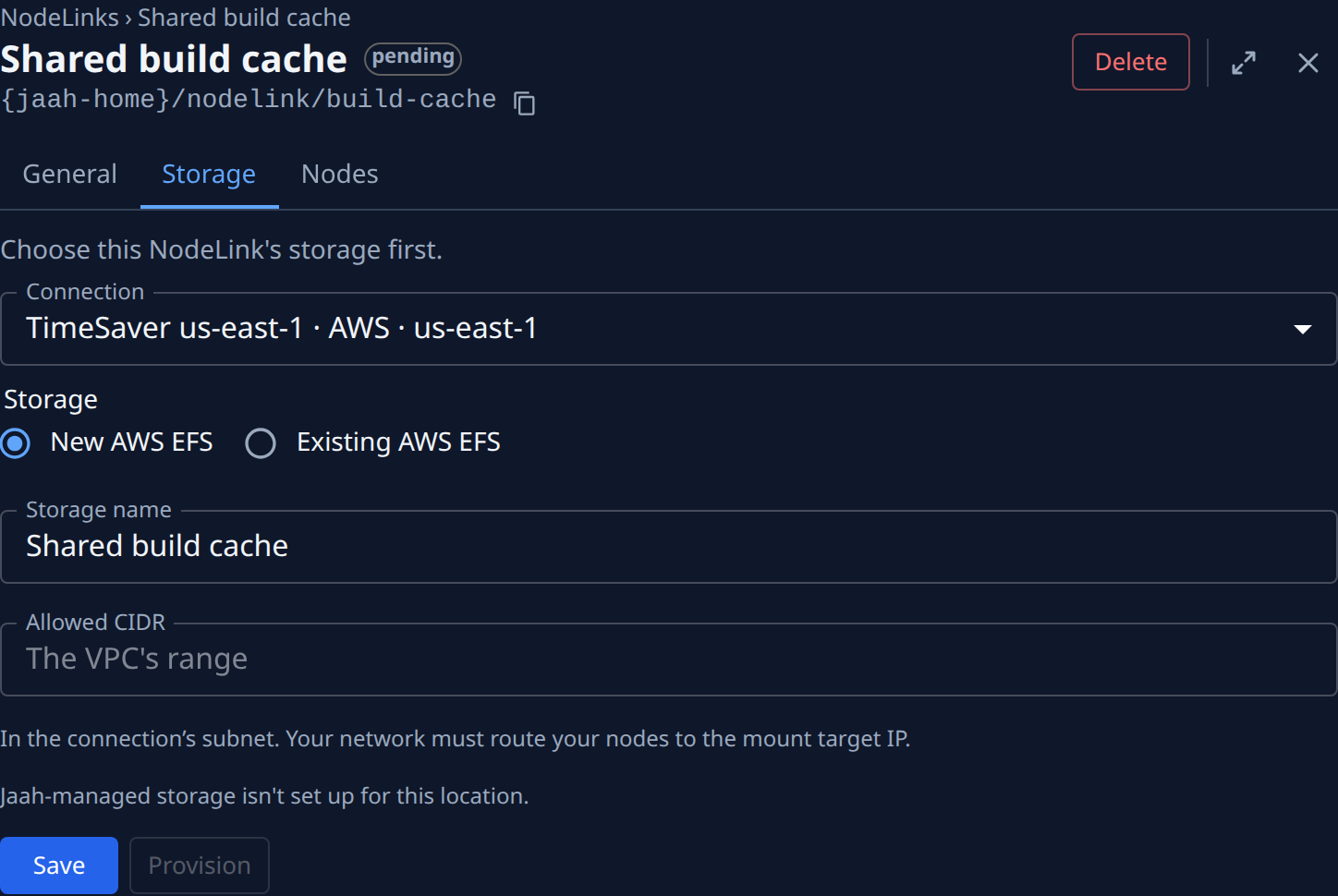
Storage: where it lives. On a pending NodeLink with no storage yet, a line at the top asks for it: Choose this NodeLink's storage first. Once storage is chosen, a pending NodeLink's banner says what it still waits for. With none chosen yet and nothing for you to choose from (you can't edit it, or your plan leaves NodeLinks out), Storage reads None yet. Jaah-managed appears, and is picked for you, when all the NodeLink's nodes run on machines Jaah runs in one location: Jaah stores it for you, with no AWS account or credential of yours, and provisions it as soon as you select Save; the tab then shows only Jaah-managed and the access point. When it is not offered, a line under the choices says why. Storage in Jaah reuses storage an earlier NodeLink set up. Storage in your own cloud starts from a Connection: pick one of your cloud connections, or Add new… to add one on its own page, which comes back here with it picked (your only connection is picked for you). Only that connection's cloud is then offered, under Storage: New AWS EFS has Jaah create a file system in the connection's account, region and subnet (Storage name, and Allowed CIDR, blank for the subnet's VPC; set it for nodes on premises, in a peered VPC or behind a subnet router; your network must route your nodes to the mount target IP); Existing AWS EFS uses a file system you already have there (File system, and Mount target, which may stay None — resolved by DNS). While your plan includes them, New GCP Filestore, Existing GCP Filestore, New Azure Files (NFS) and Existing Azure Files (NFS) work the same way on a GCP or Azure connection; these have no access point. Then the Access point: New (Jaah creates one), or Existing to pick one of that file system's access points; it must enforce user and group 3000, and the list says why one can't be used. Select Save, then Provision. Jaah finishes provisioning on its own, even with the page closed: a line shows File system, Mount target, Access point and Policy as each is done. A NodeLink whose last attempt failed shows AWS's reason and offers Retry, as does one marked Not in the file-system policy. Once provisioned, the tab shows the storage's facts (file system, mount target IP, region, tier and size, access point, root, whether it was Adopted, whether it is In policy, the credential, the policy and when the policy was written), with Refresh from AWS, Repair policy and Show policy. Change beside the AWS credential picks another credential that sees the file system; on Existing AWS EFS storage, Change beside Mount target IP picks another of the file system's mount targets, or none. A warning shows when the mount targets sit inside Jaah's own network in another AWS account, where no route can reach them. Storage can be chosen only before the access point exists.
-
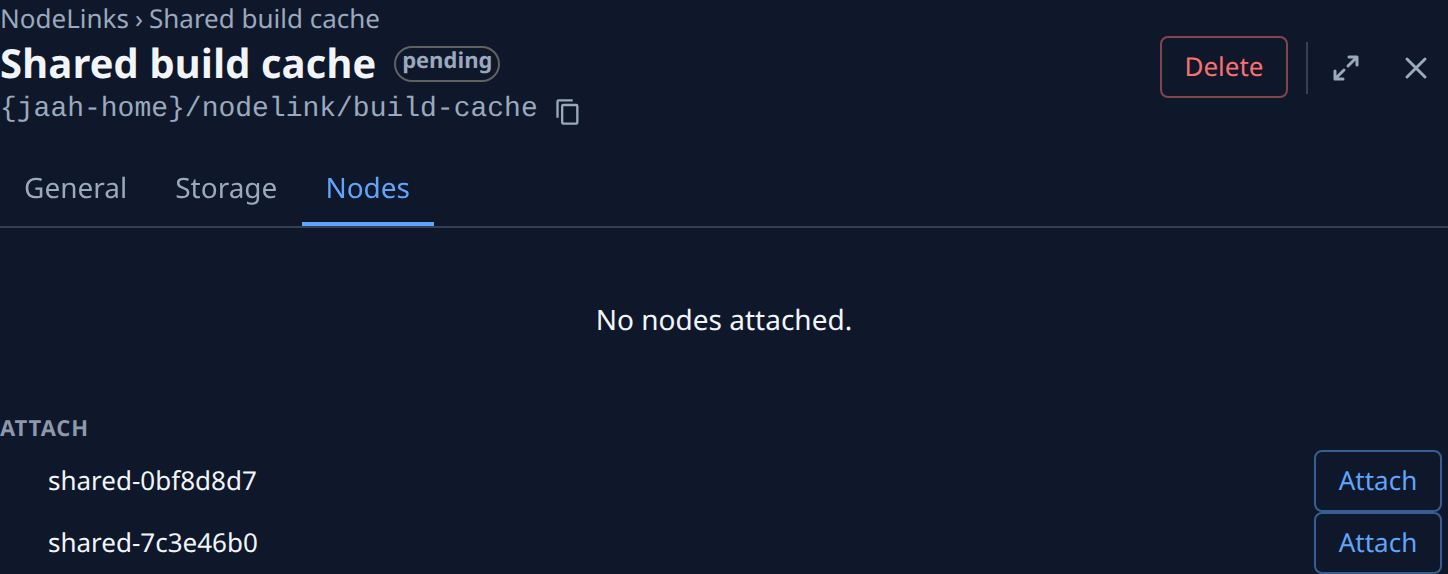
Nodes: the nodes that mount it, with each one's mount state, and under them your other nodes, each with Attach; a node that cannot mount it shows why. When a node can't find the file system's address, the line under it says what to do: on storage Jaah created, run the node inside the storage's VPC; on Existing AWS EFS storage, set Storage › Mount target IP › Change (a link, for those who may change it), or ask an admin. Detach, in a mounted node's ⋯, removes it after you confirm. Changes apply at once; with none mounted the tab says No nodes attached.
Delete, in the page's header, removes the NodeLink and the access point Jaah created for it (one you picked with Existing stays in AWS); files stay in your EFS and are still billed. A delete waiting on nodes offers Retry delete and Delete anyway. The confirmation says what stays in your cloud, and whether it is still billed, and asks you to type the name.
Under the NodeLinks, once your organization has storage, Storage lists it: a round mark for its status, then Name, Cloud, Tier (with its size) and how many NodeLinks use it. Delete removes a storage no NodeLink uses (a failed delete offers Retry); where offered, tick Also delete the EFS file system in AWS (or the Filestore instance in GCP) to delete it there too, then type its name to confirm. Requires permission to edit credentials.