Find out why the merge lane is stuck
Tasks hand their pull requests to the merge lane and finish. If those pull requests stay open and nothing merges, the lane itself says why: a run it is waiting on, a red integration branch, a node it skips, or a lane that is off. This guide reads those signs and clears them.
Who can do this: anyone who can view the project, when your plan includes the merge lane. Starting or completing a run needs permission to edit the project's tasks; Stop lane needs permission to edit the project.
-
In the sidebar, select Audit, then the Merge lanes tab.
-
Set State to Open. The list now shows only the pull requests still in a lane: queued, testing or failed. Each row says why it last moved, such as Waiting — develop red. No open rows means nothing is waiting in any lane.

-
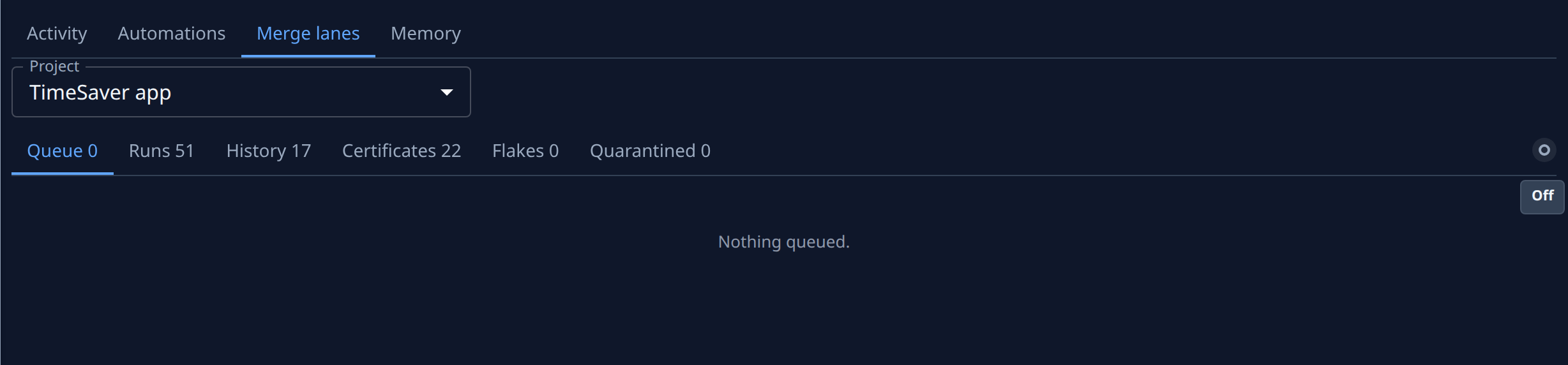
Select the project's name on a waiting row. The tab now shows that project's lane, opening on Queue.
-
Point at the dot at the end of the lane's tabs to read its state:
- Active: the lane is merging. Go to step 5.
- Held: a run is stopped, asking or reset, and no other run starts while it stands. The line names the run, such as Held: run 6904 is stopped — Start or Complete it. Select the run's number to open its task, then select Start to resume the lane, or Complete to let the next run start.
- Draining: the lane was switched off and merges what it still holds first.
- Off: the lane is off, and says why. A link such as Turn on Push opens the project setting that turns it back on.
-
Read the other icons beside the dot. Each one shows only when it applies:
- Lane slow (warning): a pull request has waited, or nothing has merged, longer than the limit, such as PR waiting 27m (limit 15m). Select See Runs to open the lane's runs.
- A red cross named for the branch, such as develop red: the integration branch is red. Queued pull requests wait for the fix. It lists the failing tests, with Gate log and the fix task, such as Fix task 812. Open the fix task to follow it.
- Node skipped: a node the lane keeps its runs off until a time, why, and what to fix.
- Auto-merge outside lane: pull requests set to merge on their own. These merge untested; turn auto-merge off on each one at its forge.
-
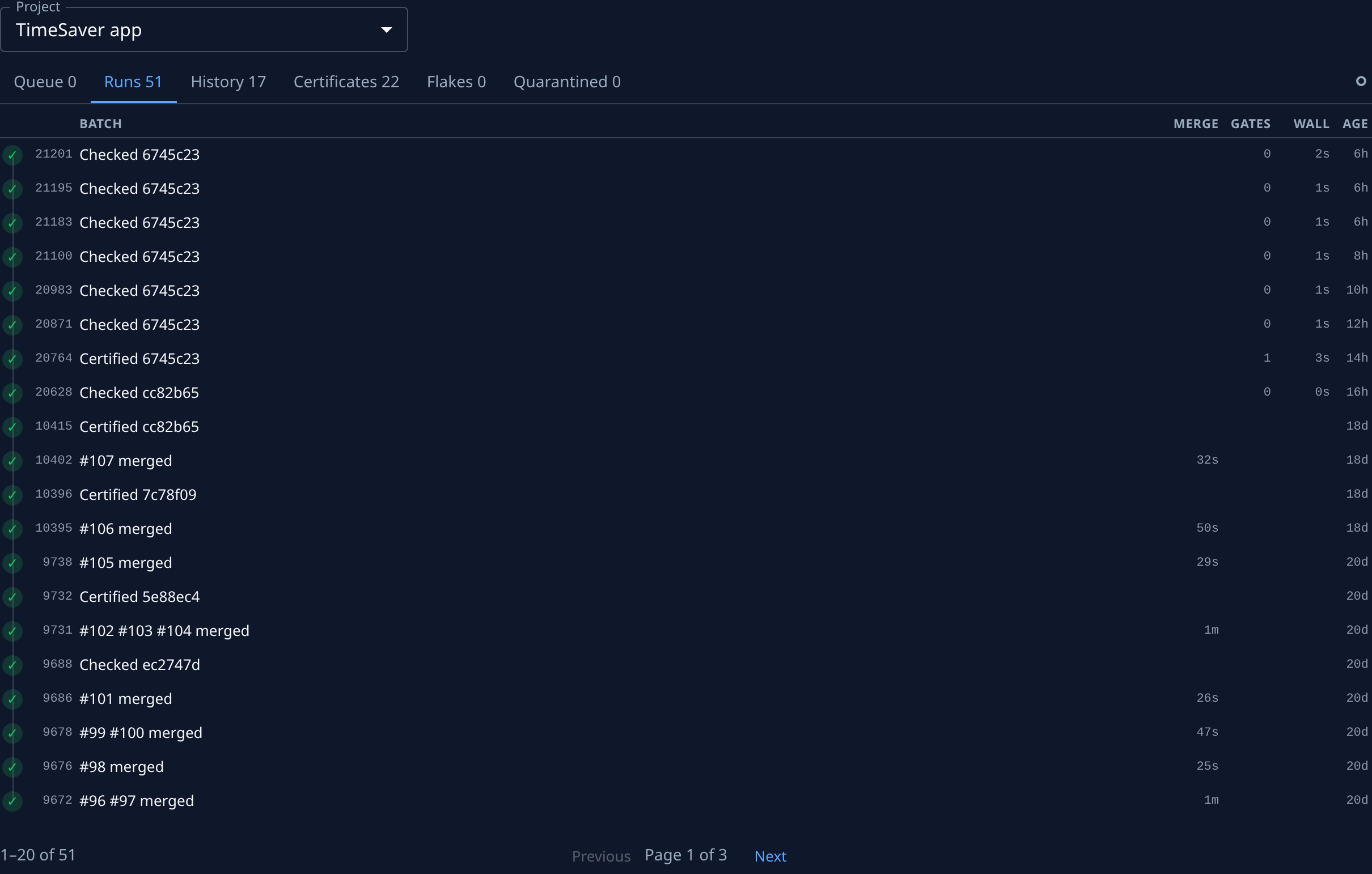
Select Runs to see the lane's recent runs, newest first. A run marked Slow has taken more than twice as long as the last full gate. Select a run's task to open it.
-
If a pull request in Queue reads Failed, read what went wrong: Tests failed, Merge conflict, Branch behind or No forge login. Its task opens again with the verdict, so its agent fixes it and the fix queues again.
-
If the lane is Draining and you need it empty now, select the Stop lane icon, then Stop lane in the confirm. It ends the lane's run, closes the Queue and tells each runner to merge its own pull request. The icon that follows counts what it did; select Dismiss to clear it.
Every icon, tab and state is described in Audit › Merge lanes.
Related
- Use the merge lane: what the lane does, which plans include it and how to turn it on.
- Review a project's merge lane history: every pull request a lane handled.
- Follow a task's sessions: every run of the task behind a pull request.