Follow a task's sessions
A task can run more than once: after a stop, a restart or a failed attempt, each run is its own session. To see every run of one task side by side — how long each took, which node it ran on and why it ended — open the task's sessions in Audit.
You need a role that can view sessions, and your plan must include Session transcripts. Without them the task page shows no Sessions link.
-
Open the task from the task board.
-
Select the Details tab. It opens on Summary. The line under the task's state shows how long it has run and the node it ran on, then Sessions.

-
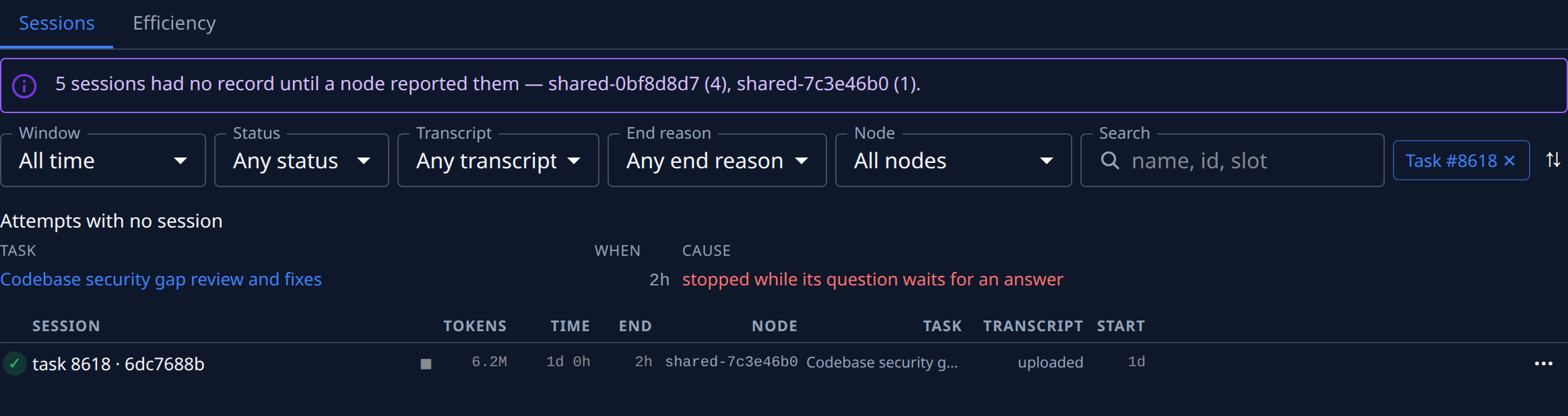
Select Sessions. Audit › Sessions opens, showing only this task's sessions, with a Task #… ✕ button beside the filters.
-
Set Window to All time to include runs older than the last 24 hours.
-
Read each session's row: the mark beside its name shows whether it is running (▶), ended (■) or unknown (?); Time is how long it ran, Node where, and Transcript whether its record is ready. Lines under the row say why it ended.
-
Look above the sessions under Attempts with no session. A run that ended before it could start a session is listed there, with its Cause, such as stopped while its question waits for an answer.
-
Optional: if your role can download transcripts, select ⋯ on a session's row, then Download, to read what the agent did and said. Otherwise the menu offers only Open task #….
-
Select Task #… ✕ to clear the filter and see every task's sessions again.
Related
- How audit works — what Sessions records and the states a session goes through.
- Sessions — every filter, column and message on the screen.
- Stop, restart or reset a task — what starts a new run.
- Read a task's result