Review a project's merge lane history
When a project uses the merge lane, its tasks hand their pull requests to the lane and finish. To see what became of them, open Merge lanes in Audit. It lists every pull request any lane handled, across all the projects you can view, newest change first. Pick one project to read its whole lane.
Who can do this: anyone who can view projects, when your plan includes the merge lane. You see only the projects you may view. Stopping a lane needs edit access to its project.
Find a pull request across all projects
-
In the sidebar, select Audit, then the Merge lanes tab.
-
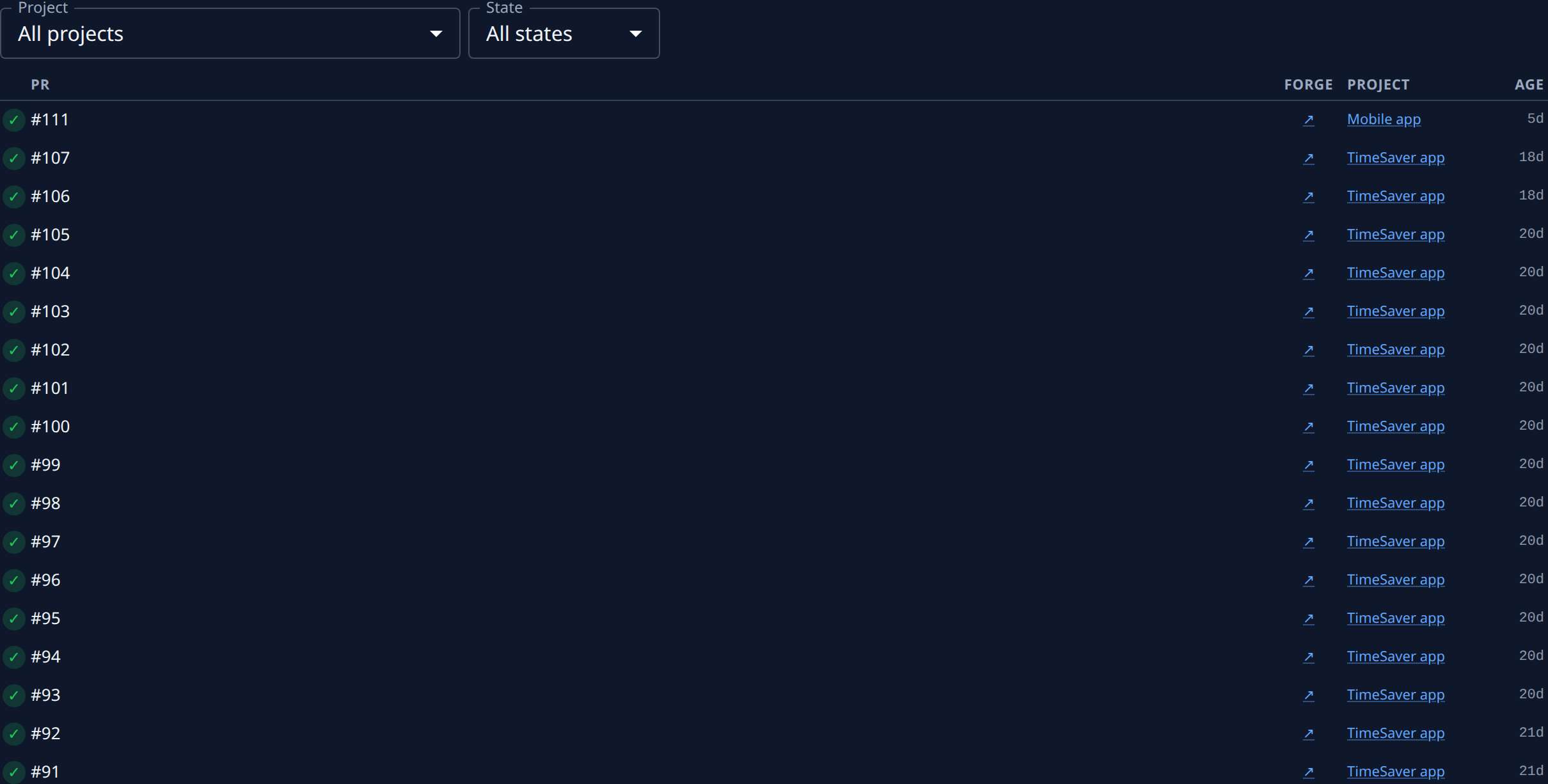
Read the list. Each row is one pull request: its state as a mark at the start, its PR number and why it last moved, its Project and its Age. Hover the age to see the exact time.
-
To see only the pull requests still in a lane, set State to Open. Settled shows the ones that merged, were superseded or were closed. All states shows both.
-
Select a row to open the task that reported the pull request. Select the arrow under Forge to open the pull request itself.
-
Select Load more at the bottom to add older rows.
Open one project's lane
-
In Project, pick the project. Selecting a project's name on any row does the same.
-
The tab now shows that project's lane. Its tabs are Queue, Runs, History, Certificates, Flakes and Quarantined, each with a count.

-
Select History to read the pull requests that left the lane: Merged, Failed, Superseded or Closed. Select a row's task to open it.
-
Hover the icons at the end of the tabs to read the lane's state, such as Active or Off.
-
To go back to every project, set Project to All projects.
What each state, tab and icon means is in Audit › Merge lanes.
Related
- Use the merge lane: what the lane does, which plans include it and how to turn it on.
- How audit works: the other records Audit keeps.
- Follow a task's sessions: every run of the task behind a pull request.