Set up NodeVault
Set up NodeVault once for your organization: your browser makes the key, you download a backup of it, and your nodes receive it. After that, credentials you mark NodeVault can be opened only on your nodes. What this protects, and what it doesn't, is in How NodeVault works.
Requires the Org Owner or Org Admin role and a plan that includes NodeVault. At least one of your nodes must be online to receive the key.
Set it up
Setup has six steps: Explanation, Key, Backup, Distribute, Migrate and Result.
-
In the sidebar, select Settings, then NodeVault. If it says Not included in your plan, ask about a plan that includes it: see Ask to change your plan.
-
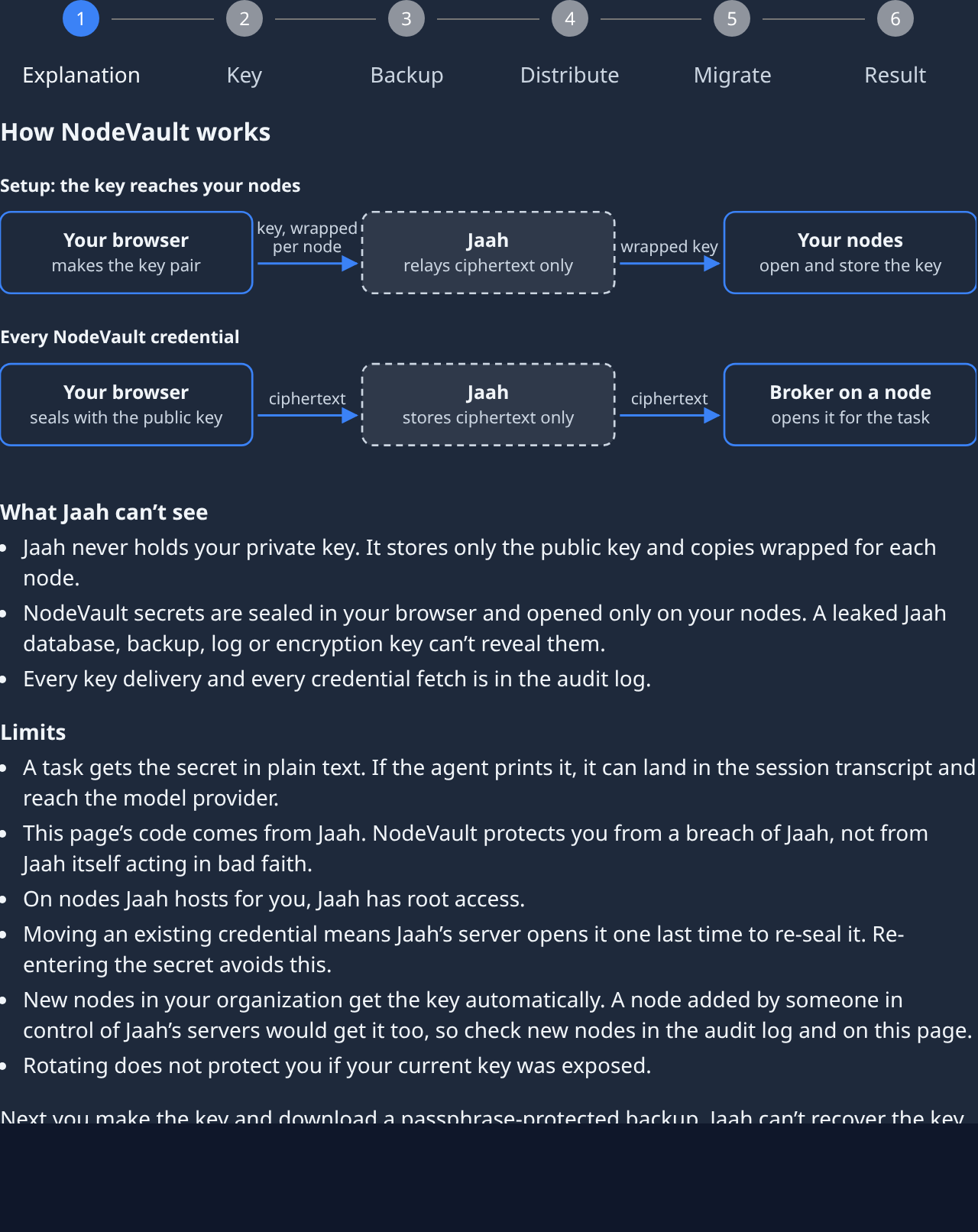
Select Set up. The first step, How NodeVault works, shows where the key goes, what Jaah can't see, and the limits. Read it, then select Next.
-
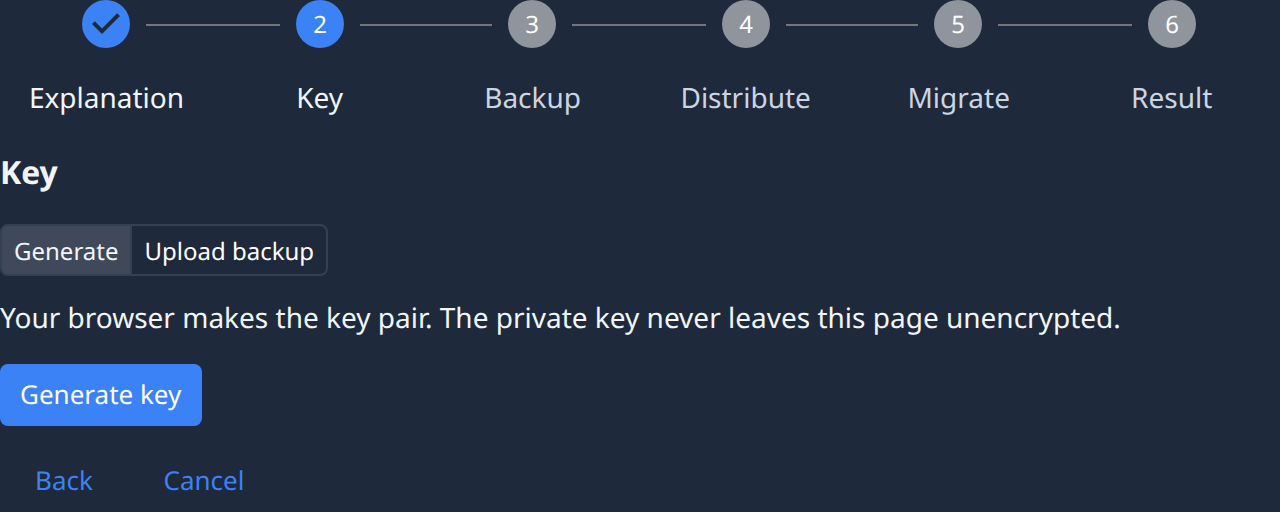
On Key, choose how to get the key:
- Generate, then Generate key. Your browser makes a new key pair.
- Upload backup, to reuse a key you backed up before: Choose backup file, type its Passphrase, then select Open backup. A backup is already safe, so the Backup step is skipped.
-
On Backup, type a Passphrase of at least 12 characters and type it again in Repeat passphrase. Select Download backup and keep the file somewhere safe, with the passphrase stored apart from it. Jaah keeps no copy: lose every node and this file, and your NodeVault secrets are gone.
-
Tick I stored the backup; Jaah cannot recover it, then select Next.
-
On Distribute, check the nodes listed. Each one marked Ready gets a copy wrapped for it now; one marked Gets it when online gets it when it reconnects. Select Send key.
-
Wait until the step says how many nodes hold the key, for example 1 of 2 nodes hold the key. You can leave the page meanwhile.
-
On Migrate, choose what to do with credentials that already exist:
- Tick the ones to move, or Select all, then select Move (it shows how many). Jaah's server opens each one a last time to re-seal it.
- Or select Skip, and later re-enter each secret with NodeVault ticked. Jaah never sees it then.
When nothing can be moved, the button reads Continue instead. Can't move lists the credentials that can't use NodeVault, with the reason.
-
On Result, check Nodes with the key, Moved, Skipped and Failed. Select Retry beside a credential that failed, then select Done.
Settings, then NodeVault, now shows your Current key and the Nodes list. In Directory, then Credentials, every NodeVault credential carries a ◈ mark and its key's short hash beside its name.
If something goes wrong
- No node that can hold the key is online. Start one, then send. — bring a node online, then select Send key again. See Read a node's status.
- Couldn't open this backup — check the passphrase — the passphrase doesn't match that file.
- This backup belongs to another organization. — use a backup made in this organization, or generate a new key.
- Moving credentials makes no progress for 15 minutes — select Abandon. Credentials already moved stay in NodeVault.
- A node in the Nodes list shows Failed — select Retry. If it shows Identity changed, the node lost its identity key; select Reset identity to enrol it again.
Before you trust a new node with the key, compare its Fingerprint in the Nodes list on
Settings, then NodeVault, with what jaah nodevault fingerprint prints on that machine. Your
browser works that fingerprint out from the node's key itself.
Next steps
- Add a credential with NodeVault ticked.
- Rotate the NodeVault key when you want a new one.
- Every control on the NodeVault screen: Settings.