Replace or delete a credential
When a token expires or is revoked, put the new one into the same credential: every task and project that uses it picks up the new value, and nothing else needs to change. When the connection is no longer needed, delete it.
Who can do this: replacing a secret needs the permission to edit the credential; deleting needs the permission to delete it. Without them, Edit or Delete doesn't appear.
Replace a secret
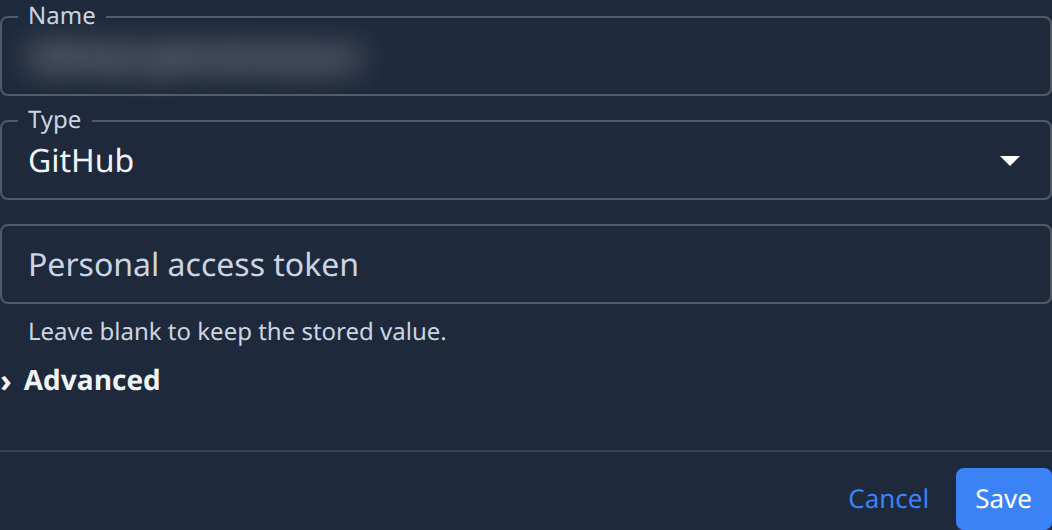
- In the sidebar, select Directory, then the Credentials tab.
- Select the credential's name, or Edit in its ⋯ menu. It opens on the Details tab.
- Find the secret field to replace. It is empty and says Leave blank to keep the stored value.
- Type or paste the new value.
- Leave every other secret field empty to keep its stored value.
- Select Save.
If the tab says Read-only — ask an operator for a change., you can't change this credential.
Delete a credential
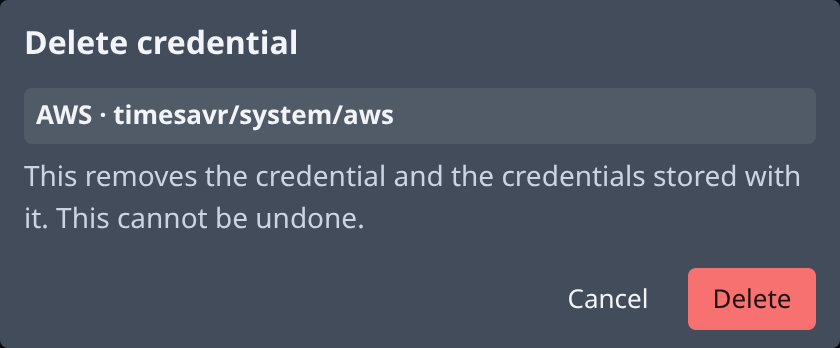
- On the Credentials tab, find the credential's row. Use Search if the list is long.
- Select ⋯ at the end of the row.
- Select Delete.
- Read the dialog: it names the credential.
- Select Delete to confirm, or Cancel to keep it.
Deleting removes the credential and every secret stored with it, and it can't be undone. Tasks and projects that used it stop receiving it, and an environment variable read from it gets no value.
Related
- Store a new connection instead: Add a credential.
- Every field on the tab: Credentials.
- What happens to a stored secret: How credentials work.