Edit a playbook
Change a playbook when your team's way of working changes: a new stage, a clearer description, a different default. Every change waits on the page until you select Save, so you can try an edit and drop it again. A task already started keeps the playbook as it was when it started. Tasks you start after the save get the new version.
Who can do this: the Owner or Admin role in your organization. Anyone else can open a playbook, but the page says You can view this playbook but not edit it. and offers Back in place of Save. Built-in playbooks can't be edited by anyone: their page says Built-in playbooks are read-only. Duplicate it to edit a copy. Select Duplicate at the top of its page to make that copy, or create a playbook from scratch.
Change it and save
-
In the sidebar, select Settings, then Playbooks under Customize.
-
Under Your playbooks, select the playbook's name, or its ⋯ and then Edit. The playbook opens on its Playbook tab.
-
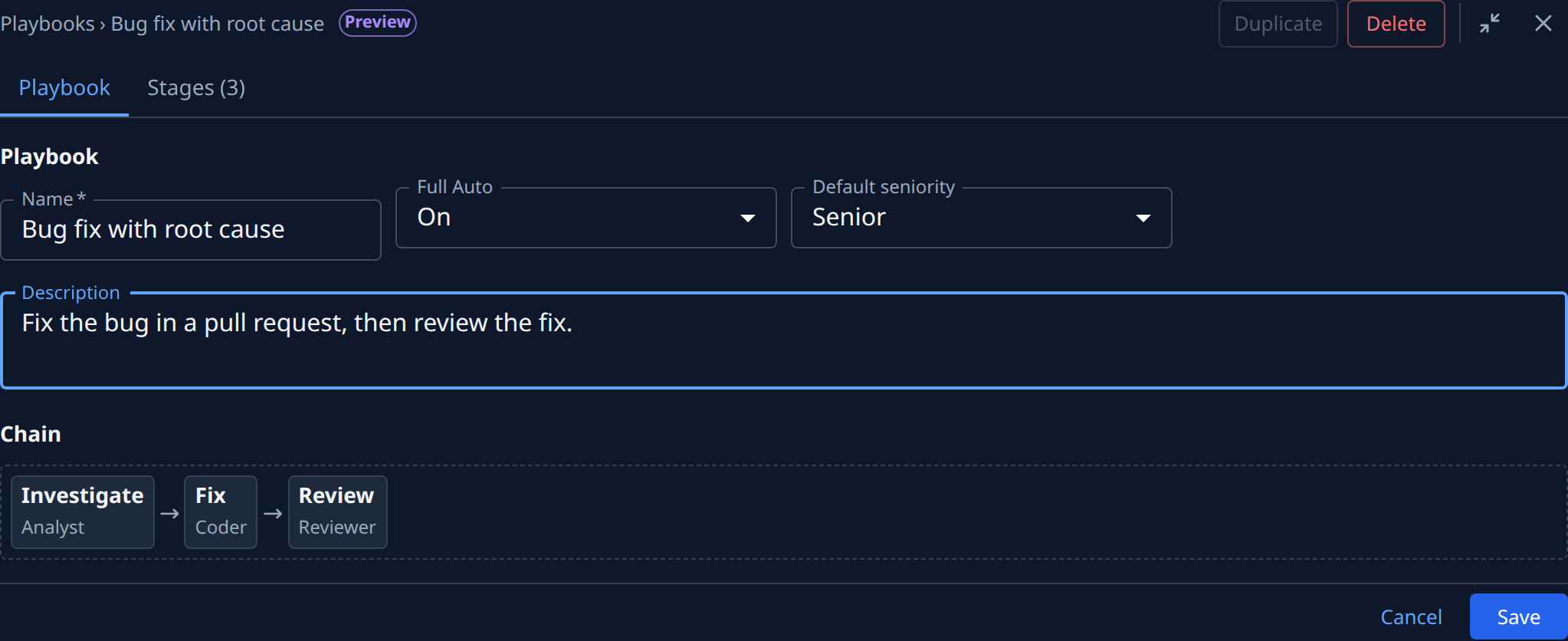
On the Playbook tab, change Name, Full Auto, Default seniority or Description. The Chain below redraws as you edit.
-
On the Stages tab, change the stages: add one with Add stage, move one with ↑ or ↓, remove one with Remove, or open a card with ▸ to change its fields. What each stage field does is in Create a playbook.
-
Check for problems. A field or stage with an error says so under it, and Save stays greyed out until every error is fixed. A warning doesn't block the save. See Fix a playbook's errors.
-
Select Save. The playbook is saved and you return to the list.
While you have unsaved changes, Duplicate at the top of the page is greyed out. Point at it to read Save or cancel your changes first: a copy is made from the saved playbook, so it would leave your edits behind.
Leave without saving
-
Select Cancel, or go anywhere else in the console.
-
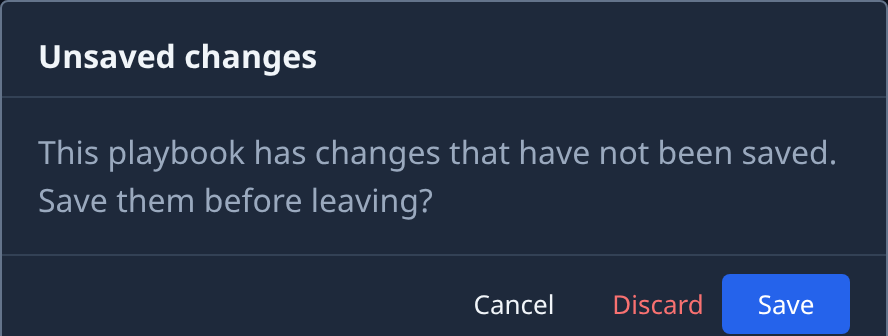
Unsaved changes asks: This playbook has changes that have not been saved. Save them before leaving?
-
Pick one:
- Save saves your changes, then leaves.
- Discard drops your changes and leaves. The playbook stays as it was last saved.
- Cancel keeps you on the page with your changes.
Related
- Check what a playbook does before you run it: read the chain and each stage's prompt after your edit.
- Group playbooks into folders: rename a playbook to put it in a folder.
- Delete a playbook: remove one you no longer use.
- Playbooks: every field of a playbook and its stages.