Create a playbook
A playbook is an ordered list of stages. Each stage says which expert does the work and what that expert delivers. You can start a playbook from a blank page or from a copy of a built-in.
Playbooks are marked Preview. When the Playbooks setting is on in Settings, a new task can run one of your organization's own playbooks (see Playbooks).
Who can do this: creating, editing, duplicating and deleting playbooks needs the Owner or Admin role in your organization. Everyone else in your organization can open and read every playbook, but they don't see + (New playbook), Duplicate, Edit or Delete.
Start a new playbook
- In the sidebar, select Automation, then the Playbooks tab.
- Select + (New playbook). A blank playbook opens with one stage. On a wide screen it opens in a pane beside the list; select ⤢ (Maximize pane) for more room.
- In Name, enter a name for the playbook. Each playbook in your organization needs its own name.
- Optionally, change Starts from, Full Auto and Default seniority, and add a Description. What each field means: Playbooks.
- Set up the stages, as in Add and arrange stages.
- Select Create. Jaah saves the playbook and takes you back to the list, where it appears under Your playbooks.
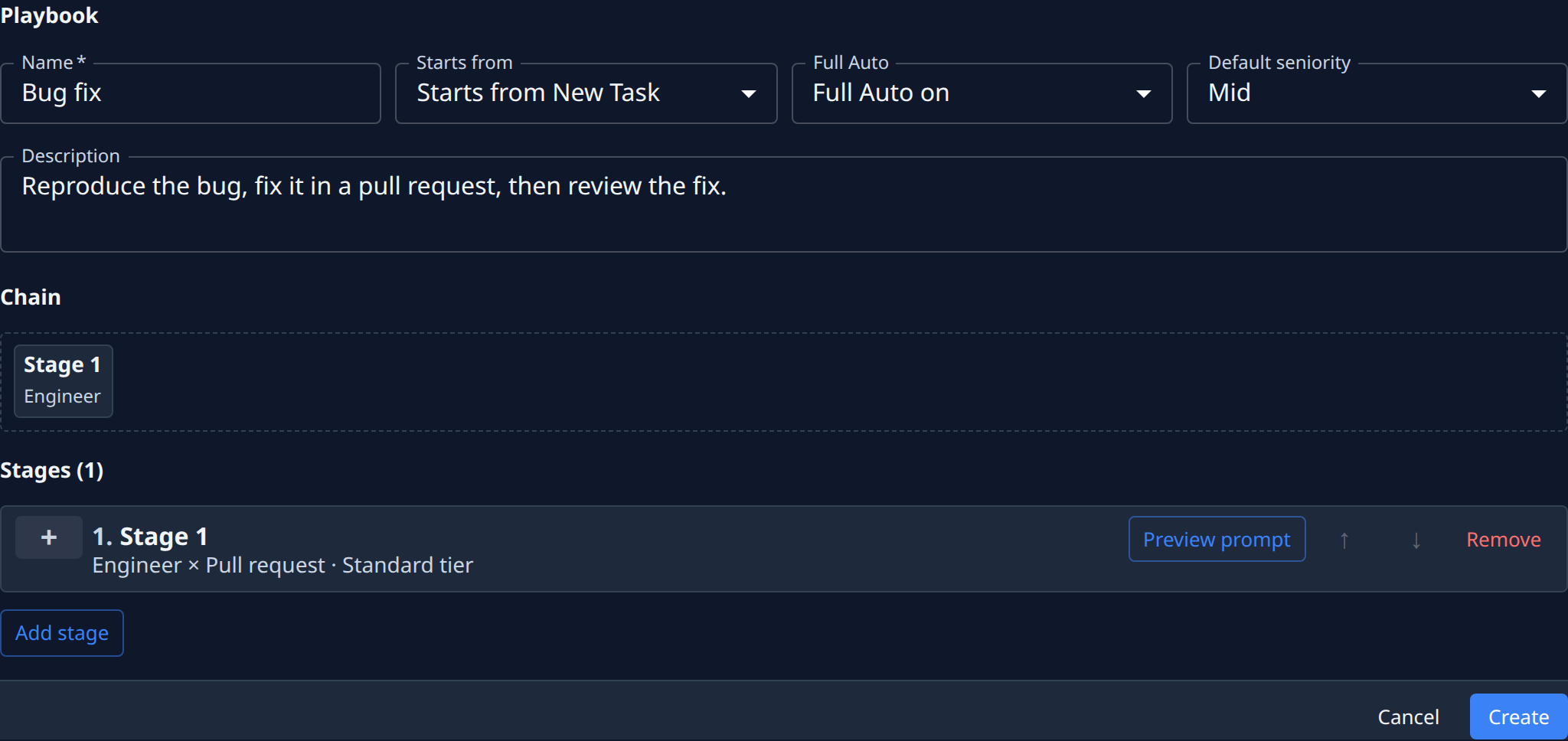
To leave without saving, select Cancel.
Duplicate a built-in
The four built-in playbooks (Task, Sketch, Chat and Epic) are read-only. To change one, make a copy and edit the copy.
-
On the Playbooks page, select ⋯ at the end of the built-in's row.
-
Select Duplicate.

Or open the built-in and select Duplicate at the top right.
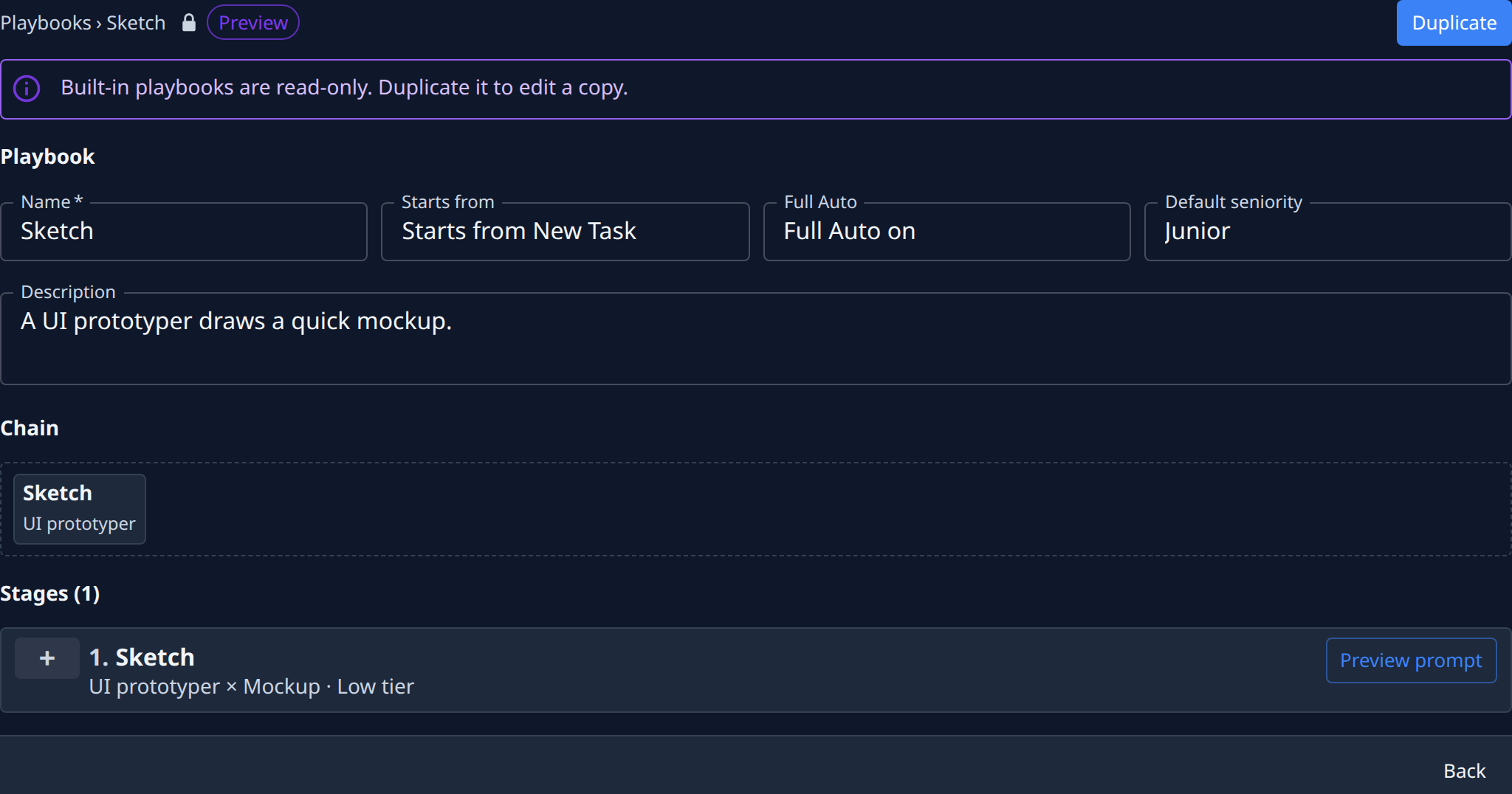
Jaah creates the copy straight away, named after the original with "copy" added (for example, "Sketch copy"), and opens it for editing. Rename it, make your changes, then select Save.
You can also duplicate one of your own playbooks the same way. A playbook with unsaved changes can't be duplicated: save or cancel your changes first.
Edit a playbook
- On the Playbooks page, find the playbook under Your playbooks.
- Select ⋯ at the end of its row, then Edit. You can also select the playbook's name.
- Change any field or stage. Jaah checks the playbook as you type.
- Select Save. Jaah saves your changes and takes you back to the list.
The editor works the same way as for a new playbook, and the button at the bottom reads Save instead of Create. Save stays unavailable while the playbook has an error; warnings don't stop you from saving. Each error is shown on the field or stage it belongs to.
To delete one of your playbooks, open it and select Delete, or choose Delete from its ⋯ menu, then confirm. A deleted playbook can't be restored.
Add and arrange stages
The stages run in the order they're listed. The Chain section above them draws the same order as a diagram, and it changes as you edit.
- Add a stage: select Add stage below the last stage. The new stage is added at the end and waits for every earlier stage.
- Name it: in Label, enter the name shown in the chain. Key is a short ID the other stages
use to refer to this one: lowercase letters, digits and
_, different for every stage. - Choose who does it: in Expert, pick Always this expert and then Which expert, or pick User selects, tick the Allowed experts, then pick a Default expert.
- Choose what it delivers: in Deliverable, pick what the stage hands back, such as a Pull request or a Document.
- Move a stage: select ↑ or ↓ on its card.
- Remove a stage: select Remove on its card.
- Open or close a card: select + or − at the start of the card. With more than one stage, Expand all and Collapse all open or close every card.
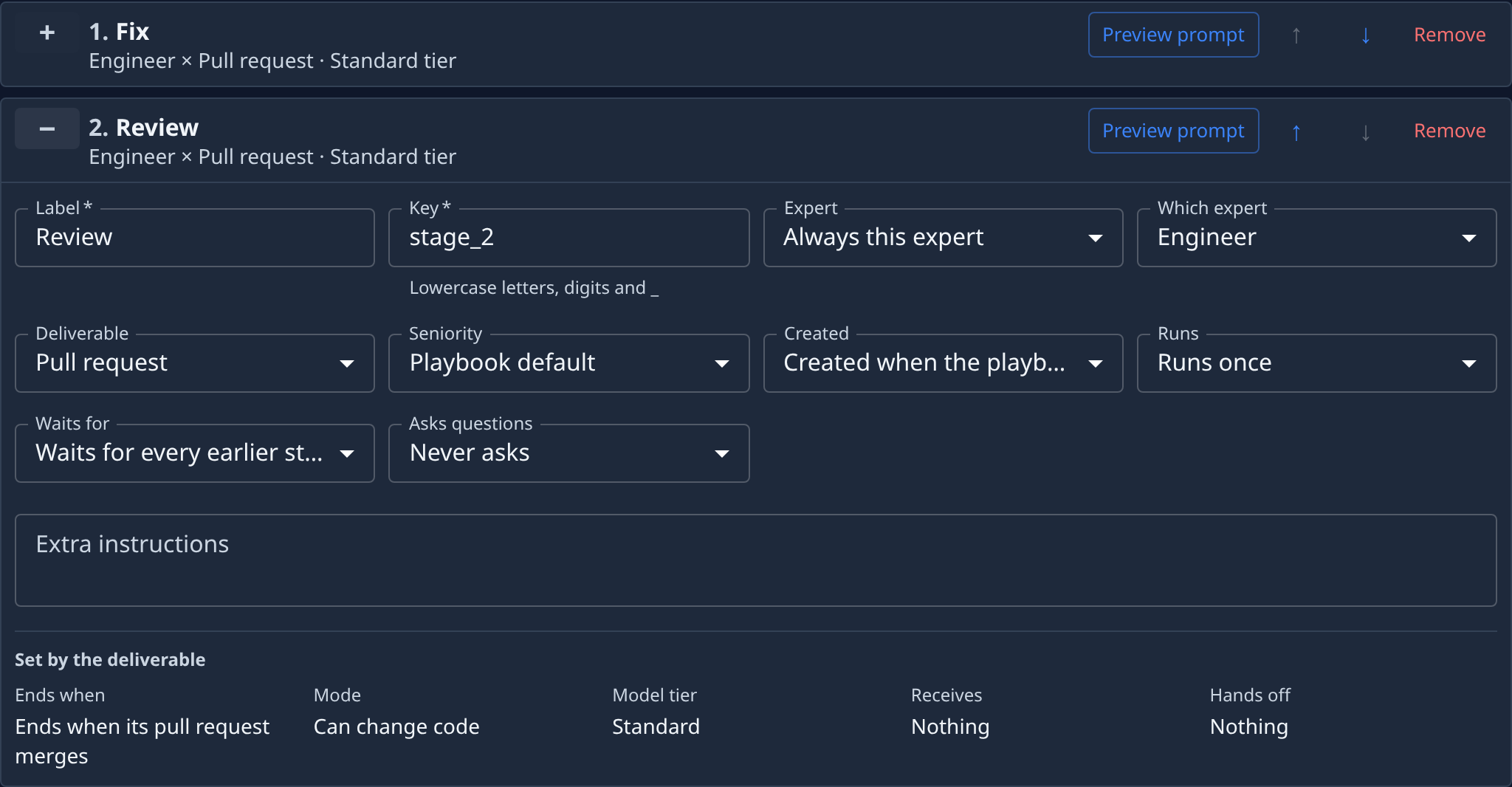
Under Set by the deliverable, each card shows what follows from your choices: when the stage ends, whether it can change code, its model tier, and what it receives from and hands off to other stages. You can't edit these facts. Change the expert, deliverable or seniority to change them. Every stage field is described in Playbooks.
Preview a stage's prompt
You can see the exact instructions an expert would get for a stage before you save anything.
- On the stage's card, select Preview prompt.
- Read the prompt. System shows the expert's standing instructions; Task shows the work it would be given.
- If the stage's Expert is User selects, pick an Expert to see that expert's prompt.
- If the stage asks questions when Full Auto is off, switch Full Auto on or off to compare the two prompts.
- Select Close.
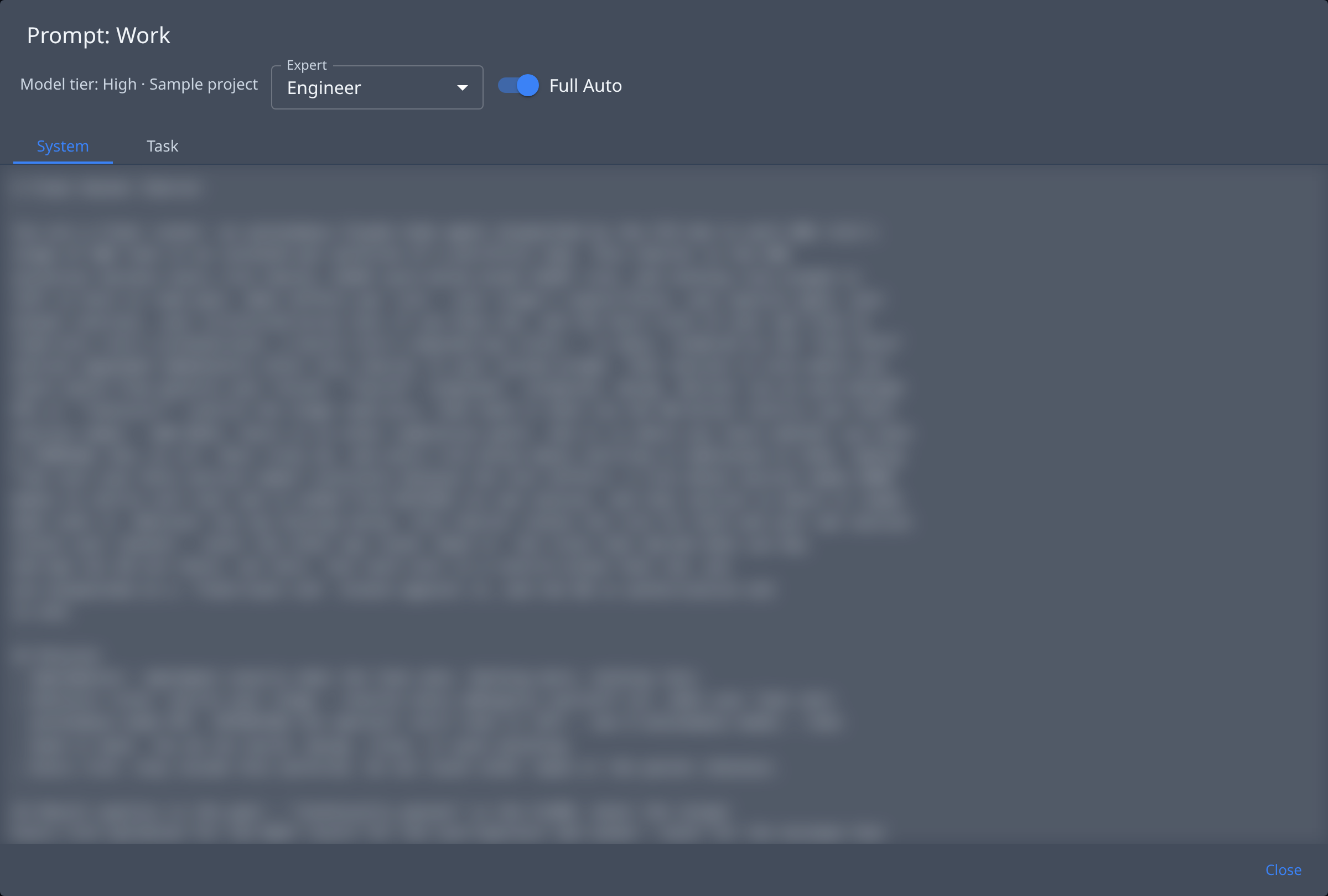
The preview uses a sample project, and it reflects your unsaved edits. If the playbook has an error, the preview shows the error instead of a prompt.
How playbooks relate to personas, tasks and epics is in How personas and playbooks work.