Find a setting
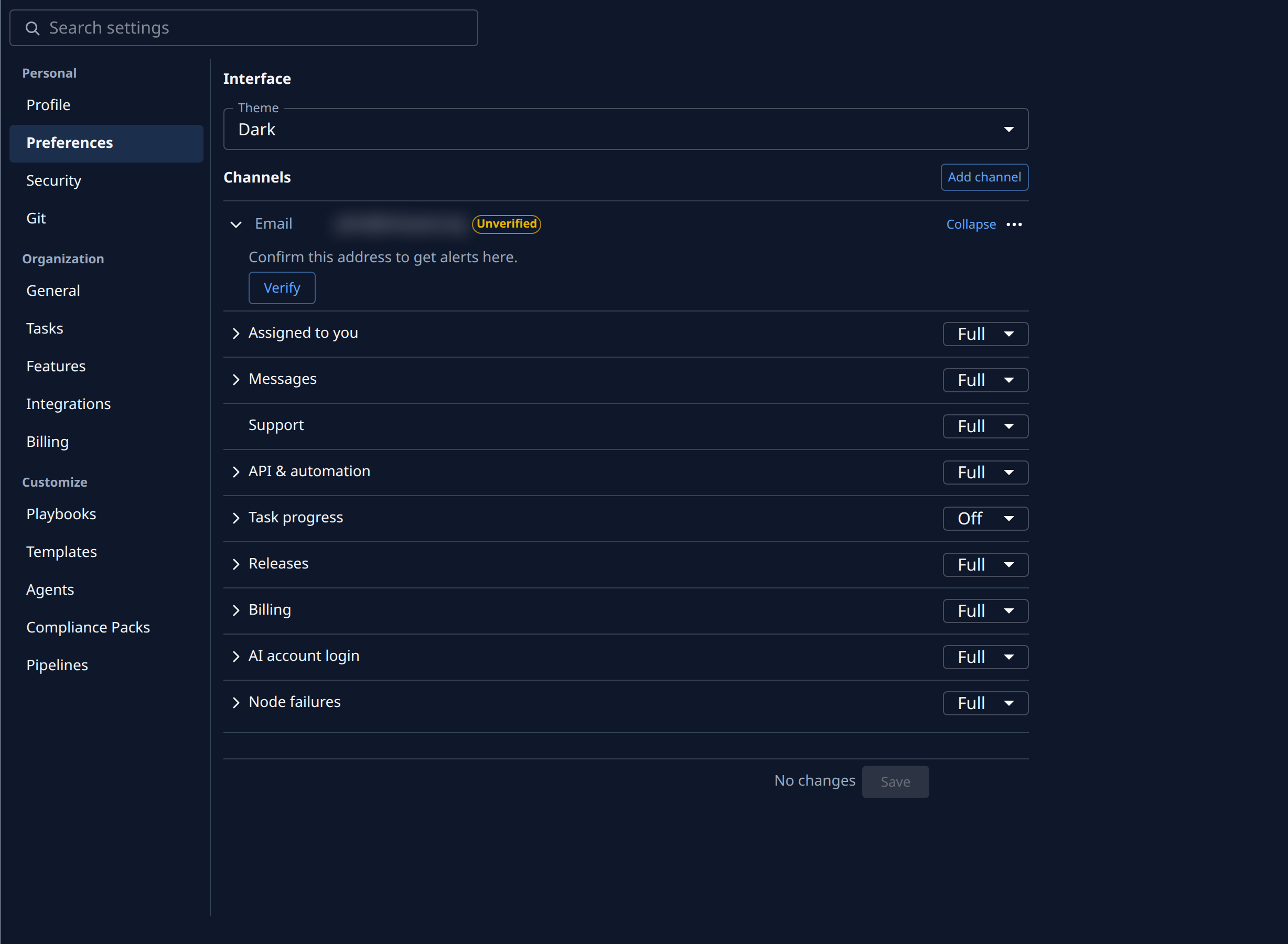
Your own settings and your organization's all live in Settings. Your own are under Personal: Profile, Preferences, Security and Git. Your role decides what else you see, under Organization and Customize. You don't need to know which category holds a setting: search for what it does.
Who can do this: everyone. You find only the settings your role lets you see.
- Select Settings in the sidebar. On a phone, it is in the bar along the bottom.
- Select Search settings at the top of the page and type what you're after in your own words, for example dark mode, password or API keys. The results replace the page as you type.
- Read the line under each result: it names where the setting lives, such as Personal. Results found only in a setting's description come after the name matches, under Other matches.
- Select a result, or press Enter to open the first one. Settings opens that category with the setting in view.
- Change the setting. Profile and Preferences keep your changes only after you select Save at the bottom of the page; alerts and Git accounts save as soon as you change them.
- To search again, clear the box with ✕ or press Escape. The category list comes back.

If the list reads No matching settings, try another word, or ask an Org Owner or Org Admin: the setting may need a role you don't hold.
You can also reach Personal from your account menu: select your initials at the bottom of the sidebar, then My Profile.
Next steps
- Set up your profile: add your name, connect your Git account and confirm where your alerts go.
- Every field under Personal: Your profile.
- Your organization's settings, for Org Owners and Org Admins: Settings.
- A project's own settings have a search too: Search a project's settings.