Sign in
You can sign in to Jaah with an email and password, or with a work account from Google, GitHub or Microsoft. Which buttons you see depends on what your organization has turned on.
Sign in with your email and password
- Open the Jaah sign-in page.
- In Email / Username, enter the email address or username your organization gave you.
- In Password, enter your password.
- Select Sign in.
If your account uses two-factor sign-in, Jaah asks for a code next. See Enter your two-factor code.
Sign in with a work account
Below the or divider, select Sign in with Google, Sign in with GitHub or Sign in with Microsoft, then finish signing in on that provider's page. Jaah brings you back signed in.
Some organizations require single sign-on. If yours does, a password is refused with "Your organization requires single sign-on" — use your organization's Google or Microsoft account instead.
Using the Jaah phone app? Google sign-in only works in a web browser. In the app, use your email and password, or open the sign-in page in your browser to continue with Google.
Enter your two-factor code
When two-factor sign-in is on, the Two-factor sign-in page appears after your password.
- Open your authenticator app and find the entry for Jaah.
- In Code, enter the 6-digit code it shows.
- Select Verify.
Lost your phone? Select Use a recovery code, enter one of the recovery codes you saved when you set up two-factor sign-in, and select Verify. Each recovery code works once.
If you wait too long, the page says "Your sign-in expired." Select Sign in again and start over.
Trust this device
On your own computer, check Trust this device for 30 days (the number may differ) before you select Verify, or Confirm when you set up two-factor sign-in. Jaah then skips the code on that browser for that long. Don't use it on a shared computer.
To see or remove trusted devices, open your profile and select the Security tab. Under Trusted devices, select Revoke next to a device, or select Revoke all and confirm with Revoke all. Either one also signs you out everywhere else. Changing your password also removes them all.
Set up two-factor sign-in
If your organization requires two-factor sign-in and you have not set it up yet, Jaah shows Set up two-factor sign-in the first time you sign in.
- Open an authenticator app on your phone (for example Google Authenticator, Microsoft Authenticator or 1Password).
- Scan the QR code on the page. If you can't scan it, select the key shown under Can't scan? Enter this key: and type it into the app.
- In Code, enter the 6-digit code the app now shows, and select Confirm.
- Jaah shows your Recovery codes. Select Copy and store them somewhere safe, such as your password manager. You need one if you ever lose your authenticator.
- Select Continue.
Apply for a new account
Jaah is in early access, so every new account is reviewed before anyone can sign in to it.
- On the sign-in page, under New to Jaah?, select Create an account.
- On Create your account, select Sign up with Google, Sign up with GitHub or Sign up with Microsoft, or select Sign up with email.
- If you chose email:
-
On Sign up with email, enter your Email and select Continue. Changed your mind? Select Other options to go back to Google, GitHub and Microsoft.
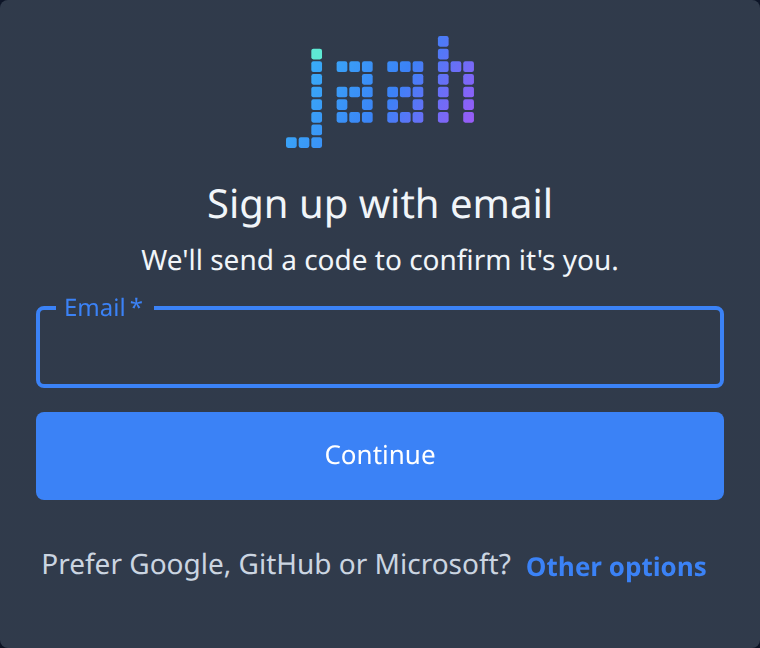
-
On Check your inbox, enter the 6-digit Code from the email, or open the email's link. No email? Wait for the countdown, then select Resend email. Typed the wrong address? Select Use a different email.
-
On Create a password, enter a password of at least 8 characters twice, and select Continue.
-
- On Tell us about yourself, choose Individual or Organization, then fill in the fields shown. An organization also gives its Organization name and your Job title; an individual gives an Occupation.
- Read the Terms of Service and Privacy Policy, tick I agree, and select Submit application.
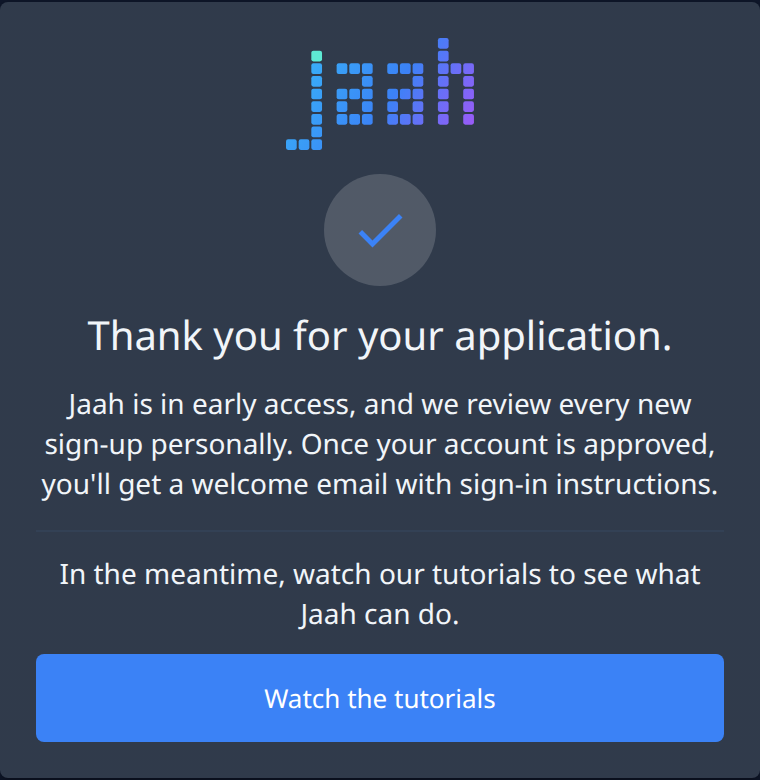
Jaah thanks you for your application. You get a welcome email once it's approved; then sign in as usual. Meanwhile, select Watch the tutorials to learn Jaah. If you sign in before approval, you see Your application is under review.
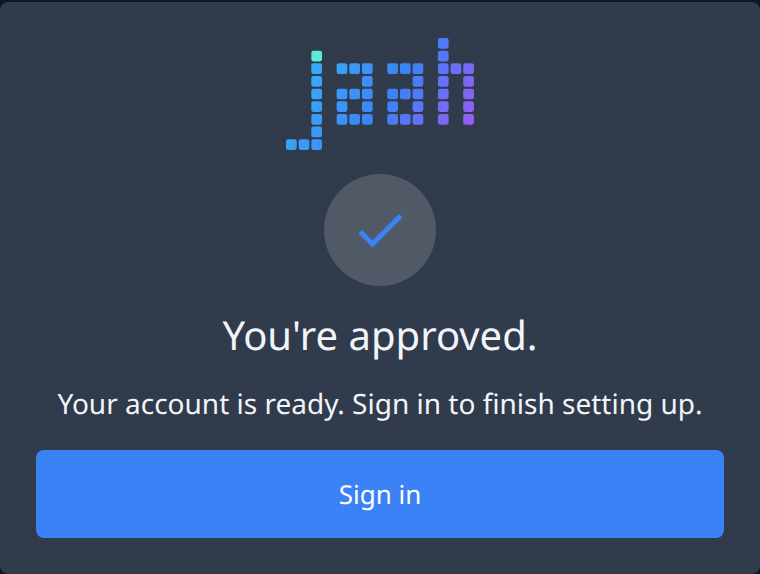
Applications are reviewed by default. Only if your Jaah administrator approves your email's domain automatically do you see You're approved instead: your account is ready, and you can select Sign in straight away to finish setting up in guided setup.
If the email's link says This link has expired, select Send a new email. If it says This link doesn't work, the link was already used or a newer email replaced it: use the newest email, or select Start again. If you leave sign-up for too long, you see Your sign-up expired: select Start again to pick up where you left off. If you already have an account, select Sign in under Already have an account? instead.
If you can't sign in
| What you see | What to do |
|---|---|
| Too many failed sign-ins. Try again in 15 minutes. | Wait 15 minutes, then try again. After repeated failures, Jaah also asks for a current authenticator code with your password. |
| That code didn't work. Try again. | Check that your phone's clock is set automatically, and enter the newest code your app shows. |
| No Jaah account for this Google (or GitHub, Microsoft) account | Sign in with the account your organization invited, or ask your organization's admin to invite this one. |
| Your application is under review | Your organization is still waiting for approval. Wait for the welcome email, then sign in. |
| Your organization was not approved | Your organization's application was turned down. The reason, if one was given, is shown in quotes. |
| This account is disabled. Ask an administrator. | Contact your organization's admin. |
| This organization has reached its user limit. | Ask your organization's owner to raise the limit. |
| Sign-up is closed — join the waitlist | New organizations aren't being accepted right now. Join the waitlist from that page. |
The sign-in page shows a Forgot password? link, but it does not reset your password yet: it brings you back to the sign-in page. If you have forgotten your password, contact your organization's admin.
Next steps
- Find your way around — a tour of the console once you're signed in.
- Run your first task — create a task, start it and read its result.
- Profile — your password, trusted devices and two-factor settings.