Run your first task
In this tutorial you hand Jaah one small piece of work and follow it to the end: you create a task, start it, watch a runner work on it, and read the result. It takes a few minutes of your time; the runner's work takes longer, and you don't need to wait on the page while it runs.
Before you start: you need the create-tasks permission and edit access to at least one project. If the board doesn't show the controls below, ask your organization's admin. See Find your way around if you haven't opened the console yet.
1. Pick a project
- In the sidebar, under All projects, select the project the work belongs to. The board shows only its tasks.
- Pick something small for a first run, such as a wording fix or a short change to one screen. A small task finishes sooner and its result is easy to check.
2. Create the task
You can write a task in one line on the board, or in the full editor. This tutorial uses the editor, so you see every choice.
-
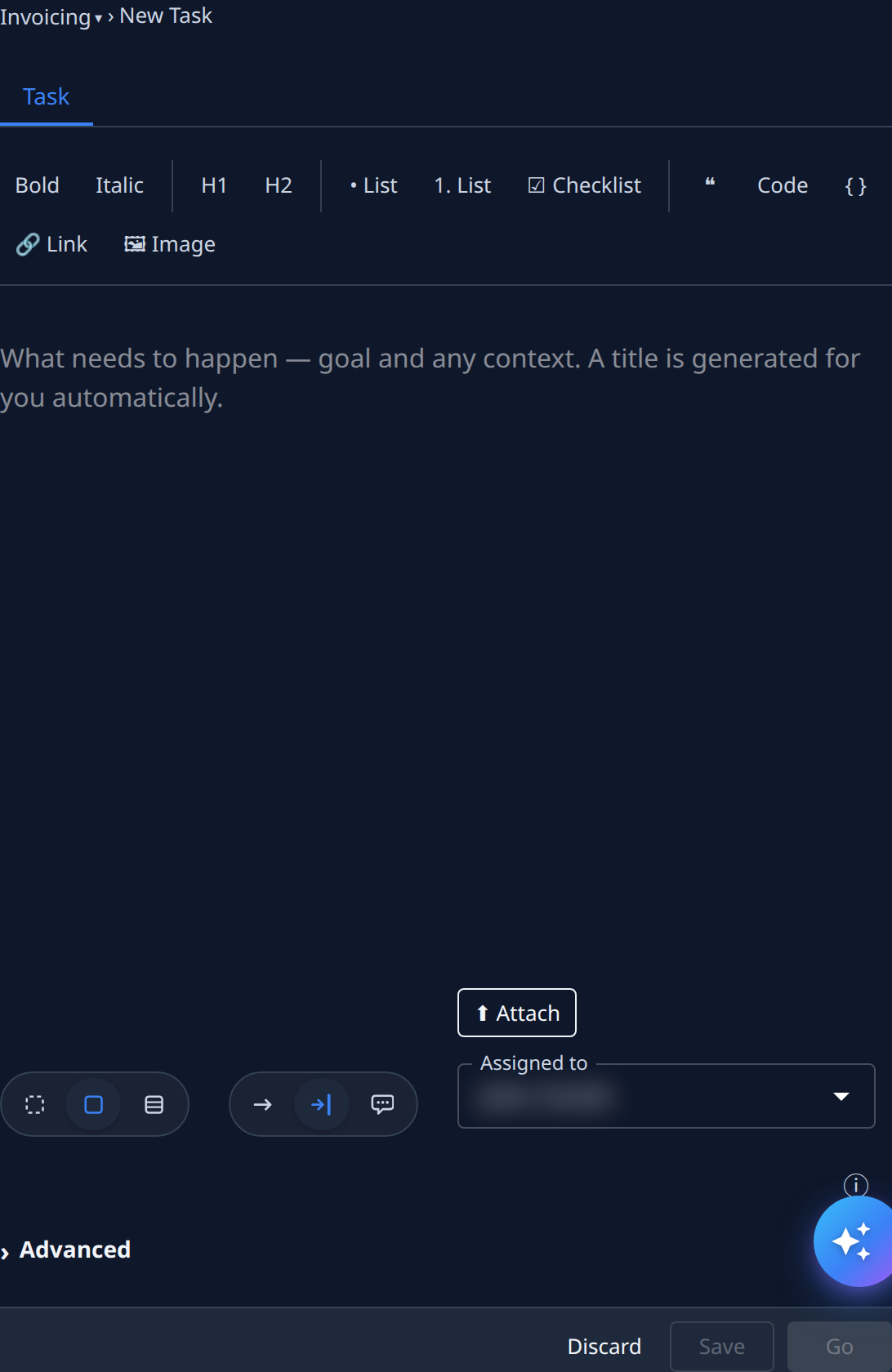
On the board, select +. The new task opens beside the board.
-
In the description box, write what needs to happen and why, as you would to a colleague. Name the screen, the expected result and anything the runner must not change. You don't write a title: Jaah generates one from your description.
-
Leave the size at Task, the middle of the first set of buttons. A task is done by one runner and delivered as a merged change.
-
In the second set of buttons, choose Unattended if you're happy for the runner to decide everything, or Guided if you want it to ask you before key decisions. Hover each button to see its name.
-
Leave Assigned to as you.
For a task that fits in one sentence, the row Type a task and press Start… at the top of the board does the same in one step: type, then press Enter.

3. Start it
- Select Go. The task is saved and started at once. (Save keeps it as a Draft to start later.)
- The task appears on the board under In progress, first as Queued while Jaah finds a free worktree for the project, then Starting and Running once a runner is working on it.
4. Watch it
You can leave the page: the board updates by itself, and the task keeps running without you.
-
Running means the runner is at work. Select the task's title to open its page beside the board.
-
If the runner needs something from you, the task moves to Stopped with a question mark, as Asking. Open it, read the question, and answer. See Answer a task's question.

-
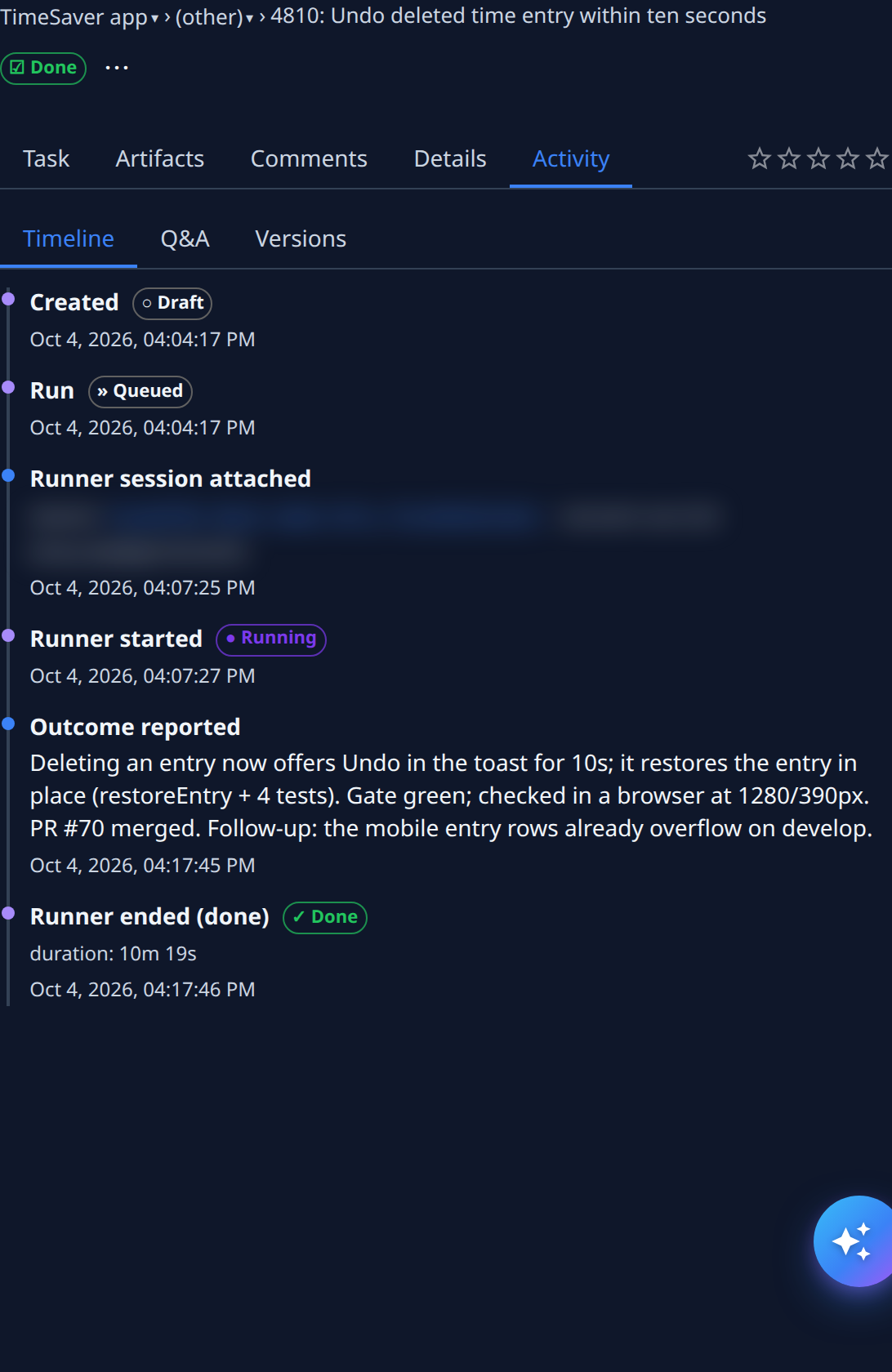
To follow every step, open the task's Activity tab. Timeline lists each step with its time and the state it moved to.
5. Read the result
When the runner finishes, the task moves to Done.
-
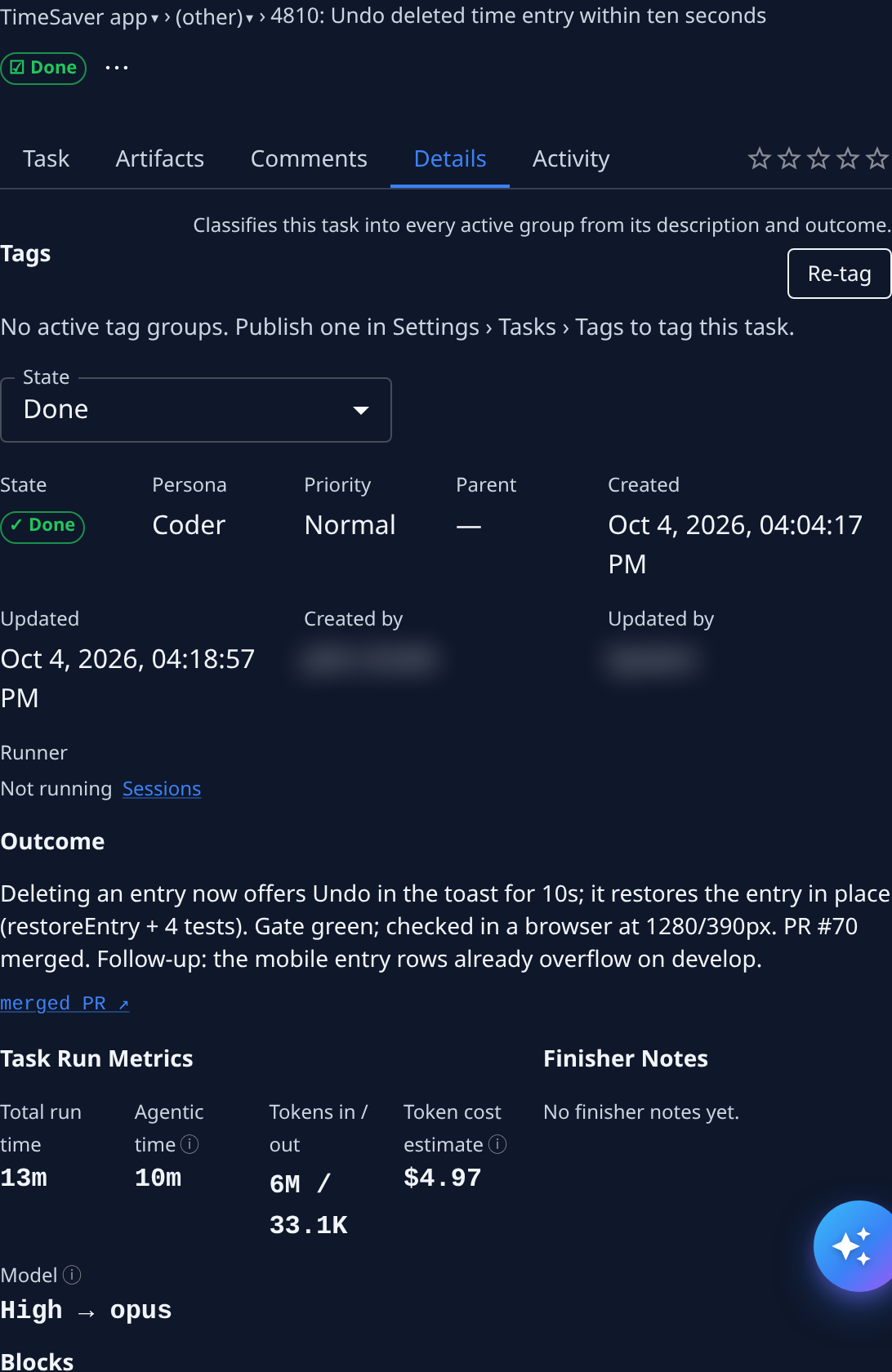
Open the task and select the Details tab.
-
Read Outcome: the runner's own summary of what it did. When it delivered a change, a merged PR link under the outcome opens it.
-
Read Task Run Metrics for how long it ran, the tokens it used and its cost.
-
Check the change itself in your project. If it isn't what you wanted, select Start to run the task again, or start a new task describing what to change.
What you did
You created a task, started it, followed it through Queued, Running and Done, and read its outcome. Every task in Jaah follows this path, from a one-line fix to an epic split into many subtasks.
Next steps
- How tasks work — every state a task moves through, and what moves it on.
- Start a task — every way to start one, and the Advanced settings.
- Read a task's result — artifacts, activity and rating.
- How epics and features work — when one task isn't enough.