Check your projects' CI and merges
Before a release, or when a project's tasks stop landing, check whether its main branch is green and what merged into it last. The command center lists every project's latest CI run and its recent merges in one place, so you don't have to open each repository.
Who can do this: requires the org admin role. The command center is under Reports, which Members don't see. The CI runs are read through your own Git connection, so connect your Git account first.
-
In the sidebar, select Reports. The command center opens on the Projects tab.
-
To look at one project only, pick it under Project in the bar at the top. Leave it on All to see every project.
-
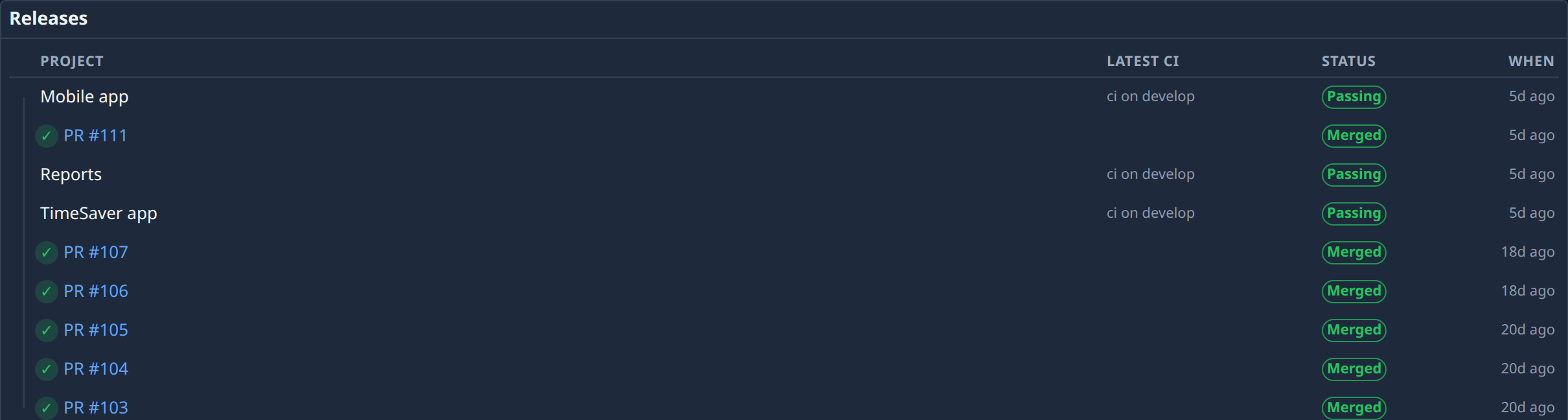
Scroll past Project health to Releases. Each project has a row with its Latest CI (the workflow and the branch it ran on), its Status and When it ran.
-
Read Status: Passing, Failing, Running, Cancelled or Unknown. Select the status to open that CI run on your Git host, where its log says what failed.
-
If a row reads Unknown, read the line under the project's name. It says why the run couldn't be read, for example the project has no repository or your Git connection can't reach it. Fix that and come back; the list reads the run again each time you look.
-
Under each project, read its last merges: one row per pull request, with Merged, Failed, Queued or Testing, and how long ago. Select PR # and its number to open the pull request.
-
To go from a failing run to the work behind it, select the project's name. Its page opens, with its tasks and pipeline.
A project with no merge lane shows its CI run only, with no merges under it. A merge that reads Failed did not land; see A pull request won't merge.
Related
- How the command center works: where Releases reads its figures.
- Read the command center: every tab, including Project health above Releases.
- Find what needs attention: failed and stuck tasks, and merge failures, on the Risks tab.