See where your AI spend goes
The command center's Cost tab answers "what are we spending on AI, and on what?". It shows the total for the range you pick, how it moved over time, and which projects, agents and models it went to. Each figure is your own organization's, and equals what the rest of the command center shows for the same range and project.
Who can do this: your organization's Owners and Admins. Members don't see Reports.
-
In the sidebar, select Reports. The command center opens.
-
In the bar, pick the range to look back over: 1h, 24h, 7d, 30d, 90d or 1y. A week or a month gives the clearest picture of where the money goes.
-
Select the Cost tab.
-
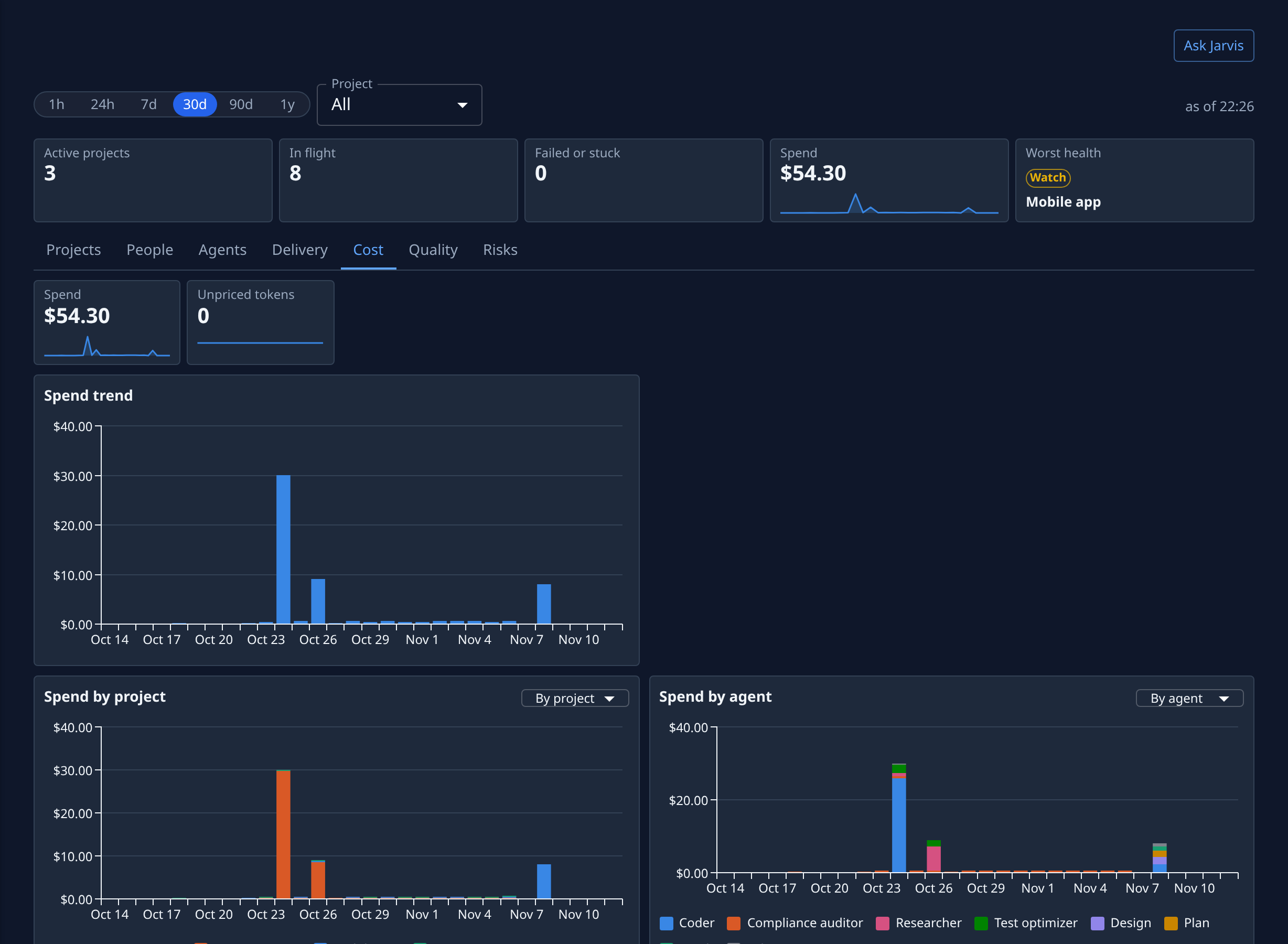
Read the first two tiles. Spend is the total for the range. Unpriced tokens counts usage on a model with no price, so it is never shown as $0.00. A tile with nothing to count shows —, with the reason under it, such as no finished runs in range. A run posts its spend when it finishes, so tasks still in flight add none yet.
-
Read the spend trend under them to see when the spend happened: a single tall bar points at one day's work, a steady climb at a growing habit. When no run finished in the range, the page says No finished runs in range. Pick a longer range.
-
Read the three breakdowns side by side: Spend by project, Spend by agent and Spend by model. Hover a bar to read each part's amount.
-
To look at one project only, pick it in the bar's Project list, which starts on All. Every figure on the page narrows to it, so Spend by agent and Spend by model now show where that project's money went.
-
Read the tiles further down for what the spend bought: Input tokens, Cache tokens and Output tokens, Retries, Failure rate, Cost per PR, Cost per kLOC (a thousand lines), Cost per epic, and Waste, the spend on work that failed. Under them, Tokens charts usage by model and Quota 5h peak shows how close your own accounts came to their limit.
A chart that splits by a dimension has a menu to regroup it: By project, By agent, By model or By person. The choice and the range are kept in the page's address, so you can share the link with another Owner or Admin.
High Waste usually means tasks that failed and were retried. To find them, open the Risks tab, as in Find what needs attention.
Related
- Read the command center — every tile and tab of the page.
- How the command center works — where its figures come from.
- Check your Jaah AI spend — what the Jaah AI account was billed, entry by entry.