Find the pull request behind an incident
When something breaks in production, Jaah ranks the pull requests most likely behind it. This guide takes you from the incident to the pull request that caused it, and records your verdict so the incident's tasks and each task's outcome point at the right change. Where suspects come from is in How Production QA works.
Before you start: Production QA is a plan feature. While your plan does not include it, Incidents is left out of the side menu and opening the page shows Not on your plan.
Who can do this: anyone who can view a project sees its incidents and suspects. Confirm, Dismiss, Undo and Add a suspect show only to people with permission to edit the project.
-
Select Incidents in the side menu.
-
Narrow the list with the filters above it: pick the Project, set State to Open or Reopened, and Severity to Critical or Error to see the worst first. The filters stay in the page's address, so you can share the filtered view.
-
Read the Suspect column: the top suspect and how sure Jaah is, such as
#7 · High. — means Jaah linked no pull request. Select the incident's title to open it.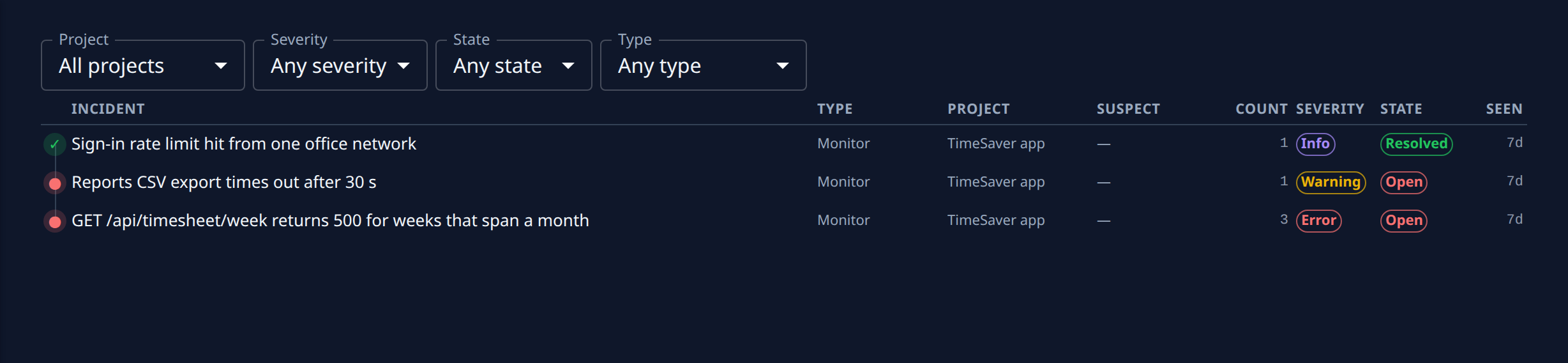
-
On Overview, check what happened: Count, First seen and Last seen, the Stack, and the Commit and Release your monitoring tied it to. The Release shown as
#and a number opens the release it followed, whose PRs field lists everything that shipped with it. -
Select the Suspects tab. Each pull request shows its confidence (High confidence, Medium confidence or Low confidence), why it was linked (such as Deployment or Release), and its state. Task opens the task that made it, and Release # the release that shipped it.
-
Record your verdict on each suspect:
- Confirm the one that caused it.
- Dismiss one that did not.
- Undo takes a decision back, so the suspect is Suggested again.
The change shows at once, with your name and the time under the suspect, such as Confirmed by.
-
If the culprit is not listed, go to Add a suspect below the list. Enter the Repository as
owner/nameand the pull request number in PR, then select Add. An added suspect is confirmed at once with high confidence; one already listed is confirmed in place.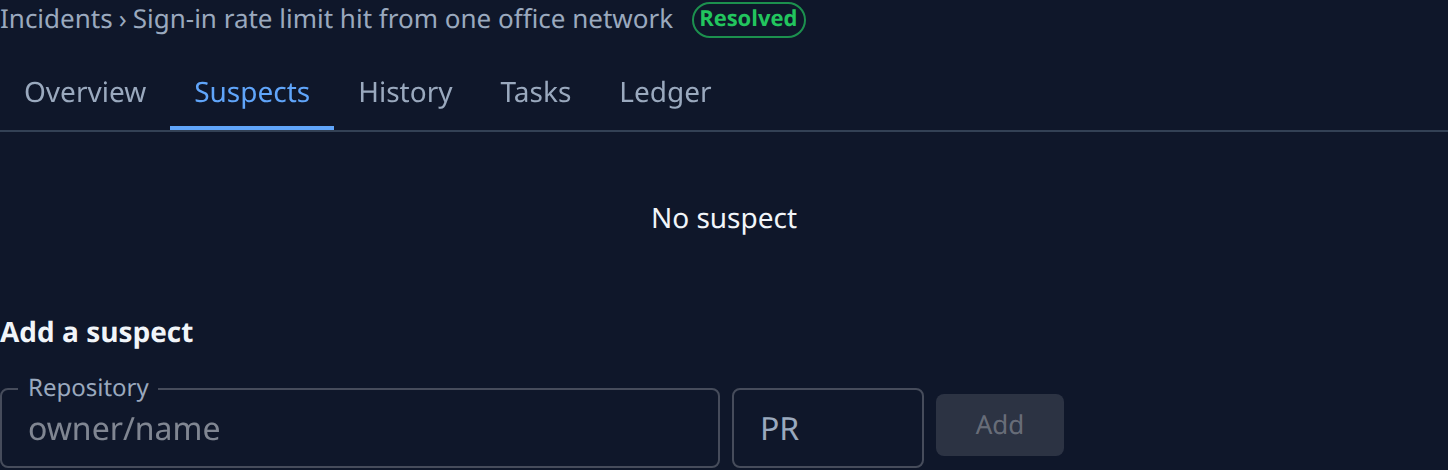
-
Select the Tasks tab to see what Jaah filed for the incident — a Triage, Fix or Revert task — and open it. No tasks filed means none was; when the project's Revert policy filed no revert, the tab says why.
The History tab lists every event on the incident, such as Opened, Resolved and Reopened. The Ledger tab shows what the incident adds to each task's outcome, Pending until it is counted.
Related
- Incidents — every column, filter and tab on the Incidents pages.
- Release runs — the release an incident followed and the pull requests it shipped.
- Turn on Production QA for a project — switch on the fix and revert tasks that incidents file.