Stop Production QA filing tasks for a project
Sometimes a project's incidents should be watched but not acted on: during a migration that is expected to throw errors, while a noisy monitor is being tuned, or when the team would rather fix things by hand for a while. Clearing the project's Production QA checkbox stops Jaah filing fix and revert tasks and running probes for it. Releases and incidents are still recorded, so nothing is lost while it is off. How recording and acting differ is in How Production QA works.
Who can do this: anyone with permission to edit the project. Turning it off always works, even when Production QA is no longer on for your organization; turning it back on needs it to be on.
-
In the sidebar, select Directory, then the Projects tab.
-
Select the project's name to open its settings.
-
Select the Production QA tab. Use the arrows at the end of the tab strip if it doesn't fit.
-
Clear the Production QA checkbox at the top of the tab.
-
Select Save, below Probes. To keep it on after all, select Discard instead.
-
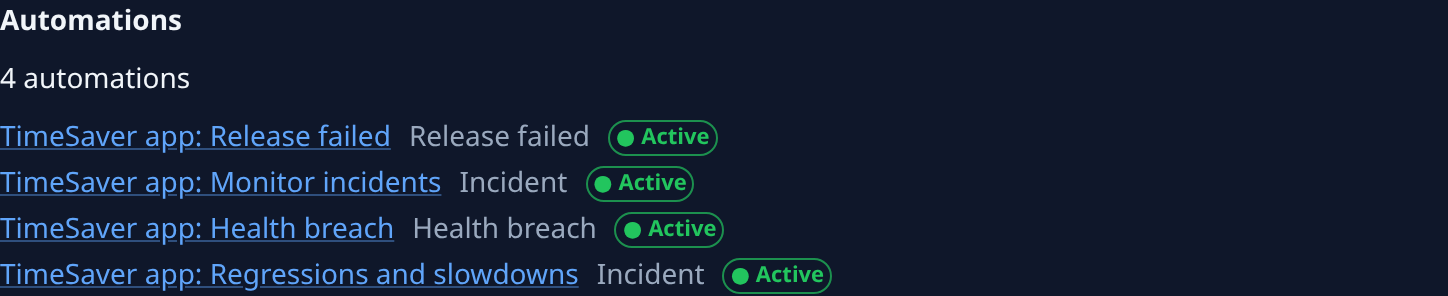
Check the Automations section further down. It lists the automations that file this project's tasks from an incident, a failed release or a health breach, each with its status. They stay Active, but file nothing for this project while the checkbox is clear, so you don't need to pause them. Only Org Admins see the list; anyone else sees Org Admins manage these automations.
-
Open Incidents from the sidebar, pick the project in the Project filter, and check that new incidents still arrive. While the checkbox is clear, a new incident's Tasks tab shows No tasks filed.
Tasks Production QA filed before you turned it off stay on the board and run as usual. Stop any you no longer want from the task itself.
To turn it back on, select the Production QA checkbox again and select Save. Jaah acts on what happens from then on: an incident recorded while it was off gets a task only if it happens again. If the checkbox is greyed out with Off for this org beside it, Production QA is no longer on for your organization, and the checkbox stays clear until it is.
To stop only one kind of task, such as reverts, keep the checkbox selected and change that part instead: set Revert policy to Off, or pause one automation from its own page as in Run, pause or change an automation.
Related
- Turn on Production QA for a project: connect releases, switch it on and create the automations.
- Revert a release that breaks production: what each Revert policy files.
- Incidents: every column, filter and tab on the Incidents pages.
- How projects work: where a project's tabs sit.